
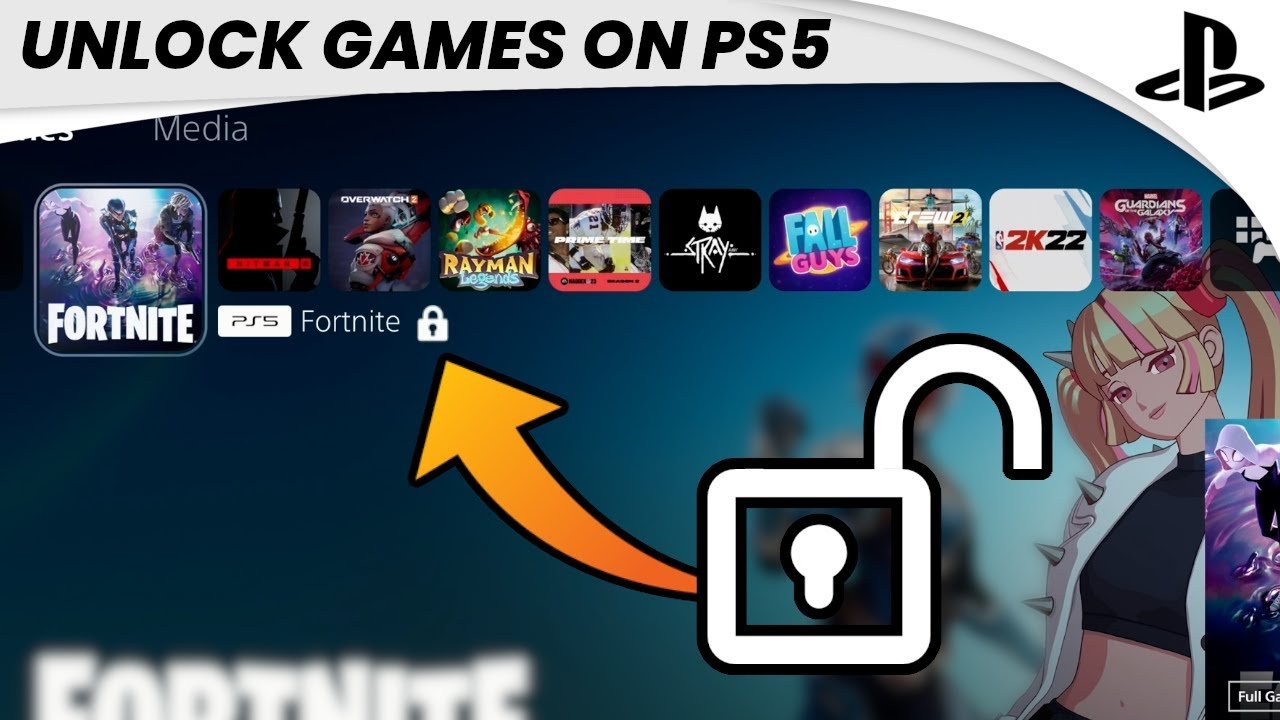
The main methods for how to unlock locked games on PS5 involve verifying the game license, restoring licenses, or setting the correct primary console.
Ever experienced that frustrating moment when you can’t play a game on your PS5? It’s likely due to a license issue, or perhaps the game thinks another console is primary. This is where understanding how to unlock locked games on ps5 becomes important. We will guide you to get back into your favorite titles quickly.

How to Get Into Locked Games on Your PS5
So, you’ve got your shiny new PlayStation 5, ready to go, but some games are showing a little padlock icon? It can be super frustrating, like getting to the candy store only to find it closed! Don’t worry; this happens to lots of gamers, and it’s usually not a big deal to fix. These locked games aren’t broken; they are just waiting for the right key to let you play. Let’s figure out why games might be locked and how to get them open so you can jump in.
Understanding Why Your Games Are Locked
Before we start trying different things, it’s important to understand what causes this lock. There are a few main reasons why your PlayStation 5 games might be showing that pesky lock symbol:
- Digital Games You Didn’t Purchase: This is the most common one. If someone else’s account on your PS5 purchased a game, and you’re trying to play it on your account, it’ll be locked for you. Your account is like having your own special key, and it only works with games you have bought or have access to.
- Game Sharing Issues: If you use the game-sharing feature with friends, and they haven’t set your console as their primary one, the games might become locked. You’re borrowing their games so your system needs to check it’s allowed.
- PS Plus Subscription Problems: If a game came with your PlayStation Plus subscription, it can lock if your subscription expires, or if there is a problem with the PSN service. Think of it like a library card, you can’t borrow books when your card is out of date.
- Family Management Settings: If a parent or guardian has set up a family management account, they might have blocked some games. This ensures you are playing games that they allow.
- Download Errors or Game Corruption: Sometimes, the game might not have downloaded correctly, leading to it being locked. A game that’s not installed properly is like a puzzle with pieces missing.
Checking Your Game Licenses
Licenses are like little digital tickets that say you can play a game. If your license is missing or has an issue, it’ll lock the game. The console needs to make sure the game is yours, here’s how you can check them:
How to Check and Restore Licenses
If you think that your licenses might be having problems, here is how to restore them:
- Go to Settings: On your PS5, go to the “Settings” menu. It looks like a little gear icon at the top of the screen.
- Find Users and Accounts: Look for “Users and Accounts” and select it.
- Go to Other: Next, find “Other” from the menu options and open it.
- Restore Licenses: Select “Restore Licenses” and then click “Restore”. This will re-check all your games and their licenses to make sure everything is working correctly.
After restoring, check if your game has now been unlocked!
Game Sharing and Primary Console Settings
Game sharing is a great way to play games with friends and family, but it’s important to have your primary console set up correctly for it to work, so everyone can play. Here’s what you should know:
Understanding the Primary Console
When you have a digital game, your console is your main way to play it. But with the sharing system, you have to set one primary console. If your friend wants to play your games, they need to set your account’s primary console as theirs. You can only set one primary console for your account.
How to Set a Primary Console
Follow these steps to change your primary console:
- Sign in to your Account: First, sign into your account on the console you want to make primary.
- Go to Settings: Navigate to the “Settings” menu, which looks like a gear at the top of the PS5 screen.
- Users and Accounts: Select the “Users and Accounts” option in the Settings.
- Select Other: Then open “Other” from the user and account menu.
- Console Sharing and Offline Play: Open the “Console Sharing and Offline Play” option.
- Enable or Disable: From here, you can enable the console sharing by clicking “Enable” or disable by clicking “Disable”. If this option is enabled on another console, you’ll see this option is disabled, then you will have to login in the other console and disable it from there.
- Confirm the change: After setting this up, check if you are able to play the game.
Troubleshooting Game Sharing Locks
If your games are still locked after checking primary console settings, follow these steps:
- Make sure your friend’s account is activated on their console: The game owner should make sure they have enabled the console sharing feature on their console.
- Check for changes: Game sharing settings can change. If a game that you previously could play is now locked, have a friend check their console sharing settings again.
- Try restoring your licences: Restore licenses as explained in the previous section.
Checking Your PlayStation Plus Subscription
If you are trying to play a game that came with PlayStation Plus, you will need an active subscription to play the game. It is like renting a movie, you can only watch it if you have a membership.
Verifying your PS Plus Status
To check if your subscription is active, follow these steps:
- Go to Settings: Head over to “Settings” on your PS5 console.
- Users and Accounts: Select “Users and Accounts” and then “Account”.
- Find Subscriptions: Go to the “Subscriptions” option. Here you’ll see your active subscriptions.
- Check PlayStation Plus: Look for your PlayStation Plus membership. Here, you can check if the subscription is active or if it has expired.
If your PlayStation Plus subscription has expired, you will need to renew it to continue playing the game. You can subscribe again through the PlayStation Store.
What to do When a PS Plus Game is Locked
If your PlayStation Plus subscription is active but the game is still locked, here’s what to do:
- Restart your console: Sometimes, a simple restart can fix the issue. Completely turn off your PS5 and then turn it back on.
- Check for Service Outages: Sony has a website for its PSN status, so check if there are problems with the PSN service which can impact game access.
- Restore licenses: As explained previously, try restoring your licenses.
- Contact PlayStation Support: If the problem continues, contact the support team.
Family Management Settings and Game Restrictions
Family management settings are there to ensure that everyone in the family plays games that are age-appropriate and that parents or guardians are okay with. If you have a family account set up, a parent might have put restrictions on games that can be played on your account. Here’s what you need to know:
What are Family Management Settings
Family Management settings give parents and guardians control over what their children can do on their consoles. This may include:
- Age Restrictions: Parents may set age limits on games, so that kids can’t play games for older age groups.
- Spending Limits: They can also control how much money can be spent in the PlayStation Store.
- Play Time Restrictions: Time limits can be put in place, so a child does not play too long.
Checking Your Family Management Settings
To see if you are under a family management setting, follow these steps:
- Go to Settings: On your PS5, go to the “Settings” menu.
- Users and Accounts: Go to “Users and Accounts”.
- Family Management: Find “Family Management” in the user and accounts menu.
- Check if an account is there: Here you can check if there is a parent or guardian’s account set up. If there is, your playing could be restricted by those settings.
Resolving Family Management Issues
If you are a minor, you will have to speak to the parent or guardian that has set up the family management settings. Here are some tips to help communicate:
- Talk to your Parent/Guardian: Explain why you want to play the game. For example, are your friends playing it, or is there something special about the game that interests you?
- Agree on time limits: Come up with time limits with your parents or guardians that is appropriate.
- Show reviews: If your parent or guardian thinks a game is too mature, you can research reviews of the game to prove it is not inappropriate.
If you are the parent/guardian and want to give access to the game to your child, you can adjust the family management settings under “family management” by choosing the user and updating their restrictions.
Download and Installation Issues
Sometimes, the problem isn’t about licenses or sharing; it’s simply that the game didn’t download or install properly. This can leave the game locked and unplayable. Here is how to make sure that your game is downloaded properly:
Checking Download Progress
It’s important to check if your game has finished downloading. Here’s how:
- Go to Downloads/Uploads: Press the PS button on your controller to open the Quick Menu. Here you will see “Downloads/Uploads”.
- See game progress: Select the “Downloads/Uploads”. You will be able to see the progress of the download.
- Wait for completion: The game needs to finish downloading to play. If it’s not complete, wait for it to finish before you try to play it again.
What to Do if a Download Got Stuck
If your game download is stuck, here are some steps you can try:
- Pause and Resume: Try pausing the download, then restarting it. This sometimes can get the download started again.
- Restart your Console: Turn your PS5 completely off and then back on. After this, check your download status again.
- Cancel and Redownload: If the download isn’t moving, cancel the download and start it again.
- Check your Internet: Check your internet connection. Make sure that your console is connected to a stable wifi or ethernet connection.
Dealing with Game Corruption
If the game is still locked after the game has downloaded correctly, it is possible that the game has become corrupted. To resolve this, follow these steps:
- Delete the Game: Go to the game tile, press the option button, and then select “Delete”.
- Reinstall the Game: After deleting the game, reinstall it again from your game library.
In conclusion, dealing with locked games on your PlayStation 5 doesn’t have to be a daunting task. By understanding the different reasons why a game might be locked, and by going through these helpful steps, you’ll be able to get back to playing in no time. Check game licenses, primary console settings, PS Plus subscriptions, and your family management settings and then you will be ready to play again. If you are still having trouble, contacting PlayStation support can often resolve the issue quickly, so you can have fun playing on your PS5.
How to UNLOCK Games on PS5 (EASY) (2022) | SCG
Final Thoughts
To access locked PS5 games, ensure you purchased the digital version or possess the disc. Verify that your PlayStation Network account has the necessary licenses. Check for any pending system or game updates, as these can sometimes cause access issues.
If problems persist, try restoring your licenses through the settings menu. Restarting your console might also resolve temporary glitches. By following these steps, you can address common obstacles and finally play your games. Remember, how to unlock locked games on PS5 involves verifying purchase and managing licenses.

