
To see how much storage Steam games take up, navigate to your Steam library, right-click on a game, select ‘Properties,’ then click on ‘Local Files.’ The storage used is displayed in the size field.
Is your hard drive feeling a little cramped? You might be wondering exactly which of your Steam games are hogging all that space. Learning how to see how much storage Steam games take up is actually a very simple process. This quick guide will walk you through finding that crucial information.

How to See How Much Storage Steam Games Take Up
Ever wondered why your computer’s hard drive fills up so quickly? If you’re a gamer, chances are your Steam library is a major culprit! Knowing how much space each game uses is important for managing your storage, especially if you have a smaller drive or lots of games. This guide will show you all the easy ways to figure out how much space your Steam games are taking up. Let’s get started!
Checking Storage Directly Within Steam
The easiest way to see how much storage your Steam games are using is directly inside the Steam application. This method works for both Windows and macOS, keeping things nice and simple. Here’s how it’s done:
Accessing the Steam Settings
First, make sure you have Steam open. Look at the top left corner of the Steam window. You’ll see the word “Steam.” Click on that, and a menu will pop up. In this menu, click on the “Settings” option. This will open up a new window with all of Steam’s settings.
Navigating to the Downloads Tab
In the Settings window, you’ll see a list of options on the left side. Look for the “Downloads” option, and click on it. This tab shows you a lot about how Steam downloads and installs your games, but also gives us crucial info about disk space.
Finding the Storage Management Section
Once you’re in the “Downloads” tab, scroll down a little bit. You’ll find a section called “Storage Management” or sometimes just “Storage.” Here, you’ll see how much space is being used up by games and apps installed through Steam. This section gives a clear picture of where your storage space is going, specifically to your Steam games.
Analyzing the Storage Information
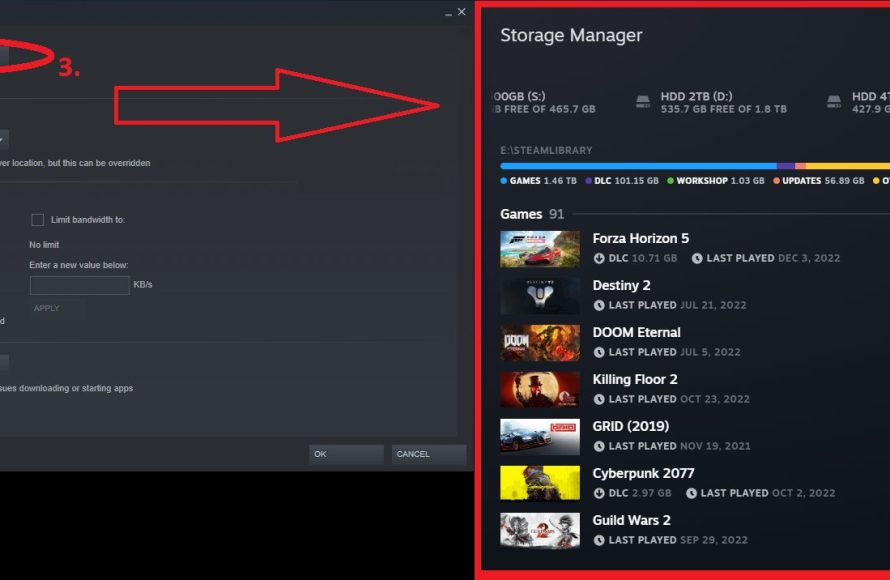
The “Storage Management” area usually shows you a list of the drives where you have Steam games installed. Next to each drive, you’ll see the total space on the drive, how much of that space is being used by Steam, and how much is free. This gives you an idea of how full your drive is getting, especially concerning games.
Often, you can click on a drive, and it will display all the Steam games installed on that specific drive. Next to each game, you’ll see how much space it is using. This allows you to easily determine which games are taking up the most space. You can sort them by size as well by clicking the “Size” column header which will sort your games from largest to smallest and vice versa.
Here’s why this is super helpful:
- Quick Overview: See the total storage used by your Steam library at a glance.
- Game-Specific Details: Pinpoint which games are the biggest space hogs.
- Drive Management: Know which drive has most of your game storage.
Checking Storage Through Your Operating System
Another useful way to understand how much storage your Steam games use is through your computer’s file system. This method works regardless of operating system, although the steps are slightly different for Windows and macOS. You may find this approach helpful if you want to know the exact location of the game files and how they’re organized.
For Windows Users
Using File Explorer
Open File Explorer (the folder icon on your taskbar or press Windows key + E). Go to the drive where you installed your Steam games, which is usually the C: drive, but could be a different drive if you selected that at installation time. Now, look for the “Program Files (x86)” folder or “Program Files” if you have a 64-bit system. Inside that folder, you should see a folder named “Steam”.
Once you’re in the Steam folder, look for a subfolder called “steamapps”. Inside that folder, you will find another folder called “common”. The “common” folder is where all of your installed games are saved. Every game has its own folder inside this “common” folder. Each game’s folder holds all the game files.
Now, you can right-click on any of the game folders and select “Properties”. A window will pop up that tells you the “Size” of the folder. The size displayed is how much space the game is using on your hard drive.
Tip: You can also select multiple folders to see the total space occupied by the selected games. To do this, hold the Ctrl key while selecting the game folders. Then right-click on the selected folders and click on “Properties”.
Using Settings App
Windows also provides another way. Right-click the Start button and select “Settings”. In settings, click on “System” and then choose “Storage” from the left menu. You’ll see a list of drives. Click the drive where your Steam games are installed. Windows will then show you a breakdown of what’s taking up space on that drive. One of these will be “Apps & features,” which includes all installed applications. Find Steam and click it. Then click “Advanced Options”. Here you will find space used by this app and data and the ability to move games to different hard drives.
For macOS Users
Using Finder
Open Finder. Go to the “Applications” folder. Find the “Steam” application. Right-click (or Control-click) on the Steam app icon and select “Show Package Contents.” A new Finder window will open up showing the internal structure of the Steam application. Look for a folder called “Contents”. Inside “Contents” you will find another folder named “MacOS” or similar. Then you will find a “steamapps” folder. Inside the steamapps folder you will find “common” folder and all your installed games are there, each in their own folder.
Similar to Windows, you can right-click on each of these game folders and select “Get Info” to see the “Size” of the folder. This tells you how much space the game uses. You can also select multiple folders by using command key and select all games you want, then right-click on the folder and click on “Get Info” to know how much space all the games use.
Using the System Settings
Open the Apple menu (the Apple logo at the top left of your screen) and click “System Settings” (or “System Preferences” on older macOS versions). Then, click “General” and then “Storage”. You will see a breakdown of your storage space. Click the “i” button next to “Applications” and you can then find the Steam app and click that to see the size of the application and related files.
Understanding Game File Structure
Knowing how game files are organized can also help you understand why some games take up more space than others. Understanding the file structure can also help you manage storage better. Here’s a basic breakdown:
- Executable Files (.exe on Windows, .app on macOS): These are the main files that start the game. They’re usually not too large but essential for running games.
- Game Data Files: These files contain the actual game content, such as textures, models, sounds, and level layouts. These tend to be very large and are the primary reason for large game sizes.
- Video Files: Many games include cutscenes or other videos, and these can take up a significant amount of space, especially if they are high quality.
- Audio Files: Game music, sound effects, and voice acting can also take up considerable space.
- Configuration Files: These are usually small files that store your game settings.
- Save Game Files: These files record your progress in the game.
Knowing about the game file structure helps you understand that not all data in the game folder is made equal. Some are big while some are small. Understanding this helps you better manage space. For instance, you might be able to remove large video files if they’re not essential for gameplay, but you should only do so if you are comfortable with messing with system files. Be extremely careful when you remove or delete files from any of the game folders as this may cause the game not to work.
Comparing Storage Across Different Games
It’s always good to compare the size of your games to get a feel for what’s considered big and what’s small. Here are some examples:
Examples of Large Games
- Modern AAA Games: These are typically games with very high graphics and detailed worlds. Games like “Cyberpunk 2077,” “Red Dead Redemption 2,” and “Call of Duty” series can range from 80GB to over 150GB.
- Open-World Games: Games with large, explorable maps, such as “The Witcher 3,” tend to take up a lot of space, often between 50GB and 100GB.
Examples of Medium-Sized Games
- Mid-Tier Games: Many games, especially older ones or those with simpler graphics, fall into this category. Games like “Dark Souls III,” “Fallout 4,” or “Grand Theft Auto V” can take up anywhere from 30GB to 60GB.
- Indie Games: Some larger indie games, such as “Stardew Valley” or “Hollow Knight,” can be medium-sized, sometimes going from 1 GB to 10-15GB.
Examples of Small Games
- Classic Games: Older games are often very small. Think of old games in the 1990s and early 2000s; these games usually range from a few megabytes to a few gigabytes.
- Simple Games: Many simple or less graphical indie games take up very little space. Games like “Among Us” can be under 1GB in size.
These are just examples and game sizes can vary significantly. The size of game usually increases over time with updates and patches.
Why Game Sizes Vary so Much
Ever wondered why game sizes can vary so drastically? Here’s a rundown of some key factors:
- Graphics Quality: Games with high-resolution textures and complex models naturally take up a lot more space. High-definition graphics require more data.
- Game World Size: Open-world games with expansive maps and lots of environments are larger because they need to store more details.
- Audio Quality: High quality audio files, especially uncompressed sound files, use more storage.
- Video Content: Long, high-quality cinematics and cutscenes take up a lot of space.
- Game Complexity: Highly complex games with a lot of interactive elements often need more storage.
- Updates and Patches: Games get updated with new content, fixes, and improvements. These updates can add to the overall game size.
Tips for Managing Steam Game Storage
Now that you know how to find out how much storage your games use, here are some helpful tips for managing that space effectively:
Uninstall Unused Games
If you’re not playing a game, there’s no reason to keep it on your hard drive. Uninstall games that you haven’t played in a while to free up precious space. You can always download them again later if you want to replay them. Steam will keep your saves in the cloud for most games, so don’t worry about losing your progress.
Move Games to a Different Drive
If you have multiple hard drives, you can move games between them. Steam allows you to move games to another drive if you have run out of space on the original drive. Go to Steam settings > Storage. Click on the drive you want to move a game from. Select the game. Click Move and then select the drive you want to move the game to. It is worth mentioning that the speed of your hard drive matters, for example an SSD drive will load games faster than an HDD drive. So, you should consider storing your most played games on your SSD hard drive.
Use Cloud Storage
Steam cloud sync can save your saved game progress, but it does not use up local storage space for game install. Cloud storage is helpful for backing up your saved game progress but not helpful for saving game installation size. However, it also makes sure that you are not losing any saved data.
Consider an External Hard Drive
If you have too many games and want to keep them all installed, you can get an external hard drive. External hard drives, especially SSD ones, are cheap and easy way to expand your game storage space. Connect the external drive to your computer, and Steam can use it for installing games, just like your internal drives.
Regular Clean Up
It is recommended to clean up and uninstall the games you are not playing regularly, or once a month. It will free up space that can be used by other games that you play more often or use for your important files.
Check for Updates Regularly
Keep your games and Steam application updated so they are not causing any performance or storage management issues. Updates will also bring new features to the game and the Steam app.
By using these tips, you can make the most of your storage space and keep your system running smoothly while enjoying all of your Steam games!
Knowing how much storage your Steam games take up is essential for keeping your computer organized and running smoothly. Whether you check through the Steam application or your operating system, you now have multiple ways to see the data. You should be able to see the size of each game, move them to other drives if needed, and uninstall those you’re not playing. With a little bit of management, you can keep all of your favorite games without completely filling up your computer’s storage. Happy gaming!
How to check your steam storage
Final Thoughts
Knowing how much space your Steam games consume is simple. Go to Steam’s settings, then click “Storage.” This displays a list of installed games and their sizes. You easily determine which titles use the most storage.
To see ‘how to see how much storage steam games take up’, just navigate to this Storage section. Understanding your game sizes is important for managing hard drive space and ensuring smooth performance.

