
“You can stop ads in games on Android by using a paid ad-free version of the game, disabling your internet connection, using a third-party ad blocker app, or altering your device’s DNS settings.”
Those pesky interruptions in your favorite mobile games can quickly turn enjoyment into frustration. Nobody likes having gameplay paused by an ad, especially when you are in the middle of a critical moment. If you’re wondering how to stop ads in games android, you’re certainly not alone. Many of us seek methods to enjoy a smoother, uninterrupted gaming experience.
Fortunately, various options are available for you to achieve this goal. You can utilize a few settings on your phone or even install an app to help you block those bothersome commercials. Let’s explore effective ways to minimize these unwanted interruptions so you can focus on enjoying your game.

How to Stop Ads in Games Android
Okay, let’s talk about those pesky ads that pop up when you’re trying to enjoy your favorite games on your Android phone. They can be super annoying, right? You’re about to beat the level, and BAM! An ad appears. It’s like a tiny, digital monster trying to steal your fun. But don’t worry, there are ways to fight back! We’re going to explore different methods you can use to minimize or even completely get rid of those game-stopping interruptions.
Understanding Why Ads Exist in Games
Before we dive into how to block ads, let’s quickly chat about why they’re there in the first place. Game developers, the folks who make the games we love, often offer games for free. These ads help them make money. Think of it like this: they give you something fun to play, and in return, they show you ads. It’s how they can afford to keep creating games. Sometimes, these ads are just annoying. Sometimes they’re also trying to get you to buy something. We will look at ways to get rid of all of them.
Types of Ads You Might Encounter
It’s helpful to know the different types of ads you might run into:
- Banner Ads: These are the little ads that usually sit at the top or bottom of the screen. They’re like tiny billboards.
- Interstitial Ads: These are the full-screen ads that appear between game levels or when you pause. They’re the most annoying kind, especially the ones that appear when you’re almost done with the level.
- Video Ads: Some games have ads that play a video. These can sometimes be skippable after a few seconds.
- Rewarded Video Ads: These ads offer you a reward, like extra coins or lives, for watching them. These are not that bad if you like the reward.
Why Blocking Ads is Important
Blocking ads not only makes your gaming experience more enjoyable but can also:
- Improve performance: Ads can use up your phone’s resources, slowing things down. Blocking them can make games run faster.
- Save data: Some ads use your mobile data, which can cost you money. Getting rid of ads can help you use less data.
- Protect privacy: Some ads track your activity, which might worry you. Blocking them can help keep your info safer.
Simple Steps to Reduce Ads
Let’s start with some easy ways to handle those annoying ads in your Android games. These don’t always work 100%, but they can make a difference. They are generally simple and don’t require any special skills. Let’s get started.
Turning Off Your Wi-Fi or Mobile Data
One of the simplest tricks is to turn off your Wi-Fi or mobile data while playing. When your phone isn’t connected to the internet, most games can’t load ads. It’s like the ads are stuck at the door and can’t come in. Of course, this works great for offline games, where you don’t need an internet connection to play. However, for online games this isn’t an option.
Playing in Airplane Mode
You can also try playing in airplane mode. Airplane mode turns off all wireless connections on your phone, including Wi-Fi and mobile data. So the ads won’t load. Again, this trick works better for offline games. If you turn on the airplane mode and launch a game that uses internet, the game will most probably not load. And also remember to turn off the airplane mode when you finish the game and want to use other internet features on your phone. But it is a quick way to get rid of the annoying ads, at least for the offline games.
Using Ad Blocker Apps
Now let’s move on to some more effective methods. There are many apps that are designed to block ads on your Android phone, not just in games, but across all applications. These apps act as a shield, stopping ads from reaching you. Let’s dive into how they work and how you can use them. Remember that these apps need some permissions and some settings that you need to configure.
How Ad Blocker Apps Work
Ad blocker apps work by creating a “wall” between your phone and the internet. They filter the data coming to your device and block any known ad servers. These apps can block ads in games, web browsers, and other apps. It’s like having a bouncer that doesn’t allow ads to get into your party.
Choosing an Ad Blocker App
When you’re choosing an ad blocker app, it’s important to pick a reliable one. Here are a few things to look for:
- Reviews: Check what other users say. If a lot of people say it’s good, it’s more likely to work well for you.
- Ease of Use: The app should be easy to set up and use. You don’t want an app that makes things more complicated.
- Features: Look for features like ad blocking, custom filters, and the ability to block trackers.
- Cost: Some ad blocker apps are free, while others cost money. Think about what your budget is.
Popular Ad Blocker Apps
Here are some well-known ad blocker apps that you can find on the Google Play Store:
- Blockada: This free and open-source app can block ads across your whole phone. It’s known for being strong and simple. You may need to download the app from its website, since this app is not available on Google Play Store
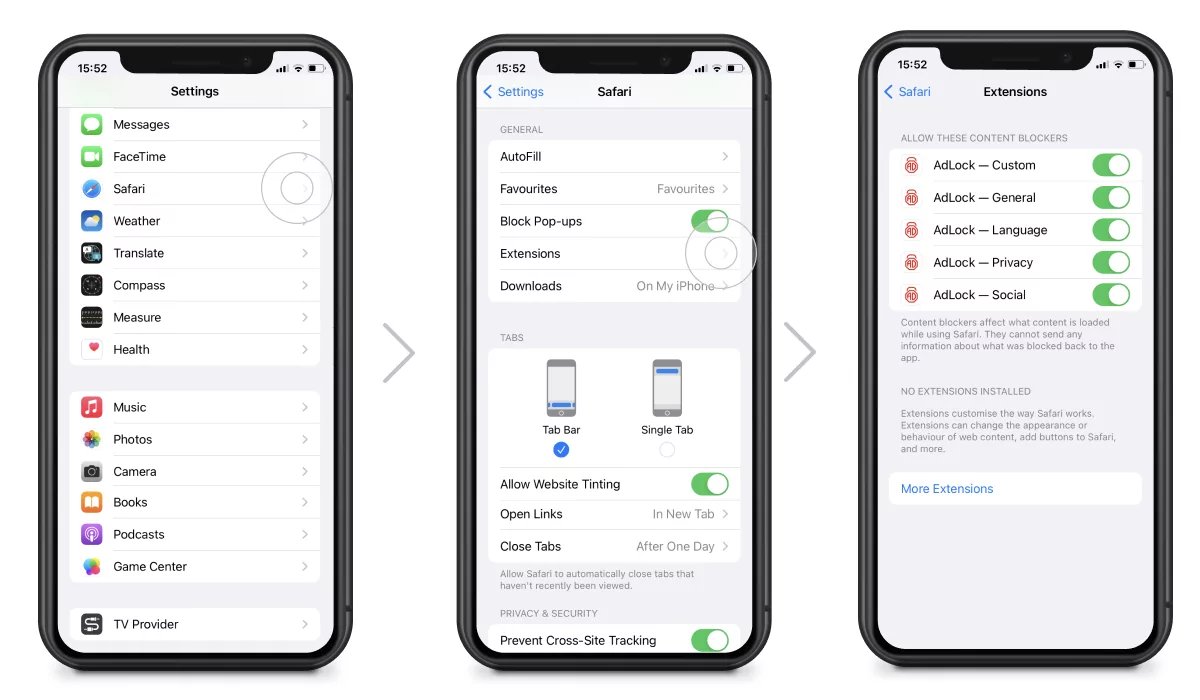
- AdLock: AdLock works great at blocking ads in apps and browsers. You can get different versions of the app, some being paid and some free, with different functionality.
- AdGuard: AdGuard is a powerful ad blocker. It can stop ads in different kinds of apps. It also has settings that you can change to your needs.
How to Set Up an Ad Blocker App
The steps to set up an ad blocker app are usually similar. Here’s a general guide:
- Download: Go to the Google Play Store (or the app’s website) and download the app.
- Install: Open the app and follow the installation instructions. This might involve granting the app some permissions.
- Activate: Turn on the ad blocker by pressing the main switch. It will often ask you if you accept to create a VPN.
- Configure: You may need to choose which types of ads you want to block, or select a different list to filter ads.
- Test: Play a game to make sure the ads are being blocked.
Using Private DNS to Block Ads
Another way to block ads is by using a special setting on your phone called Private DNS. DNS is like a phone book for the internet, and you can change it to use ad-blocking servers. This method does not require to install any extra apps and in many cases is very effective. Let’s see how to configure this feature on your phone.
What is Private DNS?
Your phone uses DNS (Domain Name System) servers to find websites and online resources. By using a private DNS with an ad-blocking server, you can block ads before they even reach your phone. It’s like having a guard that checks what internet traffic is allowed to reach your phone. Many companies offer such services for free.
How to Set Up Private DNS
Here’s how to set up Private DNS on most Android phones:
- Go to Settings: Open your phone’s settings app.
- Find Network & Internet: Look for a section named “Network & Internet,” “Connections,” or something similar.
- Select Private DNS: Tap on “Private DNS” or a similar option. You might need to go through “Advanced” or “More connection settings”.
- Choose Private DNS Provider Hostname: Change the setting from “Off” or “Automatic” to “Private DNS provider hostname”.
- Enter DNS Hostname: Type in the address of a private DNS provider that blocks ads. Here are some popular options that you can use:
- dns.adguard.com (AdGuard DNS)
- dns.nextdns.io (NextDNS)
- cloudflare-dns.com (Cloudflare)
- Save: Tap “Save” or “Apply”.
- Test: Now try to play a game and check to see if ads are blocked.
Important Notes About Private DNS
Keep these points in mind when using Private DNS:
- Stability: Some private DNS servers may be faster or more stable than others. Experiment to see which one works best for you.
- App-Specific: DNS blocks ads across your phone, so it works not just in games but also in your web browser.
- Not 100% Effective: Private DNS can block many ads, but some ads may still get through. It’s not always a perfect solution.
Modifying Your Game Preferences (if possible)
Sometimes, the game itself has settings that allow you to change how ads work. These might not block all ads, but they could make them less intrusive. This is something you will need to check on your own, depending on the games you are playing. There is not a unified method or setting that applies to every game.
Looking for Options in Game Settings
Many games have their own settings menu. Here’s how you can check:
- Open the Game: Start your game.
- Find Settings: Look for a gear icon, a menu button, or the word “Settings” in the game.
- Explore Ad Options: Check for options like turning off personalized ads, skipping ads, or even paying a one time fee to remove ads completely.
In-App Purchases to Remove Ads
Some games offer a way to remove ads by paying a one-time fee or buying a subscription. If you enjoy a game a lot, this might be a good way to support the developer and get rid of all the ads. Check if your game offers such a feature. This might be called “ad free experience” or similar.
Other Tips and Tricks
There are a few extra things you can try to reduce ads. These methods are not the most effective, but it is good to know them.
Using a VPN App with Ad Blocking
Some VPN apps have a feature to block ads. These apps not only change your location but can also filter out ads. It can be a way to protect your privacy and remove ads at the same time. However, VPN apps can slow down your internet connection.
Avoiding Free Games (if possible)
Free games are more likely to have ads because that’s how they make money. If you are willing to pay a small price, you could try paying for a game. The paid versions of many games often have no ads. It might be worth it if the game is really good and you really like to play it.
Updating the Game
Sometimes developers fix ad problems or make them less intrusive in new game updates. Keep your games up to date. Developers may also remove ads in updates or offer a paid version of the game.
So, there you have it! Lots of different ways to deal with ads in your Android games. You can start with simple methods like using airplane mode or disabling internet connections. If those don’t work, you can move on to ad blocker apps or the private DNS option, which are quite effective. And, of course, check the game settings for ways to remove or limit ads, and do not forget that in many games you can pay a fee to remove the ads. Choose the method or a combination of methods that works best for you. Remember, your gaming time should be fun and uninterrupted. Now, go out there and enjoy your games without the annoying ads!
Block Ads on ALL Games (FREE and FAST) #shorts
Final Thoughts
You can effectively stop ads in games android by using airplane mode, although you lose online features. Another method involves employing ad-blocking apps, which filter out unwanted advertisements system-wide. These apps require proper setup to ensure full functionality.
Alternatively, many game developers offer paid, ad-free versions of their games. This provides a clean experience, supporting the creators. Choosing the right method depends on your preferences and technical skill. Successfully managing ads in games enhances your gaming experience.

