
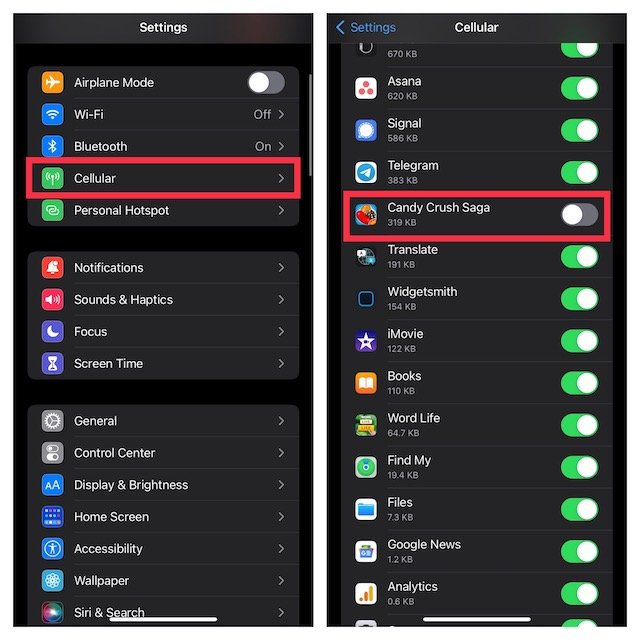
The most direct way to stop ads on iPhone games for free involves enabling Airplane mode, or, if the game allows it, playing offline. Many games also offer a one-time purchase to remove ads.
Annoying ads constantly interrupting your game play? It’s a common frustration, and many players ask how to stop ads on iPhone games for free. Nobody wants to deal with those intrusive pop-ups while trying to enjoy a game. This article provides simple and effective solutions to that very issue.
We will go through several methods that work well on most iPhone games. By using some clever tricks, you can reduce or eliminate these ads without spending a dime. Enjoy interruption free gaming!

How to Stop Ads on iPhone Games for Free
Have you ever been really into a game on your iPhone, and then BAM! An ad pops up, ruining your flow? It’s super annoying, right? Those pesky ads can make playing your favorite games feel like a chore. The good news is, there are ways you can stop those ads from showing up, and guess what? Many of them are completely free! Let’s explore some simple methods to get rid of those unwanted interruptions so you can get back to enjoying your games.
Understanding Why Ads Appear in iPhone Games
Before we dive into how to block ads, let’s quickly talk about why they’re there in the first place. Game developers need to make money to keep creating cool games. Many offer their games for free, but they include ads as a way to earn revenue. Think of it like this: they provide the game, and in return, you might see a short ad from time to time. These ads help keep the games free for everyone. Sometimes, it’s a small banner ad at the bottom of the screen. Other times, it’s a video ad that appears after you finish a level or try to get a bonus. Knowing why ads are there can make it a little less frustrating when they pop up.
Using Airplane Mode to Block Ads
One of the easiest ways to stop ads in many iPhone games is by using Airplane Mode. When you turn on Airplane Mode, it cuts off your phone’s connection to Wi-Fi and cellular data. Since many ads require an internet connection to load, they simply won’t show up. It’s like telling the ads, “Sorry, I’m not available right now!”.
How to Activate Airplane Mode
Activating airplane mode is simple. Here’s how to do it:
- Open the Control Center on your iPhone. You can usually do this by swiping down from the top-right corner of your screen (on iPhones with Face ID) or swiping up from the bottom of the screen (on iPhones with a Home button).
- You’ll see an icon of an airplane. Tap it. When it turns orange (or another color depending on your iOS version), Airplane Mode is turned on.
Now, open your game and see if the ads are gone. Keep in mind that playing online games won’t work in airplane mode as it completely disconnects your device from the internet. Also, some games may have downloaded ads locally and those may still appear even in airplane mode.
When Airplane Mode Works Best
Airplane Mode tends to be more effective for games that don’t rely heavily on an internet connection to run. For instance, puzzle games, single-player adventure games, and some arcade-style games often work well with this method. If a game relies on data from a server, like a multiplayer game, you won’t be able to play it while in Airplane Mode. It’s a quick and easy trick that’s worth trying first for many single player games.
Utilizing Wi-Fi Settings: A More Specific Approach
Sometimes, you don’t want to go completely offline, but you still want to block ads. In that case, you can get a bit more clever with your Wi-Fi settings. While not a foolproof method, this often helps reduce the number of ads you see in your games. You can manually block the ad servers from connecting to your iphone to display ads.
How to Block Ads Using Wi-Fi Settings
Here is the general strategy, keep in mind this method may vary depending on your specific iOS version:
- Find your iPhone’s IP address, and your router’s local address. It will look like something like this 192.168.1.1
- You need to log into your router settings, which you can generally access by opening up a web browser and typing in your router’s local address.
- Find the page on your router where you can block a server, usually this is under a section like “Access Control”, “Parental Controls”, or “Firewall Settings” or “DNS settings”.
- Next, you will need to manually add DNS servers to your router configuration. You will want to add servers such as AdGuard DNS (94.140.14.14 and 94.140.15.15) or Cloudflare DNS (1.1.1.1 and 1.0.0.1)
- If your router does not support custom DNS, you will have to manually add a block list of domains used to distribute ads. These can be found on sites like GitHub and others, here is a sample for a common list used in pi-hole.
               0.0.0.0 ad.doubleclick.net
               0.0.0.0 googleads.g.doubleclick.net
               0.0.0.0 pubads.g.doubleclick.net
               0.0.0.0 pagead2.googlesyndication.com
After saving changes, check if it stops the ads. This method is a little more advanced and might seem a bit complicated, but it can be effective, especially if your entire household uses the same Wi-Fi. If you have doubts, be sure to review your router’s user manual or contact your ISP technical support, since the specific location of the settings may vary depending on the brand.
When Wi-Fi Settings Changes Work Best
This method often works well if the games rely on the internet for ads, but not necessarily for the game play itself. This approach has the bonus that it works for all of the devices connected to your Wi-Fi. So all of your family will have a better gaming experience and generally browse the web with fewer ads.
Content Blockers: A Shield Against In-App Ads
Content blockers are apps that are specifically designed to block certain types of content, including ads. They work like a shield, preventing ads from loading in your games and even in web pages. A number of them are free and work exceptionally well.
How to Use a Content Blocker
Here are the general steps for using a content blocker:
- Go to the App Store and search for a content blocker app. Some popular free options include “AdGuard”, “BlockBear”, and “WeBlock”.
- Download and install the app.
- Open the app. Usually, there will be a straightforward set up process that involves allowing access for the content blocker app in settings.
- Follow the app’s instructions. Generally, you’ll need to enable the content blocker in your iPhone’s settings under Safari > Content Blockers, and allow the extension in Safari settings.
Once set up, the content blocker app will work automatically in the background. Play your game and see if the ads disappear. Some content blockers also have additional features, such as the ability to customize which ads or trackers you want to block.
What to Look for in a Good Content Blocker
When choosing a content blocker, consider these points:
- User-Friendliness: A good app should be easy to set up and use. The user interface should not be complicated.
- Effectiveness: Check user reviews to make sure the app actually blocks ads and doesn’t slow down your phone.
- Privacy: Make sure the app isn’t collecting your data and respects your privacy. Look for apps with clear privacy policies.
- Cost: Many reliable content blockers are free, but some premium options might provide extra features. Decide if the extra features justify a payment.
- Updates: A regularly updated app can keep up with the latest ad-serving methods.
Content Blockers and Game Performance
Sometimes, content blockers may cause games to load a little slower, especially if the game loads ads using complex methods. You might experience a slight performance difference in terms of load time. Test out the app and see if the performance impact is acceptable to you. If you have issues, you can always disable it and re-enable it if you encounter another ad.
Exploring Game-Specific Options
While the above methods are broad solutions, some games offer in-game ways to remove ads. These options can vary depending on the game, but they can be a good solution. Lets look at some of the options available:
In-App Purchases for Ad Removal
Some games have an “ad-free” option that you can buy with real money. This can be a one-time purchase or part of a premium subscription. While this isn’t “free,” it’s often the easiest and most effective way to get rid of all ads in a specific game. If you enjoy the game a lot, and want to support the creators, paying for the “remove ads” option might be worth it. Look in the game’s shop or settings area to see if an ad-free option is available.
Watching Ads for Rewards Instead of Ad Interruptions
Some games let you watch an ad to get a reward instead of forcing you to watch them. This is not about removing ads, but can make the ad experience better. These rewards may include things like extra lives, in-game currency, or other bonuses. The option to opt into watching an ad when you want a reward rather than having one forced on you can sometimes make the game more enjoyable.
Free Ad Removal During Special Events
Sometimes, game developers will have special events or promotions where they remove ads temporarily for a weekend or during a holiday. This is a great time to play, since you get the benefits of an ad free experience without the cost. Keep your eye out for announcements from your game developers about special offers like this. Be sure to check the game for alerts and make sure push notifications for the game are enabled so you don’t miss out.
The Drawbacks of Some Free Methods
While there are many ways to block ads for free, it is important to remember that these approaches aren’t always perfect. Lets take a look at some potential issues you may encounter while using free methods to block ads:
Potential Impact on Game Performance
As discussed earlier, some methods, like using a content blocker or modifying DNS settings, can slow down games that are constantly accessing servers, so be sure to test the method for your game before settling on that. It’s all about finding a balance. If a particular method causes too much lag, try another one. Or if it affects too many apps and websites, you may decide to disable it except when playing a particular game.
Not All Ads Can Be Blocked
Unfortunately, even with the best methods, some ads might still sneak through. Game developers are always looking for new ways to show ads, and ad blockers may not always catch them all. Keep your content blockers updated to make sure you catch as many as possible, and if you notice some types of ads are getting through, you may want to try other ad blocking methods in addition. Also keep an eye out for a better content blocker.
Issues with Game Stability
In rare cases, using ad blockers can interfere with a game’s normal operation, causing glitches or crashes. This doesn’t happen very often, but it’s worth being aware of. If you experience a lot of problems, you might need to disable the ad blocker temporarily or use a different method.
Potential Ethical Considerations
Remember that game developers often rely on ads to make their games free. If you block all ads, you’re essentially using their game without paying them back. It’s a balancing act between enjoying a game without interruptions and supporting the people who make the game. If you find that a game you are playing is excellent and offers a ton of free enjoyment, you might want to consider purchasing the ad free option, or at least enabling ads occasionally, to support the developers.
There are several great ways to stop ads on iPhone games for free. Whether it’s using airplane mode for offline gaming, using a content blocker or tweaking your router’s DNS settings, you have a lot of options. Start by trying the easy tricks like Airplane Mode, and if that doesn’t work, move on to the other solutions. Experiment and find what combination works best for you and your favorite games. And don’t forget to consider supporting game developers if you truly enjoy their work.
How to block ads on any game!
Final Thoughts
Effectively stopping those annoying in-game ads involves airplane mode or Wi-Fi restrictions. You can also use content blockers for Safari, though they might not always work in apps. These methods help reduce the ads without costing you money.
Adjusting your privacy settings can limit targeted ads. Explore the settings within each game for options. It’s about finding what works best for your specific situation.
So, you learned how to stop ads on iphone games for free by using simple built-in options. These tricks help create a smoother gaming experience. Enjoy a cleaner, more immersive game.

