
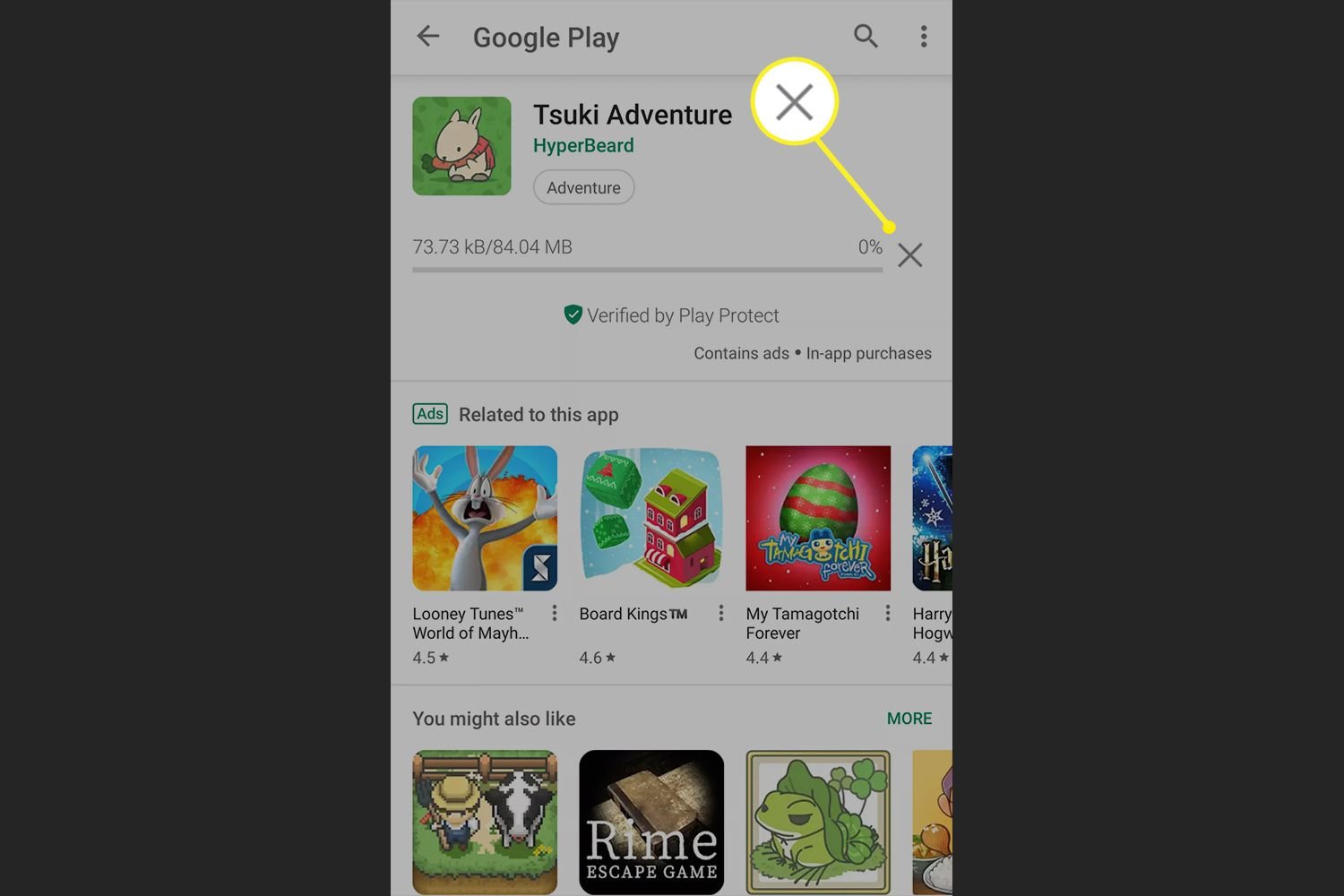
To stop games from downloading on your Android phone, you must adjust settings within the Google Play Store or your device’s settings to restrict automatic app updates or disable background data usage for the Play Store.
Is your phone constantly downloading games you didn’t ask for, eating up data and storage? It’s a common frustration. We all know the feeling of unwanted apps installing on your device. This blog will guide you through the easy ways on how to stop games from downloading on android phone.
You can quickly prevent these automatic downloads with simple adjustments within your phone’s settings. Learn how to take control and stop the surprise game downloads today.

How to Stop Games from Downloading on Android Phone
Have you ever felt like your Android phone is downloading games you didn’t ask for? It can be super annoying, especially when you’re trying to save space or data. These unwanted downloads usually happen because of a few common reasons. Let’s explore these reasons and, more importantly, how to get them to stop!
Understanding Why Games Download Automatically
Before we jump into fixing things, let’s understand why this happens in the first place. There are generally a few main culprits behind those surprise game downloads on your Android device. Recognizing these reasons can greatly help you in stopping them from happening in the future.
Play Store’s Automatic Updates
The Google Play Store is where we get most of our apps and games. It has a setting that automatically updates apps, and sometimes that includes games you don’t even play. Here’s how this works and why it can be a problem:
- Default Setting: By default, the Play Store often sets your apps to update automatically over Wi-Fi. This is helpful to keep your apps updated with bug fixes and new features, but it can also download games when updates are available.
- App Bundles: Sometimes, an app update might also come bundled with a game you didn’t previously have. This is sneaky, and it’s a way some developers try to get you to try new games.
- No Permission Needed: Since these are “updates,” your phone doesn’t usually ask for your permission before downloading them. It assumes you want all updates to happen, which is where the problem begins.
Manufacturer or Carrier Pre-Installed Apps
When you first get a new phone, it often comes loaded with apps from the phone maker or your cell carrier. Some of these apps might be games you never asked for, and they might automatically update themselves. Here’s how they contribute to the problem:
- Bloatware: This is the term used for pre-installed apps that you might not want or need. They take up space and can automatically update without your say-so.
- Updates for Pre-Installed Apps: Even if you don’t open these pre-installed games, they might still get updates automatically. This means your phone downloads new game files even if you don’t intend to play them.
- Carrier Apps: Some carriers install their own gaming apps. These apps might sometimes install or update other games on your device.
Accidental Clicks and Misleading Ads
Sometimes, you might accidentally click on an ad or a link that starts a game download. This can easily happen when you’re browsing the internet or using another app. Here’s how those sneaky downloads can occur:
- Misleading Ad Design: Some ads are designed to trick you into clicking them. They might be disguised as system messages or warnings and quickly start a download when clicked.
- Pop-Up Ads: These can appear when you’re in the middle of something else and might accidentally get tapped if they happen to pop-up where you’re about to click.
- Unintentional Clicks: When using a web browser, sometimes, you click on something unknowingly that automatically downloads a game.
Third-Party App Stores and Unknown Sources
While the Google Play Store is usually safe, you might use a different app store or enable your phone to download apps from “unknown sources”. These sources can be less reliable, and they might sneak in unwanted games with other app downloads. Here’s what to be aware of:
- Less Security: These sources usually don’t have the same security checks as the Play Store. This means they might include apps that have hidden game downloaders.
- Bundled Downloads: When you download an app from an unknown source, it can come with other programs, including games. This is called bundling and can add unwanted apps to your phone.
- Malware Risk: Sometimes, these apps can even contain malware that installs games or other harmful things without you knowing it.
Stopping Automatic Game Downloads: Step-by-Step Guide
Now that we know the reasons, let’s dive into the solutions! Here are the ways to stop those sneaky game downloads on your Android phone. We’ll go step-by-step to make sure you can tackle these pesky updates.
Turn Off Automatic Updates in the Google Play Store
The first place to start is the Google Play Store settings. You can control how apps are updated from here. Here’s how:
- Open the Play Store: Find the Play Store app on your phone, and tap to open it.
- Access Settings: Tap your profile picture, and then tap on “Settings”.
- Go to Network Preferences: In the settings menu, look for and tap “Network preferences.”
- Choose Update Setting: Tap on “Auto-update apps” and select the “Don’t auto-update apps” option.
Important Tip: If you only want to update apps when you’re on Wi-Fi, choose “Auto-update apps over Wi-Fi only” instead of “Don’t auto-update apps”.
Disable Automatic Updates for Specific Games
If you want some apps to update but not the games, you can adjust individual app settings. Here is how:
- Open the Play Store: Go to your Play Store app.
- Search for the Game: Look up the specific game that’s updating automatically.
- Go to the Game Page: Click on the game from the search results.
- Find the Menu: Tap the three dots in the top-right corner of the game’s page.
- Uncheck Auto-Update: If there is an “Enable auto-update” check box, uncheck it.
Note: This method will disable automatic updates for the specific games you choose.
Disable App Installs from Unknown Sources
If you’ve been using third-party app stores, it’s best to turn off the setting that allows downloads from “unknown sources.” Here is the way to do that:
- Open Settings: Find your phone’s settings and open it.
- Go to Security: Scroll down to find and select “Security” or “Biometrics and security” (this might vary based on your device).
- Turn off Unknown Sources: Look for “Install apps from unknown sources” (or similar). Turn this option off.
- Some Android versions might require you to do this on a per-app basis, If you find “Install apps from unknown sources” click on that, then disable the toggle switch for each app.
Safety Tip: Only use apps from the Google Play Store. Be careful with downloading from other places as it could cause problems.
Remove or Disable Bloatware
Those pre-installed apps can be a nuisance. Try these steps to stop them from causing downloads:
Uninstalling Bloatware:
If you can uninstall the app, you can directly remove it from your phone:
- Open Settings: Find the settings app on your device and tap it to open.
- Go to Apps: Look for “Apps” or “Applications” and open it.
- Select App: In the app list, find the bloatware app you want to remove.
- Uninstall: If the app can be uninstalled, you should see the option to “Uninstall” on the app page, if it has the uninstall option, select uninstall.
Disabling Bloatware:
If you cannot uninstall an app, you can usually disable it:
- Go to the App List: Open your phone’s settings and navigate to “Apps”.
- Choose the App: Select the pre-installed game app you cannot uninstall.
- Disable Option: Tap “Disable” or the “Disable App” button, if the app has the “disable” option.
What Happens When You Disable?: Disabling an app means it will stop running in the background and will not be able to download any updates.
Keep an Eye on Permissions
Some apps might have permission to install or download other games on your phone. Here is how to check and adjust app permissions:
- Open Settings: Find the settings app on your device and tap to open.
- Find Apps: Look for “Apps” or “Applications” and open it.
- Select App: Select the app you suspect could be downloading games.
- Permissions: Go to “Permissions” section.
- Review and Adjust: Look for any permission that may relate to downloads or app installs and disable the permission if necessary.
Use a Firewall or Data Saver
Sometimes, you might want to restrict data usage, especially for apps you don’t often use. Firewalls and data savers can help manage that:
Using the Android Data Saver
Your phone has a built-in data saver tool to prevent apps from running in background or using excessive data.
- Open Settings: Find your phone settings and tap to open.
- Go to Network & Internet: Look for “Network & Internet” settings.
- Select Data Saver: Then, tap on “Data Saver”.
- Turn on Data Saver: Toggle the switch on to turn it on.
- Select Apps: There is an option that allows you to choose which apps have permission to use data while Data Saver is on.
Using a Firewall App
There are some third-party apps that act like firewalls. They allow you to control which apps can use the internet connection. Here is how it may work:
- Download a Firewall App: Go to the Google Play Store and search for a reliable firewall app.
- Install and Set Up: Follow the instructions to set up the firewall app.
- Create Rules: Set rules to block game apps from connecting to the internet when you don’t want them to.
Note: Before using any third-party apps, always make sure to choose reliable ones and read user reviews first.
Regularly Clear Your Phone’s Cache
Sometimes, clearing your phone’s cache can help to stop unwanted downloads. Here is the way to do it:
- Open Settings: Look for your phone’s settings and tap to open.
- Go to Storage: Find “Storage” or “Storage and Memory” and open it.
- Clear Cache: You can then select either “Cached Data” then select “Ok”. Alternatively, select the app from the application list, go to “Storage”, then tap “Clear Cache”.
Be Careful What You Click
It is important to stay cautious while browsing the web or using other apps. Here are some steps you can follow to avoid those tricky downloads:
- Avoid Suspicious Links: Do not click on ads or links that seem suspicious or too good to be true.
- Close Pop-Ups: Immediately close any unwanted pop-up windows you might see, if you are unsure about it.
- Double Check Before Clicking: Take a second to look at what you are about to tap before clicking it.
Check for Updates Regularly
Even if you disable automatic updates, it’s still a good idea to check for app updates every now and then. This will keep your apps working correctly.
- Open the Play Store: Go to the Google Play Store.
- Check for Updates: Tap your profile picture, then go to “Manage apps & devices” and click on updates available, then you can select your preferred app to update.
Note: Make sure you update only the apps you want to update.
Dealing With Persistent Downloads
Sometimes, even if you have followed all these steps, some game downloads might still sneak through. In such situations, here are few more steps to take:
Factory Reset
If you’ve tried everything else and the problem persists, a factory reset is an option, but use it carefully. A factory reset will wipe all data from your phone, so make sure you back up all important files first.
- Backup your Data: Go to Settings, and then choose “System”. Then, tap on “Backup”. Follow the steps to back up your important information.
- Go to Reset Options: Go back to System settings, tap on “Reset options” and choose “Factory Reset”.
- Follow Instructions: Follow the instructions on the screen to complete the reset process.
Important: Only use this if other methods don’t work. Make sure you back up all your data before doing this.
Contact Phone Support
If your problem is still not solved, it might be good to contact customer support for your phone’s brand or for your cellular service provider. They may provide you with extra advice that is tailored to your device.
- Phone Brand Support: Contact support for your phone maker.
- Carrier Support: Contact your cell service provider.
By understanding the causes behind unwanted game downloads and taking steps like turning off automatic updates, disabling unknown sources, and managing app permissions, you can prevent these issues from reoccurring. It may require some effort, but maintaining control over what is being downloaded on your phone will help you have a better phone experience.
How to stop apps from downloading by themselves on your Android device Samsung Motorola Kyocera
Final Thoughts
To stop automatic game downloads, check your Google Play Store settings. Disable auto-updates and auto-downloads over Wi-Fi or mobile data. You can also clear Play Store cache and data to remove pending downloads. These steps will help manage app downloads effectively.
Controlling app downloads also includes manually approving installations. If you are facing unwanted downloads, you need to find and review the download permissions. Following these simple tips ensures you know how to stop games from downloading on android phone, giving you control over app installations.

