
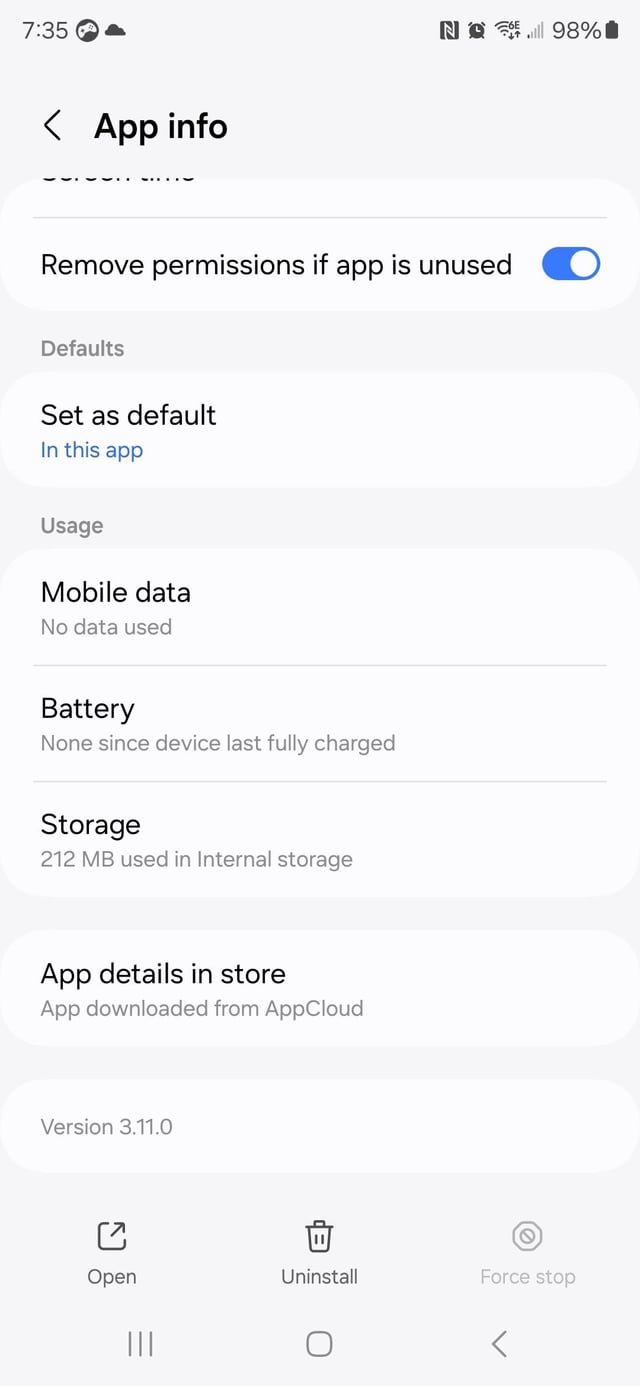
To stop Samsung from installing games, disable the “Customization Service” app, or the “Game Launcher” app settings for automatic downloads, and also, you can uninstall the apps and turn off notifications.
Is your Samsung phone randomly downloading games you never asked for? It’s a common frustration. You might find yourself wondering how to stop samsung from installing games, especially when you prefer a clean and organized phone experience. These unwanted games can be annoying, taking up storage and sending irritating notifications.
Luckily, there are several methods to regain control over your device. These methods involve adjusting app settings and managing app permissions within your Samsung phone. Following this guide, you can prevent future game installations and enjoy your phone, your way.

How to Stop Samsung From Installing Games
Okay, so you’ve got a shiny new Samsung phone or tablet, and it’s great, right? But then, all of a sudden, games you didn’t ask for start popping up. It can feel a little annoying, like your device is making decisions for you. You’re not alone! Many people wonder how to stop Samsung from installing games they don’t want. The good news is, you have ways to control this. Let’s dive into what’s happening and, most importantly, how you can take charge of your device and keep those unwanted game installs away.
Understanding Why Samsung Installs Games
Before we get to fixing the problem, it helps to know why Samsung sometimes pushes games onto your device. It’s not about being sneaky; it’s often part of a business plan. Here are a few common reasons:
Pre-Installed Apps
When you buy a new Samsung device, it usually comes with a bunch of apps already installed. This is a common practice across most phone brands. Some of these might be games. Samsung gets paid to put these apps on your phone. These are sometimes called “bloatware.” While some pre-installed apps can be useful, others, like certain games, might not be of interest to you. These aren’t actively “installed” later but are already present, ready to be opened.
Samsung’s Game Launcher
Samsung has its own special app called Game Launcher. It’s designed to organize your games, offer game-related settings and suggestions, and sometimes it pushes games it thinks you might enjoy. This app is all about the gaming experience on your phone, and part of that experience for them involves showing you new titles. Samsung’s Game Launcher can become a source of game recommendations and promotions, which for some is a good thing but for others, can be an unwanted nuisance.
Galaxy Store Promotions
The Galaxy Store is Samsung’s app store, similar to Google Play Store. It’s another place where games may be promoted to you. Sometimes, these promotions might appear as an automatic download or suggestion to install. Samsung uses this platform to promote various apps, and games are a common type of content you might see or that can potentially be automatically downloaded from there, without your explicit permission.
Partner Deals
Sometimes, Samsung partners with game developers. As part of these deals, those games might get installed or suggested on your device. These deals help Samsung and the game developers to reach out to a wider audience. For you though it can mean those games you don’t want are added to your device. The game developers benefit from Samsung’s large user base, and Samsung benefits from the partnership.
Stopping Automatic Game Installs: The How-To Guide
Now for the important part – how to stop those unwanted games from showing up! Here are the methods you can use to take back control:
Disabling Game Launcher
The Game Launcher is a primary culprit when it comes to game recommendations and promotions. You can often reduce these prompts by disabling the Game Launcher. Here’s how you do it:
- Open your phone’s settings. You can do this by swiping down from the top of the screen and tapping the gear icon.
- Scroll down and tap on “Advanced Features.”
- Look for “Game Launcher” and tap on it.
- Toggle the switch to the off position. This will disable the app.
After disabling the Game Launcher, you’ll likely see a decrease in game-related notifications and suggestions.
Uninstalling or Disabling Unwanted Pre-Installed Games
As we mentioned, your Samsung phone comes with some games already installed. You can often uninstall or disable these apps if you don’t want them.
- Uninstalling: If the option is available, you can simply uninstall the app by going to the app icon and then selecting “Uninstall”.
- Disabling: If the app can’t be uninstalled, look for the “Disable” option. This prevents the app from running, updating, or using system resources. You can disable apps by going to Settings > Apps, find the app, and tap the “Disable” button. When you disable an app, it is like it has been removed, but it remains on the device for when you want it to start running again.
Disabling or uninstalling games can free up storage space and make your phone cleaner.
Turning Off Galaxy Store Notifications
The Galaxy Store is another source of game promotions. You can manage the app’s notification settings to avoid these.
- Open the Galaxy Store app.
- Tap on the menu icon (usually three lines or dots) in the top corner.
- Go to “Settings.”
- Look for “Notifications”.
- Turn off notifications you don’t want. You may also be able to manage notification categories further.
By disabling notifications from the Galaxy Store, you’ll reduce the chances of seeing game suggestions and install prompts.
Adjusting Play Store Settings
While the Galaxy Store is Samsung’s app store, the Google Play Store also has settings that can affect what you see and install. Here’s how to check those:
- Open the Google Play Store app.
- Tap your profile picture at the top right.
- Go to “Settings.”
- Tap on “Network preferences”.
- Choose the option that best suits your need, for example, “over wifi only” for app updates, or choose “Don’t auto-update apps”.
Adjusting these settings can give you more control over app updates and installations, including those for games.
Using a Package Disabler (Advanced)
If you’re comfortable with a slightly more advanced method, you can use a package disabler app. These apps let you disable system apps or pre-installed apps that you normally can’t get rid of. It’s a powerful tool, but be careful, as disabling essential apps can cause problems with your device. This requires you download an app from the play store, and the usage can be a bit tricky for some people, therefore it is better to stay away from this method, if you’re not familiar with these settings.
Checking for Software Updates
Sometimes, unwanted apps are bundled with software updates. Therefore, you can go to your settings and check for software updates to make sure that your device is up to date. If you don’t have any software updates you can turn off the automatic software updates to minimize the problem in future updates.
Here’s a quick summary of steps to stop Samsung from installing games:
- Disable the Game Launcher
- Uninstall/disable unwanted pre-installed games.
- Turn off Galaxy Store notifications.
- Adjust Play Store settings.
- Consider using a package disabler (advanced).
- Check for software updates.
Staying Ahead of the Game: Prevention Tips
Once you’ve taken steps to remove unwanted game installations, here are some ways to keep it from happening again:
Be Careful with Permissions
When you install an app, it often asks for permissions. Be careful about granting access to things like your storage, location, etc., especially for apps you don’t fully trust. If an app seems to ask for a lot of permissions that don’t make sense, you can choose to not install it.
Regularly Check Your Apps
Keep an eye on the apps installed on your phone. It’s good practice to go through your app list now and then and uninstall anything you don’t use. This helps keep your device running smoothly and reduces clutter.
Use Secure Wi-Fi
Public or unsecured Wi-Fi networks can sometimes be risky. When connected to these networks, your phone could be more vulnerable to unwanted downloads or software. Always connect to secure Wi-Fi networks and avoid downloading content through unfamiliar wi-fi.
Keep Software Updated
Make sure your device’s software is up to date. Samsung releases updates to improve performance, security, and bug fixes, some of which may affect how or what gets automatically installed on your phone. It’s usually best to keep your system updated for all of these reasons.
Why Is This Important?
Controlling what is installed on your phone is important for several reasons:
Saving Storage Space
Unwanted games take up space on your device. By removing them, you free up space for things you actually want to keep, such as your own photos, videos, and other apps.
Improving Device Performance
Too many apps running in the background can slow down your phone. Removing or disabling the ones you don’t use can help your phone run faster and smoother.
Protecting Privacy
Some apps might gather information that you’d rather not share. By choosing the apps you use, you keep better control over your privacy.
Reducing Clutter
A phone with too many apps can feel cluttered and disorganized. By controlling what’s on your phone, you make it easier to find the apps you need and use regularly.
Personalization
Ultimately, you get to set up your phone the way you want it. Removing or disabling the apps you don’t want is a great way to create a more tailored experience.
Taking control of your phone and what gets installed on it is an important part of getting the most out of your technology. Don’t let your Samsung install games you don’t want! By using these methods, you can keep those unwanted games off your phone and enjoy your device more fully.
How to Stop Samsung Phone From Automatically Installing Apps (2024)
Final Thoughts
To stop Samsung from installing games, disable app recommendations in Galaxy Store settings and also turn off customisation service under settings. Another crucial step is to review permissions for pre-installed apps, denying any related to game installations.
Following these steps diligently ensures that you maintain control over your device’s content. This will effectively show how to stop samsung from installing games and reduce unwanted app clutter.

