
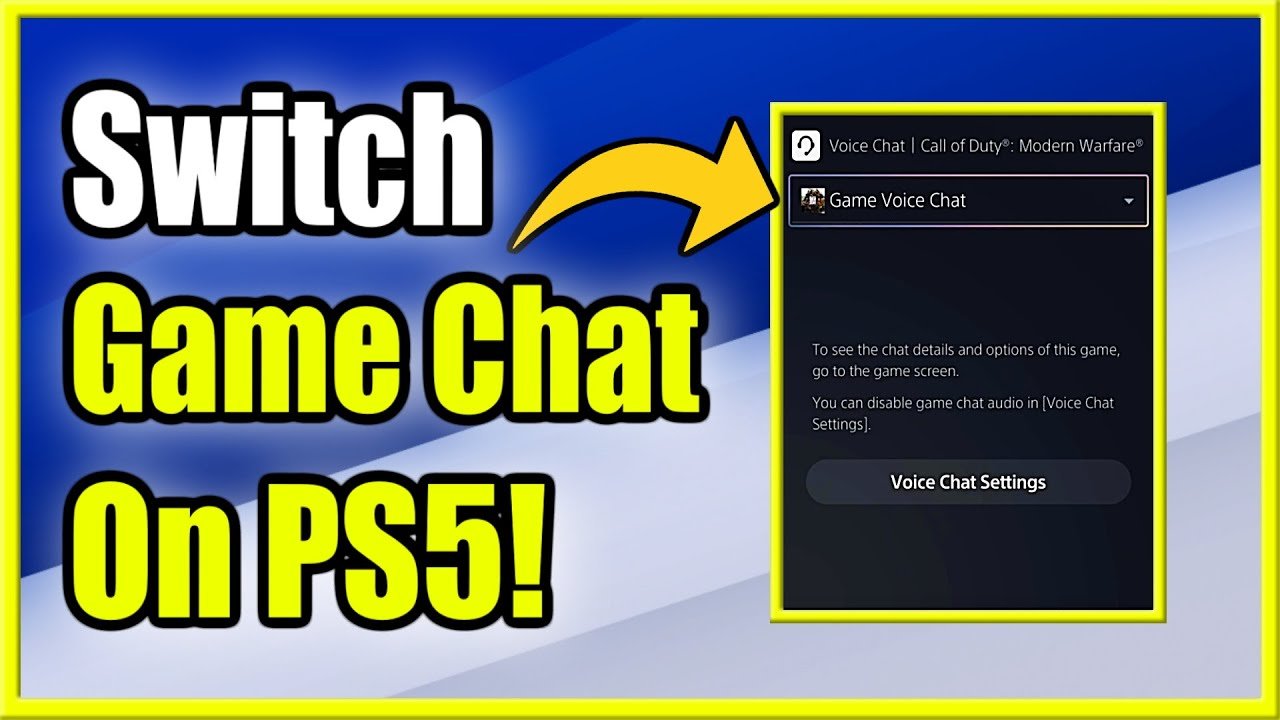
To switch to game chat on PS5, press the PlayStation button to open the control center, navigate to the Voice Chat card, and select the “Game Voice Chat” option.
Jumping into your favorite multiplayer game only to realize you’re still chatting with your party and not your teammates can be frustrating. Knowing how to switch to game chat on PS5 is crucial for seamless communication in online play. We will walk you through the simple steps to ensure your voice reaches the right ears, allowing you to coordinate better and enjoy your games without any confusion. Now you can finally strategize with your squad! This can help you win matches.

How to Switch to Game Chat on PS5
Getting ready to talk to your friends while playing awesome games on your PlayStation 5? That’s great! Sometimes, figuring out how to switch to game chat can feel a little tricky, but don’t worry, it’s actually quite easy once you know where to look. This guide will walk you through everything step-by-step, so you can jump into the action and chat with your teammates or opponents in no time.
Understanding PS5 Chat Options
Before we dive into the specifics of switching to game chat, it’s helpful to know about the different chat options the PS5 offers. The PlayStation 5 doesn’t just have one way to talk to people – it gives you a few choices. Understanding these choices will make it much easier to pick the right one for your situation.
Party Chat
Party Chat is like having your own private little room where you and your friends can hang out and talk, even when you’re playing different games or doing different things on your PS5. It’s like a group call that stays open. You invite people you want to talk to, and they can join, whether they are in the same game or not. It keeps the conversation focused just on your group. Party Chat doesn’t focus on who is playing the same game as you; rather it’s focused on people you want to talk to no matter what.
Game Chat
Game Chat, on the other hand, is tied to the game you’re playing. This chat lets you talk to other people who are currently playing the same game. Think of it like a dedicated channel just for players of that game. When you join a game that uses voice chat, you usually join game chat automatically. Game chat is often used when you want to talk to random teammates or the people you are competing against. It focuses on who is playing the game and is usually public to all players.
The key difference is that Party Chat is by invitation, it’s your small private group while Game Chat is more like a communal channel for all players in the game. You can’t really directly switch between these two – you often either choose to be in one or the other. But there are ways to switch into a game chat if you were in party chat, or vice versa which we will explain later.
How to Switch to Game Chat from Party Chat
Sometimes, you’re hanging out in a Party Chat and realize you need to hop into game chat to talk with your teammates within the game. It’s a very normal thing to do. Here’s how to switch from Party Chat to Game Chat:
Leaving the Party Chat
First you will need to leave the Party Chat. This is the most important part to making the switch. There are several ways to do this:
- Using the Control Center: Press the PlayStation button on your controller to bring up the Control Center. Look for the “Voice Chat” card, it usually looks like a small microphone or headphones icon. If you’re in a Party, it will show you everyone who is in the party. Click on the party. You will have the option to “Leave” the party. Select this and you have now exited the party.
- Using the Quick Menu: Press the PlayStation button and look for “Party” or “Voice Chat” on the quick menu options. Select your party, and then you will see the option to “Leave.” After you press Leave, you have left the party.
Once you’ve left your Party Chat, your PS5 will automatically connect you to Game Chat when available, for that game.
Joining Game Chat Automatically
In many games, simply joining an online multiplayer game session automatically connects you to the game’s voice chat. As long as you are not in a party chat, and the game you’re in has a game chat feature, you will automatically be joined.
Important note: Not every game uses game chat, and in some games, you need to enable the feature in the game settings. If you have trouble connecting, you might need to check your game options.
How to Join a Party Chat From Game Chat
If you’re in Game Chat and want to chat with your friends in a Party instead, switching is pretty easy. Here’s how you can do it.
Creating or Joining a Party
First you need to create a party or join a party someone else has already made. You can do this either through:
- Control Center: Press the PlayStation button on your controller to bring up the Control Center. Look for the “Game Base” icon. Select Game Base, and you will see the option to make a new party or join one you’ve been invited to. Select your chosen option and you are now in the Party Chat.
- Quick Menu: Press the PlayStation button, and you will see “Game Base” as one of the options. Select Game Base, and you will see the option to make a new party or join one you’ve been invited to. Select your chosen option and you are now in the Party Chat.
Once you create or join a party, you will automatically be removed from the Game Chat of your game.
Managing Audio Output
After joining the Party, you will automatically be talking in the party and you will be removed from the game chat, but sometimes you want to hear the sounds of the game, but be in the party. The PS5 lets you change your audio output. You can do this in two ways:
- From the Control Center: When you press the PlayStation button, you will be given the options of quick settings for audio. Here you can adjust the audio balance of party audio, vs game audio, letting you choose which is louder.
- From Quick Menu Settings: Press the Playstation button, and look for “Sound”. Select this to bring up the audio options. Here you can adjust the audio balance of party audio, vs game audio, letting you choose which is louder.
Checking Your Audio Input Settings
Sometimes, the problem isn’t about switching between chat types, but ensuring your microphone is set up correctly. This is a quick check you should always consider if you have voice issues.
Accessing Microphone Settings
To make sure your microphone works properly, do these steps:
- Press the PlayStation button on your controller to bring up the Control Center.
- Go to “Sound”.
- Select “Microphone” to see the options.
Adjusting Input Device
Once you’re in the microphone options, here is what you should look at:
- Input Device: Make sure your correct microphone is selected. The PS5 will let you pick the dualsense mic, or a headset connected to the controller, or another USB microphone.
- Microphone Level: Make sure the microphone level bar isn’t too low, or too high. You can use the slider to adjust it. There is also an option to “adjust microphone level” which will let you test your microphone and set the correct level.
- Mute: Make sure you didn’t accidentally mute yourself. If the option is to “Unmute” you are currently muted, if the option is to “Mute” you are not currently muted.
Common Problems and Solutions
Even with these steps, sometimes you might run into some hiccups. Here are some common issues and how to fix them:
Troubleshooting Microphone Issues
- Mic Not Working If your microphone isn’t picking up your voice, check if your microphone is set as the Input Device. Make sure you aren’t accidentally muted, and if you can test the microphone input level, do so to ensure you are not too low.
- Poor Audio Quality: If your friends say you sound muffled, ensure your microphone is not covered, and try moving the microphone around. If you are using a headset, try switching to another headset and test if the sound is better.
Troubleshooting Game Chat Issues
- Can’t Hear Anyone in Game Chat: Double check your audio settings. Make sure your game chat volume is turned up in the game settings, and your overall sound output on your PS5 is not too low. Also make sure you’ve left your party chat, you cannot be in a party chat and the game chat at the same time.
- Can’t Join Game Chat: Check in the game’s settings. Some games have an option to opt into game chat, or there can be other settings related to your audio. If other players can hear and talk with each other, it might be an issue specific to your settings.
Checking Your PS5 Software
Sometimes, older software can cause issues with chatting. Make sure your PlayStation 5’s software is up to date:
- Go to Settings from your home screen.
- Select “System.”
- Choose “System Software.”
- Select “Update System Software” and follow the instructions to install any updates.
Tips for a Better Chat Experience
Here are a few extra tips to make your chat experience smoother:
- Use Headphones or a Headset: Using headphones or a gaming headset with a mic often gives you the best audio quality and avoids echoes.
- Adjust Your Volume: If someone is too loud, you can adjust their individual volume in party chats or in the game’s settings.
- Be Mindful of Background Noise: Try to minimize background noise around you, as this noise can also travel to other people.
- Communicate Clearly: Speak clearly and patiently when talking with other players. This is especially important when coordinating in multiplayer games.
Switching between Party Chat and Game Chat on your PS5 is easy once you get the hang of it. Just remember that Party Chat is for conversations with friends, while Game Chat is for talking to other players in your game. Understanding the difference and knowing how to change your settings is the first step to having great gaming sessions. Now you can talk strategy with your friends, plan your next move, or just hang out. Enjoy the games and your conversations!
PS5: How to Switch From Party Chat to Game Chat Tutorial! (For Beginners) 2024
Final Thoughts
To switch to game chat on PS5, press the PlayStation button. Then, navigate to the ‘Sound’ section in the control center. Select ‘Game Voice Chat’ as the active input device for your audio.
You can also change the voice chat settings directly from the game if the game supports it. This offers another pathway to use ‘how to switch to game chat on ps5’. Remember to always adjust individual volume settings for optimal audio clarity.

