
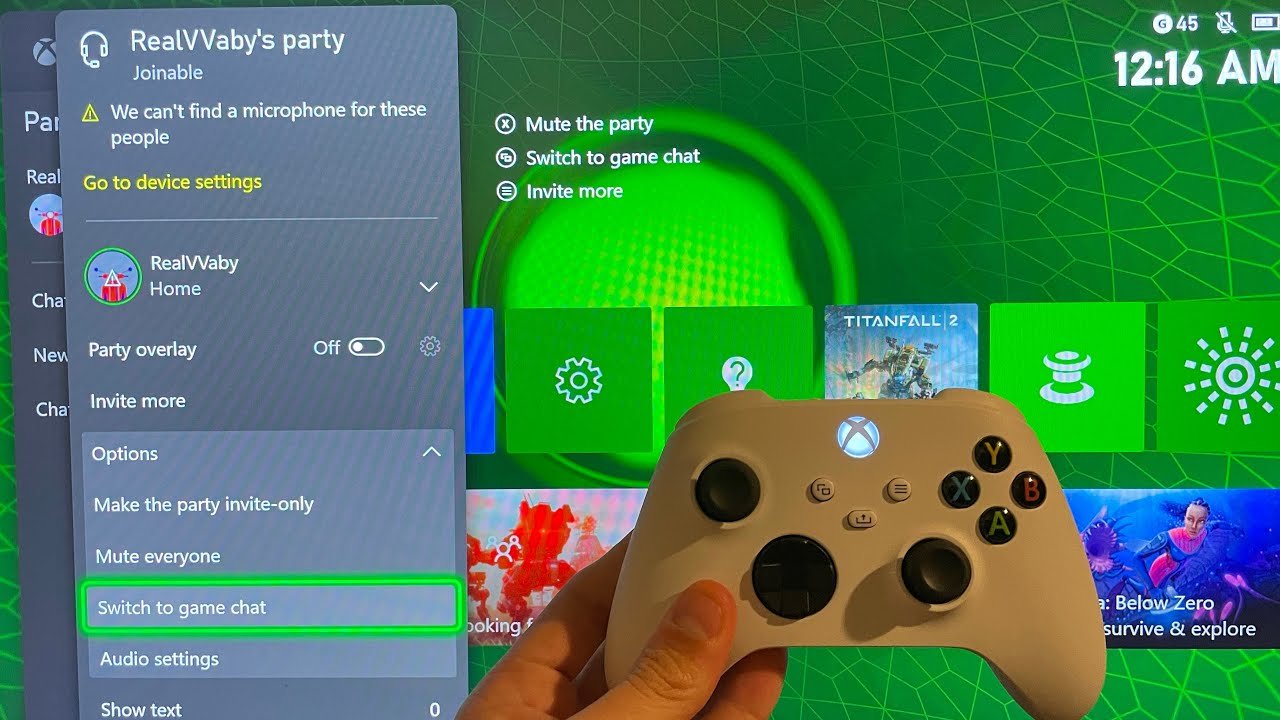
To switch to game chat on Xbox, press the Xbox button, navigate to the “Parties & chats” tab, select your party, and then choose “Switch to game chat.”
Frustrated with party chat when you really need to coordinate with your team in-game? Many players face this issue and need a quick solution. You want to know how to switch to game chat on Xbox so you can clearly communicate with your squad.
It’s simpler than you might think to transition between party and game chat. By following a few quick steps, you can get back to coordinating effectively with your fellow gamers. Now you can focus on the game with everyone hearing you perfectly.

How to Switch to Game Chat on Xbox
Getting ready to talk to your friends in your Xbox games? It’s super important to know how to switch to game chat. Sometimes you’re in a party chat, and sometimes you need to be in the game itself to talk to everyone playing. It’s like having two different walkie-talkies, and you need to know which one to use! This guide will show you all the simple steps to get chatting with your fellow gamers.
Understanding Xbox Chat Options
Before we jump into switching, it’s good to know what kinds of chat are on your Xbox. There are two main ways to chat:
- Party Chat: This is like a private phone call with your friends. Only people in your party can hear you. This is good when you want to talk to your friend and not everyone in the game.
- Game Chat: This lets you talk to anyone in the game who’s also using game chat. This is perfect for team games where you need to plan with your teammates or if you want to talk to anyone in the game.
Knowing the difference helps a lot when you’re trying to switch between them. Think of party chat as a group huddle with your close friends, and game chat as speaking to everyone on the field!
Why Switch to Game Chat?
Why would you even want to switch? Well, imagine you’re playing a team game like Fortnite or Call of Duty. If you’re in party chat with your best friend, the rest of your team can’t hear you! This is when switching to game chat is key. It lets you share battle strategies, call out enemy positions, and generally work as a team. It really makes a big difference in how well you play together. You might miss out on important information, or your team might not be able to help you if they can’t hear you.
Also, you might want to join the game’s voice chat to meet new people. Sometimes it’s fun to make new friends in the game! You can do this using game chat. That’s why knowing how to switch over is so useful. It gives you more ways to communicate with people.
Switching to Game Chat: Step-by-Step
Now, let’s get to the actual steps. It’s not hard at all once you know what to do! Here are the steps for switching over to game chat from party chat:
Using the Xbox Button
This is the most common and quickest method. The Xbox button is the glowing one in the middle of your controller. Here’s how to use it:
- Press the Xbox button: Push the Xbox button on your controller once. This will bring up the guide menu on your screen.
- Go to Parties & chats: Use the left stick or the directional pad to go to “Parties & chats”. It usually has a headphones symbol next to it.
- Select your party: Choose the party you are currently in. It will be listed there.
- Choose “Switch to game chat”: You’ll see an option that says “Switch to game chat” on your screen. Select this option by pressing the “A” button.
And that’s it! You’re now in game chat! Your voice will be broadcast to everyone in the game who is using the game chat function. If you are having trouble finding the menu, remember to look for the “Parties & chats” option or something similar.
Using In-Game Menus
Some games give you the option to switch chat right from inside the game menu. This method can be a bit different for each game, but here’s a general idea of how it usually works:
- Open the Game Menu: First, you need to open the in-game menu. This is often done by pressing the “Start” or “Options” button, or something similar.
- Look for “Audio” or “Voice” Settings: Now, look for a settings area that has to do with audio or voice chat. It can be under a “Settings” menu, or in something that is labeled “Audio,” or “Sound”.
- Find the Chat Option: Look for an option that lets you change your chat input. There might be an option for “Party Chat” or “Game Chat,” or something similar.
- Select Game Chat: Pick “Game Chat” or whatever the appropriate term is to turn it on. This switches you over.
Each game’s menu system can be a little different, so check your game manual if you get confused. The names of the settings can be tricky sometimes, so don’t worry if it takes a couple of tries.
Using the Xbox App (Mobile or PC)
If you’re using the Xbox app on your phone or computer, you can also control chat settings. This can be super useful if you want to switch things up without stopping your game.
- Open the Xbox App: Start up the Xbox app on your phone or computer.
- Sign In: Ensure you’re logged in to the same Xbox account you’re playing on.
- Find Parties & chats: Look for the “Parties & chats” or similar option. It looks like a speech bubble on most versions.
- Select Your Party: Pick the party you are currently in.
- Switch to Game Chat: You’ll see an option that says “Switch to game chat.” Select this option.
Using the app can be convenient if you have to make changes without taking your eyes off the game. It’s also a great way to manage chat if your controller is having any problems.
Troubleshooting Chat Issues
Sometimes things don’t work the way they should. If you’re having trouble with your game chat, here are some things to try:
Check Your Headset
First, make sure your headset is properly connected to your Xbox controller or the console. Check these things:
- Headset Connection: Is your headset plugged in properly? If it’s wireless, is it connected and turned on?
- Mute Button: Is your microphone muted? Make sure the mute button on your headset isn’t on.
- Try Another Headset: If possible, try a different headset. This helps figure out if the problem is with your headset or the Xbox.
Sometimes it’s something simple like an unplugged wire or a muted mic. If the headset is the problem, this helps narrow things down. Making sure your headset is working is key to being able to use voice chat.
Check Xbox Settings
Your Xbox has settings that control how voice chat works. Here’s what to check:
- Privacy Settings: Make sure your privacy settings allow voice chat with people in games. Sometimes you have to make sure your Xbox allows you to talk to other players.
- Audio Settings: Check the audio settings on your Xbox. Make sure your microphone is set to the right input, and the volume settings are correct.
- Update Your Console: Make sure your Xbox console is up to date. Sometimes updates fix problems with chat.
Sometimes the default settings don’t fit what you want to do. Going into your Xbox settings can clear up a lot of problems.
In-Game Chat Issues
Some problems come from the game itself:
- Game Chat Volume: Sometimes the volume for game chat is set very low in the game settings. Find the in-game voice chat settings and make sure the volume is turned up.
- Game Issues: There might be glitches in the game. See if other players are having the same problems. If it’s a bug, you might have to wait for the game developer to fix it.
If everything seems correct with your Xbox and headset, look to the game to see if the issue lies there. The game developers might know about the problem and have a solution.
Restart Everything
Sometimes the easiest solution is to restart everything. Try these steps:
- Restart Your Game: Close your game completely and start it again.
- Restart Your Xbox: Restart your Xbox by turning it off, unplugging it for a few seconds, and then turning it back on.
- Restart Your Headset: If your headset is wireless, try turning it off and then back on. If it has a charging base, try disconnecting and reconnecting it.
A simple restart can fix many problems. It’s like giving everything a fresh start, which can clear any temporary errors.
Tips for Clear Communication
Now that you know how to switch to game chat, here are a few quick tips to help you have clear conversations:
- Speak Clearly: Try not to mumble, and make sure to speak at a normal volume. This way, your teammates can easily understand you.
- Avoid Background Noise: Find a quiet place to play so the sound is clear. If there is a lot of noise, it might be hard for people to hear you.
- Be Respectful: Use kind words when you talk to other players. If you want people to be nice to you, you have to be nice to them.
- Communicate Effectively: Give good, clear information to your teammates. If they need something, tell them exactly what they need.
Following these simple tips will help you be a great teammate and make playing online games a lot more fun!
Switching to game chat on your Xbox is a pretty simple thing to learn. With these steps and tips, you’ll never miss a word from your teammates. Have a lot of fun gaming!
Xbox Series X/S: How to Switch From Party Chat to Game Chat Tutorial! (For Beginners) 2023
Final Thoughts
To quickly switch, press the Xbox button. Navigate to “Parties & chats”. There, you’ll see options for party or game chat. Simply select game chat to communicate with players in your current match.
You can now effectively use in-game voice. It provides communication essential for teamwork. This feature helps you coordinate better and win games. How to switch to game chat on xbox is quite simple once you know where the options are.

