
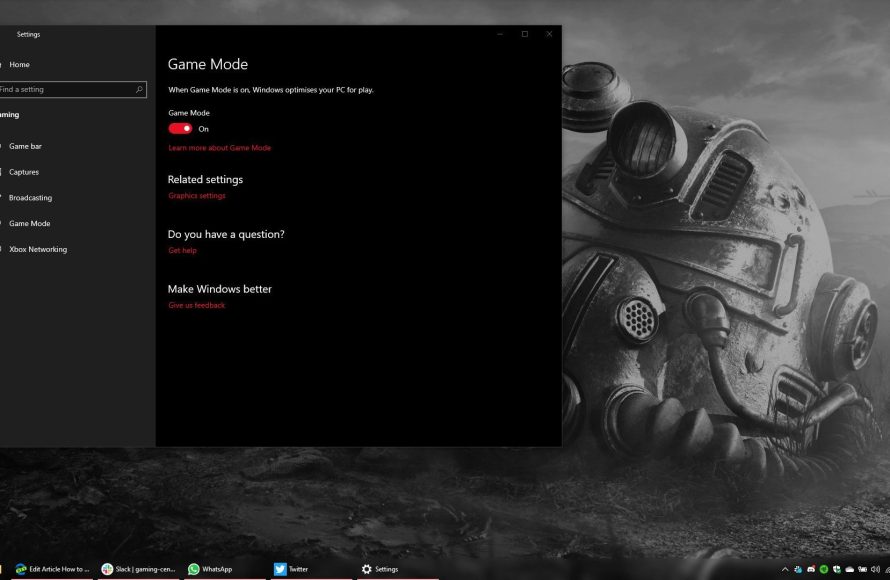
To turn on game mode Windows 10, navigate to Settings, click on Gaming, and then toggle the Game Mode switch to the “On” position.
Want better gaming performance? Windows 10 has a built-in feature designed just for that. Knowing how to turn on game mode Windows 10 can really improve your gaming experience. It’s simple to do, and we will show you how.
The feature prioritizes resources for your games. This can result in smoother gameplay and fewer interruptions. It’s a good setting to have enabled for any gaming session.

How to Turn On Game Mode Windows 10
Okay, gamers! Let’s talk about Game Mode in Windows 10. It’s like having a secret weapon for your computer when you’re playing your favorite games. But, if you don’t know how to turn it on, it’s like having that weapon but not knowing where it is! This section will guide you on how to activate this feature so your gaming experience becomes much better. We’ll look at all the different ways you can do it. So, get ready to level up your gaming by learning how to easily turn on Game Mode!
What Exactly is Game Mode?
Before we jump into how to turn on Game Mode, let’s talk about what it actually does. Think of it like this: when you’re playing a game, your computer has to do a lot of things at the same time. It has to run the game, handle sounds, maybe deal with your chat programs, and much more! Game Mode helps your computer focus all its attention on the game you are playing. It does this by giving the game priority over other things running in the background. This means your game can run smoother and faster! This feature reduces interruptions and gives you a much better playing experience. Game Mode also tries to make sure that Windows update don’t interrupt your gaming session. It’s all about making your game run at its very best.
Why Should You Use Game Mode?
You might be wondering, “Why should I even bother turning on Game Mode?” Well, there are lots of good reasons! Let’s look at a few:
- Smoother Gameplay: By focusing resources on your game, Game Mode can help to reduce stuttering and lag.
- Better Performance: You might notice your game runs a little faster or is more responsive when Game Mode is enabled.
- Fewer Interruptions: Game Mode tries to minimize interruptions from other programs or Windows notifications so you can stay in the game.
- Improved Frame Rates: In many cases, using game mode can improve the frame rate of your games. It may not be a drastic improvement but you will feel the difference.
These benefits combined to create a better game playing experience. While it won’t turn your average computer into a super gaming rig, it will give a small edge to your games and provide the best possible gaming experience using your hardware. It’s a great tool for any gamer using Windows 10. Now you know why it’s good, let’s get into how to turn it on!
Turning On Game Mode Through Settings
The easiest way to turn on Game Mode is through your Windows 10 settings. Here’s a step-by-step guide:
- Open Settings: Click on the Windows Start button, which is usually at the bottom-left of your screen. Then, click on the little gear icon that says “Settings”.
- Go to Gaming: When you are in settings, you will see a bunch of categories. Find the one that says “Gaming” and click on it. It usually has an icon that looks like an Xbox logo.
- Select Game Mode: On the left side of the Gaming window, you will see a list. Click on “Game Mode.”
- Toggle it On: You should see a switch on the right side that says “Game Mode.” If it’s switched off, click the switch to turn it “On.” The switch will change to a different color and a message will appear that says “Game Mode is on”.
That’s it! Game Mode is now turned on. Any time you play a game, Windows 10 will try to optimize your computer’s resources to give you the best gaming experience. It’s really that simple!
Using the Game Bar to Enable Game Mode
There’s another way to turn on Game Mode, and that’s using the Game Bar. The Game Bar is a handy tool that pops up when you’re playing a game, and it also has a Game Mode setting. Here’s how to use it:
How to Access the Game Bar
The first step is to learn how to open the Game Bar. You can do this by pressing the Windows key and the letter “G” on your keyboard at the same time (Windows key + G). This will cause the Game Bar to appear on your screen. The game bar provides easy access to many features. One of them is to enable the game mode.
Enable Game Mode Through the Game Bar
Now that you have opened the Game Bar, follow the steps below to enable game mode. Once the game bar is open, you will see a row of icons at the top of your screen. On the left hand side, there will be a few icons, find an icon that looks like a gear, and click on it.
Once you click on the settings icon, a window will appear on the screen with a few options. Look for “Game Mode” and if it is switched off, simply click on the button to toggle it to “On” position.
That’s all! Game Mode is now on using the Game Bar. It’s another easy way to get your game optimized. This can be a very easy way to enable it for games. For some people, it is easier to use the Game Bar.
Game Mode Settings in More Detail
We have already shown you how to turn the game mode on, but let’s explore some of the settings in a little more detail. Knowing more about the settings can help you understand what is going on in the back end and you can adjust these settings accordingly to make the gameplay even smoother.
Game Mode Notifications
When you enable game mode you might be concerned about other notifications disturbing your gaming session. Game mode also handles these things. The Game Mode settings allow you to control the notifications. You can choose how often you want to receive notifications or turn them off completely during game play. These settings are also located in the gaming settings. Navigate to settings> Gaming>Game Mode and you should see the relevant toggles.
Xbox Game Bar Settings
The Xbox Game Bar is a powerful feature in Windows 10 that provides easy access to many game-related tools. In addition to turning on the game mode, there are many other things you can do using the bar. If you enable the game bar from the gaming settings, you can then use it in your games. The game bar gives the ability to record your screen, take screenshots, access social media widgets, and many other utilities.
Troubleshooting Game Mode
Sometimes, things might not go as planned. If you are having trouble with Game Mode, here are a few things you can try:
Game Mode is Not Turning On
If you find that the game mode is not turning on despite toggling the button on, check for Windows updates first. Your operating system should be updated to the latest version. Sometimes, a missing update might be causing this issue. Make sure that your gaming drivers are also updated. Outdated gaming drivers can also cause issues with this feature. Finally, try restarting your computer, and try toggling the button again.
Game Mode Not Improving Performance
If the game mode is not improving the game performance, there might be a few things going on. It is important to note that game mode will not turn an average computer into a super gaming PC. If you feel that the game mode is not improving the performance of the games, it might be time to upgrade some of your hardware. Check your graphics card and make sure that it is the recommended graphics card for playing your game. Also check that your computer meets the minimum game requirements to run the game. If your computer meets these minimum requirements then the game should play with no issues.
Game Mode Causing Issues
In rare cases, Game Mode might cause issues with your game, such as crashes or freezes. If this happens, try turning off Game Mode to see if it fixes the problem. If the issues are resolved when the game mode is off, then it is likely that your game or game drivers are not compatible with the game mode. In this case, try updating the game, or your game drivers, and then try using the game mode again.
Is Game Mode Right for You?
While game mode is designed to give you the very best experience when playing a game, it might not work perfectly for everyone. The impact of game mode can be different on different machines. In some cases, users might not even see any difference. However, for most gamers, it provides noticeable benefits. The only way to know if it is right for you is to try it out. If you see better performance while playing games then it is the right feature to use. If you don’t see any difference, then you can leave it off. You can use the toggle button to turn it on and off as needed.
Additional Tips for Gamers
Okay, now that we’ve gone over turning on Game Mode, let’s talk about some extra tips to make your gaming experience even better:
- Close Unnecessary Programs: Before you start a game, close any programs that you’re not using. This will give your game more of your computer’s attention.
- Update Your Drivers: Make sure your graphics card drivers are updated. This can often improve game performance.
- Check Game Settings: Each game has its own settings. Experiment with different graphics settings to find the ones that work best for your computer.
- Cool Your Computer: If your computer gets too hot, it can slow down. Make sure it has enough room to breathe, and maybe invest in a cooling pad.
- Fast Internet: If you are playing online games, make sure that you have good internet speeds. This will help to reduce lag.
Using all of these tips and tricks in conjunction with the game mode will significantly improve your gaming experience. It is a combination of all of these things which makes the difference between a choppy game and a smooth gaming experience.
In short, Game Mode is a useful tool for gamers using Windows 10. By giving your game more attention, it can make your game play smoother and better. Turning it on is super simple, as you’ve seen, and now you can level up your game play like a pro. So, go ahead and try it out – you just might be surprised at how much better your game can be! Remember the steps, and try the different methods. Also, make sure that your drivers are updated and your system meets the requirements for your games.
How To Turn On Game Mode In Windows 10
Final Thoughts
To enable Game Mode, open Settings, then Gaming. Next, select “Game Mode” from the left menu. Finally, toggle the switch to the ‘On’ position.
This action activates the feature, optimizing your system for games. You will experience smoother gameplay. This is how to turn on game mode windows 10 easily.

