
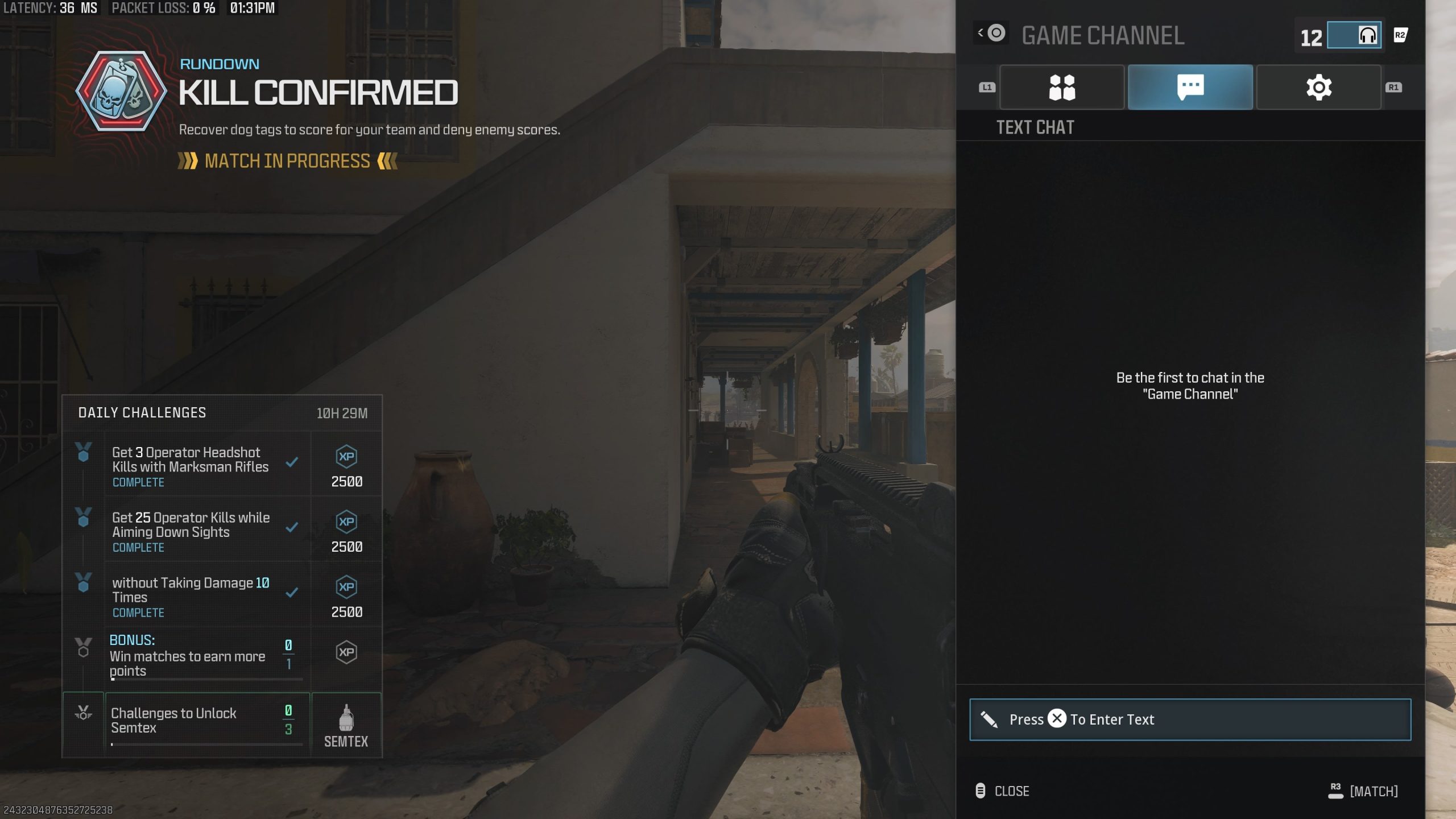
To type in game chat in MW3, press the designated chat key (usually ‘Enter’ on PC, or the corresponding button on console controllers) to open the text input box, then type your message and press the same key again to send it.
Frustrated with not being able to trash talk your opponents or coordinate with your team in MW3? It’s a common issue! Many players find themselves wondering how to type in game chat mw3, especially if they’re new to the game or platform. Luckily, it’s a pretty straightforward process once you understand the key bindings.
You simply need to know the correct button to initiate the chat. After which, you just type what you want to send. Press the same button again when finished to make it go through. We can get you chatting in no time.

How to Type in Game Chat MW3
Okay, so you’re ready to jump into Modern Warfare 3 (MW3) and chat with your teammates, or maybe even throw a friendly (or not-so-friendly) word to the enemy team. That’s great! Using the in-game chat is a key part of the experience. It helps you coordinate strategies, celebrate awesome plays, or, you know, just have a little banter. But how do you actually do it? It’s not always obvious, especially if you’re new to the game or the Call of Duty series in general. Let’s break down all the ways you can communicate in MW3 using your keyboard and even your voice!
Understanding the Basics of Game Chat
Before we dive into the specifics of how to type, let’s talk about the different kinds of chat available in MW3. Knowing what each one does will help you use them properly and communicate with the right people.
Team Chat
Team chat is the most common type of chat you’ll use. As its name implies, this chat is only visible to your teammates. It’s the perfect place to discuss your plan of attack, call out enemy positions, or ask for backup. It’s basically your private channel to coordinate with the people who are on your side. Effective team communication can often be the difference between winning and losing a match!
All Chat (Game Chat)
All Chat, sometimes referred to as Game Chat, allows you to communicate with everyone in the game. This includes both your teammates and the opposing team. This chat can get a little spicy, as you might imagine! It’s a place for friendly ribbing, strategic taunts, or sometimes just random nonsense. However, remember to keep it respectful. Using the all chat to make a positive interaction can lead to friendships outside of the match. This is where you’ll type if you want the entire lobby to see your message. So make sure your message is appropriate for everyone to see. Remember, this is where the “trash talk” often happens, but try to keep it light-hearted.
Proximity Chat
Proximity Chat is unique because it uses voice rather than text. Your voice will only be heard by players in your immediate vicinity in the game. This creates a more immersive experience, since it mimics how you’d communicate in a real-life scenario. If you get close to an enemy, they might hear what you’re saying! This adds an extra level of caution and strategy, as it is not a private chat and others may hear what you are saying. This also makes for some funny interactions when enemies are trying to sneak around.
How to Actually Type in Game Chat on PC
Now for the main event: actually typing your messages! The specific steps will vary slightly depending on whether you’re using a keyboard on your PC or a console. This section focuses on using a PC with a keyboard. Let’s dive in to the exact steps.
Opening the Chat Window
The first and most important step is to bring up the chat window. Here’s how:
- In-Game: While you’re in a match, press the Enter key. This is the standard key to open the chat window in most PC games. When you press it, you should see the chat text input area appear on your screen.
- During Lobby: You can usually press Enter key to access the chat even when you are in the pre-match lobby screen.
Typing Your Message
Once the chat window is open, you’ll see a blinking cursor, this means the game is ready for you to start typing. Start typing the message you want to send. The text will appear in the input box. If you are wanting to use all chat, it is very important that you use the correct key to activate it.
- Team Chat: To send a message to your team only, just press the Enter key to open the chat window, type your message, and hit Enter again to send it. You can also select the team option once the chat window is open.
- All Chat (Game Chat): To send a message to everyone (all chat), you’ll need to hit the / (forward slash) key and this will change your chat box to all chat. Then, type your message and press Enter to send it.
Remember to press Enter after you’ve typed your message. It won’t magically appear in the chat until you do! The message will then appear in the chat window.
Closing the Chat Window
To close the chat window without sending a message, simply press the Esc key (Escape). This will take the chat input box off the screen, and you can go back to playing the game. Make sure you do this instead of pressing enter, otherwise you might just send an incomplete message.
How to Type in Game Chat on Console (PlayStation and Xbox)
Okay, console players, we haven’t forgotten about you! Typing in game chat on a PlayStation or Xbox is a little different since you don’t have a physical keyboard readily available. Let’s go over the main options and how to use them.
Using the On-Screen Keyboard
The primary way to type on console is using the on-screen keyboard. Here’s how it generally works:
- Opening the Chat Window: Like on PC, the first step is to bring up the chat window. Usually, this is done by pressing the Options/Menu button (PlayStation) or Start button (Xbox) during a match. Then, use the controller to navigate to the chat option. The specific button may be displayed on screen.
- On-Screen Keyboard: The on-screen keyboard will appear. Use the analog sticks and the “X” button on PlayStation or the “A” button on Xbox to select the letters you want.
- Typing Your Message: Using the on screen keyboard, type out your message.
- Sending Your Message: Once you’ve finished typing, look for the “Send” or “Done” button. Typically, you’ll press the X/A button on your controller again to send the message.
Typing with an on-screen keyboard is pretty slow. It works, but it’s not the most efficient way to communicate if you need to type a lot of messages during a match. It is useful to send a quick message, or if you do not have another option.
Using a USB Keyboard
A much faster way to type on consoles is to connect a USB keyboard. Most modern consoles (PlayStation 4, PlayStation 5, Xbox One, and Xbox Series X/S) support USB keyboards. Just plug one in and you’ll be able to type much quicker.
- Plugging it in: Plug your USB keyboard into one of the USB ports on your console.
- Using It: Once plugged in, you can use the keyboard in the same way as you would on a PC. Press the Enter key to open the chat window, type your message, and press Enter to send it. Again you have to use the forward slash key to activate the all chat.
A USB keyboard is a very useful accessory for console gamers who prefer the feel of a physical keyboard. It is much easier and faster than using the controller keyboard, if you do a lot of typing while you play.
Using the PlayStation or Xbox App
Another way to type is to use the companion app on your smartphone or tablet. The apps let you type using your mobile device’s keyboard and send messages through to the game.
- Download the App: Download the official PlayStation App or Xbox App on your phone or tablet.
- Connect to Console: Connect the app to your console using your console account. Make sure you are logged into the same account in both places.
- Access Chat: In the app, look for the chat option. This is usually in the party or messaging sections.
- Type Your Message: You can now type using your mobile device’s keyboard.
The mobile app can be a good way to send quick messages without interrupting gameplay. This can be a very helpful option when you have a long message you want to type, as it is much faster than the on-screen controller keyboard. If you do not have access to a keyboard, this may be the best option for you.
Voice Chat in MW3: An Alternative Communication Method
While typing is useful, MW3 also supports voice chat, and proximity chat for more immediate communication. Here’s a little more about how to use that:
Using a Headset
To use voice chat, you’ll need a headset with a microphone. Make sure your headset is properly connected to your PC or console.
- Settings: Check your in-game audio settings to make sure that your microphone is selected as the input device and is unmuted.
- Push-to-Talk or Voice Activation: Most people use push-to-talk when communicating, where you hold down a key/button to speak. You can also enable voice activation, which uses your voice without needing to hold down any buttons. Be mindful of which you choose, as it affects who will hear you.
- Testing Your Microphone: It is important to test your microphone to ensure it is working correctly. You can do this in the settings area as well.
Proximity Chat Considerations
As we mentioned earlier, proximity chat is an interesting feature in MW3. It only transmits your voice to people who are close to you within the game. Be aware that if you are close to enemies, they will be able to hear your voice.
- Strategic Use: Use this chat strategically for short messages with people nearby. This type of voice chat can be both an asset and a hazard, so keep this in mind when using it.
- Privacy: Remember that what you say can be heard by your nearby enemies. So, think before you speak. If you don’t want enemies to hear you, be careful where you speak, and who you speak near.
Tips for Effective Game Chat Communication
Now that you know the technical aspects of using game chat, here are a few tips to help you communicate better and be a more effective teammate:
Be Clear and Concise
When typing, try to be as clear and concise as possible. Use short, understandable sentences. Avoid using excessive jargon or terms that only you know. You need to be sure your team understands what you are saying, and this will help you with this goal. This makes it easier for your team to understand you quickly, which is vital in a fast-paced game like MW3. If you are using voice chat, try to be clear and don’t speak too fast, so that others can understand you.
Use Proper Language
While some games might have a reputation for “trash talk,” it’s always best to try and keep your language appropriate and respectful, especially in All Chat. Avoid personal insults, slurs, and hateful comments. Toxic behavior does not help your team, and can get you banned. We all want to have a good time when playing games. And being respectful is an important part of being a good teammate.
Call Outs
One of the most helpful things you can do in a team-based shooter is to use call outs. Call outs are short phrases or words used to give teammates valuable information about the enemy’s location. For example, calling “enemy left flank” is better than “look over there!” Specific callouts, like “behind the blue car” or “up on the roof of the building” are key to good team communication.
Avoid Spamming
Nobody likes a spammer. Avoid sending repetitive messages or flooding the chat with useless information. Spamming will often lead to others ignoring your messages, which makes it hard to communicate important information to your team. It also annoys your teammates, so try to keep chat clear.
Use Chat Sparingly
Remember that every second you spend typing is a second you are not actively playing the game. Try to use voice chat if you need to communicate quickly and need to keep your eyes on the screen. While typing can be useful, try not to do it if it will negatively affect your gameplay.
Be Patient
Not everyone is going to be a pro at communicating. Some people might be new to the game, or they might just not use the chat very often. Be patient with them, and try to offer helpful tips and suggestions. When you are a good teammate to others, they are often more inclined to be a good teammate to you. Also remember, that some people are playing with their families, so please be considerate of others in your lobby.
Be Aware of Your Surroundings
If you’re using voice chat, be aware of your environment. Try not to have a lot of background noise that distracts your team from the game. Try to play in a quiet room, and use a good quality microphone, so that others can hear you well. If you are playing with other people in your house, be respectful of them, and try to keep your voice to a reasonable level.
In summary, typing in game chat in MW3 is very simple. Whether you are on PC or console, there are multiple ways for you to use in-game communication. Knowing how to communicate effectively is a key component to being a good player, and being a good teammate. By remembering these tips, you’ll be typing (or talking) like a pro in no time!
How to Quickly TEXT Chat in GAME in COD MODERN WARFARE 3 (Controller Tutorial)
Final Thoughts
To type in game chat mw3, you must press the designated key or button during a match. This usually depends on your platform, like the ‘T’ key on PC. Console players might use the directional pad or specific controller buttons.
Remember to check your game settings for the correct binding. Knowing the specific input allows you to communicate with your teammates effectively. This simple action enhances teamwork and coordination.
Ultimately, typing in game chat mw3 requires knowing your platform’s input and adjusting settings if needed. Quick communication is essential for a better gameplay experience.

