
To uninstall games on your Mac, simply drag the game’s application icon from the Applications folder to the Trash, then empty the Trash.
Is your Mac feeling a bit cluttered? Perhaps you’ve downloaded several games and now want to free up some space. Knowing how to uninstall games mac effectively is important for maintaining a clean and speedy system.
Getting rid of games you no longer play does not need to be complicated. The process is quite straightforward and we will walk you through it. This guide is here to simplify the task and help you keep your Mac running smoothly.

How to Uninstall Games on Your Mac: A Complete Guide
So, you’ve decided it’s time to say goodbye to a game on your Mac? Maybe it’s taking up too much space, or perhaps you’re just not playing it anymore. That’s totally okay! Removing games from your Mac is usually pretty straightforward, but sometimes it can feel a bit tricky if you don’t know where to look. Don’t worry, this guide is here to help you through every step of the process. We’ll cover different ways to uninstall games, making sure they’re completely gone and not leaving behind any leftover files that clutter your computer.
Understanding Different Types of Game Installations
Before we get into the how-to, it’s helpful to understand how games get installed on your Mac in the first place. This knowledge helps us figure out the best way to get rid of them. Games on Mac usually come from a few main places:
- The Mac App Store: These games are installed just like any other app from the App Store.
- Steam, Epic Games Store, or other launchers: Games downloaded from these platforms often have their own install directories.
- Direct Downloads (DMGs or ZIPs): Sometimes you get games straight from a website. These can be a bit more varied in how they are installed.
Knowing the origin of your game helps decide the best way to uninstall it.
Uninstalling Games from the Mac App Store
Games from the App Store are usually the easiest to remove. Apple makes the process simple and clean.
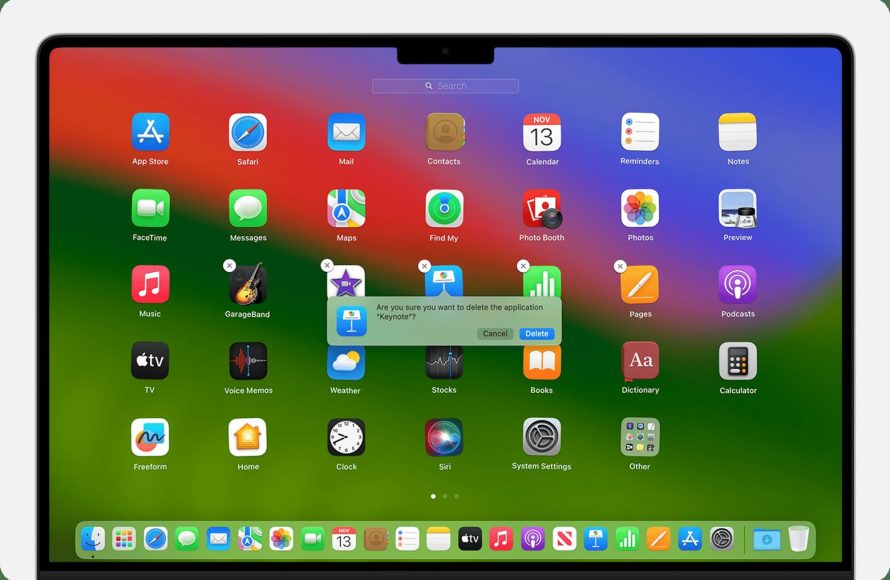
Using Launchpad
Launchpad is a great way to see all your apps and is super handy for uninstalling those from the App Store.
- Click the Launchpad icon in your Dock (it looks like a rocket ship).
- Find the game you want to uninstall.
- Click and hold the game’s icon until it starts to wiggle. You’ll also see a small “x” appear at the top-left corner of the icon.
- Click the “x.”
- A window will pop up asking if you are sure you want to delete the game. Click “Delete”.
That’s it! The game and all its related files are removed from your Mac.
Using the Applications Folder
You can also uninstall App Store games directly from your Applications folder.
- Open a new Finder window.
- Click on “Applications” in the sidebar.
- Find the game you want to uninstall.
- Right-click (or Control-click) on the game’s icon.
- Select “Move to Trash.”
- Empty your Trash.
When you move a game to the Trash and then empty the trash, it will get removed from your Mac. Both of these ways help you effectively uninstall the games from the app store.
Uninstalling Games from Steam
Steam is a very popular platform for games, and it has its own way of handling uninstalls.
Uninstalling Games Within the Steam Client
- Open the Steam application.
- Go to your “Library.”
- Find the game you want to remove in your list of games.
- Right-click (or Control-click) on the game title.
- From the menu that appears, select “Manage.”
- Then select “Uninstall.”
- Steam will ask you to confirm your decision. Confirm to uninstall the game.
Steam will now remove the game and its related files.
Deleting Steam Game Files Manually (If Needed)
Sometimes, for various reasons, a game’s files might not be completely gone after uninstalling through Steam. If you want to be absolutely sure you got everything, you can manually check the Steam game directories.
- Open a new Finder window.
- Click on “Go” in the top menu bar.
- Select “Go to Folder…”
- Type in the following location: ~/Library/Application Support/Steam/steamapps/common and press “Go.”
- Here, you’ll see folders with your Steam games. If you see any folders for the game you uninstalled, you can drag those folders to the Trash and empty the Trash.
Use this manual step only if you want to be extra certain, and take caution not to delete the wrong files.
Uninstalling Games from Other Launchers (Epic Games, etc.)
Other game launchers like Epic Games, GOG Galaxy, or Blizzard’s Battle.net have their own processes for uninstalling games. The steps are very similar to Steam’s process.
Uninstalling Within the Launcher Application
The specific steps vary slightly between launchers, but the general idea is the same:
- Open your game launcher app (e.g., Epic Games Launcher).
- Go to your game library or collection.
- Find the game you want to uninstall.
- Look for an option like “Uninstall,” “Remove,” or something similar. This option is usually found when you right-click or hover over the game’s title.
- Follow the on-screen prompts to complete the uninstallation.
Generally, launchers handle the uninstall process well, removing game files automatically.
Checking for Remaining Files (If Necessary)
Just like with Steam games, sometimes a few files might be left behind. If you want a completely clean removal, here’s how to check:
- Open a new Finder window.
- Click “Go” in the top menu bar and select “Go to Folder…”
- Depending on the launcher, the game files are usually in ~/Library/Application Support or in a folder within your main Applications folder. Check for folders with the launcher’s name or the specific game’s title.
- If you find any leftover folders or files related to the uninstalled game, drag them to the Trash and then empty the Trash.
Always double-check that the folders you’re deleting are indeed leftover files from the game and not important files from other games or apps.
Uninstalling Games from DMG or ZIP Files (Direct Downloads)
Games that you directly download often require a bit more hands-on approach to uninstalling. These downloads are often in the format of DMG or ZIP files.
Removing the Application
- Open your Applications folder in Finder.
- Find the game application that you installed.
- Drag the application’s icon to the Trash and then empty the Trash.
Searching for Related Files
Directly downloaded games don’t usually have a centralized uninstaller, so we need to hunt for their files:
- Open a new Finder window.
- Click on “Go” in the top menu bar, and then select “Go to Folder…”
- Type in ~/Library/Application Support and press “Go.”
- Search this folder (and its subfolders) for folders that may be named the same as the game.
- Also try searching in ~/Library/Preferences. Some applications store their settings in this location.
- If you find any folders or files that match the name of the game, drag them to the Trash and empty the Trash.
It’s a good idea to search for files related to the game in other parts of your Library folder if you are still having issues. Be careful and make sure to delete only the related files.
Using Third-Party Uninstaller Applications
If you prefer an easier solution, or if you want to be certain every last file is removed from your Mac, third-party uninstaller applications are very useful. These applications are specifically made to find and remove all related files from applications, including games.
Popular Uninstaller Apps for macOS
There are many uninstaller apps available. Some of the more popular options include:
- AppCleaner (free and simple to use)
- CleanMyMac X (paid with a free trial)
- Uninstall Expert (paid)
How to Use an Uninstaller App
The process is usually very similar for most of them:
- Download and install the uninstaller application of your choice.
- Open the uninstaller app.
- The app will scan for installed applications on your system.
- Find the game you want to uninstall from the list of applications.
- Select the game, and the uninstaller will find all the related files.
- Follow the prompts to complete the uninstall process.
These apps are helpful, especially if you’re not too comfortable digging into the Library folders.
Important Tips for Safe Uninstalling
Uninstalling games is generally safe, but here are some pointers to avoid any issues:
- Double Check: Before deleting anything, make absolutely sure that it is indeed part of the game you wish to uninstall. Deleting important system files will create problems.
- Empty Trash: Don’t forget to empty the Trash after deleting files, otherwise they will still take space on your drive.
- Backups: If you’re uninstalling a game and you think you might want to play it again later, back up any save files or important game data you have. You can find these files in ~/Library/Application Support or inside the game’s directory in Steam or the game launcher.
- Use Caution: Be careful when deleting files directly in the Library folder. If you’re not sure what a file is, don’t delete it. Use an uninstaller application if you want to be extra careful.
Uninstalling games on your Mac is a process you’ll likely need to do every now and then. Whether you choose to use Launchpad, the Steam app, or a third-party uninstaller, you now have a clear understanding of all the steps involved. Each method offers a way to clear up space on your computer and manage the apps installed. Now, you can keep your Mac organized and only filled with games you actually play. Knowing how to do this also allows you to troubleshoot if you start having any problems with games, or if you are simply trying to keep your computer clutter free.
How to Uninstall Programs on Mac | Permanently Delete Application on Mac
Final Thoughts
To completely remove a game from your Mac, drag the game’s icon from the Applications folder to the Trash. Then, empty the Trash to delete the main game files. However, some games may leave behind associated files in other locations.
To deal with these, check the Library folder within your user folder for any remaining game-related files. Delete these as well to make sure you do a complete game removal. This method helps in how to uninstall games mac effectively.

