
To unlink your PlayStation account from Epic Games, you must go to the Epic Games website, access your account settings, then navigate to the connections section and disconnect your PlayStation Network account.
Ever felt tied down by linked accounts? Maybe you want to use a different PlayStation ID with your Epic Games account, or you simply want more control. This article explains how to unlink playstation from epic games. It is quite a simple process once you know the right steps to take.
We will guide you through the process on the Epic Games website, showing the right place to look in the settings and how to sever the connection easily.

How to Unlink PlayStation from Epic Games
Ever wanted to play your favorite Epic Games games, like Fortnite, on a different account or maybe just start fresh? Sometimes, you might find that your PlayStation Network account is linked to an Epic Games account you don’t really use anymore. It’s like having a key that opens the wrong door! Don’t worry, it’s possible to unlink your PlayStation account from your Epic Games account. While it’s not something you can do directly from your PlayStation console, the process is still pretty simple. We’re going to walk you through it step-by-step, making sure you understand exactly what to do. Think of it as tidying up your digital playroom, making sure everything is connected where it should be.
Understanding the Link Between PlayStation and Epic Games
Before we jump into the “how,” it’s good to understand why these accounts are linked in the first place. When you first play a game like Fortnite or Rocket League on your PlayStation, the game usually asks you to sign in with or create an Epic Games account. This links your PlayStation ID to that Epic Games account, letting you save progress, purchase in-game items, and play with friends across different platforms (this is often called crossplay). This linked connection works smoothly in most cases. However, sometimes circumstances change, and you might want to separate these two accounts. Reasons for wanting to disconnect the two accounts could be several; like maybe you have linked the wrong account, maybe you want to play with a new Epic Games account or just simply want to unlink the accounts for some security reason.
Why You Might Want to Unlink
There are many valid reasons why someone might want to disconnect their PlayStation account from their Epic Games account. Here are a few common ones:
- Incorrect Account Linking: Perhaps you accidentally linked your PlayStation account to an Epic Games account you rarely use. This happens more often than you might think!
- Starting Fresh: Maybe you want to start a game like Fortnite over, with a completely new Epic Games account and progress.
- Account Security: In rare cases, you might want to unlink your accounts for security reasons, such as after discovering a potential compromise.
- Consolidating Accounts: Some players have multiple Epic Games accounts, and they may want to link their PlayStation account to a different, more active Epic Games account.
- Gifting to Family/Friends: If you’re selling or giving your PlayStation to someone else, you probably don’t want your Epic Games account linked to it.
Whatever your reason, the process is essentially the same, and we’re here to guide you.
The Unlinking Process: Step-by-Step
Okay, let’s get to the meat of the matter: unlinking your PlayStation account from your Epic Games account. It’s primarily done through the Epic Games website, not through your PlayStation console directly.
Step 1: Accessing the Epic Games Website
The first step is to get to the right place. You will need to use a web browser on your computer, phone, or tablet, because you cannot do it directly through the PlayStation. Don’t worry, it is very simple:
- Open your web browser (like Chrome, Safari, or Firefox).
- Go to the official Epic Games website: www.epicgames.com.
Make sure you are on the official Epic Games site to keep your account safe.
Step 2: Signing into Your Epic Games Account
Now you need to sign into your specific Epic Games account that is linked to your PlayStation account. This is important; make sure you log into the right account. Here’s how:
- Look for the “Sign In” button, usually found at the top-right corner of the website.
- Click on “Sign In,” and you will see a number of options. Choose “PlayStation”.
- Log in with your usual PlayStation Network ID.
- Once logged in with the PlayStation account, you’ll be redirected to your Epic Games account. If you’ve linked multiple accounts, make sure the one you’re logged into is the one you want to work with.
Step 3: Navigating to Account Settings
Once you’re logged into the correct Epic Games account, you’ll need to find your account settings. Here’s how:
- Click on your account name or profile icon (again, often at the top-right corner).
- From the dropdown menu, choose “Account.”
- This will bring you to a page that contains all your account settings.
Step 4: Locating Connected Accounts
Now you’re in your account settings, and we’re looking for the area that manages linked accounts. Here is what to do next:
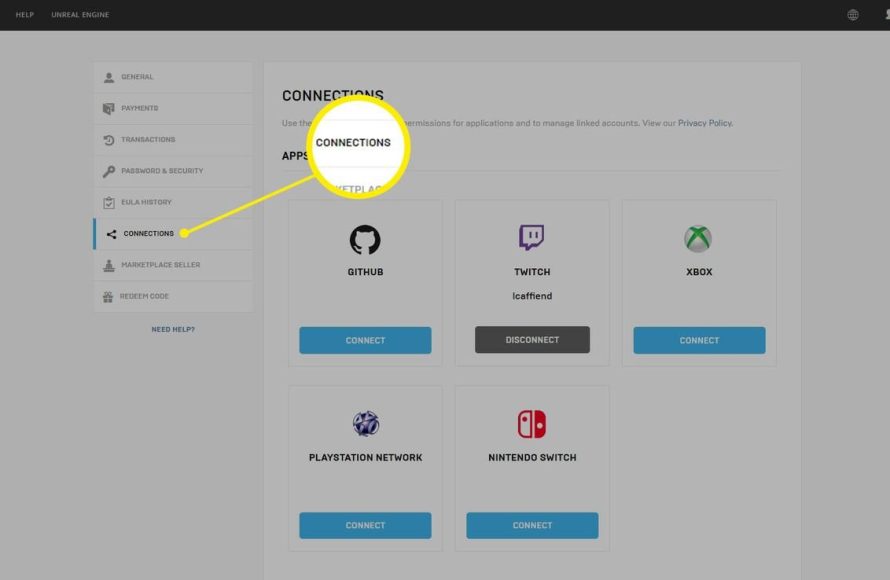
- On the left side of the screen, you will see a list of options. Click “Connections.”
- Then choose “Accounts”. This will display all your connected accounts, such as PlayStation, Xbox, Nintendo, Steam etc.
Step 5: Initiating the Unlinking Process
This is where you actually start the unlinking. Make sure you’re absolutely sure you want to disconnect your PlayStation account before moving ahead:
- Find the PlayStation account you want to disconnect. There will likely be an option near the PlayStation logo that says “Remove” or “Disconnect”.
- Click the “Remove” or “Disconnect” button. A message might pop up to warn you about the effects of disconnecting, read this carefully.
- Confirm that you want to unlink by clicking on the “Confirm” option or a similar button.
Step 6: Understanding the Consequences of Unlinking
Before you finalize the unlinking, it’s extremely important to understand what happens when you disconnect your PlayStation account from your Epic Games account. Unlinking will affect which account gets used when you try to play with the PlayStation account.
- Progress and Items: When you unlink, your game progress, purchased items, and other in-game data are still associated with your Epic Games account. They don’t disappear, but you won’t be able to access them on that PlayStation account any more. You will access this data using the new linked Epic Games account.
- Future Linking: You can link your PlayStation account to a different Epic Games account in the future if you want to. But understand that game progression does not transfer between accounts.
- Cross-Platform Play: After unlinking, you might need to set up cross-platform play again if you connect your PlayStation account to a different Epic Games account.
- Multiple Accounts: If you have multiple PlayStation accounts, only the specific account you unlinked will be affected. Other PlayStation accounts linked to your Epic Games account will remain connected unless you specifically disconnect them as well.
Common Issues and Troubleshooting
Sometimes, things don’t go perfectly according to plan. If you face any problems, here are some typical situations and how to handle them.
Issue: “I Don’t See the Remove/Disconnect Option”
If you are looking at the accounts connections page but do not see any “Remove” or “Disconnect” button, it’s possible that your PlayStation account is the primary account for your Epic Games account. In this situation, you may not have the ability to disconnect them this way.
To overcome this, you need to reach out to the Epic Games support team for help with unlinking or possibly to merge accounts. The Epic Games support team will walk you through this process.
Issue: “I’m Unsure Which Epic Games Account is Linked”
If you have multiple Epic Games accounts and are not sure which one is linked to your PlayStation account, you can try these steps:
- Try Logging In: First, try to log into all of your Epic Games accounts and check each one individually. Log in using your PSN account and then check which one is linked.
- Check Email Addresses: Look through your email inboxes associated with different email accounts, and search for anything relating to Epic Games, as you might find emails confirming which accounts were linked.
- Contact Support: If you still can’t determine which Epic Games account is linked, reach out to Epic Games support for assistance. They can help you identify your connected account.
Issue: “I Keep Getting an Error Message”
If you are getting some kind of error during the unlinking process, it’s possible that the Epic Games servers are experiencing some technical issues.
- Wait and Try Again: Try logging out and then log back in and try the process again.
- Check Server Status: Visit the Epic Games server status page to see if they are experiencing server problems. If so, you might have to wait for them to fix it.
- Contact Support: If the issue continues, contact Epic Games support. They can investigate if there’s an issue with your account or the disconnection process.
Issue: “I Unlinked the Wrong Account”
If you accidentally unlinked the incorrect Epic Games account, don’t panic! You may be able to re-link the same accounts. However, if you have already linked your PlayStation account to a new Epic Games account, then you cannot re-link the original accounts. Therefore, you might have to reach out to support team to see if they can help you, but there is no guarantee they can assist.
To minimize the chances of issues, it is always a good idea to carefully read any confirmation messages and pay attention to the details before making changes to your accounts.
Security Tips
When handling your accounts, security is really important. These simple steps help you keep things safe.
Strong Passwords
Always use a strong password for your Epic Games and PlayStation accounts. Strong passwords include a mix of uppercase and lowercase letters, numbers, and symbols. Change passwords frequently.
Two-Factor Authentication
Enable two-factor authentication (2FA) on both your Epic Games and PlayStation Network accounts. This adds an extra layer of security. You will be sent a security code to your phone or email whenever you try to sign in from a new device. This makes it harder for anyone to access your accounts without your permission.
Be Careful with Sharing
Do not share your login details with anyone and be suspicious of any website that appears to be Epic Games, asking for your details. Only login to official Epic Games website or the game on your PlayStation. Don’t fall for scams!
By following these steps and safety tips, you will manage your linked accounts carefully.
Unlinking your PlayStation account from your Epic Games account can seem a bit daunting at first, but if you follow the steps, it’s a simple process. Remember, your in-game items and progress are safe and associated with your Epic Games account. Knowing how to handle these connections gives you more control over your gaming experience. Whether you are starting fresh, trying to merge accounts, or simply making your digital life more organized, it’s good to know that you can always manage how your game accounts are connected. Always double-check before making changes, and don’t hesitate to contact support if you have any questions. Now, go enjoy your gaming experience!
How to Unlink Epic Games Account From PS4, PS5, Xbox, Switch, & PC
Final Thoughts
To unlink your Playstation account from Epic Games, first navigate to the Epic Games website. Then, go to your account settings. Find the “Connections” section, and you will find your linked accounts.
Next, locate your Playstation account in the list. You can now choose the option to disconnect. Confirm your decision and your accounts should be unlinked. This completes the process of ‘how to unlink playstation from epic games’. Remember, carefully make this decision to avoid login issues.

