
To update the game, check your device’s app store for available updates, or restart the game.
Keeping your favorite games current can sometimes feel a little puzzling, right? You might be wondering how to update the game, especially when new features appear. It’s a common question that many players have, and fortunately, it usually has a very straightforward answer.
Typically, your phone or console handles game updates automatically if you enabled that function. However, sometimes a manual check is needed. So it’s a good habit to double-check for updates from time to time.

How to Update the Game
Keeping your games up-to-date is super important for a smooth and fun gaming experience. Updates often bring exciting new content, fix annoying bugs, and make the game run better overall. Think of it like giving your game a tune-up! But sometimes, knowing exactly how to get those updates can be a little tricky. That’s where we come in. This guide will walk you through the different ways you can update your games, no matter what device you’re playing on. Let’s dive in!
Why Game Updates Matter
Before we get into the “how,” let’s quickly talk about the “why.” Game updates aren’t just about adding cool new things; they’re crucial for a few key reasons:
- Bug Fixes: Games can sometimes have little errors, called bugs, that can cause problems like the game crashing or not working correctly. Updates often fix these issues.
- Performance Improvements: Updates can make the game run faster and smoother, meaning less lag and a better overall experience. Imagine your game running like a speedy race car instead of a slow-moving turtle!
- New Features and Content: This is the fun part! Updates often bring new characters, levels, items, and other exciting content to keep the game interesting and fresh. It’s like getting a brand-new present for your game.
- Security Patches: Sometimes updates are released to fix security issues and make sure your game is safe to play.
- Compatibility: As new devices or operating systems are released, game updates ensure the game works well on those.
Updating Games on Different Platforms
How you update a game depends on the device you are using. Here’s a breakdown for different popular gaming platforms:
Updating Games on PC
Updating games on your computer is often done through the game’s launcher or store. Here’s how it works for some common launchers:
Steam
Steam is a very popular platform for PC games. Here’s how you can update your games on Steam:
- Automatic Updates: Steam usually updates games automatically in the background when you aren’t playing them. When a new update is ready, it will often download automatically. You don’t have to do anything most of the time!
- Checking for Updates Manually: Sometimes, you might want to check for updates yourself. Here’s how:
- Open the Steam client.
- Go to your Library.
- Right-click on the game you want to check.
- Select “Properties.”
- Click on the “Updates” tab.
- Make sure “Always keep this game up to date” is selected. You can also force an update by clicking “Verify integrity of game files” if something seems off.
Epic Games Launcher
The Epic Games Launcher is another popular platform for buying and playing PC games. Here’s how it’s done:
- Automatic Updates: Like Steam, the Epic Games Launcher typically updates your games automatically when they are not running.
- Checking for Updates Manually: You can also check for updates manually. Here’s how:
- Open the Epic Games Launcher.
- Go to your Library.
- Click on the three dots next to the game you want to check.
- Select “Manage.”
- If an update is available, you’ll see an “Update” button, click on it.
GOG Galaxy
GOG Galaxy is a platform that focuses on DRM-free games. Here’s the update process:
- Automatic Updates: GOG Galaxy can also update your games automatically.
- Checking for Updates Manually: To manually check:
- Open GOG Galaxy.
- Go to the game’s page in your library.
- Click the “More” button (usually three dots).
- Select “Manage” and then “Check for updates” or an “Update” button.
Other Launchers and Game-Specific Updates
Some games may use their own launchers or update systems. Here’s what to keep in mind:
- In-Game Update Prompts: Sometimes, when you start a game, it might tell you there is an update and give you a way to download it from inside the game.
- Checking the Game’s Website or Forums: If you’re not sure how to update a specific game, check its official website or the game’s online forums. You’ll usually find instructions there.
Updating Games on Consoles (PlayStation, Xbox, Nintendo Switch)
Consoles also have their own update systems that are generally very easy to use. Here’s a look at how you can do it on some popular consoles:
PlayStation (PS4, PS5)
PlayStation consoles make updates pretty straightforward:
- Automatic Updates: Usually, PlayStation consoles automatically download and install updates when they are connected to the internet.
- Checking for Updates Manually: You can also check manually:
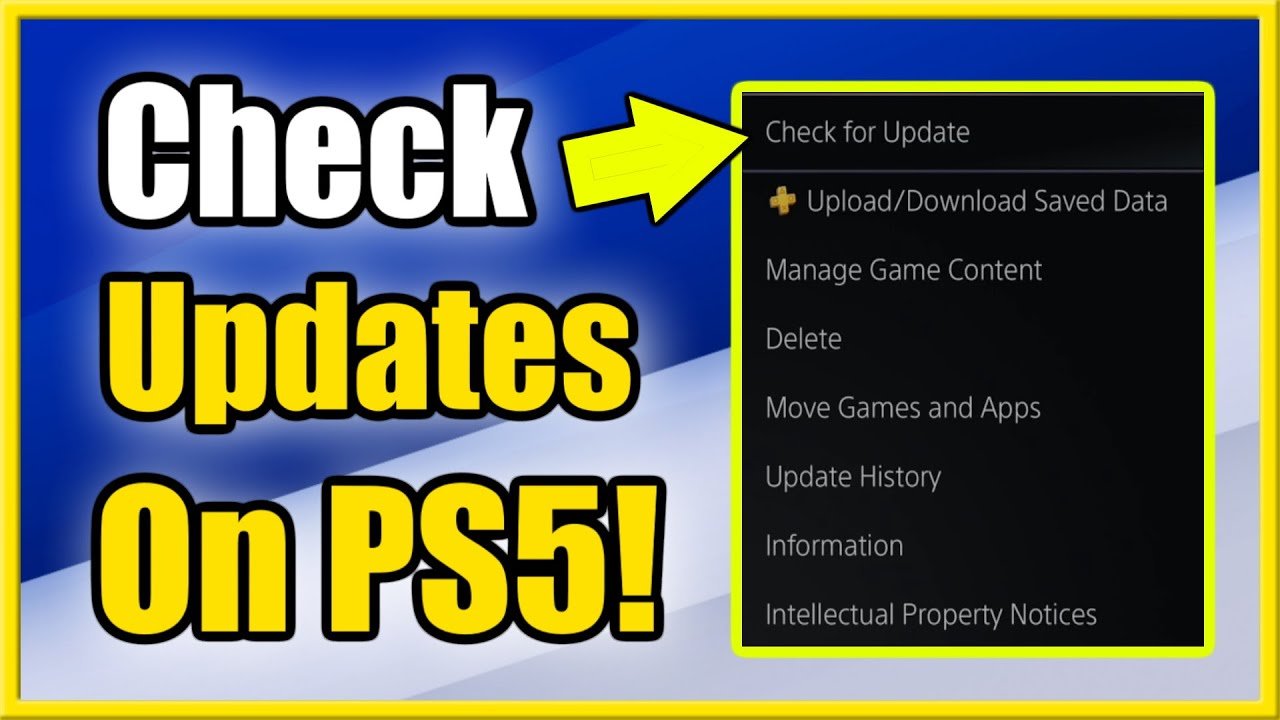
- Go to the game’s icon on your home screen.
- Press the “Options” button on your controller.
- Select “Check for Update.”
Xbox (Xbox One, Xbox Series X/S)
Xbox consoles work similarly to PlayStations:
- Automatic Updates: Xbox usually handles updates in the background without you needing to worry about it.
- Checking for Updates Manually: If you want to do it manually:
- Go to “My games & apps.”
- Select “See all.”
- Select “Games.”
- Highlight the game you want to check.
- Press the “Menu” button on your controller.
- Select “Manage game & add-ons.”
- Select “Updates.”
Nintendo Switch
The Nintendo Switch also handles game updates smoothly:
- Automatic Updates: The Nintendo Switch typically downloads and installs updates when you have an active internet connection.
- Checking for Updates Manually: Here is how to manually check:
- From the HOME Menu, highlight the game you wish to check for updates.
- Press the “+” or “-” Button on your controller.
- Select “Software Update.”
- Select “Via the Internet.”
Updating Games on Mobile Devices (Android, iOS)
If you prefer gaming on your phone or tablet, you’ll often use the app store to get updates. Let’s look at how to update games on iOS and Android:
Android
- Automatic Updates: Android phones will usually update apps, including games, automatically through the Google Play Store.
- Checking for Updates Manually: Here is how you can check yourself:
- Open the Google Play Store app.
- Tap your profile icon in the top right.
- Select “Manage apps & device.”
- Select “Updates available.”
- You’ll see a list of updates available, including game updates. You can choose to update all of them or just specific ones.
iOS (iPhone, iPad)
- Automatic Updates: Your iPhone or iPad will usually update apps, including games, automatically through the App Store.
- Checking for Updates Manually: Here is how you can check for updates on iOS devices:
- Open the App Store app.
- Tap your profile picture in the top right.
- Scroll down to “Available Updates.”
- You’ll see a list of updates available, including game updates. You can choose to update all of them or just specific ones.
Troubleshooting Common Update Issues
Sometimes, updates don’t go as smoothly as planned. Here are some common problems and how to fix them:
Update Stuck or Slow Download
If your update seems to be stuck or downloading very slowly, here’s what to do:
- Check Your Internet Connection: Make sure you are connected to the internet and that it’s working. Try restarting your router.
- Pause and Resume: Try pausing and resuming the download. Sometimes this helps get things moving again.
- Close Other Applications: Other apps using the internet can slow down the download. Close anything you’re not using.
- Restart Your Device: Restart your device (computer, console, or mobile device). This can sometimes fix problems with downloads.
- Clear Your Cache: Sometimes, a clogged cache can slow down downloads. Clearing the cache on your device can help.
Game Not Updating
If a game refuses to update, try these steps:
- Make Sure Enough Storage is Available: Sometimes the update can’t finish if there is not enough space on your device.
- Restart the Platform: Try restarting Steam, the Epic Games Launcher, or your console or phone/tablet.
- Check the Game’s Server Status: Sometimes the update is delayed due to server problems. Check the game’s official website or social media for any announcements.
- Contact Support: If none of these options work, contact the game’s support team or the platform you are using (Steam, Epic, etc.).
Game Crashing After Update
If your game starts crashing after you update it, try these:
- Restart the Game and Device: Try restarting the game and your device to see if that fixes it.
- Check Game Compatibility: If your hardware or software does not meet the game’s requirements, this may cause crashes.
- Reinstall the Game: If the problem continues, uninstall the game and reinstall it.
- Check for Updated Device Drivers: if playing on PC, make sure your graphics drivers are up to date.
Tips for Managing Game Updates
Here are some extra tips to make sure game updates go smoothly:
- Keep Enough Storage Space: Make sure you have enough space on your device before you start an update. This will avoid any issues where the game is unable to update due to lack of space.
- Update Regularly: Try to update your games regularly to avoid getting behind, and to make sure you are running on the latest and greatest version.
- Connect to WiFi: When updating games on mobile devices, try to use WiFi so it doesn’t drain your data.
- Set Up Automatic Updates: In most platforms, there’s an option for automatic updates. This is the easiest method to keep your games updated.
- Be Patient: Sometimes updates can take a long time, especially big ones. Be patient while they download and install.
Keeping your game updated is a very important step to making sure that your games run properly, and also make sure to enhance your gameplay. It can be a bit frustrating when things go wrong, but hopefully this guide has armed you with information and advice needed to navigate those issues.
How to Update Games on PS5 (Manually & Automatic Updates!)
Final Thoughts
To update the game, first check your platform’s app store for new versions. Select the update option if available, and it will download automatically. It is important to maintain the latest game version.
Then, you may need to restart the application after updating. The process is usually automatic, but sometimes a manual restart helps ensure smooth operation. These steps are simple.
To conclude, following the described steps guarantees you will learn how to update the game. Make certain you keep your game updated to avoid any errors.

