
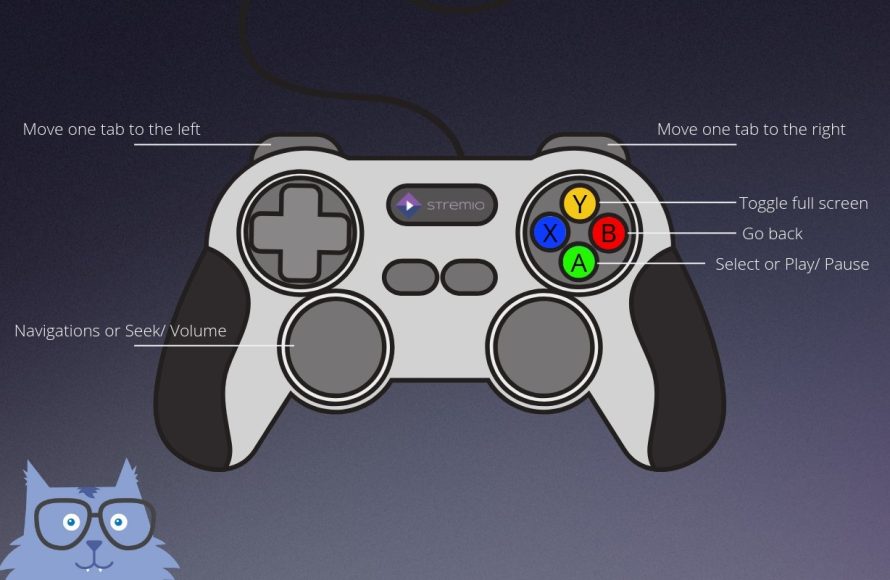
Using a game controller involves connecting it to your device, then using the buttons, triggers, and sticks to navigate menus and control gameplay.
Have you ever felt lost staring at a complex game interface, fingers twitching for a more intuitive way to play? That’s where a game controller comes in. It’s a fantastic alternative to keyboards and mice for many games. Many people want to learn how to use a game controller effectively. This guide will help get you started.
We’ll explore basic setup and common button layouts. You’ll quickly see how to navigate your game with much more precision. Get ready to jump into your favorite games with much greater control.

How to Use a Game Controller: A Beginner’s Guide
So, you’ve got a shiny new game controller in your hands, ready to dive into some awesome video games. Maybe you’ve seen your friends gaming and now you want to join the fun. But wait, it’s got buttons everywhere! Don’t worry, it might look a bit complicated at first, but using a game controller is actually quite easy once you get the hang of it. This guide will walk you through everything you need to know, from the basic parts of a controller to more advanced techniques.
Understanding the Different Parts of a Controller
Before you start playing, it’s a good idea to know what each part of your controller does. Most game controllers, whether they’re for Xbox, PlayStation, Nintendo, or PC, have similar basic components. Let’s break them down:
The Buttons
Buttons are the most common way to interact with a game. You’ll find them all over your controller, each with its own purpose. Here are some of the common ones:
- Action Buttons: Usually found on the right side of the controller, they might be labeled A, B, X, Y (on Xbox), or circle, square, triangle, cross (on PlayStation). These are used for jumping, attacking, picking things up, and many other actions.
- Shoulder Buttons: Located on the top edge of the controller (the “shoulders”), these buttons are often used for aiming, shooting, or special abilities. They’re usually called L1/R1 or LB/RB, depending on the controller.
- Trigger Buttons: Also on the top edge, but often curved and positioned below the shoulder buttons. They’re often labeled L2/R2 or LT/RT and are commonly used for accelerating in driving games or shooting weapons.
- Start/Options Button: This button usually lets you pause the game, access menus, or skip cutscenes. Sometimes labeled “Start”, “Options”, or a combination depending on the controller.
- Back/Select Button: Used less often, this button may take you back in the menus or show a map. Sometimes labeled “Back” or “Share”.
- Home Button: Usually a central button that may have a logo. This takes you to the console’s main menu.
The Sticks
These are small, movable sticks that you use with your thumbs. Usually, you have two sticks – one on the left and one on the right:
- Left Stick: Typically, it’s used to control your character’s movement. Push it forward to move forward, left to move left, and so on.
- Right Stick: Often used to control the camera or aim in games. This allows you to look around the virtual world or adjust your weapon’s aim.
The D-Pad
Also called a directional pad, it’s a set of four buttons shaped like a plus sign. The D-Pad is mostly used to navigate menus or switch between items in the game.
Getting Started: Holding Your Controller Correctly
Before you jump into gameplay, it’s important to hold your controller in a comfortable and correct way. This helps prevent hand fatigue and allows you to press the buttons easily. Here’s how:
- Grip: Hold the controller firmly but gently. Don’t squeeze too tightly, or your hands will get tired quickly.
- Thumbs: Your thumbs should naturally rest on the sticks, ready to move them. Keep your thumbs relaxed, not tense.
- Fingers: Your index fingers should rest on the shoulder buttons, and your middle fingers on the trigger buttons. You may not need all of your fingers when playing. The position will become more comfortable over time.
Basic Movements and Actions
Now that you know the parts and how to hold your controller, let’s try some basic movements. We’ll focus on how to walk around, look around, and interact with things.
Moving Your Character
- Using the Left Stick: Push the left stick forward, your character will move forward. Push the stick left, your character will go left. It’s like using a tiny joystick to move around in the game. Try moving the stick in different directions.
Controlling the Camera
- Using the Right Stick: In many games, you’ll need to control the camera to see around your character. Moving the right stick will change your viewpoint. This helps you to look around the game world.
Basic Actions
- Using Action Buttons: Each button has a role based on what game you are playing. Pressing a button could cause your character to jump, swing a sword, talk to another character, or pick up an item.
- Using Shoulder/Trigger Buttons: Typically, the shoulder and trigger buttons help perform secondary actions. In a racing game, the trigger buttons can accelerate and brake. In a shooter game, you could use trigger buttons to shoot.
Practice Makes Perfect: Start with Simple Games
You don’t have to jump into a very complicated game right away! Start with simple video games and then move to more complex options as you become more experienced with the controller.
Beginner-Friendly Games
Choose games that are easy to learn and won’t overwhelm you when you first start. Look for games that have a tutorial to guide you and teach you how to play.
- Platformers: Games where you jump from platform to platform. Many great platformers focus on basic movement and are fun and easy to play.
- Racing Games: Driving a car or motorcycle is often a fun and accessible way to learn the controls.
- Simple Puzzle Games: Puzzle games don’t usually require complicated button combinations. They will help you practice basic movement and interaction.
Practice Tips
- Start Slowly: Don’t try to learn everything at once. Focus on one or two things at a time, like moving and jumping.
- Repeat: Once you feel comfortable with one set of controls, try them again and again. Muscle memory will help make the controls second nature over time.
- Be Patient: It takes time and practice to become good at using a game controller. Don’t get discouraged if you don’t get it right away. Keep practicing and have fun.
Advanced Controller Techniques
Once you are familiar with the basic game controls, you might want to learn advanced gaming techniques. This section will walk you through how to improve your controller skills.
Using Both Sticks Simultaneously
Many advanced games require you to move and control the camera at the same time. This can be difficult at first, but with practice, it becomes easy. Start by moving the character with the left stick and slowly adjust the camera with the right stick. The ability to control both sticks at once really enhances your gameplay.
Using Combinations of Buttons
Some games will require combinations of buttons to perform special moves. For example, you might need to press L1 and square at the same time to perform a special attack. Look at the game manual or tutorial to learn these button combos. This will allow you to do amazing things in the games!
Adjusting Controller Settings
Many games allow you to customize your controller settings. You can change the button mapping if you want your jump button to be on a shoulder button or if you are not comfortable with the default settings. You can also change the sensitivity of the sticks. This can be very helpful to improve your game experience.
Using the D-Pad
The D-pad, while less frequently used, is vital for navigating menus and using the game items. Some games might require the D-pad for certain movements or actions. It is beneficial to practice using the D-pad, especially in games that use it a lot.
Troubleshooting Common Controller Issues
Sometimes, you might have problems with your controller. It’s always better to try to fix it yourself instead of immediately buying a new one. Here are some common issues you might encounter and how to fix them:
Controller Not Connecting
If your controller is not connecting to your console or computer, try the following:
- Check the batteries: If your controller is wireless, make sure the batteries are not dead. Try replacing the batteries with new ones.
- Check the connection: If your controller is wired, make sure that the cable is fully connected to the controller and the console or computer.
- Restart your device: Try restarting the console or computer, and then reconnect your controller.
- Resync the controller: There might be a special button on your controller that you need to press to resync with the console or computer. Consult your game console or controller manual to learn how to resync.
Buttons Not Responding
If some of the buttons are not responding:
- Clean the controller: Sometimes the controller might be dirty and the buttons might be jammed. Try cleaning the controller with a dry cloth.
- Test the controller: Try using the controller on other games to see if the problem is specific to one game.
- Check settings: See if the controller buttons have been remapped within the game settings.
Stick Drift
If your character moves on its own, even if you are not touching the stick, this is called stick drift. This can be very frustrating. To fix it you can:
- Restart your game: Sometimes this problem can be fixed simply by restarting the game.
- Update your game: Sometimes an update can help fix controller issues.
- Contact support: If the issue still persists, contact the manufacturer of your controller. They may have advice or offer repair options.
Choosing the Right Controller
While most game controllers do the same job, there can be a variety of shapes and features. It may take a few tries before you find the best controller for you. Here are some factors you should consider:
Controller Types
- Wired controllers: Wired controllers are the most simple. You plug them directly into the console or computer and they are ready to go. They do not need to be charged, but some people feel like the cable gets in the way.
- Wireless controllers: Wireless controllers connect to your device using Bluetooth. These require you to recharge them from time to time. There are no cables to deal with, which is preferred by many gamers.
- Third-party controllers: You can choose to get a controller that is not from the game console manufacturer. These can sometimes be cheaper than first-party controllers. You may want to make sure that a third-party controller works with your game console or computer before you buy it.
Ergonomics
The best controllers are those that feel the most comfortable in your hands. Some controllers are designed for smaller hands, while others are designed for larger hands. Try to find one that fits your hand size well. Your hands will thank you for choosing a comfortable controller!
Features
Some controllers have extra features. For example, some controllers have buttons on the back that you can map. Others have built-in speakers, or adjustable sensitivity. Consider what features you think are important and then look for a controller that has them.
Learning how to use a game controller might seem daunting at first, but it’s really not that difficult. Start with the basics, practice regularly, and be patient. Soon enough, you’ll be confidently navigating game worlds and enjoying all the fun that gaming has to offer. Remember to explore different types of games and find what you enjoy the most. Happy gaming!
Xbox One S Wireless Controller : How To Use Beginner’s Guide!
Final Thoughts
To use a game controller, connect it to your device. Then, use the analog sticks for movement and the buttons for actions. Most games include on-screen prompts to guide you.
Experiment with different button combinations. Practice helps you become more proficient. Remember, controller layouts might vary slightly.
Proper grip is important. Knowing how to use a game controller improves your game. Enjoy your gameplay!

