
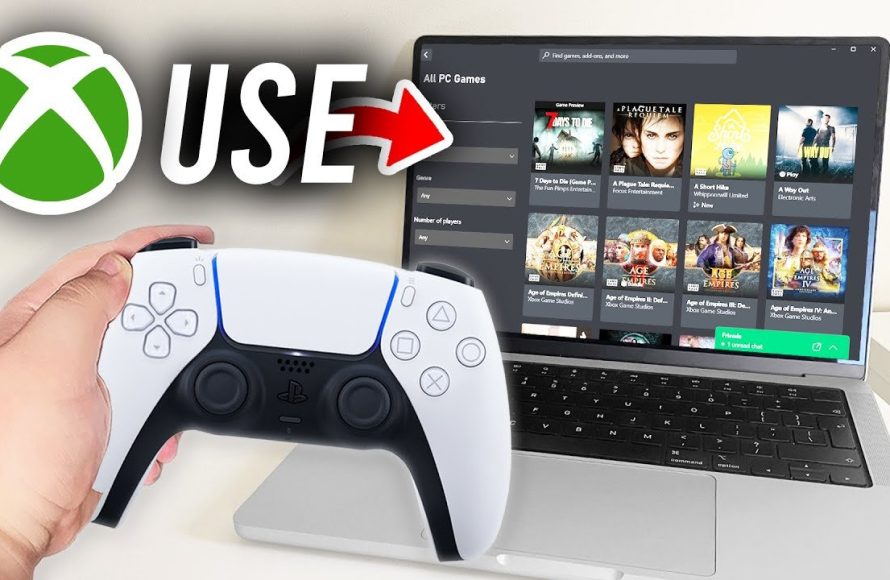
You can use a PS5 controller on PC Xbox Game Pass by connecting it via Bluetooth or USB, then relying on Steam Input or third-party software to handle compatibility, ensuring it’s recognized as an Xbox controller for the games.
Want to ditch that clunky keyboard and mouse for your PC Xbox Game Pass games? Many gamers prefer the feel of a controller. If you’ve got a PlayStation 5, you might be wondering how to use ps5 controller on pc xbox game pass. It’s actually quite straightforward, and we’ll walk you through the steps. Using your DualSense controller can significantly improve your gaming experience on PC. We will discuss connectivity options and necessary software for a seamless setup.

How to Use PS5 Controller on PC Xbox Game Pass
So, you’re itching to play some awesome Xbox Game Pass games on your PC, but you’re way more comfortable with your trusty PlayStation 5 DualSense controller? You’re not alone! Many gamers love the feel of the PS5 controller, and thankfully, using it on your PC with Xbox Game Pass is totally doable. It might seem a bit tricky at first, but don’t worry, we’re going to walk you through it step-by-step. This guide will show you everything you need to know to get your PS5 controller working smoothly with your Xbox Game Pass games on your computer.
Why Use a PS5 Controller on PC?
Before we dive into the “how,” let’s talk about the “why.” Why would someone choose to use a PS5 controller on a PC instead of, say, an Xbox controller? Well, there are a few good reasons:
- Comfort: Many people simply find the PlayStation controller more comfortable to hold. The shape, button placement, and overall feel can make a big difference during long gaming sessions.
- Familiarity: If you’re used to playing on a PlayStation, you’ll already know where all the buttons are on the DualSense. This makes picking up and playing games a lot easier.
- Personal Preference: Ultimately, it comes down to what feels best for you. There’s no right or wrong controller choice; it’s all about what helps you play your best.
- Features: The Dualsense controller boasts a lot of unique features such as adaptive triggers and haptic feedback, adding a new dimension to gaming experiences. Although, not all games fully support these features.
Setting Up Your PS5 Controller for PC Gaming
Alright, let’s get into the nitty-gritty. Here’s how to get your PS5 controller ready for action on your PC:
Wired Connection: The Easiest Method
The simplest way to use your PS5 controller on a PC is with a wired connection. Here’s how:
- Grab a USB Cable: You’ll need a USB-A to USB-C cable. This is the standard charging cable that comes with your PS5 controller.
- Plug it In: Connect the USB-C end of the cable to your PS5 controller, and plug the USB-A end into a USB port on your computer.
- Wait for Installation: Windows should automatically recognize and install the necessary drivers for your PS5 controller. You might see a little notification in the bottom right corner of your screen when it’s done.
That’s pretty much it! Your controller should now work with most games that support controllers on your PC.
Wireless Connection: Freedom to Move
If you want to game without being tethered to your PC, you can connect your PS5 controller wirelessly via Bluetooth. This takes a few extra steps, but it’s still pretty straightforward:
- Make Sure Your PC Has Bluetooth: Most modern laptops and desktops have built-in Bluetooth. If not, you’ll need to buy a Bluetooth adapter.
- Put Your Controller in Pairing Mode: On your PS5 controller, press and hold both the PlayStation button (the one with the PS logo) and the Share button (the small button on the left side) at the same time. The light bar around the touchpad will start flashing.
- Find Your Controller on Your PC:
- Go to your Windows settings (Click the Start button and then the gear icon).
- Click on “Devices.”
- Click on “Bluetooth & other devices.”
- Make sure Bluetooth is turned “On”.
- Click on “Add Bluetooth or other device.”
- Click on “Bluetooth.”
- Select Your Controller: You should see “Wireless Controller” appear on the list of devices. Click on it.
- Pair: Windows might ask you to confirm pairing or input a pin. Follow the instructions on screen. Once it’s connected, the light bar on your PS5 controller will stop flashing and stay lit.
Now your PS5 controller is connected wirelessly to your computer.
Xbox Game Pass and Controller Support
Now that your PS5 controller is connected to your PC, let’s talk about Xbox Game Pass. Most games on Xbox Game Pass on PC are designed to work with any controller that Windows recognizes, but there are a few points to keep in mind.
General Compatibility
The good news is, after installing the drivers that we talked about, your PS5 controller should work with the majority of Xbox Game Pass PC games without any problems. This means you can directly start playing most of the games like normal, without doing any extra complex steps.
Sometimes Some Games Might Not Work Perfect
Sometimes, though, you might encounter situations where a game doesn’t recognize your PS5 controller buttons correctly or might have some compatibility issues.
Using DS4Windows: A Helping Hand
Here’s where software like DS4Windows can be extremely helpful. DS4Windows is a small application that tricks Windows into thinking that your PS5 controller is actually an Xbox 360 controller (which is a standard for PC gaming). This makes your PS5 controller work better with games. Here’s how to use DS4Windows:
- Download DS4Windows: Go to the official DS4Windows website or a reputable source like GitHub and download the application.
- Extract the Files: The downloaded file is usually a zip file. Extract all the files into a folder that you can easily remember.
- Run DS4Windows.exe: Open the DS4Windows folder and double click “DS4Windows.exe.”
- Install Drivers: DS4Windows will likely ask you to install some drivers. Follow the instructions on screen.
- Connect Your Controller: Make sure your PS5 controller is connected to your PC, either wired or via Bluetooth.
- Start Playing: DS4Windows should now be working. You can start your game, and your controller should be working properly.
- Profiles (Optional): With DS4Windows, you can create different profiles for your controller. This can be handy if you need different button layouts for different games.
DS4Windows can also help you with some other features such as controller LED color settings, touchpad controls, and more.
Steam and Xbox Game Pass
If you’re using Xbox Game Pass games through the Xbox app, the setup we described earlier should be enough. But, some people might like using Steam for some games. Here is how to use your controller on both:
Using Steam Input
If you are playing a game that you bought from Steam, Steam also provides additional controller support features through “Steam Input”. Steam Input helps the game to work with your controller.
Here’s how to make sure Steam Input works:
- Open Steam: Launch the Steam client.
- Go to Settings: Click on “Steam” in the upper left, then select “Settings.”
- Go to Controller Settings: On the left, click on “Controller.”
- General Controller Settings: On the right side, select “General Controller Settings.”
- Choose Support: You will see a list of checkboxes. Choose the support type for your controller. In this case, we should select the “PlayStation Configuration Support”.
- Close and Restart: Close the Settings window and try playing your game.
Steam Input can be very helpful for some games to recognize the controller inputs. If you are having trouble with a game, try enabling this setting.
Testing Your Connection
After setting up your PS5 controller, it’s always a good idea to do a quick test to ensure everything’s working correctly. Here’s how:
- Windows Controller Test: Go to your Windows settings, select “Devices,” then “Bluetooth & other devices,” and finally choose your “Wireless Controller”. Click on “Controller” tab or “Properties”. You should see some options related to controller input. You can test your buttons and sticks there.
- In-Game Test: Launch a game on Xbox Game Pass. Go to the game’s controller options, and make sure all your button presses are correctly detected in the game. If not, double check the steps above, and use DS4Windows as needed.
Common Issues and Troubleshooting
Even with a great setup, sometimes you might run into issues. Here are some common problems and how to address them:
Controller Not Recognized
If your PC doesn’t seem to see your controller, try these steps:
- Check the Connection: If you are using a wired connection, make sure the cable is securely connected to both the controller and the computer. If you are using Bluetooth, ensure that the controller is correctly paired.
- Restart Your PC and Controller: Sometimes, a simple restart can solve a lot of problems. Turn off your controller and restart your PC. Then try pairing again.
- Update Drivers: Make sure your controller drivers are updated. You can do this through the Windows Device Manager. Right click on the start button, and click Device Manager. Under “Sound, Video and Game controllers,” find your controller. Right-click it, and then select “Update driver”.
- Try a Different USB Port or Cable: If your using a wired connection, try using a different USB port, or a different USB cable.
Button Mapping Issues
If buttons aren’t responding correctly or are doing the wrong things, try these:
- Use DS4Windows: As mentioned earlier, this program can help with button mapping.
- Check Controller Settings in Game: Some games let you change the control layout. Check the game settings to see if you can adjust anything there.
- Test Controller: Try the Windows Controller Test method as mentioned earlier, to see if the buttons are working correctly there. If they work there, then it’s a game specific issue.
Bluetooth Issues
If you are having problems with your Bluetooth connection, try these:
- Move Closer: Make sure that you are near your computer when trying to connect to the controller. Sometimes long distances can cause connection problems.
- Turn Bluetooth Off and On: Sometimes turning your computer’s Bluetooth off and on again, can fix the issue.
- Remove Pairing and Pair Again: Try removing the controller from your computer’s Bluetooth settings, and try pairing again.
Connecting your PS5 controller to your PC to play Xbox Game Pass games isn’t complicated once you know the steps. You can use the wired connection method, or the wireless Bluetooth method. For optimal results, you may also want to use additional software like DS4Windows. By taking the steps described in this article, you can experience the joy of playing games with the comfortable PS5 controller that you know and love.
How To Use PS4/PS5 Controller On Xbox Game Pass PC (2024)
Final Thoughts
To use your PS5 controller on PC Xbox Game Pass, you need a specific setup. First, connect your DualSense via Bluetooth or USB. Next, utilize a program like DS4Windows or Steam Input for compatibility. This allows the PC to recognize the controller input.
These steps make ‘how to use ps5 controller on pc xbox game pass’ straightforward. You simply configure controller emulation software. It’s the must have for gaming with the Dualsense on PC titles.

