
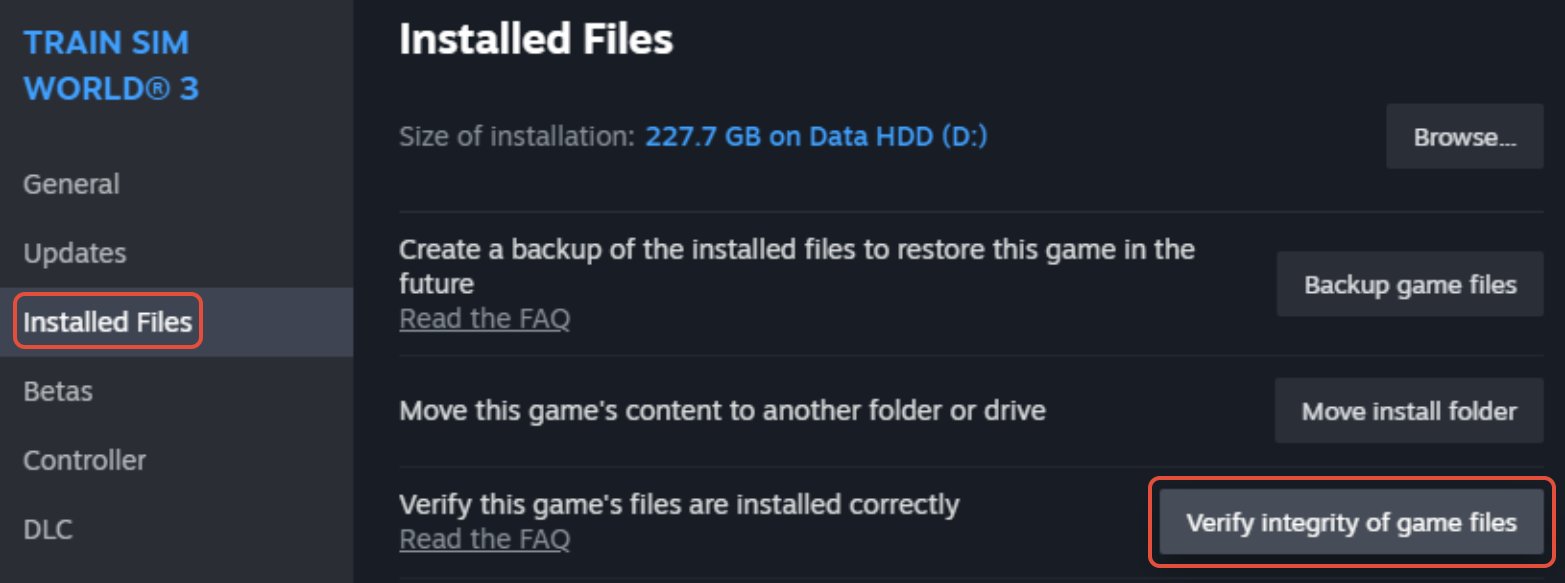
Verifying integrity of game files usually involves using the game platform’s built-in tool, which checks for missing or corrupted data and redownloads them if needed.
Ever experienced a game crashing or acting strangely? These issues often stem from corrupted or missing game files. Understanding how to verify integrity of game files is crucial for a smooth gaming experience. Many platforms provide simple ways to check these files and ensure your games run as intended.
This process identifies any damaged or incomplete data. The platform then fixes it by automatically replacing or redownloading the problematic files. It is a valuable troubleshooting step for any gamer.

How to Verify Integrity of Game Files
Ever started up your favorite game, only to find it glitching, crashing, or just plain acting weird? It’s super frustrating! Sometimes, the problem isn’t your computer, but something’s gone wrong with the game’s files. Think of it like a puzzle – if even one piece is missing or broken, the whole picture won’t look right. Verifying your game files is like making sure all those puzzle pieces are in the right place and in good condition. It’s a simple but powerful way to fix lots of common game problems. Let’s dig in and learn how you can do it yourself.
Why Do Game Files Get Corrupted?
Okay, so how do these files get messed up in the first place? It’s like trying to keep your room tidy – sometimes things just happen! Here are a few common reasons:
- Interrupted Downloads: Imagine you’re downloading a big game. If your internet cuts out in the middle, or the download gets paused, some of the files might not get there completely, leaving you with broken parts of the game.
- Hard Drive Problems: Your computer stores all the game files on the hard drive or SSD. If this space is getting old or has issues, it can sometimes scramble the files. Think of it like a worn-out bookshelf that can’t hold your books properly.
- Software Conflicts: Sometimes, other programs on your computer can accidentally mess with the game’s files. This could be something like an antivirus program that is a little overprotective or another application that is not working well with your game.
- Malware or Viruses: Bad programs, known as malware or viruses, can sometimes sneak onto your computer and make changes to files, including game files. They can cause all sorts of problems.
- Sudden System Shutdown: If your computer turns off unexpectedly while the game is running or being updated (like during a power outage), it can leave files in an unfinished state.
- Improper Installation: Sometimes the game’s install process itself may encounter a problem during installation and will not completely install all necessary files.
What Problems Can Corrupted Files Cause?
Messed-up game files can lead to many annoying issues. It’s like when your toy has a broken piece. Here are some common things that can happen:
- Game Crashing: The game might just suddenly stop working and close down.
- Freezing or Stuttering: The game might pause or skip, not moving smoothly.
- Graphical Glitches: Things in the game might not look right. Maybe the characters’ faces look strange, or the landscape has missing pieces.
- Missing Sounds: You might find that some sounds are not playing, like the background music or sound effects of your characters.
- Loading Issues: The game might take a long time to start up, or might not load at all.
- Error Messages: The game might show messages that don’t make sense to you, telling you that something is not right with the files.
- Inability to Save Progress: You may not be able to save the progress of your game, and may lose the current progress.
How to Verify File Integrity: Common Platforms
The good news is that many game platforms have built-in tools to check and fix these files. Let’s take a look at some of the most popular ones:
Steam
Steam is a super popular place to buy and play games. Here’s how you can verify files on Steam:
- Open Steam: Start up the Steam application on your computer.
- Go to Library: Click on the “Library” tab at the top to see your collection of games.
- Find Your Game: Find the game that’s causing problems in your list.
- Right-Click: Right-click on the game’s name. This will open a menu.
- Select Properties: Choose “Properties” from the menu that appears.
- Go to Local Files: In the new window, click on the “Local Files” tab.
- Verify Integrity: Click the “Verify integrity of game files…” button.
Steam will now go through all of the files of your game and check them. If it finds any files are missing or broken, it will automatically download the correct versions. This may take a few minutes or longer, depending on the size of the game and speed of your internet.
Epic Games Launcher
The Epic Games Launcher is another popular way to play games, and has its own verification tool:
- Open Epic Games Launcher: Start the Epic Games Launcher on your computer.
- Go to Library: Go to your “Library” from the main menu.
- Find Your Game: Look for the game you need to fix.
- Click the Three Dots: Click the three dots (…) next to the game’s name.
- Select Verify: Choose the “Verify” option from the menu.
The launcher will then go through all the files of your game and check for errors. Just like Steam, it will fix any issues by downloading the correct ones.
GOG Galaxy
GOG Galaxy is another game launcher, which also allows you to check the files for your game:
- Open GOG Galaxy: Start the GOG Galaxy application on your computer.
- Go to Game Page: Go to the page for the game you want to check.
- Click the Settings Icon: Click on the settings icon (it looks like a gear) for that game.
- Select Manage: In the menu that opens, click on “Manage Installation”.
- Verify/Repair: In the new menu, click on “Verify / Repair”.
GOG Galaxy will check your files and replace any incorrect or missing ones.
Other Launchers & Games
Many other game launchers, like Origin, Ubisoft Connect, and even some games that have their own launchers, will have a method to check the game files. Here’s a general idea of what you need to do:
- Look for a “Settings” or “Properties” option for the game.
- Look for a “Local Files” or “Installation” section.
- Check for “Verify,” “Repair,” or “Check Files” button.
What If Verification Doesn’t Work?
Sometimes, even if you verify your game files, you might still face problems. Don’t worry. Here are some additional steps you can try:
Restart Your Computer
Restarting your computer can solve many simple problems. It’s like giving your computer a fresh start and helps it to reset everything and sometimes it resolves many issues.
Reinstall the Game
If verification didn’t solve the problem, reinstalling your game might be the way to go. It’s like starting fresh with a new copy of all the files.
- Uninstall the Game: Go back to the game launcher where your game is, and choose to uninstall the game.
- Delete Any Leftover Files: Go to where your game was installed and remove any remaining files.
- Install Again: Download and install the game again.
Update Your Graphics Drivers
Outdated graphics drivers are another common cause for game problems. Updating them is like giving your computer a new set of directions for how to display graphics properly.
- You can usually update your drivers through your graphics card manufacturer’s website (like NVIDIA, AMD, or Intel).
- Search online how to update your specific graphics drivers if you need help.
Check for Operating System Updates
Make sure your computer’s operating system is up-to-date. These updates often fix things that can cause game issues.
Antivirus Interference
Sometimes, your antivirus software can accidentally block or change files. If you are sure your antivirus is not causing any problem, you can add an exception to your antivirus so that it does not scan the specific folder of your game to see if it is a solution.
- Be careful before doing this. If you’re sure your game is safe, then it is ok to make an exception for your game folder in the antivirus.
Check Your Hardware
Sometimes, problems can be with your hardware, like your computer’s memory or hard drive. Checking these is usually more of a technical task that requires more understanding of the system.
Preventing File Corruption
While verifying your files is helpful, you can also take steps to prevent problems from happening in the first place.
- Use a Stable Internet Connection: When downloading games, try to use a wired internet connection if possible.
- Avoid Interrupting Downloads: Let the downloads finish without pausing them or turning off your computer.
- Keep Your Computer Healthy: Regularly scan for viruses, keep your hard drive in good condition, and don’t overload it with lots of programs running at the same time.
- Keep Your Computer Updated: Install Operating System Updates, graphics drivers, etc, whenever available.
Verifying the integrity of your game files is an essential skill for any gamer. It’s like having a first-aid kit for your games. By using the tools provided by your game launchers and following these simple steps, you can solve many common game issues and get back to playing! Remember to be patient, and don’t be afraid to explore the settings of your games to find the options you need.
2023: How to Verify Game File Integrity on Steam UPDATED Guide
Final Thoughts
Verifying game file integrity often resolves many issues. Different platforms offer distinct methods. Steam, for example, includes a verification tool within its game properties.
This process checks for any corrupted or missing files. Performing it will ensure a smooth gameplay experience. The steps are simple, making it accessible to all users.
Ultimately, knowing how to verify integrity of game files is must for gamers. It helps to quickly address common game related problems.

