
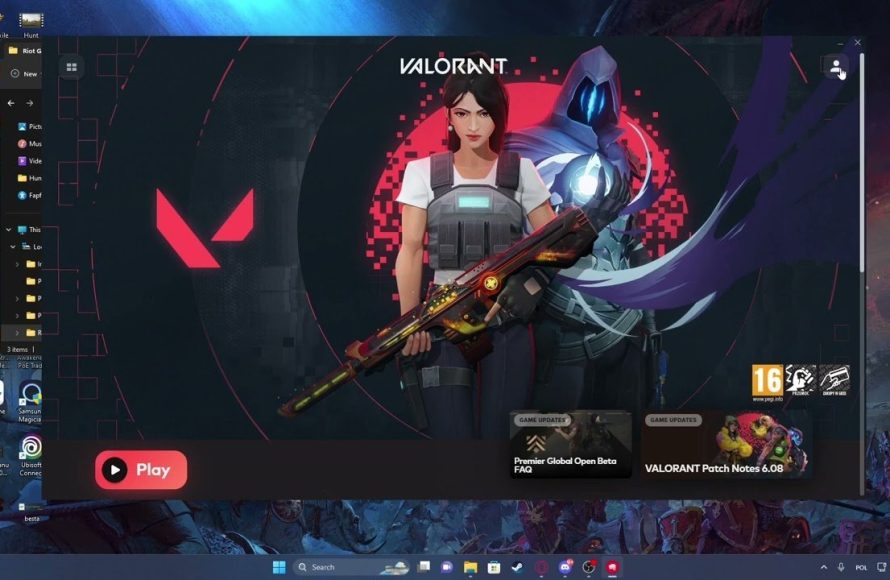
To verify Valorant game files, use the Riot Client. Go to Valorant, click the settings icon, and then select ‘Repair’.
Experiencing strange glitches or unexpected crashes in Valorant? It might be due to corrupted or missing game files. Learning how to verify Valorant game files is essential for maintaining a smooth and enjoyable gaming experience. This quick fix can often resolve issues that prevent you from playing properly, and it is surprisingly easy to do.
This process helps to ensure that all of your files are complete and intact. You can quickly get back into the action without any hassle. Let’s go through the easy steps to make sure your game is working as it should.

How to Verify Valorant Game Files
Have you ever been in the middle of an intense Valorant match, only to have the game crash or act strangely? It’s super frustrating, right? Sometimes, these problems happen because some of the game files are damaged or missing. Think of it like a puzzle – if a piece is broken or gone, you can’t finish the picture! Luckily, there’s a way to make sure all your game files are in good shape, and that’s by verifying them. This process is like giving your game a checkup to make sure everything is working as it should.
Why Verify Game Files?
You might be wondering, “Why do I even need to check my game files?” Well, several things can cause issues with your Valorant installation. Let’s explore some common reasons:
- Corrupted Files: Sometimes, during downloads or updates, files can get messed up. This can lead to game crashes, errors, and other weird behavior. Imagine a file like a recipe for a cake. If the recipe gets smudged, the cake won’t turn out right!
- Incomplete Updates: If an update doesn’t finish correctly, some files might be missing or not updated to the latest version. This can cause conflicts within the game.
- Storage Issues: Problems with your computer’s storage (like a full hard drive or failing drive) can also lead to file corruption during installations.
- Malware: In rare cases, malicious software could interfere with game files.
- Random Errors: Sometimes errors happen just because computers are complicated machines, which can affect your game files.
Verifying game files can fix these kinds of problems. It’s a simple process, and it’s a great first step to take when you’re having trouble with Valorant. Think of it like giving your game a good cleaning!
How to Verify Valorant Game Files Using the Riot Client
The easiest way to check and fix your Valorant game files is by using the Riot Client. The Riot Client is the app you use to launch Valorant and other Riot Games. It has a built-in tool that helps with verifying files. Here’s a step-by-step guide:
Step 1: Open the Riot Client
First things first, you need to open the Riot Client. Look for the Riot Games icon on your desktop or in your start menu. It usually looks like a red fist or red circle. Click it to open the client.
Step 2: Find Valorant
Once the Riot Client is open, you’ll see a list of games. Click on the Valorant icon. It’s the one with the orange and black colors and the Valorant logo.
Step 3: Access Settings
On the Valorant page within the Riot Client, look for a small settings icon or button. It usually looks like a gear or cog symbol. Click it. This will open the settings menu for Valorant.
Step 4: Start the Verification Process
Inside the settings menu, you will usually find an option related to game files. Look for something like “Repair” or “Verify”. The exact wording can sometimes differ with different client updates, but it usually is quite similar. Click on the button. The Riot Client will now begin to check your game files.
The client will start comparing the files on your computer with the original versions on Riot’s servers. If it finds any damaged, missing, or old files, it will automatically download the correct versions. This process might take some time, depending on your computer and internet connection speed.
Step 5: Wait for Completion
Just wait patiently while the verification process is underway. A progress bar or some type of indicator will usually show you how far it has progressed. Don’t stop the client or try to play Valorant while this is happening. Once it’s done, you will typically get a message indicating that the files have been verified.
Step 6: Restart Your Computer
After verification, it’s a good idea to restart your computer before launching Valorant. This makes sure that all the changes are applied properly. This step is usually not mandatory, but it’s always a good idea to do this to ensure everything is working properly.
Step 7: Launch Valorant
Now you can launch Valorant as usual and see if the problem is fixed. If the issue was related to game files, it should now be resolved.
What to Do If Verification Doesn’t Fix the Problem
Sometimes, even after verifying game files, you might still have issues with Valorant. If that happens, don’t worry! Here are some other things you can try:
Check Your Internet Connection
A shaky or slow internet connection can also cause problems while playing online games. Make sure you are connected to the internet. Try to test your internet speeds as well to verify that it is working well. Try to restart your modem/router to improve your internet connection. If you are still having connection problems after a restart, you can also call your ISP (internet service provider) to get help.
Update Your Graphics Drivers
Outdated or corrupt graphics drivers can make games perform poorly or crash. Make sure that your graphics drivers are updated. Follow these steps to update your graphics drivers:
- Identify your graphics card: Press the Windows key, type ‘Device Manager,’ and press Enter. Look for ‘Display adapters’ and expand the tab to see your graphics card.
- Go to your card manufacturer’s website: For example, if you have an NVIDIA card, go to the NVIDIA website; for an AMD card, go to the AMD website.
- Download the latest drivers: Find the driver download section on their websites. Input your graphics card info and download the right driver for your operating system.
Reinstall Valorant
If none of the above steps work, the next step you can take is to uninstall and reinstall the game completely. This makes sure you have a fresh copy of the game files.
Follow these steps to uninstall the game:
- Go to Settings: Press the Windows key, type “Add or Remove Programs,” and press Enter.
- Find Valorant: Search for Valorant in the list of programs.
- Uninstall: Select Valorant and click the Uninstall button. Follow the on-screen instructions to remove the game.
After uninstalling the game, restart your PC and then download the game again from Riot Games’ official website. Run the installer and the game will be installed again.
Check Your System Specifications
Make sure that your computer meets the minimum system requirements for Valorant. This can be a main reason why your game might be crashing, if it is not being able to handle it.
These are the minimum requirements to play Valorant:
| Component | Minimum Requirement |
|---|---|
| OS | Windows 7/8/10 (64-bit) |
| CPU | Intel Core 2 Duo E8400 |
| RAM | 4 GB |
| Graphics | Intel HD 4000 |
| Disk Space | 20GB |
Close Other Programs
Sometimes, other programs running in the background can interfere with the game and cause problems. Close unnecessary programs to free up your computer’s resources.
Contact Valorant Support
If you have tried all the above steps, and you’re still facing problems, the best solution might be to contact Riot Games’ support. They have experts who can help you with more complicated problems. You can contact them by visiting the official website and going to the ‘Support’ page.
Verifying Files: A Quick Recap
Let’s do a short recap of what we’ve learned about verifying game files:
- Verifying game files checks your Valorant installation for errors and missing pieces.
- The Riot Client provides a simple way to verify your game files.
- If verifying doesn’t work, there are other things you can try, like updating drivers and reinstalling the game.
- If you need additional assistance, reach out to the Valorant support team.
Verifying game files is a super useful skill for every Valorant player. It’s like performing regular maintenance on your car; it keeps things running smoothly, and helps you avoid annoying problems. By knowing how to verify your game files, you’ll be better prepared to jump into those exciting matches with fewer technical issues.
Remember, keeping your game in top shape is essential for a good playing experience. Happy gaming!
How To Verify & Repair Game Files Valorant
Final Thoughts
If you encounter game issues, verifying your files is a good first step. This process ensures all game data is correct and prevents problems. You can quickly do this using the Riot client.
Verifying files can resolve many common errors within Valorant. It replaces corrupted or missing data with fresh versions. This method is a key component for troubleshooting.
To sum it up, ‘how to verify valorant game files’ is a simple yet effective way to fix problems. Utilizing the client’s repair function can often correct issues and get you back in game.

