
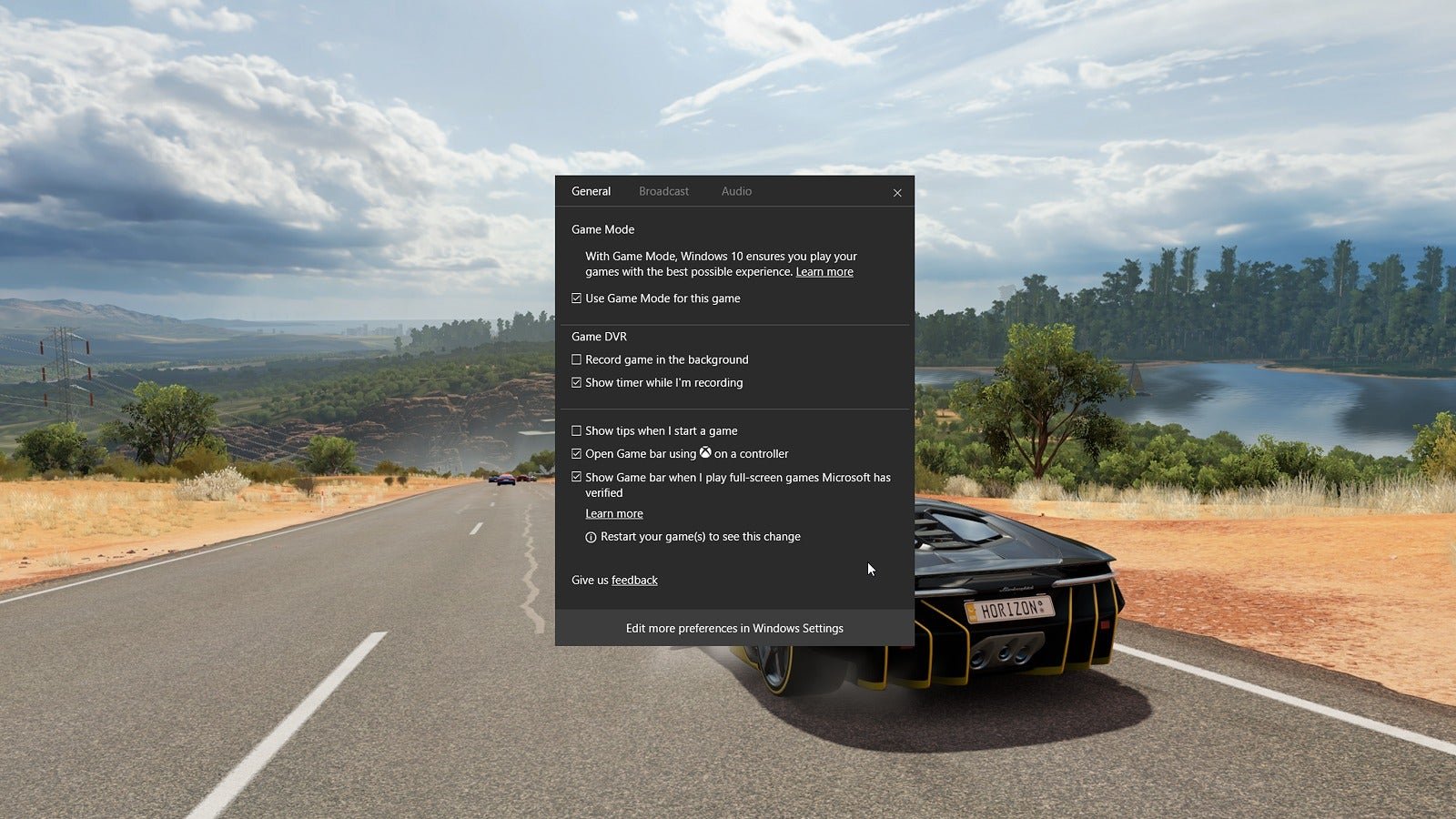
Yes, Windows Game Mode can offer a slight performance improvement for some games, but the effect varies and isn’t always noticeable.
Wondering if turning on that Game Mode toggle in Windows actually makes a difference? Many gamers have asked the same question: is windows game mode good? It promises to optimize your system for gaming, but does it truly deliver?
We’ll delve into what this feature does, and whether it provides the performance boost it advertises. We’ll explore the potential benefits and any drawbacks you might experience.

Is Windows Game Mode Good? A Deep Dive
Okay, so you’re wondering if Windows Game Mode is actually helpful or just another setting you can ignore. It’s a fair question! We all want our games to run as smoothly as possible, and Microsoft promises that Game Mode can help. But does it really? Let’s take a good look under the hood and see what this feature does and if it’s truly beneficial for gamers like you.
What Exactly Is Windows Game Mode?
Windows Game Mode is a feature built into Windows 10 and Windows 11 that aims to optimize your computer for playing games. Think of it like a special setting that tells your computer to focus on the game you’re playing. When you turn it on, Windows does a few key things:
- Prioritizes Game Processes: It gives the game you’re playing more of your computer’s resources, like processor (CPU) and graphics card (GPU) power. This means the game should have more “muscle” to run smoothly.
- Limits Background Activity: Game Mode tries to limit the amount of work your computer does in the background. This can include things like Windows updates, app notifications, and other programs that might be using processing power. By reducing these background tasks, it frees up resources for your game.
- Works with Many Games: It’s designed to work with most games, regardless of where you got them – Steam, Epic Games Store, Microsoft Store, or even older disc-based games.
The main idea behind Game Mode is simple: make sure that your game runs as smoothly and quickly as possible, without interference from other things happening on your computer. But does this theory actually translate to real-world performance boosts?
How Does Game Mode Actually Work?
To really understand if Game Mode is good, we need to look deeper at what it does behind the scenes. Here’s a more technical breakdown, explained simply:
CPU Prioritization
Your CPU is like the brain of your computer, doing all the calculations. When you run a game, your CPU is constantly working hard to calculate everything from character movement to graphics and sounds. Game Mode tells Windows to prioritize the game’s processes on the CPU. Think of it as telling your computer, “Hey, this game is important; give it all the brainpower it needs!”. This means that the game gets a larger share of processing time compared to other programs, which can make the game run more efficiently and smoothly, especially when you have a lot of other programs running.
GPU Resource Management
Your GPU, or graphics card, is responsible for displaying the visuals you see on your screen. Game Mode doesn’t usually directly alter your GPU performance, but indirectly, when it provides more CPU resources to the game, it also allows the GPU to receive information faster. A faster CPU generally translates to smoother graphics performance because the CPU is feeding the GPU faster and more frequently. Sometimes, on Windows 11, certain settings might give higher priority to game’s rendering process, but it isn’t direct control.
Background Task Management
This is a really important part. Many programs constantly run in the background, even when you’re not actively using them. These can be anything from system utilities to cloud syncing programs and even Windows update services. While they are helpful sometimes, they can all take up valuable CPU and memory resources. Game Mode tries to put these background processes on the back burner and lets the game have more resources. By limiting background activity, Game Mode makes sure that your game doesn’t have to compete for processing power, which can prevent stuttering and lag.
Automatic Recognition
Game Mode is designed to automatically detect when you’re playing a game. It uses various techniques to identify game processes, so you usually don’t have to manually tell it what to prioritize. Once it recognizes a game, it turns on its optimization processes by itself. This makes it a user-friendly option, as you don’t need to constantly be toggling it on and off.
Does Game Mode Actually Improve Performance?
Now for the big question: does Windows Game Mode really make a difference? The answer is a bit nuanced—it’s not a magic bullet, but it can be beneficial in some cases. Here’s a look at when it might help and when it might not:
When Game Mode Can Help
- Older or Lower-End PCs: If your computer is a bit older or doesn’t have super-powerful hardware, Game Mode might give you a noticeable boost. By limiting background tasks, you’re freeing up resources for the game to use. This often translates to a smoother experience, fewer stutters, and sometimes a slight increase in average frame rates.
- When Many Programs Are Open: If you’re the kind of person who has multiple web browsers, music players, and other apps running in the background while you game, Game Mode could help prevent these other processes from interfering with your game’s performance.
- Preventing Interruptions: Game Mode can help reduce those frustrating little stutters that might occur due to random background processes or updates firing off in the middle of your game. By minimizing these background tasks, it creates a more stable and enjoyable gaming experience.
- For Games That Benefit From CPU Prioritization: Some games are more dependent on the CPU, while others rely more on the GPU. For CPU-heavy games, like strategy or simulation games, Game Mode might offer a noticeable benefit due to its CPU prioritization feature.
When Game Mode Might Not Help Much
- High-End PCs: If you have a powerful gaming computer with a fast processor, plenty of memory, and a high-end graphics card, you might not see much of a difference with Game Mode. Your computer is likely already handling games without any issues, and Game Mode doesn’t add a lot of extra benefit on systems with plenty of power.
- Games That Are Primarily GPU Bound: Some games depend more heavily on your graphics card (GPU) than the processor (CPU). If your game is already running up against the limits of your GPU, Game Mode won’t provide much extra help since it doesn’t primarily boost GPU performance. In these cases, you will be better off reducing graphics settings.
- Clean Systems: If you make sure your computer is free from unnecessary applications and background processes, you may see very limited improvements by toggling game mode.
Potential Drawbacks of Game Mode
While Game Mode is generally helpful, it does have a few small potential drawbacks you should be aware of:
Minor Performance Drops in Certain Cases
In very rare cases, it’s been reported that Game Mode might slightly decrease performance in certain games. These cases are not that common, and often, the differences are so small that you likely won’t notice them. This could be due to how the prioritization process works or how it interacts with specific game code. But as it is a very small number of users who experience this issue, the chance of seeing a decrease in performance is very less.
Conflicting Software
Sometimes, Game Mode can conflict with other software that’s running on your computer. For example, some anti-virus programs, system utilities, or even third-party game optimization programs might interfere with the way Game Mode works. This could mean you might not get the benefits you expect, or it could cause stability issues. If you have other optimization software installed on your computer, it may be worth testing how they interact with Windows Game Mode.
How to Turn On/Off Windows Game Mode
If you want to try Game Mode, it’s very simple to toggle it on or off. Here’s how to do it in both Windows 10 and Windows 11:
Windows 10
- Click the Start button.
- Click the Settings gear icon.
- Click on Gaming.
- Select Game Mode from the left menu.
- Toggle the Game Mode switch to ‘On’ to enable it, and ‘Off’ to disable it.
Windows 11
- Click the Start button.
- Type Settings and press Enter.
- Click on Gaming.
- Select Game Mode from the right side options.
- Toggle the Game Mode switch to ‘On’ to enable it, and ‘Off’ to disable it.
You can also enable or disable game mode via game bar.
Using the Game Bar
- Open a game.
- Press Windows Key + G to bring up the Game Bar.
- Click on Settings (gear Icon) on game bar.
- Go to Gaming Tab
- Toggle Game Mode “On” or “Off” based on your preference.
Testing Game Mode Yourself
The best way to know if Game Mode will help you is to test it. If you’re curious about how it works with your games and your computer’s configuration, then take time to test it out. To test Game Mode, follow these steps:
- Turn Game Mode off first.
- Play a game for a while (at least 10-15 minutes). Record your average framerate and check how smooth it is. Try to play a challenging part of the game to notice any performance differences.
- Turn Game Mode on.
- Play the same section of that game again. Notice the framerate, and if the game feels smoother.
- Compare the difference. If you see performance improvements, then Game Mode might be helpful for your system.
Keep in mind that any differences might not be that large, it’s also possible that you might not see any noticeable difference, but if you are experiencing any stuttering or other performance issues, then trying game mode could help.
Is it Worth Using?
After considering all that, the most reasonable question that comes to our mind is: Should I use Game Mode or not? The answer is: Yes, most probably you should. There is really no reason not to use it. Even if it doesn’t give you a huge performance boost, it doesn’t hurt your system. It is easy to turn on and turn off and doesn’t require any complicated setup. So, it’s always better to keep it on, and if you do experience any issues, then you can turn it off temporarily.
Game Mode vs. Other Optimizations
It’s important to remember that Game Mode isn’t the only way to improve gaming performance. Other settings, drivers and options can make just as much, or even more of an impact. Here are a few other things you can check to get better gaming performance:
Update Graphics Drivers
Make sure that your graphics drivers are up to date. These updates from Nvidia, AMD, and Intel often include performance improvements and bug fixes for specific games. Outdated drivers can severely impact your performance.
Lowering Graphics Settings
Lowering the in-game graphics settings might also make huge changes in performance. If your computer struggles to keep up, reduce texture quality, shadows, and other visual effects.
Closing Unnecessary Applications
Close applications that you’re not using. This helps free up processing power and memory for your games. You can use task manager to see what applications are running in the background.
Defragmenting Your Hard Drive
If you have a mechanical hard drive instead of an SSD, defragmenting it can make loading games faster. SSDs don’t require defragmentation.
Check Computer Temperature
Overheating can cause performance issues. Make sure your computer is properly cooled. Clean the vents and check for dust accumulation. Consider adding fans or using a cooling pad for laptops.
Upgrade Hardware
Consider upgrading your hardware if the computer is really struggling to run modern games. More RAM, a faster CPU, or a better graphics card can make a big difference.
Windows Game Mode is just one piece of the puzzle. It’s good, but not the entire solution. It can help, but other things can also improve game performance, and sometimes more efficiently.
In conclusion, Windows Game Mode is a helpful feature that aims to make your games run more smoothly. While it may not be a magic solution for every system, it can give a performance boost to some lower-end computers and prevent interruptions from background tasks. The feature is easy to use, has no harm, and often offers improvements. The best way to know if it will help you is to try it and see how it works for you. Remember to also check your graphics drivers and other settings to get the best gaming experience.
What Does Game Mode Do on Windows?
Final Thoughts
Game mode prioritizes game performance, attempting to reduce background activity. It may offer a small boost in some scenarios, but results can vary. Testing with your specific games is key.
Ultimately, is windows game mode good? For most users, it’s a convenient feature to enable. However, don’t expect dramatic increases in frame rates. It’s a helpful tool but not a magical solution.

