
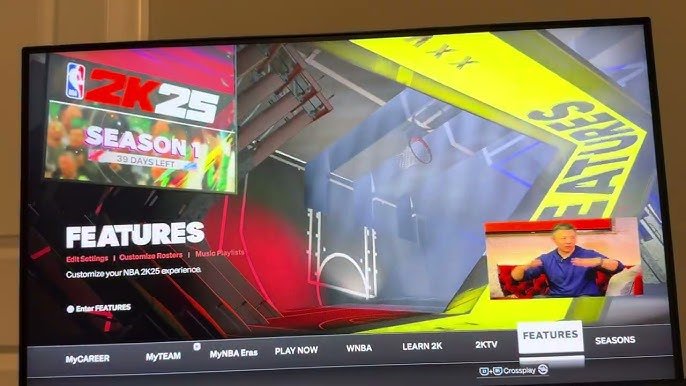
NBA 2K25 menu customization allows players to personalize their game interface with options to change backgrounds, colors, and button layouts, offering a more tailored user experience.
Tired of the same old screen when launching your game? We all are, and that’s why NBA 2K25 menu customization is such a big deal. Players now have greater control over how their game looks and feels. You can adjust the visual elements to better suit your personal style.
Imagine swapping out that static background for something more vibrant, or tweaking the button positions for optimal gameplay. This level of personalization changes how you interact with the game itself, making it feel more yours.

NBA 2K25 Menu Customization: Your Game, Your Way
Hey there, hoop fans! Get ready to dive deep into the world of NBA 2K25, where the action on the court is only half the story. What if I told you that you could change how the game looks and feels before you even jump into a match? That’s right, we’re talking about menu customization! It’s like having a personal assistant who designs the game’s home screen just how you like it. This isn’t about just picking colors; we’re exploring how you can make the game’s menus work best for you. Let’s jump in and see all the cool ways you can personalize your NBA 2K25 experience.
The Power of a Personalized Menu
Think about the last time you visited a website that was a mess to navigate. It probably made you want to leave quickly, right? Well, game menus are kind of the same. A messy or confusing menu can make it harder to get to your favorite modes, check your stats, or tweak your settings. NBA 2K25 gives you the tools to make the menu a fast and easy place to navigate, so you can spend more time playing.
Why is this so important? Imagine you really like to play MyTEAM. If your menu is set up the way you like, you can jump right into the action without wasting time clicking through tons of screens you don’t need. A customized menu gets you to what you love faster. It puts you in charge of the flow. Plus, a menu that you helped create makes your game feel more like your game, a unique experience. Let’s explore some of the specific ways you can do this.
Understanding the Basics: What Can You Change?
Before we get into the nitty-gritty, let’s cover the basics. NBA 2K25’s menu customization isn’t about completely changing the core layout, like making the menu look like a different game. Instead, it allows you to adjust the appearance and arrangement of elements within the existing menu structure. Here are some key things you’ll typically be able to modify:
- Quick Access Tiles: These are usually large icons or images that let you jump to specific game modes or areas fast. You can pick what you see here.
- Menu Themes & Color Schemes: Change the visual look, like the color of the buttons and background.
- Menu Backgrounds: Often, you can choose an image or video clip to display in the background of your menu.
- Sound Options: You might be able to set specific menu sounds or background music.
Think of it like arranging the furniture in your room. You’re not changing the walls or the floor, but you are making everything work better for you. This level of control is what makes the NBA 2K experience so great for different kinds of players.
Customizing Quick Access Tiles: Your Gateway to Action
Quick access tiles are like shortcuts on your computer desktop. They let you jump right into the things you want to do the most. In NBA 2K25, you usually have the ability to decide what appears as a quick access tile.
Choosing Your Favorite Modes
What are your favorite parts of the game? Do you love creating your own player in MyCAREER? Or maybe you’re always building your dream team in MyTEAM? Or perhaps you are a play now gamer? You can customize your quick access tiles to feature the modes that you visit most often. This way, you won’t have to dig through the menus every time. Here is how it usually works:
- Select: Go to the menu settings and find the “customize quick access” section.
- Browse: Look through all of the available game modes and options.
- Choose: Pick your favorites to put on your home screen.
- Arrange: Decide where you want them to appear.
For example, if you mostly play online against friends, you could make the “Play with Friends” option one of the prominent tiles. If you always want to check the latest challenges or rewards in MyTEAM, you can put that tile front and center. The power is in your hands.
Reordering the Tiles
Not only can you choose the tiles you want, you can usually change the order in which they appear. This means you can put your most important tiles in the most accessible spots, which is usually at the top or left of the screen. Maybe you want the “MyCareer” tiles at the very top because that is your main focus for now. Think about how you naturally use the menu, and rearrange those tiles to make things more intuitive. This might take some experimentation to get it just right, so don’t hesitate to move things around until you find what works best for you.
Menu Themes and Color Schemes: Setting the Mood
The visual aspects of the game menus have a big impact on the feel of the game. A dark, moody theme can get you ready for an intense online match, while a bright theme might make you feel ready for a relaxed session of MyCAREER. With NBA 2K25, you usually have some ability to change the color and overall appearance.
Exploring Different Visual Styles
Many games, and NBA 2K25 likely will, allow you to pick from a variety of pre-made themes. These themes often change the colors of the menu elements like buttons, backgrounds, and text. For example, you might find:
- Classic themes: Replicate the feel of older NBA 2K games.
- Modern themes: Give you a sleek, modern look with bright colors and smooth lines.
- Team-based themes: Show off your favorite NBA team’s colors and logos.
Experiment with different themes to see what catches your eye. It’s all about finding what best reflects your own style and preferences.
Customizing Your Color Palette
Beyond full themes, you might have more granular control over specific colors. Sometimes, you can customize colors for:
- Menu backgrounds: Set a specific color as your background.
- Text and icons: Choose the color of menu text and the small icons.
- Highlight colors: Adjust the color that highlights selected options on your menu.
Getting your color combination perfect takes a bit of time and playing around. Find something that is visually appealing to you and works well for comfortable playing.
Setting the Stage: Menu Backgrounds
The background is the canvas behind everything else on the menu. It can be a simple static image, a moving video, or even a dynamic animation that reacts to your actions. NBA 2K25 will likely offer different options to let you set the mood of your game.
Choosing Static Images
Static images are picture-based backgrounds that do not move. These are usually high quality images from the game or of NBA players, team logos and more. They offer a very clean and static look and feel to your game.
- Team-Based Images: Show off your team love by setting your background image as their logo.
- Player Images: Choose images of your favorite player to inspire your game play
- Action Images: Capture the action of the court and select one to be a background image
Dynamic Backgrounds
If you’re looking for something more engaging, you can try dynamic backgrounds. These are moving videos, or animations. Here are some examples:
- Game Footage: See highlights from actual NBA games in action.
- Character Animations: View animations of your favorite players warming up.
- Abstract designs: Cool, changing patterns that add some excitement.
Remember that dynamic backgrounds can sometimes be a bit more intense and may use more resources in your system. So, keep this in mind when you select one, and see which style you prefer more when playing the game.
Menu Audio Options: Sounding Just Right
Don’t forget that the way a game sounds is as important as how it looks. NBA 2K25 usually lets you adjust the sounds that you hear in the menus. These can range from clicks when you highlight an option to background music while you are going through the menu and looking for a game to play. These are some things you can usually customize:
Menu Sound Effects
The sound effects are those small clicks and beeps that happen when you navigate the menu. Adjusting the volume can often help for a more comfortable experience. Some options might include:
- Navigation sounds: The sound of the menu as you click different options or move around.
- Confirmation sounds: The sound of making a selection or confirmation in the menu.
Background Music
Background music can really change the vibe of the game. Some customization you usually find with background music includes:
- Pre-loaded Tracks: You can usually select from a number of pre-loaded tracks that come with the game.
- Sound Off: If you prefer a silent experience, you can also usually turn off the background music all together.
- Volume Control: You can adjust the volume of the background music so that you can keep the game sounding the way you prefer it.
Pick the sounds and music that keep you focused, engaged, and entertained. Sometimes, less is more and a simple sound is better than an overstimulating soundtrack.
Fine-Tuning Your Experience: Advanced Settings
Beyond the main visual and audio settings, you may also find some more advanced menu customization options. These options are usually focused on making the menus as efficient as possible to use for playing.
Menu Transition Options
Menu transitions are how the menus move from one screen to the next. There are often a few options:
- Transition Speed: Choose how fast or slow menus change when you navigate.
- Animations: You can decide how the menu elements fade, slide, or pop into place.
Finding the right speed and animations can make the game feel more responsive, making it more efficient to use.
User Interface Size
Some games also let you change the size of the user interface (UI). This is how big the text, icons, and other elements are on the screen. If you have a large screen or sit far away from your TV, making the UI larger can help you see everything more easily. Making it smaller can also be beneficial on smaller screens.
- UI Scaling: Increase or decrease the size of all elements at once.
- Text Scaling: Adjust text independently, if that is an option.
Why Menu Customization Matters
Menu customization might seem like a small thing, but it can make a big difference in how you enjoy a game. It’s about putting you in control of your gaming experience. When you have a menu that’s tailored to your style, it feels like you’re truly in charge. It makes the game more personal, more efficient, and more fun. You can jump straight into the modes you love, make the menu look and sound just the way you want, and fine-tune the settings to your liking.
By investing a bit of time in setting up your menus, you can make your NBA 2K25 experience something that is truly yours. So, the next time you dive into the game, explore those options and build the perfect launchpad for all of your gaming adventures! It’s time to make the menu work for you, not the other way around.
Menu customization in NBA 2K25 is a powerful tool for players who want to make the game their own. It’s more than just making things look pretty; it’s about making the game feel right for you. It gives you control, makes things efficient and gives you a greater sense of ownership over your play time. You are the player, and you deserve a customized game that works just how you like. Go out there and make NBA 2K25 truly yours, one setting at a time.
5 SECRET Settings That You NEED To Use In NBA 2K25
Final Thoughts
Ultimately, the level of control players have over the game experience is key. The ability to personalize the user interface matters deeply. NBA 2K25 menu customization stands as a significant feature, letting individuals craft their desired navigation.
Custom menus allow for quicker access to favored modes and settings. Players can organize menus to match their specific gaming patterns. This level of personalization improves the overall experience.
With these tools, players can really take ownership of their digital basketball journey.

