
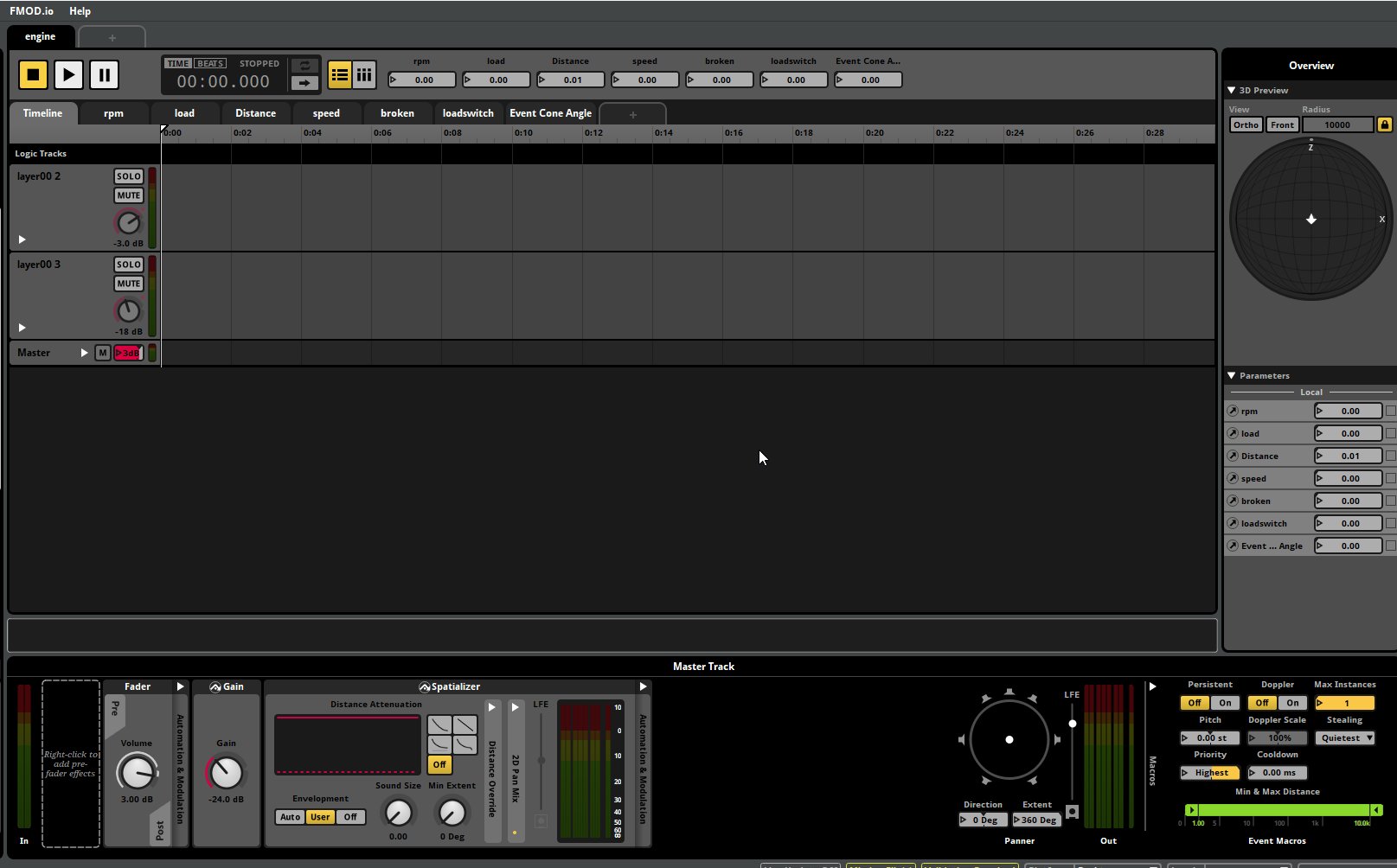
Roblox audio production workflow typically involves creating or sourcing sounds, importing them into Roblox Studio, adjusting properties like volume and spatialization, and then testing in-game.
Creating engaging experiences in Roblox often hinges on captivating sound. The roblox audio production workflow significantly impacts the overall feel of a game. It’s more than just adding sound effects, this process requires careful planning and execution.
A good workflow helps you manage and organize your audio assets effectively. This allows for smoother development and a better player experience. Consider the steps from idea to final in-game test for optimal results.

Roblox Audio Production Workflow: A Step-by-Step Guide
Creating amazing sound effects and music for your Roblox games can feel like a big task, but breaking it down into smaller steps makes it much easier. This guide will walk you through the entire Roblox audio production workflow, from planning your sounds to getting them into your game. We will cover everything you need to know to get started making great audio for your Roblox adventures.
Planning Your Roblox Audio
Before you even think about opening your sound editing software, planning is key! Think about what kind of game you are making and what type of sounds you will need.
Identifying Your Audio Needs
First, make a list! What sounds does your game need? Think about:
- Background Music: What kind of mood or feeling do you want to create? Happy, scary, adventurous?
- Sound Effects: What happens in your game? Are there jumps, clicks, explosions, character voices, or environmental sounds like wind or rain?
- User Interface (UI) Sounds: Do you need sounds for buttons clicks, menus opening, or when someone earns points?
Once you have a list, start thinking about the style of sounds. Do you want cartoony sounds? Realistic sounds? Knowing your goals will guide you as you create.
Creating an Audio Design Document
While not always needed, especially for smaller projects, creating an audio design document helps organize your ideas. Think of it like a blueprint for your game’s sounds. It helps keep you on track.
Your document might include:
- A list of all needed sounds with descriptions
- Ideas for the mood each sound should create
- Any specific technical needs, like if a sound needs to loop
This document will save you lots of time. When you know what you need and how you want it to sound, the production steps will be much easier to manage.
Gathering Your Sound Resources
Now that you have a plan, it’s time to gather the sounds themselves. There are a few main ways to get them:
Using Existing Sound Libraries
There are many places online where you can find free or paid sound effects. Some popular websites include:
- FreeSound: A great place for free sound effects.
- ZapSplat: Offers both free and paid options for sounds and music.
- Artlist & Epidemic Sound: Subscription-based, but have great royalty-free music.
When using pre-made sounds, always check the license to make sure it’s okay for you to use them in your Roblox game. Some licenses need you to credit the creator.
Recording Your Own Sounds
If you want truly unique sounds, try recording them yourself! You can use your phone, a microphone attached to your computer, or more professional recording equipment.
Here are some tips for recording your own sounds:
- Find a quiet space: A quiet room without background noises is important.
- Get close to your sound source: You need to get your microphone near what you are recording. For example, if you are recording the sound of a door closing, place the microphone near the door.
- Test and adjust: Before recording the actual sound, test a few to make sure the levels are right and the recording is clear.
Creating Music
Creating music for your Roblox game can be super fun! Here are a few ways to do it:
- Using Music Software: Software like GarageBand (free for Mac users), FL Studio, and Ableton Live lets you create your own music using digital instruments.
- Online Music Makers: Many websites and apps allow you to quickly create songs using simple drag-and-drop tools.
- Finding Royalty-Free Music: You can find music online from the sources mentioned previously or other providers.
No matter how you choose to create music, always remember to keep the mood and style of your game in mind.
Audio Editing Techniques
Now that you have your sounds, it’s time to edit them! Editing is key to making them sound professional and fit into your game seamlessly.
Using Audio Editing Software
There are several free and paid audio editing programs you can use. Some popular options are:
- Audacity: A free, open-source option that is great for beginners.
- GarageBand: Free for Mac users, it’s an easy-to-use option for music and sound editing.
- Adobe Audition: A more professional program that offers a wide range of advanced tools.
- Wavosaur: Free sound editor that can handle bigger projects.
For most basic editing, you can achieve professional sounds with Audacity or GarageBand.
Basic Audio Editing Skills
Let’s explore some crucial audio editing skills:
- Trimming: Cutting off unwanted silence at the beginning and end of your sound.
- Fading: Making sounds gradually get louder or quieter at the start or finish. This can help eliminate abrupt and harsh transitions.
- Volume Adjustment: Making sure all your sounds are at a consistent volume level. A normal volume prevents some sounds from being too quiet and others from being too loud.
- Noise Reduction: Removing background noises to make your sounds cleaner and clearer.
- Equalization (EQ): Adjusting frequencies to improve sound quality.
You can learn these skills by practicing with tutorials. Youtube is an excellent source to start learning.
Advanced Editing Techniques
Once you get comfortable with the basics, you can explore more advanced techniques:
- Layering: Combining multiple sounds to create more complex sound effects. Example, layering a “whoosh” sound with an explosion.
- Pitch Shifting: Changing the pitch of a sound to create different variations.
- Reverb and Delay: Adding echoes and reverberation to create a more immersive and realistic sound.
Experimenting with these effects will give your sounds a special character and make your game sound much more unique.
Optimizing Audio for Roblox
Once you’ve edited your sounds, you need to get them ready for Roblox. Roblox has specific requirements that you need to pay attention to.
File Formats and Sizes
Roblox prefers these sound file formats:
- .mp3
- .ogg
It is better to compress your audio file, because larger files can impact game loading times. Here is how you can make sure your audio meets Roblox file size requirements:
- Keep files under 5MB: If possible try to keep your files to 1MB to make sure you have a smoother experience.
- Use low bitrate: For sound effects, bitrates such as 128kbps are acceptable, and you don’t need to use high bitrates.
Mono vs Stereo
Roblox uses mono audio for sound effects. If your sound is in stereo, Roblox will automatically convert it to mono. For background music, stereo can work well.
Sound Length
Keep your sound effects short and direct. Avoid long silent periods. For longer sounds, consider looping them.
Importing Audio into Roblox Studio
With your sounds now ready, you can import them into your Roblox game.
Uploading Audio Files
Follow these steps to upload sounds:
- Open Roblox Studio and open the game project you are working on.
- Go to the ‘View’ tab and select ‘Asset Manager’.
- In Asset Manager, click the ‘Audio’ tab.
- Press the ‘Add Audio’ button and select your audio file.
- Give your audio a name and set any other needed settings.
- Click ‘Upload’ and wait for the audio file to upload to your account.
Using Audio in Your Game
After you upload your sounds, you can use them in your game in a couple of different ways:
- Sound Objects: Insert a Sound object in your game under a part or model. Then select the uploaded audio from the Audio property in the Sound object’s settings.
- Scripts: You can use Lua scripts to play sounds when something specific happens, like when a player jumps or when an object is interacted with.
You can adjust the following sound properties to make sure it sounds perfect in your game:
- Volume: Control the loudness of the sound.
- Rolloff Distance: The distance from which the sound starts to fade out.
- Playback Speed: Controls the speed at which a sound is played.
- Pitch: Controls the high or low tone of your sound.
Remember to test your sounds within the game to make sure they sound exactly how you want them to!
Testing and Iteration
Once your sounds are in your game, testing is very important!
Testing Your Game Audio
Here are the things you should look for during testing:
- Do the sounds match with the actions in the game? Do jumps sound like jumps? Do explosions sound like explosions?
- Are the volume levels balanced? Some sounds should not be much louder or too quiet compared to others.
- Is there any distortion or issues? Make sure the sound is clear, smooth and enjoyable.
Refining Your Audio
Based on your tests, you might need to make changes to your sounds.
- Re-edit your sounds: You might need to trim them, adjust the volume, or add more effects.
- Adjust in-game settings: You may have to change the Sound object’s settings to make the sound perfect for your game.
Don’t worry about having to make changes. Refining and testing is a part of making great audio.
Getting Feedback
Getting feedback from others can help you see problems that you may have missed.
- Ask friends or fellow game developers: Let them try your game and listen to the sounds. They may hear problems that you did not.
- Be open to criticism: Feedback will help you improve. Don’t be afraid to make changes.
Staying Organized
As your game grows, keeping organized will become important. Here are some tips to help you:
Naming Conventions
Use clear and descriptive names for your audio files. For instance:
- “jump_01.wav”
- “explosion_02.mp3”
- “menu_click.ogg”
Naming them with descriptions will make it much easier to find and use them.
Project Folders
Organize your audio files into project folders on your computer. For example, a folder for sound effects, a folder for music, and a folder for voice acting. This makes your project easier to work on.
Audio Design Notes
Keep notes on your audio design choices, and keep updating it during development. This will help when you go back to make adjustments.
By following these steps, you will be able to create amazing audio for your Roblox games! Remember to plan, gather, edit, optimize, and test. With practice and patience, you will make your games sound very great.
Roblox Studio – How to make a game
Final Thoughts
In short, Roblox audio production workflow involves careful planning, sound selection, and mixing. Effective organization of assets improves the overall quality. Proper sound design significantly impacts user experience.
Remember to optimize your audio files for performance. Testing in the game environment is crucial for final adjustments. This completes your Roblox audio production workflow.

