
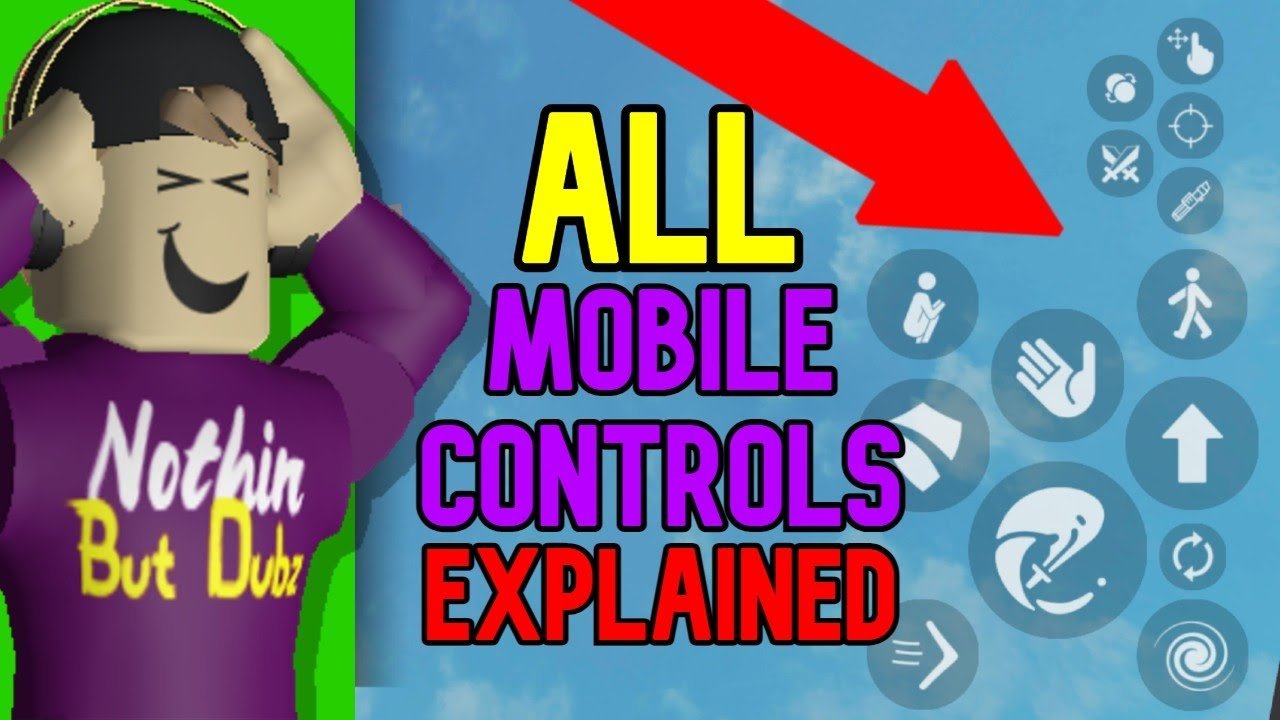
Mobile Roblox controls involve using a virtual joystick for movement and buttons for actions like jumping, interacting, and accessing menus.
Ever find yourself fumbling on your phone while trying to navigate a Roblox world? Understanding the ins and outs of roblox controls explained for mobile, can significantly improve your gameplay experience.
It’s all about getting comfortable with the on-screen interface. Getting used to these virtual controls will make exploring, building, and competing in Roblox much more enjoyable on your mobile device.

Roblox Controls Explained for Mobile
Hey there, Roblox fans! Are you ready to jump into amazing worlds on your phone or tablet? It’s super fun to play Roblox on mobile, but sometimes the controls can feel a little different than on a computer. Don’t worry; we’re here to help you become a Roblox mobile pro!
Getting Started: The Basics
Let’s start with the most important thing: moving your character. You’ll see a circle with a small dot in the middle on your screen. This is your joystick.
When you move your finger around inside the circle, your character will walk in that direction.
Moving Around
Think of the joystick like the steering wheel of a car. If you move the dot up, your character walks forward. If you move the dot left, your character walks left, and so on. It’s that easy!
Practice moving in a big open area until you get the hang of it. You will be running around like a pro in no time!
Jumping
Jumping is super important in many Roblox games. Look for the big jump button, which looks like a shoe with an arrow pointing up.
Press this button, and your character will jump. This is very useful for climbing over objects, dodging enemies, and having fun!
Camera Control
The camera lets you see your character and what’s around them. It moves whenever you slide your finger on the open space of your screen.
Try moving your finger to the left and right to see the world from different views. You can also move your finger up and down to change the camera’s height.
Interacting with the World
In Roblox, you often need to do more than just walk and jump. There are things to interact with, like buttons, doors, and other objects.
Tapping to Interact
Usually, you will see some sort of prompt if you can interact with something. Usually, an icon will appear over the object or some text will show up.
Simply tap the interact button to use it. You can open a chest, start a game, or buy items with a single tap!
Using Tools and Weapons
Many Roblox games give you tools or weapons. These are often displayed in a bar at the bottom of the screen.
Select a tool or a weapon by tapping on its icon. To use the tool, tap the screen or use an activation button if there is one.
Advanced Controls and Tips
Sitting and Squatting
Sometimes, you need to make your character sit down, squat, or perform a special action. You’ll often find these options in a menu or near the jump button.
Look carefully at your screen for any button related to this. Each game has different buttons to do this.
Using the Chat
Want to talk to other players? You can use the chat! Look for a chat icon, which usually looks like a speech bubble.
Tap on the chat icon to open the keyboard, then type your message and press send. Have fun making new friends!
Adjusting Settings
If you feel like the controls are a bit tricky, remember to check your settings. You can find them in the Roblox menu.
You can often change sensitivity for the camera and joystick here to make them more comfortable for you.
Explore the other settings as well; they can help you have the best possible experience.
Common Issues and Solutions
Trouble Moving
If your character is moving slowly or not moving at all, make sure your finger is touching the joystick properly.
Also, try closing the game completely and then opening it again. Sometimes this can fix small problems.
Camera Is Acting Weird
If the camera is not responding to your finger movements, try swiping across the screen more firmly. It can also help to clean your screen if it’s dirty.
Again, restarting the game might help sometimes as well.
Buttons Not Working
If a button doesn’t seem to work, make sure you are tapping it directly. Sometimes, touching just outside of the button can make it not register.
Also, if the game is lagging (running slowly), buttons may take a little longer to respond. Give the buttons a couple seconds to work when your game is lagging.
Roblox Game Specific Controls
Keep in mind that not all Roblox games use the controls in the exact same way. Some may have different buttons or require special actions.
When you start a new game, make sure to look for any directions on the screen or the in game tutorial that shows you how to play that specific game.
Example: Driving Games
In driving games, there might be buttons to control the gas, brakes, or steering that you will have to use.
These games might not let you move your character in the same way other Roblox games do.
Example: Fighting Games
In fighting games, there are often attack buttons and special move buttons. Practice to get good at these games.
You may need to learn combinations of buttons or taps in order to do special moves or combos.
Tips for Becoming a Roblox Mobile Pro
Practice Makes Perfect
The more you play, the better you will get at using the mobile controls. Don’t give up if it seems tricky at first.
Try different games to learn different game specific controls. The more diverse games you play, the better you’ll get at using all the controls.
Watch Other Players
Watch how other people move and play. You can learn a lot by watching others play different games.
You can also ask for help if you’re having trouble. Most players are happy to share their best tips and tricks.
Use Headphones
It can help you immerse yourself in the game if you use headphones, and you can hear all the sounds.
You can also use the headphones to talk to other players using a microphone.
Take Breaks
Remember to take breaks and stretch your fingers. Playing for too long can make your hands tired.
It’s important to take breaks from all types of screens to be healthy and have fun for a long time!
A Summary of Key Mobile Controls
Let’s quickly summarize the main ways to control your character on your phone or tablet.
- Joystick: Moves your character around the map.
- Jump Button: Makes your character jump.
- Screen Swipe: Rotates and moves the camera.
- Tap to Interact: Allows you to use items and open doors.
- Tool/Weapon Icons: Tap to select and use tools.
- Chat Icon: Opens the keyboard to talk to other players.
With a little practice, you’ll become an expert at playing Roblox on your phone or tablet. Have fun exploring all the amazing worlds and making new friends!
Remember to try different games and always be curious. The world of Roblox is waiting for you. And you got this!
Roblox New Parental Controls Explained
Final Thoughts
Understanding the virtual joystick, jump button, and camera controls is key for playing on your phone. You can use swipes to move your character and look around the world.
Practicing these simple inputs will improve your gameplay experience considerably. Knowing your way around ‘roblox controls explained for mobile,’ makes a big difference.

