
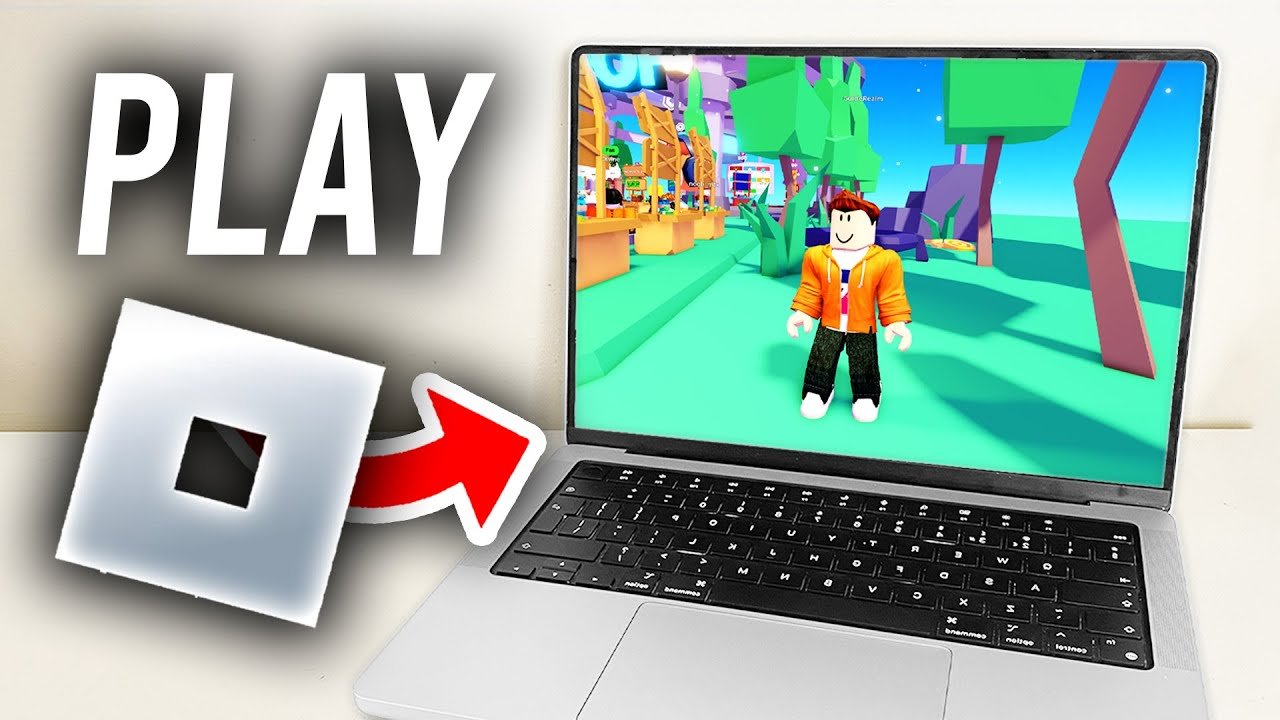
The primary Roblox controls for PC involve using the WASD keys for movement, the spacebar to jump, and the mouse to control the camera and interact with the game world.
Navigating the world of Roblox on your PC can feel daunting at first. Knowing the ropes is key to enjoying the platform fully. This guide explains roblox controls explained for pc, making your gameplay smooth and fun.
We’ll cover the basic movements, camera control, and interactions. Once you know the main buttons, you can focus on having a blast within the game.

Roblox Controls Explained for PC
Hey there, Roblox explorers! Ready to jump into the amazing worlds of Roblox on your computer? It can be super fun playing all sorts of games, but it’s important to know how to move around and interact. Let’s take a look at all the buttons and keys you’ll use. This guide will help you become a Roblox pro on PC in no time.
Basic Movement: Walking and Jumping
Moving around in Roblox is easy peasy! You’ll mostly use the “W”, “A”, “S”, and “D” keys on your keyboard for movement.
- W Key: Press the “W” key to walk forward. Think of it as pushing your character’s nose ahead.
- A Key: Use the “A” key to move to the left. It’s like taking a step sideways to the left.
- S Key: Press the “S” key to move backward. Your character will go the opposite direction.
- D Key: The “D” key makes your character walk right. This is a step to the right of your character.
And what about jumping? Well, for jumping, you simply hit the space bar. Press the space bar to make your character hop in the air. You can use it to jump over obstacles or reach higher places.
Camera Controls: Looking Around
Seeing what’s around you is just as crucial as moving. Camera control lets you change your view to look wherever you like. You’ll be using your mouse for this.
- Moving the Mouse: To look around, simply move your mouse. Moving it left makes the camera go left, moving right makes the camera go right, and so on.
- Looking Up and Down: Moving your mouse up looks higher up, and moving it down looks lower. Practice moving your mouse to get comfortable changing your view.
Interacting with Objects and the World
Roblox games are full of things to interact with. You might need to pick up items, flip switches, or talk to other characters. The way you do these depends on the game.
Using the Mouse Buttons
Usually, the left mouse button is the main button to interact. This is used for selecting stuff and many other kinds of interactions. Click it when you need to click something in the game.
The right mouse button often does different things depending on what’s happening in the game. Try clicking it if you’re unsure. It could do anything from opening a menu to triggering an action.
Using the E Key
In many Roblox games, the “E” key is used to interact with things. This could be opening a door, grabbing an item, or starting a conversation. Look for an indicator when you need to use the “E” key.
Chatting With Friends
Want to talk with friends while playing? Roblox has a chat function you can use. It lets you type messages to everyone in the game.
- Opening the Chat: Press the “/” key on your keyboard to open the chat window. This brings up a box where you can type.
- Typing a Message: Use your keyboard to type what you want to say. Try saying “Hi!” or “Let’s play together!”
- Sending the Message: After you’re done typing, press the “Enter” key. Your message will then appear in the chat for everyone to see.
Inventory and Game Menus
Many Roblox games have an inventory where you keep items. There are also menus with options that can change your game. Let’s look at how to use them.
Accessing Your Inventory
Generally, you can open your inventory by pressing the “I” key. This will open a screen to show you your collected items. In other games, it might be a different key. Look around and see what works.
Opening Game Menus
Many games use the “Esc” key to open the main menu. This menu usually has settings, your game information, or ways to leave the game. Try it and explore all the options.
Specific Game Controls
Keep in mind that controls can be different in each Roblox game. Some games might have special keys for specific actions. It’s good to pay attention to any in-game instructions or tutorials.
Game Tutorials and Help
Many games have tutorials that show you how to play. These will tell you the specific controls for that game. Pay close attention to these tutorials; they’ll help you play right. Some games may have a “help” menu that shows controls. Usually, pressing a specific key can bring up this help information.
Customizing Controls
Some Roblox games will let you change the controls to whatever keys you want. This is usually in the settings menu, so try exploring this to fit your playstyle. Setting the controls to the ones that feel best for you can improve your gameplay.
Common Keyboard Shortcuts
Here’s a quick recap of some useful shortcuts for playing Roblox on PC.
| Key | Action |
|---|---|
| W | Move forward |
| A | Move left |
| S | Move backward |
| D | Move right |
| Space Bar | Jump |
| Mouse (Movement) | Look around |
| Left Mouse Button | Interact, Select |
| Right Mouse Button | Various Interactions |
| E | Interact with objects |
| / | Open chat |
| Enter | Send chat message |
| I | Open inventory (usually) |
| Esc | Open game menu (usually) |
Tips for Getting Better at Roblox Controls
Practice Makes Perfect
The more you play Roblox, the more comfortable you’ll get with the controls. Just keep playing and experimenting with different keys. It’s like learning a new dance; the more you do it, the easier it becomes.
Start with Simple Games
If you’re new to Roblox on PC, start with games that don’t have too many different controls. This can help you get a feel for moving around. Once you understand the basics, you can try more complex games.
Ask for Help
If you ever feel stuck, don’t hesitate to ask for help from other players. Most players are friendly and willing to share tips. You can also look up game specific control instructions online or on the Roblox forums.
Find the Right Setup
Finding what setup works best for you is important. This can include your sensitivity of the mouse and keys. Try different settings until you feel comfortable and it works well for you.
Stay Patient
Learning new controls takes time. Be patient with yourself and don’t get discouraged. With a little practice, you will become a pro.
Using these tips you can become a Roblox master in no time. You will be exploring and interacting like a pro. Now go have fun, and keep exploring new and exciting worlds!
How to Play Roblox on PC/Desktop! Roblox PC Controls (2024)
Final Thoughts
In summary, keyboard and mouse are vital for Roblox PC navigation. WASD moves, spacebar jumps, and mouse steers your camera.
Understanding these basic inputs allows smooth gameplay. This detailed breakdown of ‘roblox controls explained for pc,’ assists new and seasoned players.

