
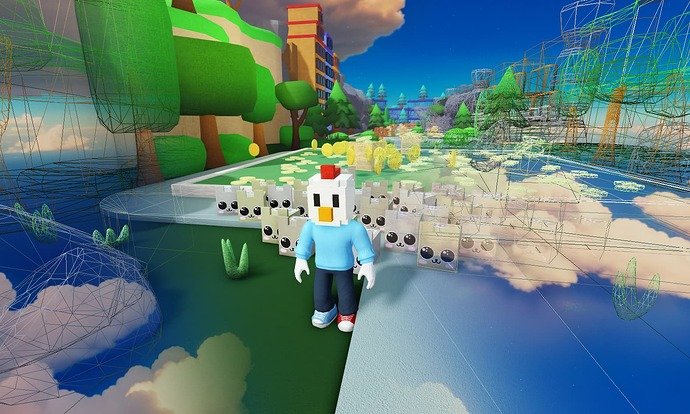
Improving Roblox rendering optimization involves reducing polygon count, using efficient textures, and leveraging Level of Detail (LOD) techniques.
Ever experienced a laggy Roblox game? It’s often due to inefficient rendering. Understanding and applying proper roblox rendering optimization is crucial for creating smooth and enjoyable experiences. Poor optimization can lead to frame drops and poor performance, frustrating players.
We will explore practical tips to enhance your game’s visuals without compromising performance. These techniques will help you create better and more efficient roblox games. We’ll cover key areas that impact rendering, from simple model adjustments to advanced rendering tricks.

Roblox Rendering Optimization: Making Your Games Run Smoothly
Ever played a Roblox game that felt super slow and choppy? It’s like trying to run in mud! That’s often because the game isn’t optimized for smooth rendering. Think of it like this: Your computer or phone is like a tiny artist, painting the game world you see on your screen. If the artist has to paint too many details all at once, it gets tired, and the game slows down. Rendering optimization is all about helping that artist work more efficiently. It’s about making your Roblox creations look great and run smoothly for everyone.
Understanding Rendering in Roblox
Before we dive into how to make things faster, let’s talk a little about what rendering actually is. In simple terms, rendering is how your device turns all the code and instructions of a Roblox game into the images you see. Roblox has to figure out where everything is, what it looks like, how it moves, and then it has to draw all of that on your screen, lots of calculations are involved here.
The Rendering Pipeline
Imagine a factory that creates pictures for your screen. This factory works in steps. The ‘factory’ we call it is called the rendering pipeline. Each step takes the game data, does some work on it, and passes it along. It goes something like this:
- Geometry Processing: Roblox takes all the shapes and forms in your game (like houses, characters, trees) and gets them ready. Think of it as cutting out all the pieces for a puzzle.
- Lighting and Shading: Now, the light is added to the scene. This includes things like shadows and how colors appear under different lighting conditions. This makes objects look 3D and not flat.
- Texture Mapping: Imagine sticking stickers (textures) on the puzzle pieces to give them color and detail. That’s what happens with texture mapping.
- Rasterization: Here, the computer figures out which parts of the 3D scene will be visible on your 2D screen. It’s like figuring out what the camera sees.
- Pixel Processing: Now, the computer finally colors each tiny dot on your screen (pixel) to create the final picture.
Each of these steps needs a little bit of your computer’s time and power. If these steps are inefficient, the game slows down. And that’s where the need for rendering optimization comes in.
Why is Optimization Important?
Why bother with making your game run faster? Well, imagine playing a super fun game, but it’s always lagging and freezing, it can be very irritating. Optimization makes sure everyone has a smooth and enjoyable experience. It does a lot of things:
- Better Player Experience: A smoothly running game is always more fun to play! Players can focus on playing instead of getting frustrated by lag.
- Reach More Players: If your game runs well on more devices, more people will be able to play it. People with older phones or computers won’t be left out.
- Less Stress on Devices: Optimized games use less processing power. This means less battery drain on phones, and it prevents computers from getting too hot.
- More Complex Games: With good optimization, you can add more features and details to your game without making it laggy.
Key Areas for Optimization in Roblox
Let’s look at the key areas that we can improve to make our Roblox games run better. These are like different tools in your toolbox.
1. Reducing Poly Count
“Poly” is short for polygon. Polygons are the shapes that make up 3D models in your game. Think of them as tiny tiles put together to build everything from a character to a building. The more polygons an object has, the more work it is for the computer to render it. So, one major way to boost performance is by reducing the polygon count.
How to Reduce Poly Count:
- Use Simple Shapes: Instead of using complex curved objects, try using simple boxy shapes as much as possible.
- LOD (Level of Detail): Use different models for things at different distances. A complex building close by might have lots of polygons, while the same building far away could have a simpler model with fewer polygons. This feature can be achieved through scripts.
- Avoid Unnecessary Detail: Don’t add small details that aren’t really noticeable. If a player can’t see it, it’s not worth the extra work for the device.
- Mesh Simplification Tools: Use software to automatically simplify the models you create, reducing the number of polygons.
Example: Instead of a rounded tree made of lots of tiny triangles, try using a simpler, more boxy tree. It will look just as good in the game but take less processing power.
2. Texture Optimization
Textures are the images that you put on the surfaces of your 3D objects. These could be anything from wood grain to a character’s face. While textures make the game look detailed, large textures also take a lot of work to render.
How to Optimize Textures:
- Use Smaller Textures: Don’t use 2048×2048 textures when a 512×512 texture will do just fine. Smaller textures use less memory.
- Compress Textures: Use image compression techniques to reduce the size of your texture files.
- Use Texture Atlases: Put multiple textures together into a single larger texture image. This reduces the number of texture changes.
- Mipmapping: Enable mipmapping. This lets the system use lower resolution textures for objects far away.
Example: Imagine having many small stickers on a model. If you put all those small stickers onto one big sticker, your game will load faster, and the computer will need to do less work to put the texture on the model.
3. Efficient Scripting
Scripts are the code that makes your game do things. Badly written scripts can slow things down a lot. Think of it like telling your artist friend to paint a picture but making them work really hard in unnecessary and repeating ways.
How to Write Efficient Scripts:
- Avoid Infinite Loops: Don’t make scripts that run forever without stopping. This will slow the game down. Make sure to use proper conditions to end a loop.
- Use Local Variables: Instead of accessing the game objects from the workspace every single time, store them in variables. This saves time and effort.
- Debris Service: If you create temporary objects, make sure to delete them after use using the debris service. This helps prevent memory issues.
- Avoid Frequent Changes: If you need to change something a lot, think if you can change it less frequently.
- Use built-in functions: Instead of writing custom code for common tasks, use Roblox’s built-in functions. They’re more optimized than most custom-written code.
4. Optimize Lighting
Lighting can make a big difference to how your game looks, but it can also take a lot of processing power to calculate it. Especially real-time shadows. There are various ways to optimize lighting effects so they don’t slow the game.
How to Optimize Lighting:
- Reduce Shadow Casting: Try to minimize the number of lights that cast real-time shadows or disable shadows for less important objects.
- Baked Lighting: In places where the light isn’t moving, use baked lighting to make lighting look better without slowing the game. This involves using the lightmap technology.
- Optimize light range: Adjust the range of lights so it is not illuminating too large an area at a distance. This improves performance because the light has less to calculate.
- Use efficient light types: Use spotlights when you only need light in a certain area because they calculate faster than point lights.
- Adjust shadow quality: If it’s not important to have very high quality shadows, use low quality shadows. This can significantly improve performance
5. Reduce Instance Count
Instances are all the parts, models, lights, and other things in your game. The more instances in your game, the more work Roblox has to do to keep track of them. If you can decrease the number of parts and objects in your game, it will render faster.
How to Reduce Instance Count:
- Use Models: Group multiple parts into a model whenever possible. Models are easier to manage and move around than lots of individual parts.
- Combine Parts: If you have small separate parts that are the same color and never move, combine them to make a single part. This way, Roblox doesn’t have to keep track of many small parts.
- Reuse Assets: Instead of creating a new object each time, try to reuse the existing objects in different places.
- Remove Unused Objects: Delete or disable objects that aren’t being used. This helps with optimization.
6. Use Streaming Enabled
Roblox has something called “streaming enabled.” Think of it like sending a video to your TV. Instead of downloading the entire video at once, it downloads the parts you are watching right now and then loads more parts after a while. This way, your device doesn’t have to load everything at once, which can make your game load much quicker and run more smoothly.
How to optimize for Streaming Enabled:
- Group Objects: Put your objects into larger groups, because streaming enabled loads groups. This will make the game load faster.
- Organize by distance: Group objects that are close together and will load at the same time.
- Testing: Make sure you test your game well with this setting turned on, to be sure everything loads properly.
7. Collision Optimization
Collisions are when objects in your game bump into each other. The more collisions there are to calculate, the more work it is for your computer. Reducing collisions can also help with optimization.
How to Optimize Collisions:
- Use Simple Collision Shapes: Instead of complex shapes for collisions, try using simple box or sphere collision shapes.
- Don’t Use Unnecessary Collisions: If some objects do not need to collide with other objects, don’t enable collisions for those objects.
- Use Collision Groups: Put parts into collision groups. This will stop parts from colliding with each other in the group, saving calculation time.
8. Sound Optimization
Sounds can also slow down a game, especially if there are lots of them playing at the same time. There are ways to optimize sounds so that they don’t impact performance.
How to Optimize Sounds:
- Use Shorter Sounds: Use shorter sounds whenever possible. Longer sounds use more memory.
- Reduce simultaneous sounds: Try to minimize the amount of sound that play at the same time.
- Spatial Audio: If it is not critical, avoid using spatial audio, as it needs more processing power.
- Compress Audio Files: Compress your audio files to reduce their size.
9. Profiling Your Game
Profiling is the process of finding the parts of your game that are making it slow. It is like using a detective to find the problem. Roblox Studio has tools that help you figure out what’s going on. It’s very helpful when you want to see which areas need attention.
How to Profile your game:
- Use the Performance Stats: In Roblox Studio, you can see live stats that show you how your game is performing. If the frame rate is low, it’s a sign you need to optimize something.
- Use the Microprofiler: The Microprofiler in Roblox Studio shows you exactly which parts of your game take the most time to run. This helps you figure out which scripts or objects are causing the lag.
By regularly profiling your game, you can find the biggest areas that need improvement.
Tips and Tricks for Roblox Rendering Optimization
- Test frequently: Test your game frequently on various devices, including different computers and mobile devices. This will make it easier to find the problems and fix them.
- Start Simple: When creating a new game, start with simple models and scripts. Add complexity and more details only as needed.
- Use Roblox Documentation: Read the Roblox documentation for best practices on optimizing your game. Roblox also updates this documentation regularly, so it is very important to keep up to date with the latest info.
- Learn from Others: Look at other optimized games to see what techniques they are using, and try to apply those techniques to your own games.
Optimization isn’t a single thing you do, but a process of making your game better all the time. With a little patience, you can make the game run smoothly for everyone!
By focusing on these areas – reducing polygon counts, optimizing textures, writing efficient scripts, optimizing lighting, reducing instance counts, streaming enabled, collision optimization, sound optimization and profiling – you can make a big difference in how well your Roblox games run. This results in a better playing experience for your players.
Making a Roblox game run smoothly is important, but it takes practice and patience. By understanding how Roblox renders games and by using the optimization techniques discussed here, you can make your games perform great. Remember, you don’t have to learn all of this at once! Take it step by step, and each time you make an improvement, your game will become better and better.
How to OPTIMIZE Your Roblox Game… Easiest Guide!
Final Thoughts
In short, optimizing your Roblox game’s rendering demands careful attention to detail. By reducing polygon counts, employing level of detail techniques, and efficiently managing textures, you can dramatically improve performance.
These methods directly contribute to smoother frame rates and a better user experience. Prioritizing these aspects will lead to a significant impact on your game.
Ultimately, good roblox rendering optimization allows for more players to enjoy your creation without lag. Remember to always test and tweak to find the right balance.

