
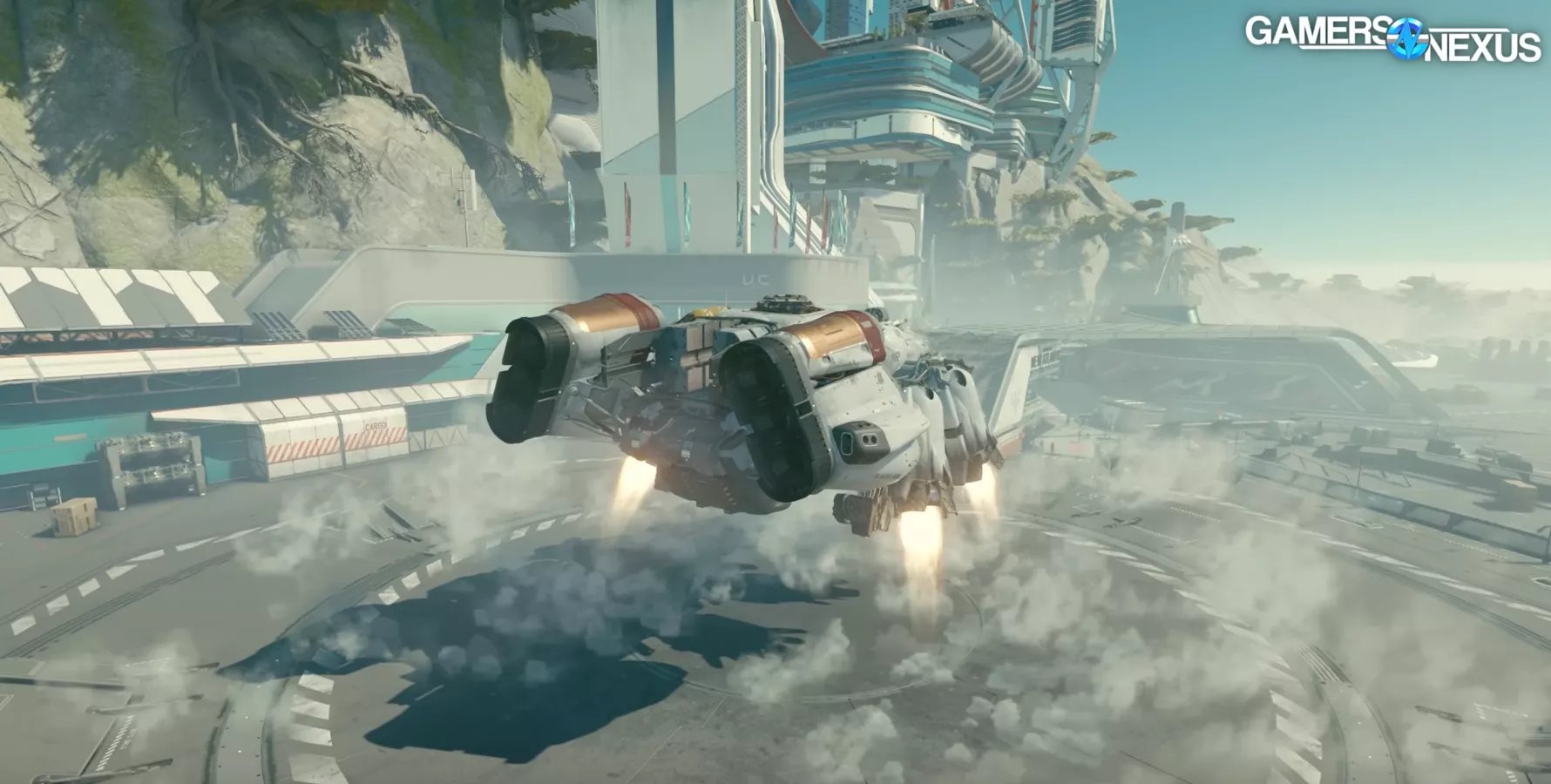
Optimizing your Starfield graphics settings involves adjusting options like shadow quality, resolution, and texture details to find a balance between visual fidelity and smooth performance based on your PC’s capabilities.
Stuttering across the cosmos isn’t fun; we get it. Many players are experiencing performance issues while playing Bethesda’s latest epic, and that’s why knowing how to optimize graphics settings is paramount for a great experience. This guide helps you achieve that balance by tweaking settings so that your game runs better and still looks impressive. We dive straight into how you can adjust them to suit your system.

Starfield How to Optimize Graphics Settings
Okay, space explorers! Starfield is an amazing game with tons to see and do. But, sometimes, it can look a little choppy or slow down. That’s where optimizing your graphics settings comes in. Think of it like fine-tuning your spaceship’s engine. We want the game to look great AND run smoothly. This guide will help you understand all those confusing options and get your game looking its best without your computer turning into a rocket. We’ll cover everything, from the basic stuff to the more advanced options so you can get the smoothest experience in Starfield.
Understanding the Basics
Before we dive into all the specific settings, let’s cover some core ideas. Basically, your computer is working hard to show you the game. The more complicated the things you see, the more work it has to do. Graphics settings control how much detail the game has. The higher the detail, the more power your computer needs. We need to find a balance between having good visuals and good performance. It’s like a see-saw, if you make the graphics super amazing, the game might become slow, and if you make the graphics simple then the game might become fast but not that beautiful to play. Lets try to understand some of the key things that will help you understand this better:
- Resolution: This is like how many tiny squares your screen uses to make the picture. Higher resolution means a clearer picture, but your computer has to do a lot more work. Common resolutions are 1920×1080 (also called 1080p), 2560×1440 (1440p), and 3840×2160 (4K).
- Frame Rate (FPS): This is how many times the picture on your screen changes each second. Higher FPS makes the game look smoother. Think of it like a flipbook; more pages make the animation flow better. 30 FPS is okay, 60 FPS is great, and higher is even better for a super smooth experience.
- Graphics Card (GPU): This is the main part of your computer that makes all the pretty pictures. A better graphics card can handle higher settings without slowing down the game. NVIDIA and AMD are the two main companies that make graphics cards.
- CPU: The CPU is like your computer’s brain. It handles all sorts of important stuff, including things about the game other than the graphics.
These are the main things that influence how well Starfield runs. Now let’s look at all the important graphic settings that can help you have a better experience with your Starfield gameplay.
Essential Graphics Settings Explained
Starfield has a bunch of settings you can change. Some are really important for how the game looks and runs, while others make smaller changes. Let’s go through some important ones and talk about what they do.
Resolution
We talked about resolution earlier, but it’s so important it’s worth discussing in more detail. If your game feels choppy, try lowering the resolution. It’s a huge change that makes a big difference. For example, if you are playing in 4K, try going down to 1440p or 1080p, you will likely see a performance improvement. Remember, even 1080p still looks good on most monitors.
Fullscreen, Windowed, and Borderless Window
These settings control how Starfield shows up on your screen. Fullscreen takes over the whole screen and can sometimes give you the best performance. Windowed puts the game in a window, and Borderless Windowed is like fullscreen but it’s still technically in a window. This can be useful if you are using multiple screens. For best performance, start with Fullscreen.
Dynamic Resolution
This is a clever setting that can help you keep a smooth frame rate. If your computer struggles, it will lower the resolution a little bit, so the game runs faster, and when your computer has more power, it will increase the resolution. You may see a little bit of blurring at times, but it helps avoid a slow game. Try using this if you don’t want to mess with settings too much.
Render Scale
Render scale is similar to dynamic resolution, but it allows you more manual control. It controls the resolution that the game renders the image, which can be set at a lower level than your output resolution, giving a bump in performance. Setting the render scale lower than 100% can make things appear blurrier, but it can greatly increase your framerate.
Shadow Quality
Shadows make the game look more real, but they also need a lot of computing power. If your game is struggling, try setting this to medium or low. Shadows are important for visuals, but many people will find it fine to turn them down and gain some extra speed.
Indirect Lighting
This affects how light bounces around the game world. It’s a nice visual touch, but it uses a lot of resources. You can lower this setting to low or medium without too much impact on how the game looks.
Reflections
Reflections make things like shiny floors and water look more realistic. Like the other graphics settings, these take some power and you can lower it to medium or low if you are having problems with performance.
Particles
This controls how many small things like dust and sparks are shown. If you see lots of explosions and your game slows down, try setting particles to a lower setting.
Volumetric Lighting
This makes beams of light look very nice, but they also take quite a bit of computer power. It is another setting to adjust for better performance. Medium or low is best if you are struggling for performance.
Motion Blur
Motion blur makes things look like they are moving fast, but some people don’t like it. Turning this off will give you sharper images, but some people feel it can make the game feel less smooth. This is a personal preference. Feel free to try it both ways and see what you like best.
GTAO Ambient Occlusion
This setting controls how shadows appear in the corners and where objects touch each other. It improves the depth and realism of the scenes, but lowering it can free up some computing power. Medium is usually a good balance.
Grass Quality
If you are having performance issues, and are playing in outdoors locations often, the quality of grass can be a significant drain on your resources. Lowering it, especially in large open locations will give your computer some breathing room.
Contact Shadows
These make the shadows look more detailed when objects are close to each other, but can also make the game more demanding. Turning this to off will likely help with performance.
Upscaling
This is an important setting that uses clever methods to try and make the game look like it is at a higher resolution without needing as much power. FSR2 is a common upscaling technology, but there are others as well. Try this to gain some performance, but make sure to look at the image carefully to see if the results are what you are looking for. There may be some visual artifacts from upscaling, and you should experiment with different settings.
Film Grain
Film grain is an effect that makes the image look like it was shot on older film. Some people like it, but it can also make the game look a little blurry. You can try turning this on or off to see what you prefer. It will not have much impact on performance either way.
Finding the Right Balance
Now that we know what all the graphics settings do, here’s how to find the perfect settings for your computer. Remember, there isn’t one “best” setting for everyone. It depends on what kind of computer you have and what you find visually appealing.
Start with Presets
Starfield has some preset graphics options: low, medium, high, and ultra. Try starting with one of these settings and see how the game runs. If you have a fairly modern computer try high, and if you have a lower end computer, try low or medium to start. If your game still runs poorly, then go down, and if your game runs well, try bumping it up a notch.
Lower Settings Gradually
If your game feels too slow even with the lower preset, it’s time to adjust individual settings. Start with the most demanding ones: Resolution, Shadow Quality, Indirect Lighting, Reflections, Volumetric Lighting, and Particles, and lower these one at a time, then test how the game runs.
Test, Test, Test!
After you change settings, you need to test it. Run around in the game for a few minutes and see how the FPS looks. If the game is still choppy, try lowering a few more settings. Find places in the game where you have slow downs, like cities or large battles, and test your settings in those locations.
Monitor Your Computer
Use your computer’s performance tools to monitor the usage of your CPU and GPU while playing the game. These tools will allow you to see what hardware component is experiencing the greatest load. This can allow you to optimize your graphics settings for maximum performance.
Prioritize Smoothness
It’s better to have a smooth 60 FPS than a slightly better looking game that runs at 30 FPS. Focus on making sure the game doesn’t feel slow and choppy first, and then worry about getting the prettiest visuals possible. You will have a much better gaming experience.
Advanced Tips
If you are a bit more familiar with computers, here are some more things you can try to get your game running smoothly.
Update Your Drivers
Graphics card companies (NVIDIA and AMD) release new drivers that can make games run better. Make sure your graphics card drivers are up to date. You can find them on the NVIDIA and AMD websites.
Close Other Programs
Other programs running in the background can slow your game down. Close any programs you don’t need while you’re playing Starfield. Things like internet browsers and large applications can use up a lot of resources.
Overclocking
Overclocking is making your computer parts run a little faster. This can be risky if you don’t know what you are doing, so be careful. There are tools you can use to safely overclock your graphics card, which can give a small bump to performance.
Check Your Computer’s Temperature
If your computer gets too hot, it will slow itself down to protect it from damage. Make sure your computer has proper ventilation and isn’t overheating. If you feel that your computer is running too hot, consider adding more case fans, or other cooling systems to prevent your computer from being damaged and slowing your gameplay.
SSD Storage
Having an SSD (Solid State Drive) is a good idea for Starfield. SSD’s will load the game much faster than older hard drives, and can help prevent slow loading and stuttering of the game when loading in new areas.
Consider Upgrades
If you’ve tried everything and your game is still struggling, it may be time to upgrade your computer. This is an investment but may be necessary for the best gaming experience. A graphics card will provide the most impact to games, but more RAM, or a new CPU will also help your system run Starfield.
By working your way through these settings, you can definitely make Starfield look and play its best on your computer. Remember that you can always revert to defaults if you make too many changes and become confused.
It’s all about finding what works best for you and your machine. Now get out there, explore the galaxy, and enjoy all that Starfield has to offer!
Starfield BEST Settings for FPS & Quality (In-Depth Optimization Guide)
Final Thoughts
Fine-tuning graphics greatly enhances your Starfield experience. Adjusting shadows, reflections, and crowd density offers noticeable performance gains. Experiment with different presets before diving into individual settings.
Finding the ideal balance between visual quality and frame rates is key. Remember, what works for one system might not work for another. Consider your hardware capabilities when tweaking.
The best approach for ‘Starfield how to optimize graphics setting’ is iterative. Test, adjust, and test again for smooth gameplay.

