
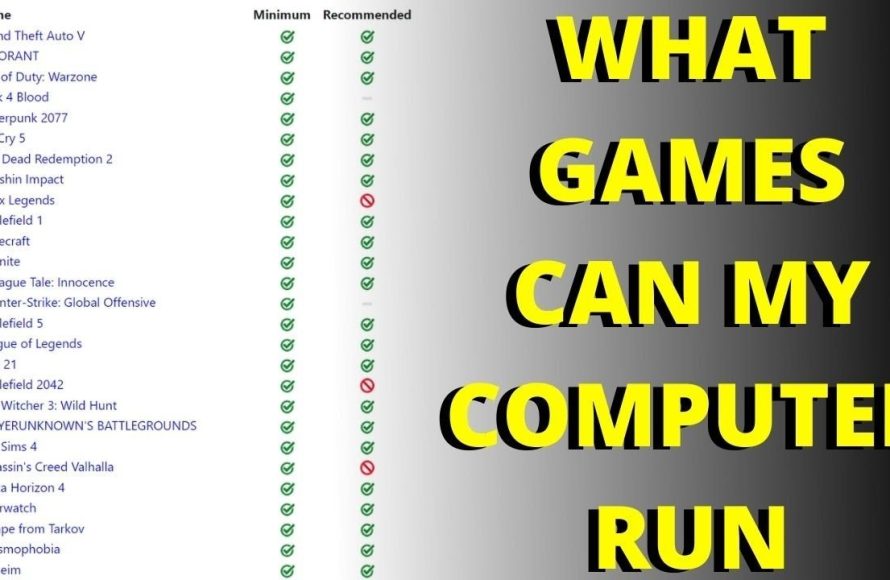
The specific games your computer can run depend on its specific hardware components, like the graphics card, CPU, and RAM. You can determine this by checking these specifications and comparing them to the minimum and recommended requirements of the game you are interested in.
Ever wondered, “what games will my computer run?” It’s a common question when you’re itching to dive into new worlds, but worried about performance. The answer isn’t always clear, as every PC is built with different components.
Checking your system’s specifications against the game requirements is key. Knowing your graphics card, CPU, and RAM provides the necessary information.

What Games Will My Computer Run?
So, you’re itching to play the latest awesome game, but you’re not quite sure if your computer can handle it? That’s a super common question! Figuring out what games your computer can run isn’t as scary as it sounds. We’ll walk through everything, step by step, to make sure you understand how to check if your computer is ready to play that game you’ve been eyeing.
Understanding Computer Specifications
The key to knowing what games will run on your computer is understanding its specifications, which are like its vital statistics. Think of it like a car – you need to know the engine size, if it has four-wheel drive, or maybe how good the brakes are before taking it on a long road trip. With computers, it’s similar. Here are the main parts we need to pay attention to:
The Central Processing Unit (CPU)
The CPU is like the brain of your computer. It does all the thinking and processing for games. A faster CPU can handle more complex tasks and allows for smoother gameplay. When you look at a CPU, you’ll see a name, for example, Intel Core i5 or AMD Ryzen 7. Generally, the higher the number, the more power it has.
Think of it this way: if your computer is building a really intricate lego structure, the CPU is the person that’s reading the instructions and deciding where each piece goes. A faster CPU will be able to put it together much quicker and won’t make as many mistakes. A slow one? Well, the structure might end up looking a little wonky or taking forever to build.
The Graphics Processing Unit (GPU)
The GPU is what makes your games look pretty. It’s like the artist that draws all the characters, buildings, and landscapes. It’s crucial for having high-quality visuals and a smooth frame rate (how many times the picture changes per second). A dedicated GPU (a separate card) is usually better for gaming than integrated graphics (part of the CPU). Common GPU names are NVIDIA GeForce RTX or AMD Radeon RX, and similar to CPUs, bigger numbers usually mean more power.
Imagine the game as a movie. The CPU is the director, making sure everything is going right, and the GPU is the cinematographer, taking the movie and making it look really great. If you have a really good GPU, the movie will be nice and clear with lots of detail. If you don’t, it will look a bit blurry or might even jump around a bit.
Random Access Memory (RAM)
RAM is like your computer’s short-term memory. It’s what your computer uses to keep track of the current things that are running. More RAM means your computer can handle more things at once without slowing down. For gaming, 8GB of RAM is usually the minimum, but 16GB is better for newer games.
Think of it like the space on your desk while you are working. If you only have a little bit of desk space, you can’t spread out all your books, papers, and supplies, and things get messy fast. But if you have lots of desk space, you can keep everything organized and easy to use. More RAM means more ‘desk space’ for your computer, so it can do more things at the same time quickly.
Storage (Hard Drive or SSD)
Your storage is where your games and everything else on your computer are kept long-term. This is either a Hard Disk Drive (HDD) or a Solid State Drive (SSD). An SSD is much faster than an HDD, which means games will load quicker, and your whole computer will feel faster too. For gaming, having at least some storage on an SSD is recommended.
Think of storage as the shelf where you keep all your toys and games. A really big shelf (lots of storage space) means you can keep more games. Also, an SSD would be like a shelf with sliding doors, making it much quicker to get the game that you want to play! It speeds up loading times.
Operating System (OS)
Your operating system is the software that runs your computer. Most games will be designed for either Windows or macOS or perhaps even Linux. Make sure the game you want to play is compatible with your system.
It’s like the book of rules for your game. If a game is designed for Windows and your computer has macOS, the game won’t work. It’s important to make sure both your computer and the game are playing by the same rules!
Finding Your Computer’s Specifications
Okay, so now we know what specs are important, but where do you find them on your own computer? It’s not as hard as you might think!
On Windows
Here’s how to find your specs on a Windows computer:
- Click on the Start Menu (the Windows logo in the bottom-left corner).
- Type “System Information” and click on the result.
- In the window that pops up, you’ll find information about your CPU, RAM, and operating system. Look for “Processor” for the CPU, “Installed Physical Memory (RAM)” for RAM, and “OS Name” for the operating system.
- To find your GPU, go to the Start Menu, type “Device Manager” and click the result.
- Then, click the arrow next to “Display adapters.” This will show you the name of your GPU.
On macOS
And here is the procedure for Apple MacOS:
- Click on the Apple menu (the apple logo in the top-left corner of your screen).
- Select “About This Mac.”
- In the window that pops up, you’ll find information about your CPU, RAM, and operating system (under the “Overview” tab).
- For the GPU, click “System Report” and then click “Graphics/Displays”. You should see your GPU listed on the right.
Game System Requirements
Once you know your computer’s specifications, the next step is to look at the requirements of the game you want to play. Each game has minimum and recommended requirements. Here’s what those mean:
- Minimum Requirements: These are the very least specs your computer needs to run the game, usually at low settings. Even if the game works, it might not look very good or run very smoothly. Think of it as ‘barely passing’ the test.
- Recommended Requirements: These are the specs that the game developers say will give you the best experience, with good visuals and smooth gameplay. Aim for meeting or exceeding the recommended specifications if possible. That’s like ‘acing the test’!
You can usually find the system requirements for a game on the game’s store page (Steam, Epic Games Store, etc.) or on the developer’s website. Typically, they’ll have it listed quite visibly so that you know what to expect.
Comparing Your Specs to Game Requirements
Now, for the main part: comparing your computer specs to the game’s system requirements. Let’s see how it works using a little example. Let’s imagine you want to play “Amazing Adventure Game” and its requirements are:
Example System Requirements for “Amazing Adventure Game”
| Minimum | Recommended | |
|---|---|---|
| CPU | Intel Core i3-4130 or AMD FX-6300 | Intel Core i5-6600K or AMD Ryzen 5 1600 |
| GPU | NVIDIA GeForce GTX 660 or AMD Radeon HD 7870 | NVIDIA GeForce GTX 1060 or AMD Radeon RX 580 |
| RAM | 8 GB | 16 GB |
| Storage | 25GB HDD | 25GB SSD |
| OS | Windows 7 64-bit | Windows 10 64-bit |
Okay, let’s say your computer has:
- CPU: Intel Core i5-7500
- GPU: NVIDIA GeForce GTX 1050 Ti
- RAM: 12 GB
- Storage: 1TB HDD & 256 GB SSD
- OS: Windows 10 64-bit
How does your computer stack up against the game?
- CPU: Your Intel Core i5-7500 is better than the minimum (i3-4130) but it isn’t the same as the recommended, but it is quite close to the recommended i5-6600K.
- GPU: Your NVIDIA GeForce GTX 1050 Ti is better than the minimum (GTX 660), but not as good as the recommended (GTX 1060). You are a little behind, but still fairly close to the recommended level.
- RAM: You have 12 GB of RAM. This meets the minimum and is close to the recommended 16GB, so you’re in pretty good shape here.
- Storage: You have both an HDD and a SSD. Having your game installed on the SSD is preferred, as this meets the recommended requirement, while your HDD meets the minimum requirements, for space on your computer.
- OS: You are using Windows 10 64-bit, which meets both the minimum and the recommended requirements.
In this example, your computer should probably be able to run the game, but you might have to lower the graphics settings a bit. You’re better than the minimum, but not quite at the recommended specs.
What Happens if My Computer Doesn’t Meet the Requirements?
What if you find out that your computer doesn’t quite meet the game’s requirements? Don’t give up hope just yet. Here’s what you can do:
Adjusting Graphics Settings
Almost all games allow you to change graphics settings like resolution, texture quality, and shadows. If your computer is a little below the recommended specs, you can get the game to run smoother by turning these settings down. While the game might not look as amazing as it could, you’ll be able to play it without the game slowing down.
Upgrading Your Computer
If you really want to play all the games you want at the best settings, you might want to consider upgrading some of your computer parts. The most common upgrades for gaming are the GPU and RAM. This will require that you have some knowledge of working with computer parts, but there are many guides online that will help you if you have no experience.
Cloud Gaming Services
Another option, especially if you want to play newer games on an older computer, is cloud gaming. Services like NVIDIA GeForce NOW and Xbox Cloud Gaming allow you to play games on powerful servers and stream them to your computer. Your computer becomes a ‘window’ to the game, which means you don’t need top-notch hardware at home. However, you do need a very fast internet connection for this to work properly.
Useful Websites and Tools
There are also some tools available on the internet that can be very helpful. These will automatically check your system specs, compare them to game requirements and give you an idea of how the game should run.
- Can You RUN It: This is a very popular website that checks your system specs against specific games to see if you meet the minimum or recommended requirements.
- PCGameBenchmark: Another site that will check what your computer is capable of running. It also shows lots of benchmark scores and other useful information.
- Game System Requirement Websites: Websites like SteamDB or official game websites often keep comprehensive lists of system requirements and comparisons with popular computer hardware.
So, there you have it. Deciding what games your computer can run doesn’t need to be hard. By checking your computer’s specifications and comparing them to the games’ system requirements, you can figure out which games your computer can handle, how to make the game run smoother or decide to upgrade your parts, or choose to use a cloud gaming service. Now you can dive in and start playing without worrying if the game will actually work.
How To Check If Steam Game Will Run On My Computer (Easy Method)
Final Thoughts
Ultimately, knowing your PC’s specs is key. Compare your CPU, GPU, and RAM against game requirements. This comparison will directly tell you ‘what games will my computer run’.
You need to check if the titles you want to play meet minimum and recommended specifications. A strong graphics card makes a massive difference.
Always check the system requirement details before purchasing any game. This helps manage expectations of game performance. So that your gaming experience is enjoyable, what games will my computer run is the must have information.

