
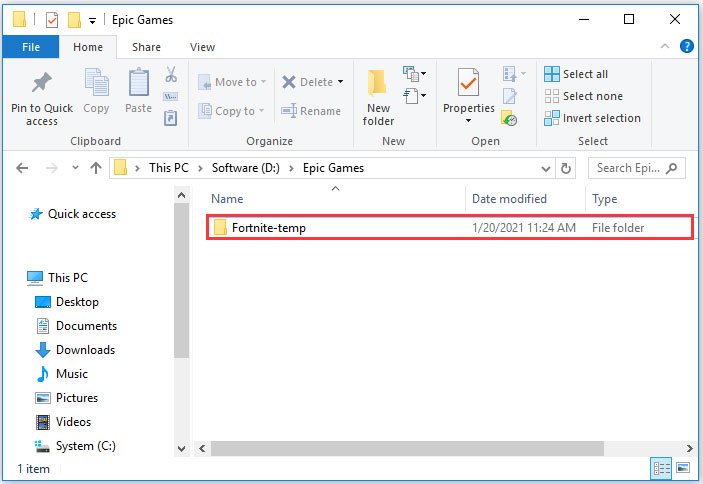
Epic Games typically installs games in a directory you choose during the installation process, or defaults to a location usually within your computer’s program files.
Ever wondered where exactly those awesome games you snagged from the Epic Games Store end up on your hard drive? It’s a common question! Knowing where does epic games install games can be quite helpful.
This location is usually selected by you during the install. Most of the time, it defaults to a folder within your Program Files. This allows for easy management if you need to find or move your game files later.

Where Does Epic Games Install Games?
Ever wondered where your awesome Epic Games titles go after you click that “install” button? It’s a common question, and the answer isn’t always as straightforward as you might think. Unlike a physical game disc, which you can see and hold, digital games live in the digital world, stored somewhere on your computer. Let’s dive into the specifics of how Epic Games handles game installations, making it easy for you to find your favorite games. Understanding where Epic Games stores your installed games is important for a few reasons. First, it allows you to manage the space on your hard drive better. Second, when you need to make backups, or perhaps copy games to a different drive, knowing the installation location is essential. Finally, if you ever need to troubleshoot, finding the game files is usually the first step.
The Default Installation Location
Epic Games, like many other game launchers, has a default location where it likes to put your installed games. This makes it easy for them to keep things organized and for you to find things quickly. By default, Epic Games will install your new games in this directory:
Windows: C:\Program Files\Epic Games\
Inside the “Epic Games” folder, you’ll find individual folders for each game you have installed. For instance, if you have Fortnite and Rocket League, you would probably find the Fortnite files in a folder named something similar to ‘Fortnite’ and the Rocket League files in a folder named something similar to ‘RocketLeague’.
However, that’s just the start. Inside each game’s folder, you’ll encounter a variety of other directories and files. This includes the game’s executable file (the main file you launch to play the game), game data, configuration settings, and more. Think of it like a house; the “Epic Games” folder is the neighborhood, and each game’s folder is the house for that particular game.
Customizing Your Installation Path
What if your C: drive is getting full, or you have a specific drive you prefer to use for gaming? Thankfully, Epic Games gives you the freedom to pick where your games go. You’re not stuck with that default location!
How to Choose a New Installation Location
When you’re installing a new game, Epic Games will ask you where you’d like to place the game. This is your chance to make changes. Here’s a simple step-by-step guide on how to do this:
- Start the Installation: Begin the installation process for the game you want to install.
- Select the Install Location: On the installation screen, you’ll see the default location displayed, usually in a text box or similar field. Next to it, you’ll find a “Browse” button.
- Navigate to Your Desired Folder: Click the “Browse” button. A file explorer window will pop up, allowing you to navigate your computer. Choose the folder on your computer or create a new one where you want your game to be installed. You could choose a new drive (like D: or E:) or a folder somewhere else on your C: drive.
- Confirm Your Choice: Once you’ve picked a location, click “OK” and then begin the installation. Epic Games will now install the game in the place you selected.
For example, imagine you have a drive labeled “D:Games”. Instead of installing to the default “C:\Program Files\Epic Games”, you can use the “Browse” button to go to your “D:Games” drive and choose a folder such as “D:GamesFortnite”. Epic Games will remember this setting for future installations. You can always change this location again before starting each installation by following the same steps.
Things to Consider When Choosing a Custom Location
- Hard Drive Space: Ensure your chosen drive has enough space for the game. Games today can be quite large, so check the game’s system requirements beforehand.
- Drive Type: Solid State Drives (SSDs) are much faster than Hard Disk Drives (HDDs). Installing games on an SSD will make them load much faster. If you have an SSD, it’s often best to install your most played games there.
- Organization: Choose locations that are easy for you to find and remember. It’s easier to navigate when all your game files are together. It’s up to you to decide how to manage that, but make sure it makes sense for you.
Understanding Game Files
Once you find your games’ installation location, it’s good to understand what you’re seeing. Every game installation is made up of various kinds of files.
Common Game File Types
- Executable Files (.exe): These are the main files that start your games. Double-clicking on them launches the game. For example, you might see something like “Fortnite.exe” in the Fortnite folder.
- Data Files: These make up the bulk of the game. They contain the game’s graphics, sounds, levels, and other content. They’re often in formats like .pak, .dat or similar.
- Configuration Files (.ini, .cfg): These contain settings like your graphics preferences, control mappings, and game settings. You can often tweak these files to modify your game experience but be careful because changes can sometimes affect the game’s stability.
- Save Files: These files store your game progress. You’ll usually find these in a separate folder, often called “saves,” “savegames,” or sometimes directly within the game folder, and sometimes in the Documents folder.
Usually, you don’t need to worry too much about these file types unless you’re backing up your game or troubleshooting a problem. However, recognizing them can be helpful if you ever need to move your game files or find your save files.
Moving Games to a Different Location
Sometimes you need to move your installed games from one location to another, maybe you purchased a new SSD and you want to move your most played games to it. Moving your games without reinstalling them is possible, but it requires a few steps. You should also be careful because you can damage your game installation if you are not careful.
Steps to Move Games
- Close the Epic Games Launcher: Make sure the Epic Games Launcher is completely closed before you attempt to move any games, otherwise, there could be file access conflicts during the move.
- Copy the Game Folder: Using File Explorer (or your system’s file manager), navigate to the original game folder, which you have learned about before in this article. Copy the folder of the game you want to move to the new location, make sure you COPY not cut, since it will prevent data loss.
- Delete the old Folder (Optional): Once you have confirmed that the game folder has successfully been copied to your new location, you can optionally delete the old game folder on the previous location.
- Tell the Epic Games Launcher About the Move: After copying the game files, you’ll need to “tell” the Epic Games Launcher where the game is now. Launch the Epic Games Launcher. Go to the Library page. Click the three dots next to the game you moved and click “Uninstall”. Then, click Install. When prompted for the install location, navigate to the location where you have copied the game files. Epic Games will detect the existing files and verify the game.
By doing this, you are telling the launcher where to find the game files, and you don’t have to redownload the game. This method is a quicker and easier way to move a game than uninstalling and downloading it again.
Potential Issues When Moving Games
- File Corruption: If the move is interrupted or the data is copied incompletely, the files can be corrupted. Always verify if all files have been copied correctly before deleting the original game files.
- Permissions: If you’re moving the game to a location with different security permissions, it may not run correctly. In this situation, you might need to adjust permissions on the new folder for your user account.
- Launcher Issues: Sometimes the launcher might get confused, and in this case, you might need to close the launcher, and start it again. If the problem persists, you can try to restart your computer.
These are a few things to be aware of, but following the steps above carefully should prevent problems.
Backup and Restore of Games
Backing up your games is important, especially if you have a slow internet connection or if you want to have a copy of your games for safekeeping. There are various methods to back up your games from the Epic Games launcher, the simplest one is simply copying the game folder. This is how to approach it:
Backing Up Your Epic Games
To back up your games, you should first determine which location you have installed the games. If you have installed them at the default installation location, you should see it in C:\Program Files\Epic Games, if you have installed them at another location, you should go to that directory. Then, you can start copying the folder of the game you want to back up, and paste it to a secure location, which could be an external hard drive.
Restoring from Backup
If you have backed up your game, you can restore it by following the steps to move your games to a different location. These steps are:
- Close the Epic Games Launcher: First make sure the Epic Games Launcher is closed.
- Copy the Game Folder: Locate your backup folder, and copy the folder of the game you want to restore, to a new location.
- Tell the Epic Games Launcher About the Move: After copying the game files, you’ll need to “tell” the Epic Games Launcher where the game is now. Launch the Epic Games Launcher. Go to the Library page. Click the three dots next to the game you restored and click “Uninstall”. Then, click Install. When prompted for the install location, navigate to the location where you have copied the game files. Epic Games will detect the existing files and verify the game.
By following these steps, you can restore your backup of a game.
Managing Storage Space
As your library of games grows, so does the need to manage your storage. Understanding where your games are installed is the first step to keeping your hard drive clean and organized. Here are some helpful tips for managing game installations:
Tips for Managing Game Storage
- Monitor Drive Space: Keep an eye on your hard drive space. Windows and other operating systems have built-in tools to show you how much space is left on each drive.
- Uninstall Games You Don’t Play: If you have games that you no longer play, uninstall them from the Epic Games Launcher. This will free up space on your hard drive. The uninstall option can be found when clicking the three dots next to the game in the library view.
- Move Large Games to HDD: If you have a small SSD and a large HDD, consider keeping your frequently used games on the SSD and moving larger games that you don’t play often to your HDD.
- Use External Storage: If your computer is running out of space, an external hard drive is a great option. You can move entire game folders to an external drive.
By keeping these points in mind, you can make sure you have enough space for your favorite games.
Now, you should have a good idea of where Epic Games installs games. Whether you’re using the default location or choosing a custom location, understanding the process is important. You can use this information to better manage your game library, backup your games, and troubleshoot any problems you might encounter. Enjoy your gaming, and may your hard drives always have enough space!
How To Download Epic Games Launcher On Windows 11/10 | Install Epic Games Launcher On PC
Final Thoughts
In conclusion, the default location for Epic Games installations is usually within the Program Files directory, specifically in an Epic Games folder. However, users have the flexibility to choose a custom install path during the game installation process. Therefore, knowing where does epic games install games is crucial for managing your storage.
Remember to note down the chosen location if you deviate from default. You can also review the game’s settings within the Epic Games launcher to find its install directory, later if required. This helps you locate game files quickly.

