
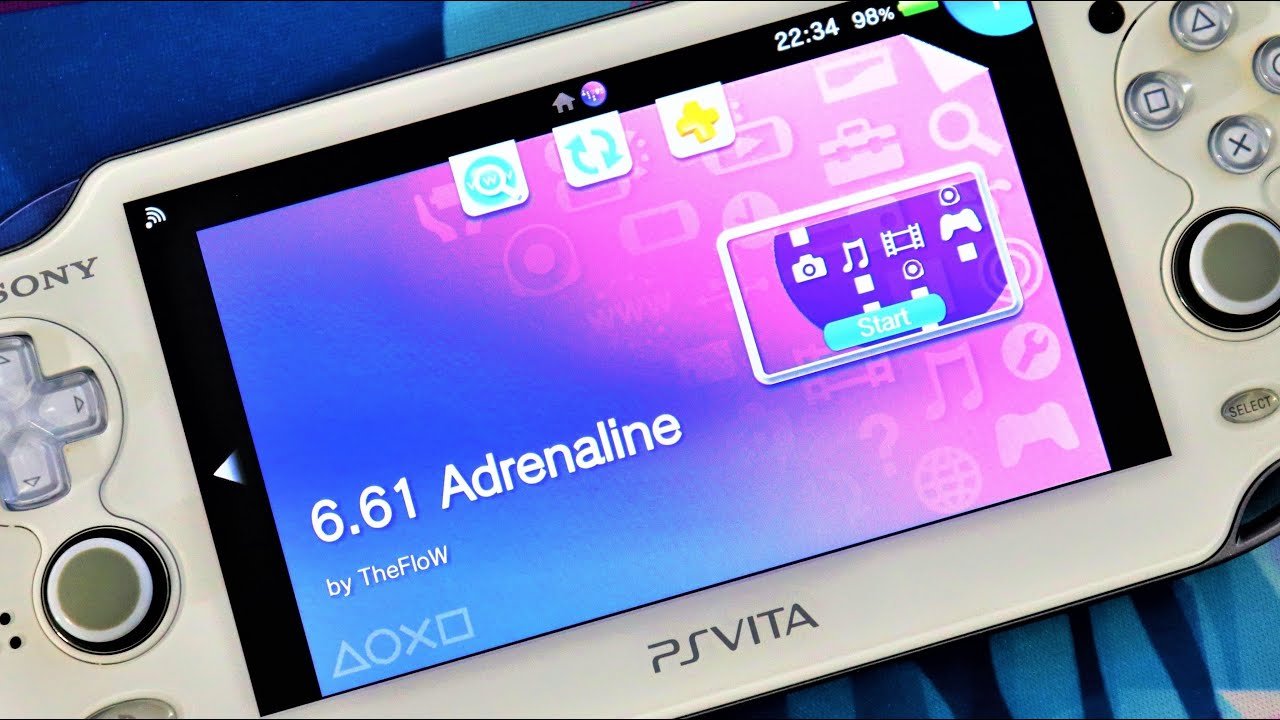
Place your Adrenaline games within the ux0:pspemu/ISO folder for Vitashell to recognize them.
So you’re ready to dive into some PSP games on your Vita using Adrenaline, but you’re a bit puzzled about where to put adrenaline games vitashell, right? It’s a common question for newcomers to the scene. Don’t worry, the process is quite straightforward once you know the correct location.
Locating the specific folder for your games is crucial for the emulator to detect them. Putting the files in the right place ensures smooth gameplay.

Where to Put Adrenaline Games with VitaShell
Alright, let’s talk about where to put those awesome Adrenaline games on your PlayStation Vita using VitaShell! It might seem a little tricky at first, but once you get the hang of it, it’s super easy. We’re going to break it all down so you know exactly where everything goes. Think of it like organizing your toys – everything has its special spot!
Understanding the Vita’s File System
Before we jump into locations, it’s good to understand a bit about how your Vita organizes things. It’s like a mini computer with different folders for different stuff. When you use VitaShell, you’re basically looking at these folders. Two of the main places you’ll be working with are ‘ux0’ and ‘uma0’.
What are ux0 and uma0?
Let’s think of these as the main storage areas. Imagine ux0 as your Vita’s “main memory” – it’s where your games, apps, and most of your important stuff usually live. uma0, on the other hand, is usually where your memory card lives, when you use a memory card adapter. It’s like a secondary storage space that allows you to add extra storage capacity. When you don’t use sd2vita card or a memory card adapter, you will see “uma0:” folder like the other folders but you will not find anything inside it. When you insert a memory card adapter, like sd2vita adapter in your playstation vita, then the folder “uma0:” will have the contents of the memory card.
The Magic Spot: Where Adrenaline Games Go
Okay, here’s the most important part: Adrenaline games, which are PSP games, should go into a very specific spot. That spot is inside your ‘ux0’ folder. The path looks like this:
ux0:pspemu/ISO/
Let’s break this down:
- ux0: This is the main memory of your PlayStation Vita.
- pspemu: This folder is where all things related to the PSP emulator (that’s Adrenaline!) are kept.
- ISO: This is the folder where your PSP game files (the .iso or .cso files) go.
So, basically, you need to go into the ‘ux0’ folder using VitaShell, then into the ‘pspemu’ folder and then finally into the ‘ISO’ folder. This is where you’ll place all your Adrenaline games.
Using VitaShell to Transfer Games
Now, how do you actually get those game files into that folder? That’s where VitaShell comes in handy. Here’s a step-by-step guide:
- Connect Your Vita: Use a USB cable to connect your PlayStation Vita to your computer.
- Open VitaShell: On your Vita, open the VitaShell app.
- Enable USB: Press the ‘Select’ button on your Vita. This will make your Vita’s storage accessible on your computer. You’ll see some text on your Vita’s screen showing the connection status.
- Copy Game Files: On your computer, a new drive will appear. This is your Vita’s storage. Open that new drive and go into the
ux0:pspemu/ISO/folder that we talked about earlier. Copy the .iso or .cso game files that you want to play in Adrenaline to this folder. - Safely Eject: Once the copying is complete, safely eject the drive from your computer.
- Disable USB in VitaShell: Now, back on your Vita, press ‘Select’ again to stop USB connection with the PC.
- Refresh in Adrenaline: Open the Adrenaline app, and your newly added games should appear on the game list! If they don’t appear, close Adrenaline and then open it again. You might need to also restart the playstation vita for the games to appear.
Why This Specific Location?
You might be wondering, “Why does it have to be in that exact folder?” Well, Adrenaline is designed to look for your PSP games in that specific folder location. If you put your games anywhere else, Adrenaline won’t be able to find them, and they won’t show up on the game list. It’s like having your toys in the right toy box so you can easily find them.
Other Important Folders (For Information)
While the ux0:pspemu/ISO/ folder is the key location for your games, it’s useful to know about some of the other folders you might see in the ux0:pspemu folder:
- SAVEDATA: This folder is where your saved game files for PSP games are stored. So, you will not have any problem if you try to copy save data for the games. You can simply copy the folder or file into this location.
- SEPLUGINS: This folder contains plugins that can enhance the PSP emulation experience with Adrenaline. You can find lot of plugins for adrenaline with googling.
- CONFIG: This folder contains the configuration files for Adrenaline.
It is recommended that you don’t change anything inside this folder, if you don’t know what you are doing.
Things to Keep in Mind
Here are a few important things to remember when putting games in the right place:
- File Formats: Adrenaline works best with .iso and .cso file formats for PSP games. Other formats might not work or might cause problems.
- Large Files: If you’re copying very large games, it might take some time to transfer them. Be patient and let it finish!
- Organization: Keep your game files organized. Maybe name the games properly or put them into subfolders inside the ISO folder, so that you don’t have to see large list of games that are not easy to find.
- Enough Space: Make sure you have enough free space on your Vita or memory card for all the games you want to add. If you fill the memory, you won’t be able to copy more games.
Troubleshooting: Games Not Showing Up
Sometimes, you might put a game in the right place, but it still doesn’t show up in Adrenaline. Here are a few things you can try:
- Check the File Name: Make sure the game file name is correct and doesn’t have any extra characters.
- Refresh the List: Close and reopen Adrenaline. Sometimes, it just needs to refresh the game list. You can also restart your playstation vita if that doesn’t help.
- Check the File Format: Double-check that it’s a .iso or .cso file.
- Make Sure Game Files Are Complete: Sometimes game files can be incomplete or corrupted. Try to re-download the game files if the troubleshooting doesn’t help.
- sd2vita problems: if you are using a sd2vita card or a memory card adapter, you might face issues with your memory card. You should check if your memory card is correctly inserted and working or not.
Using a Memory Card with sd2vita Adapter
When you use a memory card with an sd2vita adapter, the games are still placed in the same folder which is ux0:pspemu/ISO/. Although the storage is different, the location is still the same. Now if you are using a memory card adapter, then the uma0: folder will be used. But you still have to put your PSP games into ux0:pspemu/ISO/ folder, even if you are using a memory card with an adapter. The way you copy games to this folder remains the same, connect your vita using a USB cable, then enable usb in vitashell and then copy the game files.
Let’s say for some reason, you want to store your Adrenaline games in your sd2vita card or a memory card adapter. You would need to do some more configurations to get your games running, which is beyond the scope of this article. You should generally use the main folder which is ux0:pspemu/ISO/.
So there you have it! Placing your Adrenaline games in the right spot on your PlayStation Vita using VitaShell is all about using ux0:pspemu/ISO/ folder. Remember to use VitaShell to copy your games, and then you’ll be ready to play. Have fun with your awesome PSP games on your Vita!
Guide: PSP and PS1 games on the PS Vita (Adrenaline)
Final Thoughts
Place your Adrenaline games within the ‘ux0:pspemu/ISO’ folder. Vitashell manages file transfers, making this the correct directory for loading games. Ensure the game files are in ISO format to work properly.
This placement is crucial for Adrenaline to recognize and launch your games. Therefore, ‘where to put adrenaline games vitashell’ is straightforward: it’s in ‘ux0:pspemu/ISO’. Vitashell handles this directory, making game setup simple and direct for users.

