
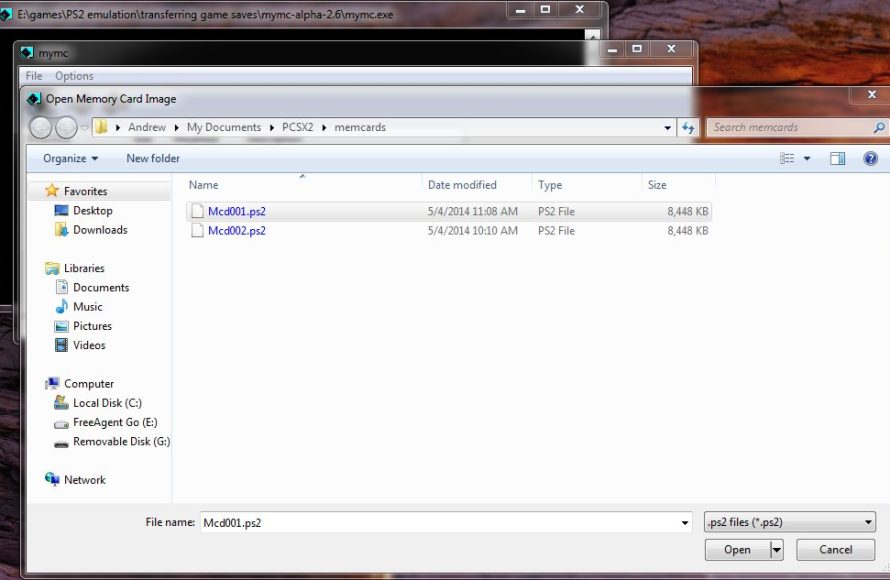
PCSX2 stores save game files in the “memcards” folder, located within your PCSX2 installation directory.
Ever find yourself lost in a game, only to wonder where your progress is actually stored? It is a common question, especially when you are using an emulator like PCSX2. Understanding where to put save game files in PCSX2 can save you from frustrating data losses.
This simple folder is the key to keeping your virtual adventures safe. So always remember to check that folder if you ever move files or installations around. Knowing the storage location will help you with backups and prevent headaches.

Where to Put Save Game Files in PCSX2
Okay, so you’re diving into the awesome world of PlayStation 2 emulation with PCSX2. That’s fantastic! You’re probably already enjoying some old favorite games or maybe checking out something new. But, just like on a real PlayStation 2, your progress needs to be saved somewhere. That’s where save files come into play. Understanding where PCSX2 keeps these files is super important, whether you’re backing them up, transferring them between computers, or just curious about how it all works. Let’s figure out the mystery of those save files!
Understanding Memory Cards and Save Data
Before we pinpoint the exact locations on your computer, let’s talk a little about how the PlayStation 2 handles saves. Just like the original console, PCSX2 uses virtual memory cards to store your game progress. Think of these like digital versions of those old plastic cards you plugged into your console. Each game saves its data to a specific “slot” on these virtual cards. PCSX2 lets you have multiple virtual memory cards, just like you could with physical cards, so you can keep save games separate. This helps keep your progress organized, especially if you’re playing lots of games at the same time.
Default Save File Location
The first thing you should know is that, by default, PCSX2 places your memory card data in a specific folder. This folder will be somewhere different, based on your computer’s operating system. Let’s go through a couple of the most common places:
Windows Users
If you use a Windows computer, the default location is typically within your Documents folder. Navigate to:
Documents\PCSX2\memcards
Inside the “memcards” folder, you’ll see files that represent your virtual memory cards. These files usually have the extension .ps2. For example, you might see files named Mcd001.ps2 and Mcd002.ps2. These are your virtual memory card files!
macOS Users
For those of you using a Mac, the location is slightly different. You’ll generally find the save data in your user’s library folder, specifically within the Application Support directory. The exact path is usually:
~/Library/Application Support/PCSX2/memcards
To get to this folder, you might need to press Command + Shift + . in Finder to view hidden files. Once you reveal them, navigate to your user folder (the one with your name), then to Library, Application Support, PCSX2, and finally memcards. Inside you’ll see files with .ps2 extensions.
Linux Users
Linux users have a slightly different home as well. Typically, they will find their virtual memory cards in:
~/.config/PCSX2/memcards
The ~ symbol represents your home directory. You can open your file manager and enable showing hidden files if necessary (usually, you press Ctrl + H). Once hidden files and folders are visible, you can then navigate to the .config folder, and find the PCSX2 folder, and the “memcards” folder from there. Again, you’ll see .ps2 files inside that represent your virtual memory cards.
Important Note: Keep in mind that these locations are the default. You can change this location in PCSX2’s settings, as you will see a little later in this article.
Understanding Save File Types
Now that you know where to find them, let’s talk a little more about what they are. As mentioned earlier, the virtual memory card files end in .ps2. These aren’t the actual save games themselves. They’re more like the entire memory card, containing all the saved data. When a game saves data, it’s storing that information on this virtual card. The card itself stores all the save game information together.
- .ps2: This is the primary virtual memory card file. All of your game saves go into this file.
- Individual game saves: You won’t find these as separate files. Instead, they are stored within the .ps2 file itself.
How to Manage Your Save Files
Now that you have located your save files, there are a few things you might want to do with them. Let’s explore some ways to manage these files.
Backing Up Your Saves
It’s really important to back up your save files! This keeps you from losing all your game progress if something goes wrong with your computer or the emulator. Making a backup is quite simple. Just follow these steps:
- Open the folder that contains your save files (usually in Documents/PCSX2/memcards, or similar, based on your system).
- Copy the .ps2 files you want to back up.
- Paste these copied files to another location, such as a USB drive, an external hard drive, or a folder in a cloud service like Google Drive or Dropbox.
You can even back up to another location on your PC. Just ensure you don’t accidentally delete your save files in the original folder.
Transferring Saves to Another Computer
Want to keep playing your games on another computer? No problem. Transferring save files is very easy:
- Follow the steps above to copy your .ps2 files from your old computer.
- On your new computer, navigate to the correct folder location (as mentioned earlier) for PCSX2 memory card files.
- Paste the .ps2 files you copied from your old computer into this folder.
PCSX2 will automatically recognize your save files when you start playing. Make sure that you have already launched PCSX2 before transferring the files. The folder for save files is created automatically when you run PCSX2 for the first time.
Importing Save Files from the Internet
Sometimes you might find save files online that people have shared, or that you have recovered from a memory card backup. Here’s how to import them.
- Locate your save files on your computer (.ps2 file).
- Copy your save files
- Paste them to your PCSX2 memory card folder
Remember, it’s always a good idea to scan any files you download from the internet for viruses before using them.
Changing the Default Save Location in PCSX2
You might not want your saves in the default location. No problem. PCSX2 allows you to change where it keeps the memory card files. Here’s how you can do that:
- Open PCSX2.
- Go to Config, then Memory Cards (or similar, the exact wording might vary slightly based on the version you are using).
- You will see a couple of different memory card slots, and options to pick a folder for each one.
- Click on the “Browse” button next to the memory card slot you want to change.
- Navigate to the new folder where you would like your memory card to be located.
- Make sure that folder is empty, then, click “Select Folder”.
- Click Apply or OK to save the change.
After you change the memory card location, the previous .ps2 files will no longer be automatically loaded by PCSX2. If you would like to use those files, move them to the new location you set up in the steps above.
Troubleshooting Save File Issues
Sometimes things don’t go as planned. Here are some common issues and how to solve them.
Save Files Not Showing Up
If you can’t find your save files, follow these steps:
- Make sure you are looking in the correct folder. Double-check the paths we mentioned for Windows, macOS, and Linux.
- Ensure your files have the .ps2 extension. If they are named incorrectly, PCSX2 won’t recognize them.
- Restart PCSX2 sometimes it needs a restart to properly recognize the location of save files.
- If you recently changed the memory card location, make sure you have copied the save files to the new location.
Corrupted Save Files
Occasionally, save files can get corrupted. This means the save data is broken and unreadable. Here are some tips:
- If you have a backup of your save files, use that backup and replace the corrupted file with it.
- If a backup is not available, unfortunately, there may not be any other solutions, other than to start a new save file.
Games Not Saving
Sometimes, a game may fail to save. Consider this:
- Check that your virtual memory card is properly formatted by PCSX2. Go to the memory card settings in PCSX2 and make sure it is set up.
- Ensure you have enough space on your hard drive and that your virtual memory card isn’t full.
- Some games can sometimes have saving problems. Try to save in different locations in a game, or try saving at different times to ensure saving is possible.
Advanced Tips
Okay, now for some slightly more advanced tips. These aren’t required but they are good to know!
Using Multiple Memory Cards
Just like the original PlayStation 2, PCSX2 allows you to use more than one virtual memory card. You can use them to keep games separate. You can pick which memory card to use in the PCSX2 memory card settings. For example, you could have one card for your RPG games and another card for your racing games. When using more than one memory card, be sure to remember which card has the game save you would like to play!
Memory Card Browsers
Some special tools can help you “browse” inside a virtual memory card to see the individual game saves it contains. Using a tool like a memory card browser can help you manage individual save files better, or even transfer save data from one card to another. These tools are usually available as third-party utilities online. Note, however, that using them can sometimes cause issues if done incorrectly, so use caution.
Understanding where your PCSX2 save files are and how to handle them is a core part of the emulation experience. Now you should be more equipped to manage your game saves, back them up, and even move them between computers. Remember, it’s always a good idea to back up your progress regularly. Happy gaming!
How to import PS2 Save Files for PCSX2 and AetherSX2 Emulators
Final Thoughts
In short, PCSX2 saves game data in specific folders. Memory card files go inside the memcards directory. You’ll usually find this within your PCSX2 installation folder.
BIOS files are stored separately. These reside in the bios folder, also within the main PCSX2 directory. This is the place where the emulator looks to begin games and make it work.
To summarize, where to put save game files in pcsx2, use memcards for memory card saves. Always keep this location in mind for managing your progress.

