
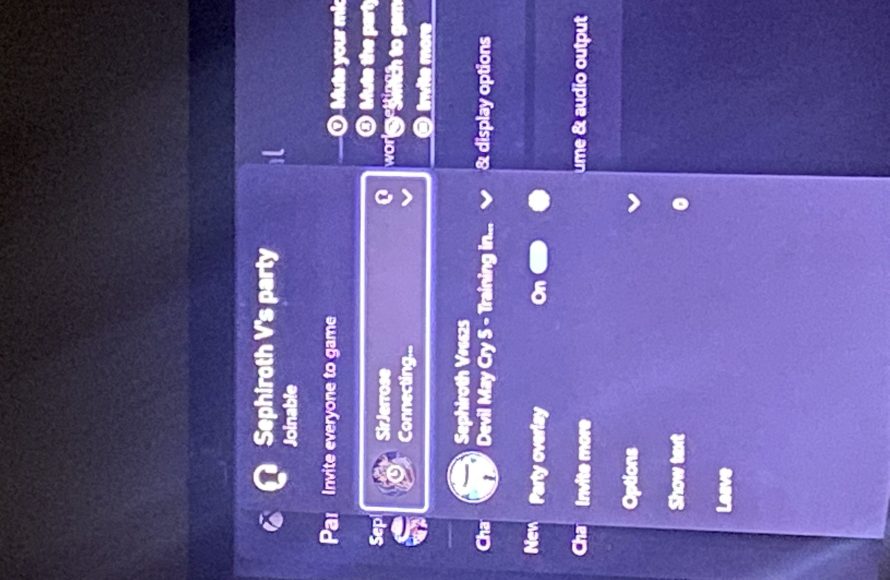
If you are stuck in game chat on Xbox, it’s often due to a temporary glitch, incorrect audio settings, or a problem with your headset.
Are you frustrated because you’re shouting at your teammates but they can’t hear you? Maybe you are wondering, “why am i stuck in game chat on xbox”? It’s an issue that many Xbox gamers face, and it can be incredibly annoying.
This problem often stems from simple, fixable things. This means that you don’t have to throw your controller against the wall yet, and can often get back in the game with a bit of troubleshooting. Let’s get you back in the game!

Why Am I Stuck In Game Chat on Xbox?
Okay, so you’re trying to chat with your friends on Xbox, maybe strategize for a big battle or just goof around, but your voice seems to be stuck in some digital limbo. You’re not alone! Many Xbox gamers find themselves trapped in game chat, unable to hear or be heard, and it can be super frustrating. Let’s dive deep into the common reasons why this happens and, more importantly, how to fix it.
Understanding the Basics of Xbox Game Chat
Before we troubleshoot, let’s understand how Xbox game chat works. It’s like a mini phone call system built right into your console. You and your friends connect over the internet, and your voice travels back and forth. However, like any system, it has many moving parts that need to work together correctly. These parts include your microphone, headset, Xbox settings, internet connection, and even the game itself. If any of these aren’t cooperating, you might end up stuck in silence.
Common Reasons You Might Be Stuck in Game Chat
Microphone Issues
First things first, let’s check your microphone. This seems obvious, but it’s often the culprit.
Muted Microphone: Is your mic muted? Most headsets have a physical mute button or a flip-up mic boom. Double-check to ensure it’s not accidentally muted.
Loose Connections: If you have a wired headset, make sure it’s firmly plugged into your controller or the Xbox. A loose connection can cause your mic to cut out or not work at all.
Damaged Microphone: If you’ve dropped your headset or it’s been chewed on by a pet (we’ve all been there), your mic might be damaged and need replacing.
Microphone Sensitivity: Sometimes, your mic sensitivity is too low, meaning your Xbox isn’t picking up your voice. We’ll cover how to adjust this later.
Wrong Microphone Selected: In your Xbox settings, you can choose which microphone you want to use. Ensure the correct microphone is selected.
Headset Problems
Now, let’s look at your headset itself.
Compatibility Issues: Some older headsets aren’t fully compatible with the latest Xbox consoles or controllers. Check your headset’s packaging or manufacturer’s website to make sure it works with your Xbox.
Software or Firmware Issues: Wireless headsets often have software or firmware that needs updates. Check the headset manufacturer’s app or website for updates.
Headset Malfunction: Like any electronic device, headsets can malfunction. If you’ve tried all other solutions, it might be that your headset is broken and requires repair or replacement.
Xbox Settings Confusions
The Xbox itself has various settings that can impact game chat. Here’s a look at the most important ones:
Privacy Settings: Xbox has privacy settings that control who can hear you and who you can hear. Incorrect settings can prevent you from chatting with others. You need to ensure that voice chat is enabled for the people you want to chat with.
Party Chat vs. Game Chat: You can be in an Xbox party chat or in a specific game’s chat. Sometimes, you might think you’re in game chat but are actually in a party, or vice versa.
Voice Chat Output: Your Xbox can direct voice chat to your headset, TV speakers, or both. Make sure the correct output is selected.
Game-Specific Chat Settings: Some games have their own voice chat settings, which could override your Xbox settings. Check the game’s audio settings menu.
Xbox Audio Settings: The Xbox audio settings allow for very specific customization. It’s important to double-check these settings.
Network and Connection Woes
Your internet connection is super important for game chat.
Slow Internet Speed: A slow internet connection can cause voice chat to lag or cut out entirely. Check your internet speed and make sure it’s fast enough for online gaming.
Connection Type: Using a wired connection (Ethernet cable) usually provides a more stable connection than Wi-Fi. If possible, try switching to a wired connection to see if that helps.
Network Issues: Problems with your home network, like a faulty router or modem, can cause issues with game chat. Restarting your network devices may resolve these problems.
Xbox Network Issues: The Xbox network service itself can have outages. Checking the Xbox status page can tell you if the problem is on their end.
NAT Type: Your NAT (Network Address Translation) type impacts your ability to connect with others. A strict NAT type can sometimes cause game chat issues.
Troubleshooting Steps: How to Fix Being Stuck in Game Chat
Basic Checks
Start with these simple steps before getting too deep into the troubleshooting process.
Restart Your Xbox: Sometimes, a simple restart is all it takes. Turn off your Xbox completely, wait a few seconds, and then turn it back on.
Check Your Headset: Try your headset on another device (like a phone) to make sure the microphone works. This helps determine if the issue is with the headset or the Xbox.
Test Another Headset: If possible, try using a different headset with your Xbox. If the new headset works, you’ve likely found your problem.
Diving into Xbox Settings
Next, let’s go to the Xbox settings.
Adjust Privacy Settings:
- Go to your Xbox Profile and navigate to “Settings.”
- Select “Account,” then choose “Privacy & online safety.”
- Select “Xbox privacy” and then choose “View details & customize.”
- Under “Communication & multiplayer,” make sure “You can communicate with voice and text” is set to “Everybody” or “Friends.” If it is not set to either of these options, you will have to change the settings. You also may have to go to “See and customize” and allow specific voice communication.
Check Party Settings:
- Press the Xbox button to open the guide.
- Go to “Parties & chats.”
- If you’re in a party, try leaving it and joining the game’s chat. Or, If you are not in the party, try starting a party with the people you are playing with.
Change Audio Output:
- Go to “Settings”
- Select “General,” then choose “Volume & audio output.”
- Make sure the correct “Headset audio” output is selected.
- Also make sure, the settings for speaker audio output is also correct.
Adjust Microphone Sensitivity:
- Go to “Settings.”
- Select “Devices & connections,” then choose “Accessories.”
- Select your controller.
- Choose the “Audio” option and adjust the “Mic sensitivity” as needed.
- Make sure the headset is selected for mic input.
Dealing with Network Issues
If it’s not your settings, it could be your network.
Restart Your Network: Turn off your modem and router. Wait a minute, then turn the modem back on, followed by the router.
Check Your Internet Speed: Run a speed test (plenty are available online). Ensure your upload and download speeds are within the recommended requirements.
Test Wired Connection: If using Wi-Fi, switch to an Ethernet cable and see if it fixes the problem.
Address NAT Type:
- Go to “Settings.”
- Select “General,” then choose “Network settings.”
- Select “Test NAT type.”
- If your NAT type is strict or moderate, consider following some articles available on the internet, there are many of these articles, and they help to resolve the issue.
Game Specific Chat Issues
Sometimes the problem lies within the game itself.
Check Game Settings: Look in the game’s options menu for audio settings. Ensure voice chat is enabled and that the correct input and output devices are selected.
Test on Other Games: If the voice chat issue is specific to one game, check if the chat is working on other games.
Game Update: Ensure that your game is up to date. Sometimes outdated game files can create issues with voice chat.
Troubleshooting Chart for Quick Reference
Let’s break down the common issues and their solutions in a chart for quick reference:
| Issue | Troubleshooting Steps |
| ———————————– | ———————————————————————————— |
| Muted Microphone | Check for physical mute buttons or flip-up mic booms. |
| Loose Headset Connections | Make sure the headset is securely plugged in. |
| Damaged Microphone or Headset | Try the headset with another device. Check for visible damage. |
| Incorrect Microphone Selected | Check Xbox settings to ensure the right microphone is selected. |
| Compatibility Issue | Check if the headset is compatible with the Xbox. |
| Software or Firmware Updates | Check the headset manufacturer’s app or website for updates. |
| Incorrect Privacy Settings | Ensure you can communicate with everyone or with your friends on the Xbox privacy settings. |
| Party Chat vs. Game Chat | Exit any parties if you want to be in game chat. |
| Incorrect Audio Output | Ensure your headset is selected for voice output. |
| Slow Internet Speed | Check your internet speed using an online speed test. |
| Network Problems | Restart your modem and router. Try using wired connection. |
| Xbox Live Service Outage | Check the Xbox Live status page. |
| Game-specific voice chat issues | Check the game’s audio setting. See if the setting is turned on correctly or not. |
| Incorrect Microphone sensitivity |Adjust the microphone sensitivity from controller audio settings. |
Specific Scenarios and Solutions
Scenario 1: Can Hear Others but They Can’t Hear Me
If you can hear other players, but they cannot hear you, it’s highly likely there’s an issue with your microphone or microphone settings.
1. Check Mute: Ensure your mic is not muted.
2. Verify Connections: Make sure your mic is securely plugged in.
3. Adjust Microphone Sensitivity: Check and adjust your microphone sensitivity in settings.
Scenario 2: Cannot Hear Anyone and They Can’t Hear Me
If you can neither hear nor be heard by others, there’s likely a more fundamental issue, possibly with network settings or Xbox configuration.
1. Privacy Settings: Double-check your Xbox privacy settings.
2. Internet Connection: Ensure you have a stable internet connection.
3. Audio Output: Ensure the correct audio output is selected on your Xbox.
Scenario 3: Voice Chat Only Works Sometimes
Intermittent voice chat issues often point to a connection or a settings conflict.
1. Check Your internet: Try restarting the internet and see if that helps.
2. Check Your cables and connections: Try changing the cables if possible and connect again.
3. Software Updates: Check for headset and Xbox updates.
Advanced Troubleshooting Steps
Factory Resetting Your Xbox
As a last resort, you might consider factory resetting your Xbox. This will erase your data, so ensure you have a backup of your saved games and settings. You can do this in the system setting.
Contacting Xbox Support
If you’ve tried everything else, it may be time to reach out to Xbox support. They can provide personalized assistance and may have additional troubleshooting steps.
It can be incredibly frustrating when game chat fails to work as expected, but with patience and systematic checks, you can identify the root of the problem and get back to enjoying your games with friends. Remember to always start with the basic checks, move on to your settings, and then look at your connection and specific game settings if other things don’t work. With some trial and error, you will find the solution.
NEW how to fix Xbox game chat and party chat EASY
Final Thoughts
Game chat issues on Xbox often stem from network settings or privacy configurations. A bad NAT type can block your voice communication. Check your privacy settings; they might be restricting chat access.
Sometimes, a simple console restart can fix glitches. This might also include fully powering down the Xbox. Also, verify your headset is connected correctly.
Therefore, troubleshooting network settings, checking privacy, and restarting the console are must things. If the issue persists, the next step would be to investigate deeper into potential hardware issues. Addressing these steps should resolve ‘why am i stuck in game chat on xbox’.

