
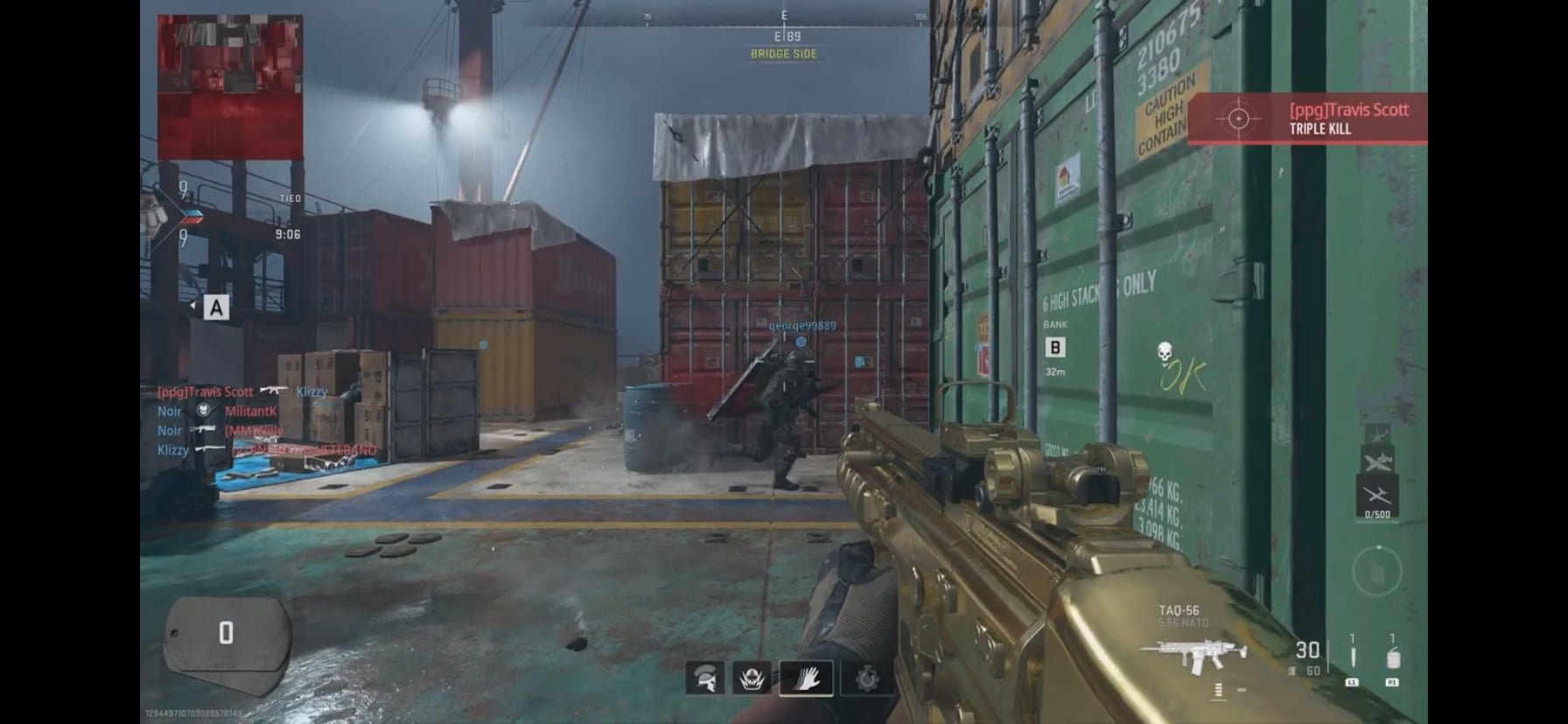
Your games are laggy because your hardware is struggling to keep up with the demands of the game, your internet connection is unstable or slow, or your software might have some issues.
Ever wondered, “why are my games laggy?” It’s a common frustration for gamers. A sudden stutter, a frozen screen, it can ruin the immersion of any great game.
Many factors contribute to this annoying problem. It could be your old computer components needing an upgrade. Or sometimes your internet connection can cause the game to lag.
Software conflicts or outdated drivers can also lead to laggy gameplay. Let’s explore how to identify these causes. And more importantly, fix them.

Why Are My Games Laggy?
It’s super frustrating, right? You’re all set to dive into your favorite game, ready for epic adventures, and then… lag. The screen freezes, characters teleport, and your commands feel like they’re traveling through molasses. Nobody likes lag, and it can seriously ruin the fun. But why does it happen? Let’s explore the common culprits behind those annoying moments of game lag and how to fix them.
The Computer’s Muscle: Your System’s Specs
Think of your computer like a superhero. To run games smoothly, it needs to have enough power. This power comes from things called “specs.” Specs are the important parts of your computer, like its brain (CPU), its memory (RAM), and its picture maker (GPU). If these parts aren’t strong enough for the game, you will see lag.
Checking Your Computer’s Power
How do you know if your computer is strong enough? Every game lists “minimum” and “recommended” specs. The “minimum” means your computer needs at least this much power just to run the game. “Recommended” means your computer will run the game well with these specs. Here’s what to check:
- CPU (Central Processing Unit): This is the computer’s brain. Games need a good CPU to think and do calculations quickly. Older or weaker CPUs can get overwhelmed and cause lag. You can find your CPU model by looking in your system settings.
- RAM (Random Access Memory): This is like your computer’s short-term memory. Games use RAM to store things they need right now. If you don’t have enough RAM, your computer has to go back and forth to your hard drive, which slows everything down. 8GB of RAM is generally a minimum for many modern games, while 16GB is often recommended for a smoother experience.
- GPU (Graphics Processing Unit): This is the picture maker of your computer. It draws the cool characters and environments you see in games. If your GPU is too weak, the game will look choppy or pixelated, and it might slow down a lot. Just like with the CPU, you can see what your GPU is in system settings.
- Hard Drive or SSD: Where your game is stored also matters. Traditional hard drives (HDDs) are slower than Solid State Drives (SSDs). If your game is on a slow HDD, loading screens will be longer, and it can even cause lag during gameplay when the game needs to access data.
To see if your computer meets the requirements, compare your specs with the game’s listed requirements. You can usually find these on the game’s website or on the store page where you bought it. If your computer is under the minimum, your only choice might be to upgrade some parts of your computer. If you’re near the minimum or below the recommended, you’ll probably see lag.
Upgrading Your Computer Parts
If your computer’s parts are not up to the mark, you might consider upgrading them. However, this is a more complex solution. It’s not always the easiest for everyone, and it can be expensive. Make sure to research the parts you want to get and if they are compatible with the other parts in your computer. Here is a quick reminder:
- More RAM: Adding more RAM can make a big difference, especially if you’re running other programs while gaming.
- Better GPU: A stronger GPU can handle complex game graphics with much ease.
- Upgrade to an SSD: Loading times and stutter can be improved if you move your game to an SSD.
If you’re unsure about upgrading your computer parts, it’s always a good idea to ask for help from someone who knows about computers.
Internet Issues: The Online Game Lag Culprit
If you’re playing a game online, your internet connection plays a huge role in whether the game runs smoothly or not. Even if your computer is strong enough, a slow internet connection will create lag.
What Makes Internet Lag?
Internet lag happens because your game is trying to send and receive information from the game’s servers, a central computer where the game happens. If your internet connection isn’t fast enough or it’s not stable, that information is delayed, causing lag.
- Slow Download/Upload Speeds: The speed your internet moves info is important for downloading game data and sending your actions to the server. If the speed is too slow, information will take too long and cause lag.
- High Ping: Ping is the time it takes for a message to go from your computer to the game server and back. Lower ping is better. High ping means longer delays and lag. You can usually see your ping in the game settings.
- Wi-Fi Issues: Wi-Fi signals can be spotty. If you’re far from your router or there are things blocking the signal, you might get a weak connection and experience lag.
- Too Many Devices: If everyone in your house is using the internet at the same time, your connection might slow down, causing lag.
How to Fix Internet Lag
Here are some things to try if your internet connection is causing lag:
- Restart Your Router: Just like restarting your computer, restarting your router can sometimes fix temporary issues. Unplug it, wait for 30 seconds, and plug it back in.
- Move Closer to the Router: If you’re using Wi-Fi, try moving closer to the router. If possible, connect your computer directly to the router with an ethernet cable. A wired connection is always more stable.
- Close Other Programs: Close any other programs using the internet, like downloads or streaming services, while you’re gaming.
- Check Your Internet Speed: You can use online speed test tools to check your download/upload speeds and your ping. Compare the results with the speed your internet provider promised. If your speed is too slow, you can contact your internet provider to see if there are better plans available.
- Use a Wired Connection: An ethernet cable connection is better for gaming because it’s more stable than Wi-Fi. It’s also less prone to interference.
If the problem persists after trying these, it’s possible the lag issue is on the game server’s side or the internet service provider’s network infrastructure.
Game Settings: Finding the Sweet Spot
Sometimes, the problem isn’t your computer or internet but the game settings themselves. Games often have settings to control how fancy the graphics look. The fancier the graphics, the more work your computer has to do. If you set the graphics too high for your computer, you’ll get lag.
Graphics Settings That Can Cause Lag
Here are some graphic settings that can cause lag if they are set too high:
- Resolution: This is how many pixels make up the picture. Higher resolution means sharper images but also more work for your computer. Try lowering it if your game is lagging.
- Texture Quality: This setting changes how detailed the surfaces look in the game. High-quality textures can cause lag if your graphics card isn’t powerful enough.
- Shadows: Shadows can make a game look more realistic, but they also take a lot of power to calculate. Try reducing the quality of the shadows or turning them off entirely.
- Anti-Aliasing: This setting makes edges look smoother. It makes games look nicer, but it also requires more processing power. Try turning it down or off to see if it helps with lag.
- View Distance: How far you can see in the game can also impact performance. Lowering it can reduce lag.
- Frame Rate (FPS): The number of frames (images) displayed per second is called frame rate. Higher frame rates make the game feel smoother, but you can also lower the max frame rate if your game is lagging. Many games will limit this automatically to 60 or 30 fps.
Adjusting Your Settings
Experimenting with your game’s graphic settings can help you find the right balance between good-looking graphics and smooth gameplay. Try starting with lower settings and then gradually increase them until you find the sweet spot where your game doesn’t lag. Every game is different, so there is no one size fits all configuration, but here are some general recommendations to find the sweet spot between good looking graphics and smooth gameplay:
- Start Low: Set all the graphics settings to their lowest values. See if that eliminates lag. If it does, gradually increase each setting one by one until you find which one causes lag.
- Lower the Resolution: Try a lower resolution, especially if the game looks choppy.
- Experiment: Changing texture quality, shadows, or other individual settings can sometimes have a big impact. Try changing one setting at a time.
- Look for Presets: Some games have pre-made graphic settings such as “low,” “medium,” “high,” or “ultra”. Try lowering a preset option first before adjusting each one individually.
Background Programs: Hidden Lag Makers
Sometimes lag is not caused by the game itself, but by other programs on your computer that use your computer’s resources. Some programs you have running in the background (meaning you might not see them on the screen) can use a lot of memory, CPU, or even internet connection. When they use too much, they can steal resources your game needs to run smoothly, causing lag.
What kind of Background Programs Cause Lag?
- Antivirus Scans: Antivirus software often scans your computer in the background. Scans use a lot of the CPU and memory and can make your games lag while they are happening.
- Software Updates: Updates download and install in the background and often use internet and resources which can slow down your gaming experience.
- Browser Tabs: Having a lot of browser tabs open, especially if they are loading videos or animations, can use up RAM and internet bandwidth.
- Downloading Files: Downloading files in the background uses bandwidth and computer resources.
- Other Games: Games running in the background use a lot of resources even if you are not playing them, especially if they are online.
How to Handle Background Programs
It’s important to close unneeded programs before starting your game. Here are some steps you can take to control background programs:
- Close Unnecessary Programs: Before launching your game, check the programs that are running in the background, and close the ones you don’t need. You can do this by checking the task manager.
- Schedule Antivirus Scans: Schedule antivirus scans to happen when you are not gaming. Most antivirus programs allow to schedule scans to run at certain times.
- Pause Updates: Temporarily pause downloads or automatic software updates while you’re gaming.
- Close Browser Tabs: Close extra browser tabs that you don’t need.
- Do Not Download Files While Gaming: Do not download any files, updates, etc. while you are gaming.
Overheating: The Danger of Too Much Heat
Computers create heat when they’re working hard. When your computer gets too hot, it slows down and lags to avoid being damaged. Overheating can also reduce your computer’s lifespan, so it is important to keep it at a reasonable temperature.
Why Computers Overheat?
There are many reasons why computers may overheat:
- Poor Ventilation: If your computer doesn’t have enough space for the hot air to escape, it can get too hot. Make sure your computer has enough space to “breathe”.
- Dust Buildup: Dust can block the fans that cool down your computer. Clean your computer regularly, especially the vents and fans, to keep the airflow clear.
- Heavy Gaming: Playing high-intensity games for extended periods causes computers to work very hard and produces a lot of heat.
- Old Hardware: Older computers or laptops may have cooling systems that are less efficient and are more prone to overheating.
- Ambient Temperature: If the room you’re playing in is very hot, your computer may also get warmer.
How to Prevent Overheating
Here are a few tips to keep your computer cool:
- Keep it Clean: Clean your computer’s vents and fans regularly with compressed air.
- Use a Cooling Pad: If you have a laptop, a cooling pad can help provide extra airflow to keep it cooler.
- Play in a Cool Place: When gaming, make sure you play in a well-ventilated room where the temperature is not too high.
- Take Breaks: Avoid playing games for very long periods without taking breaks. This will give the computer time to cool down.
- Consider Upgrading: If your computer tends to overheat frequently, you may want to consider upgrading its cooling system or hardware.
By understanding these common causes of game lag, you can take steps to improve your gaming experience. Start by checking your computer’s specs, internet connection, and game settings. Make sure to eliminate possible causes of overheating. You might need to do a little bit of experimenting to find what works best for your system, but doing so will help you have smooth and enjoyable gameplay.
It’s frustrating when games lag, but usually there’s a good reason behind it. By going through these steps, you’ll be well on your way to fixing that lag and getting back to the games you love. Remember, patience is key! Try these tips one by one, and you’ll soon be gaming like a pro, and smoothly.
Fix Games Stuttering In 15 Seconds
Final Thoughts
Ultimately, your game’s lag likely stems from hardware limitations, internet connection issues, or software conflicts. Check your PC’s specifications against game requirements. A poor internet connection is a must for smooth gameplay.
Outdated drivers and background applications consume resources. Addressing these issues usually resolves why are my games laggy. Closing unnecessary programs can also help.

