
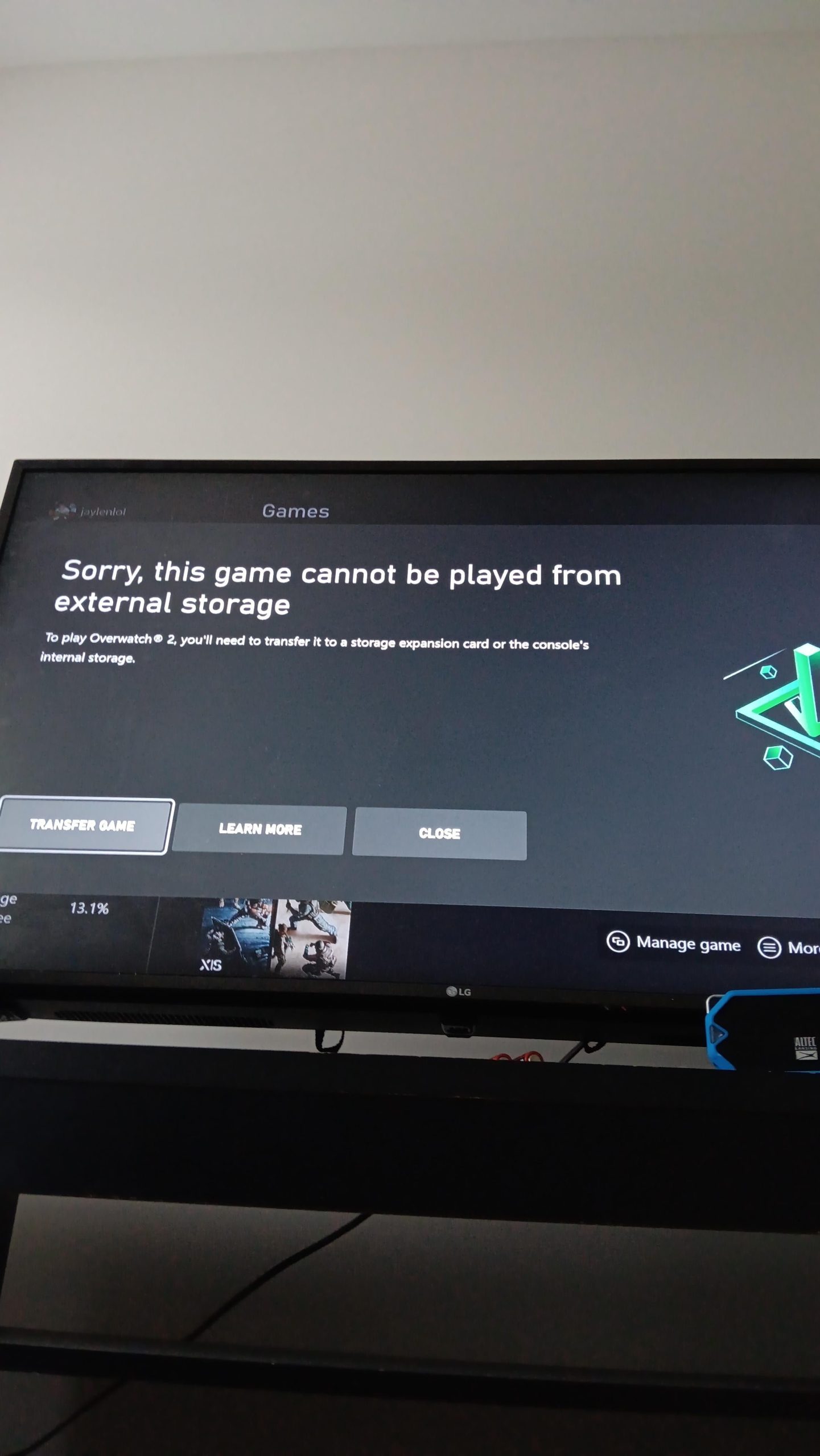
You can’t play a game from external storage because the operating system and the game itself often require direct and fast access to files, which external drives, especially USB ones, can’t always provide reliably.
Frustration hits when you excitedly try to launch a game from an external hard drive, only to be met with a frustrating halt. It’s a common question: why cant i play a game from external storage? Many factors contribute to this issue, and it isn’t always as simple as plug-and-play.
The connection speed of external storage devices can be a significant bottleneck. Games often require rapid read and write speeds, which internal drives typically offer. External drives may also experience latency, interrupting the gameplay experience.
Furthermore, some gaming platforms or operating systems restrict game execution from external sources. This is often to prevent piracy or guarantee consistent performance.

Why Can’t I Play a Game From External Storage?
It can be really frustrating when you plug in your external hard drive, all excited to play a new game, only to find it doesn’t work. You’re not alone! Many people wonder why they can’t just play games directly from an external hard drive or USB drive. It seems like it should be simple, right? Just plug it in and go. But there’s actually a lot going on behind the scenes that can prevent this from happening. Let’s explore the different reasons and see if we can help you get back to gaming.
Speed Matters: The Data Highway
Think of your computer or console as a busy city with lots of cars (data) moving around. The hard drive inside your device is like a main highway designed for fast travel. External storage, on the other hand, is often like a smaller road that might not be as efficient. Here’s why that difference matters for games:
- Read and Write Speeds: Games need to load a lot of information quickly – textures, sounds, character models, and more. This is called “reading” data. Also, when you save your progress or change settings, the game needs to “write” data. Internal drives are usually much faster at both these things compared to external storage. A slow external drive means your game might load very slowly, stutter, or freeze completely.
- Bottlenecks: Even if your external drive is pretty fast, the connection between the drive and your device (like a USB port) can act like a traffic jam. The USB connection has its own speed limits, and sometimes these limits can’t keep up with the demands of a game. Older USB versions, like USB 2.0, are particularly slow.
- SSD vs. HDD: Not all hard drives are made the same. Internal drives in new consoles and some computers often use Solid State Drives (SSDs). These are way faster than traditional Hard Disk Drives (HDDs). Most external drives are still HDDs, which are slower, especially for loading games.
How to Check Your Drive Speed
If you think your external drive’s speed might be the problem, there are a couple of things you can do:
- Check the Specs: Look at the box or the product page of your external drive. It should say whether it’s an HDD or SSD and its read/write speeds. Faster is better for games!
- Use a Speed Test: There are software tools available that let you check the real-world speed of your drive. These will tell you if your drive is performing well or if it’s the source of your slowdown.
Formatting and Compatibility: Getting the Right Language
Imagine trying to talk to someone who only speaks French, but you only know English. That’s kind of what happens with file systems and games. Different devices and operating systems use different “languages” (file systems) to organize data on storage devices. These include exFAT, FAT32, NTFS and others. If your external drive is formatted in a way that your console or PC doesn’t understand, it won’t be able to use it to play games.
- Console-Specific Formats: Consoles like PlayStation and Xbox often have their own special file system requirements for external storage. You can’t just plug in any drive; it has to be formatted specifically for that console.
- PC Compatibility: While PCs are more flexible, you still need to make sure your drive is formatted in a way that Windows (or macOS or Linux) can read and write to. Usually, NTFS is a good option for Windows.
Common File Systems and their Use
| File System | Common Use | Pros | Cons |
|---|---|---|---|
| NTFS | Windows PCs | Supports large files, good for games | Not natively supported on macOS or some consoles |
| exFAT | Cross-Platform (Windows, macOS, some consoles) | Supports large files, good for sharing | Can be slightly slower than NTFS |
| FAT32 | Older USB drives, some smaller devices | Widely compatible | Has a file size limit of 4GB, not suitable for big games |
How to Check and Change Formatting
You can usually check and change the file system of your drive through your operating system’s built-in tools. On Windows, this is done in Disk Management. On macOS, you use Disk Utility. Be very careful when formatting a drive, because it will delete all data stored in it. Make sure to backup your data beforehand, if you plan to format.
Software and Drivers: The Translators
Sometimes, the problem isn’t the drive itself, but the software that helps your computer or console talk to the drive. This is where drivers come into play. Drivers are like translators that allow your operating system to understand the hardware. If your drivers are outdated or missing, your system may not be able to correctly use the external storage and it may not load your game.
- Driver Issues: Outdated drivers can cause problems with reading data from external storage and can also lead to game instability. Make sure your drivers are up to date, especially the ones for your USB ports and storage controllers.
- Operating System Updates: Sometimes, operating system updates contain important fixes for compatibility issues. Always keep your system up to date.
- Game Installation Issues: Some games require certain frameworks or drivers to be installed before they can run correctly from external storage. Make sure you have all dependencies installed.
Keeping your software up to date
- Windows: You can find driver updates in Device Manager. You can also download newer versions from manufacturer websites.
- macOS: macOS usually updates drivers automatically with system updates. You can verify in “System Settings” to see if updates are available.
- Consoles: Console updates are usually automatic, but you can check for updates manually in the system settings menu.
Game Installation Locations: Putting the Puzzle Pieces Together
Where a game is installed also really matters. If the game itself isn’t fully installed or is installed on a different drive, it might have problems running from your external drive. Also, some games require special files to be located in certain places for proper functionality.
- Partial Installations: Some games might have core files installed on your system drive (usually C:\ on Windows) with the bulk of the files on the external drive. If the operating system has trouble finding these files, your game might fail to launch.
- Game Launchers and Platforms: Launchers, like Steam, Epic Games, or Battle.net, might require specific configurations to allow games to run from external storage. These launchers often manage the installations and save locations, and not all of them allow external storage use.
- Registry Entries: On PCs, Windows uses the registry to keep track of installed programs and where their files are located. Incorrect or missing registry entries can cause problems with launching games from external storage.
Managing Game Installations
- Use the Game Launcher Settings: Almost all game launchers let you choose the installation directory. When moving a game to an external drive, ensure the launcher is aware of the location.
- Don’t Move Files Manually: Do not just move game files from one location to another, unless you know what you are doing. You will usually want to uninstall and then reinstall the game, selecting the new install location to avoid issues.
- Check Documentation: Look at guides provided by the game developer or the launcher platform. They often have tips and support for game installation on external storage.
Permissions and Security: Who Gets Access?
Sometimes, the issue isn’t with the hardware or software, but with the rules set by your operating system. Security settings can restrict which programs have access to certain files and folders. This can be a problem when trying to play games from an external drive.
- File Permissions: Sometimes, you need to grant permissions to a specific program to allow it to access the external storage or the game files.
- Antivirus or Security Programs: Antivirus or security software might sometimes block game files or access to external storage. In some instances, you may need to temporarily disable it to test if that is the source of the problem.
- User Accounts: User accounts on your computer can have different levels of access. Make sure you are using the correct user profile, and that user profile is permitted to access the game files.
Managing Permissions
- Check File Properties: Right-click the game folder or its executable and select “Properties.” In the “Security” tab, check the permissions and make sure the necessary users have the required permissions to “read” and “execute” files.
- Adjust Antivirus Settings: If you suspect your antivirus is the problem, create an exception for the game folder or the external drive.
- Run As Administrator: Some games require you to run them as an administrator. To do this, right-click the game’s executable and select “Run as administrator”.
Physical Issues: The Hardware Side
Sometimes the problem isn’t a software issue at all. Your external drive or the cable itself might be faulty.
- Damaged Cables: A damaged or poor-quality USB cable can cause issues with data transfer and power. Always use a good quality USB cable.
- Faulty Drive: External drives can sometimes fail. If you have tested all the other possible issues and your drive still does not work, it could be due to a drive issue. You could attempt to check the drive on a different computer to see if the issues are related to the drive itself.
- Power Issues: Some external drives require extra power. If the USB port doesn’t provide enough power, the drive may not function correctly. Use a powered USB hub if you think your port may not provide enough power.
Troubleshooting Physical Issues
- Try a Different Cable: Swap out your USB cable with another one to see if that resolves the problem.
- Test on Another Device: Check your external drive on a different device to see if the issue follows the drive.
- Check the USB Port: Try plugging the drive into a different USB port, if possible.
Playing games from external storage can be a bit tricky, but with some patience and careful troubleshooting, you can usually get it working. Start by checking the simple things like formatting and speed, then move on to software and permissions if needed. Always back up your data before making changes and remember there is a lot of online help available if you need to ask more questions!
How to Play Xbox Series X|S Games from External Storage
Final Thoughts
Game consoles often restrict game play directly from external drives due to copy protection and performance needs. The system’s operating system is designed for fast internal storage access, while external drives may not match that speed. This difference impacts game loading times and overall gameplay quality.
Additionally, licenses for games can be tied to specific internal storage locations. So, why can’t i play a game from external storage? The system must verify the game’s legitimacy, which is more difficult when games are on external media. This is for security reasons, which is why it is a must.

