
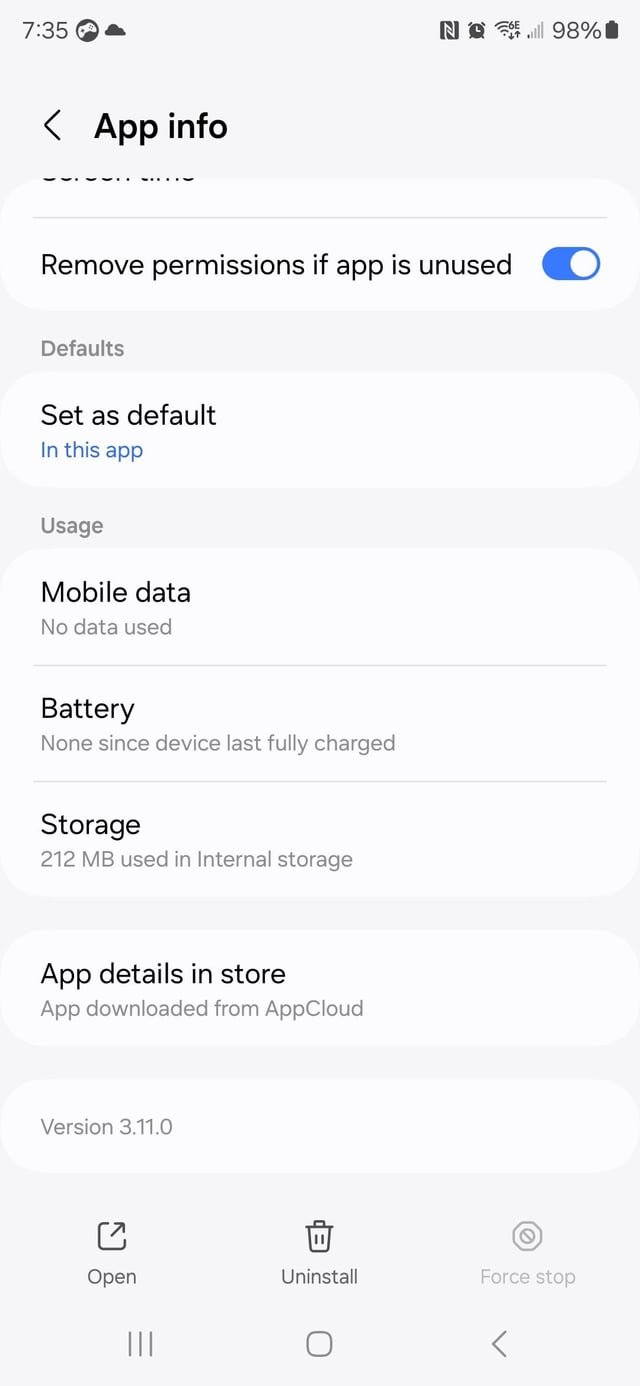
‘Your phone likely installs random games because you accidentally agreed to bundled software during app installations or allowed pre-installed apps to push these recommendations. Sometimes, manufacturers also pre-load these games.’
It’s happened to many of us, that moment you find a game you never downloaded sitting on your phone. You might ask yourself “why does my phone install random games?” and the answer is often frustrating. It feels like your device is acting on its own.
These unwanted apps are rarely malicious. However, they can take up valuable storage space and sometimes push notifications. Understanding how this occurs can help you prevent it in the future, and take back control of your phone.

Why Does My Phone Install Random Games?
Ever picked up your phone and noticed a game you never downloaded? It’s like a digital surprise party you didn’t RSVP to! This can be puzzling and a bit annoying. You’re not alone; many people experience this. Let’s dive deep and explore the reasons behind these uninvited game installations. We’ll break down the different ways this can happen, so you can keep your phone clean and clutter-free.
Pre-Installed Apps: The Usual Suspects
The most common reason why games appear on your phone is that they came with it when you bought it. These are called pre-installed apps or bloatware. Phone manufacturers sometimes partner with game developers to include games right out of the box. Think of it like getting a free toy with a cereal box, except the toy is a game on your phone.
Why Manufacturers Do This
It might seem like an odd choice, but there are reasons behind it:
- Revenue Generation: Phone companies can earn money from game developers by pre-installing their apps. It’s a form of advertising.
- User Engagement: They hope you’ll play the game, which might lead to more downloads or in-app purchases, benefiting both the game company and potentially the phone maker.
- Showcase Features: Some pre-installed games highlight the phone’s capabilities like its graphics or touch responsiveness.
Dealing with Pre-Installed Games
Good news! You usually have some control over these games. Here’s what you can do:
- Uninstall: If the game is a regular app, you can uninstall it like any other app. Just find it in your app list and choose ‘uninstall’.
- Disable: If you can’t uninstall it, many phones let you disable pre-installed apps. This hides the app and stops it from using phone resources, even though it remains on your phone. Find the app in settings -> Apps and look for a disable button.
Remember, even if you disable the game, it might still appear in your app list, just grayed out or hidden from view. It’s better to disable than uninstall whenever possible to avoid any potential problems.
The Role of App Stores and Bundles
Another way these games might sneak onto your phone is through app store bundles. Sometimes, when you download one app, it comes packaged with another, often a game.
How Bundles Work
App developers sometimes partner with each other to promote apps. When you download one app, the app store might suggest another related app, or simply download it along with your selected app. It is very similar to buying a combo meal at a restaurant: when you buy a burger, they also include fries and a drink. These games are included alongside your main download.
Carefully Reviewing Downloads
To avoid these bundled downloads, it is very important to check the details before downloading apps from the app store.
- Read Descriptions: Before downloading an app, read its description carefully. If you see a mention about other apps included, be cautious.
- Check Permissions: Review the permissions the app is asking for. If an app is asking for permissions that seem unrelated to its primary function, this might be a red flag.
- Uncheck Bundled Options: Some app stores allow you to uncheck optional apps before downloading. Always look for these options.
The Sneaky World of Adware and Malware
Unfortunately, sometimes the unwanted games come from more harmful sources, like adware or malware. This type of software can install things without your permission.
What is Adware?
Adware is software designed to display ads. It can be annoying, but it can also be sneaky. It might redirect you to web pages where games are advertised, or even automatically install apps on your phone without you realizing it. The games appear because the adware pushes them onto your phone.
What is Malware?
Malware is a broader term for harmful software that includes viruses, spyware, and other malicious programs. Some malware can install games as a way to generate revenue for the creators or to gather information from your phone. This is a more serious problem than simple pre-installed apps. It means that your phone has been compromised.
How to Identify Adware or Malware
- Unexpected Pop-ups: Excessive pop-up ads on your phone, especially outside of apps, can indicate adware.
- Slow Performance: If your phone has become unusually slow, or if apps crash frequently, it may be infected by malware.
- Data Usage Spikes: A sudden increase in your mobile data usage might indicate that malware is running in the background.
- Battery Drain: Malware can consume battery power in the background, causing your battery to drain faster than usual.
- New Icons: Keep a lookout for app icons that you didn’t download.
Steps to Remove Adware and Malware
Dealing with adware or malware needs quick and careful action.
- Uninstall Suspicious Apps: Remove any apps you didn’t download yourself. Go through your app list and uninstall anything unfamiliar.
- Use Security Software: Use a reputable antivirus or anti-malware app for your phone. Run a full scan to find and remove any infections.
- Clear Browser Cache: Clear the cache and history in your phone’s web browser, as malware often hides there.
- Factory Reset: If nothing else works, you might need to perform a factory reset. This will erase all data from your phone, so be sure to back up important information first. After the reset, be very careful about what you install.
Remember to always download apps from trusted sources. Be wary of links you receive in text messages or emails, and use a strong, unique password for all your online accounts. Be careful on which websites you browse.
Third-Party App Stores and Unofficial Sources
While Google Play Store (for Android) and Apple App Store (for iOS) are generally safe, using unofficial app stores or downloading apps from random websites can expose you to the risk of downloading games or other unwanted apps.
Dangers of Unofficial Stores
These unofficial stores might not have the same strict security checks as official app stores, and they could host apps that contain malware or adware. It’s like going to a market with no quality control compared to a well-regulated supermarket. Always check the reputation of the app provider and always make sure the app is secure before downloading it.
Risks of Sideloading
Sideloading refers to installing apps outside of an official app store. This often involves downloading an APK file (for Android) or using developer tools (for iOS). Sideloading can be useful in some cases, but it can be extremely risky if you don’t know what you’re doing. It’s like opening your door to a stranger rather than a trusted friend.
- Malicious Apps: Sideloaded apps are not usually checked for safety by an app store, so they might contain harmful code.
- Data Theft: Some sideloaded apps are designed to steal personal information.
- Phone Instability: These apps might not be compatible with your phone, causing crashes or other problems.
Stick to Official App Stores
For the best security, it’s safest to download apps from the official Google Play Store or Apple App Store. These stores have safeguards in place to protect you from harmful apps. Think of it like using a well-lit path rather than taking an unknown shortcut through a forest.
User Behavior: Unintentional Downloads
Sometimes, it’s not about sneaky apps; it’s about our own accidental actions that might cause the installation of unwanted games on your phone. It can often come down to simple user error.
Accepting Permissions Without Reading
We often get into the habit of clicking “OK” or “Allow” without paying attention. Many apps request permissions to install other apps, and if you’re not careful, you might grant permission without even realizing it. This can be similar to blindly signing a document without knowing what it says.
Clicking on Misleading Ads
Clicking on ads can also lead to unexpected installations. Some ads can look like they’re part of a website or app, but they’re actually designed to download other apps. These can be particularly tricky to notice. Always be careful with the ads that appear on the webpage while browsing the internet.
- Be Skeptical: Don’t click on ads that seem too good to be true.
- Read Carefully: Before clicking on anything, read the text carefully to see if it will start a download.
Visiting Unsafe Websites
Visiting unsafe websites can expose your phone to viruses, malware and also adware. Sometimes you can accidentally start downloading an app by visiting some unsafe website. Always make sure the websites you visit are secured and reputable, and if you have any doubt about a website, it is better to stay away from it.
App Updates and Changes
Sometimes, the issue isn’t a new installation but rather an update to an existing app that includes new features, such as an added game or in-app advertising. App developers can add new components to an app via updates, and you might not be fully aware of these new additions.
App Permissions Change
With each update, app permissions might change. Sometimes an update can request new access or change permissions. This is why reviewing app permissions after every update or regularly is very important. Be aware that a change in permission can also cause some unexpected game installation.
Developer Changes
Sometimes developers get into the habit of adding features to the apps that you don’t want and might find annoying. It could be games or other types of ads that are added by developers to get more revenue. The best thing you can do in that case is to check the update details of the app.
By keeping your phone and apps up to date, you will generally receive better service and support from the providers and developers. The other benefit of updating is that sometimes the software upgrades fix security vulnerabilities, which will protect you from unwanted app installations.
Device Settings
Your phone’s settings also play a role in controlling installations. Some settings, if not configured correctly, might contribute to unwanted downloads.
Unknown Sources (Android)
Android devices have a setting called “Unknown Sources” (or a similar setting in newer versions). This setting allows apps to be installed from sources other than the official app store. If this is enabled, apps from any source can be installed, and this could lead to unwanted games.
Managing Installation Settings
- Check Settings: Check your phone’s security settings to make sure “Unknown Sources” is disabled, especially if you don’t know what it means.
- Keep Control: Be very careful about the settings you choose. If you want more security on your phone, keep the app installation to official app store.
Summary Table: Why You Get Random Games
Here’s a quick overview table summarizing the reasons:
| Reason | Description | What to Do |
|---|---|---|
| Pre-Installed Apps | Games that come with the phone from the manufacturer. | Uninstall or disable these apps. |
| App Bundles | Games downloaded along with other apps from the app store. | Read app descriptions carefully and uncheck bundled options when available. |
| Adware & Malware | Harmful software that installs apps without your permission. | Use security apps, clear browser data, and remove suspicious apps. |
| Third-Party App Stores | Downloading apps from unofficial sources, which can have security risks. | Stick to official app stores for all your apps. |
| User Behavior | Accidentally clicking on misleading ads, accepting permissions, etc. | Be careful about what you click, always read permissions and website details. |
| App Updates | Updates to existing apps that add new features or advertising. | Be aware of the app changes and permissions during updates. |
| Device Settings | Incorrect device settings, such as “Unknown Sources” settings. | Configure device settings to prevent unwanted installations, and only download from official app stores. |
By understanding these potential causes, you can make better choices and help keep your phone free from unwanted games. Taking some time to control these factors will keep your phone clean and more secure.
When you install random mods from play store
Final Thoughts
Your phone installs random games because of bundled apps during setup or shady app permissions. Often, pre-installed applications quietly download further content without clear consent. This practice generates revenue but degrades user experience.
To stop these unwanted installations, review app permissions and carefully uncheck optional software during updates. Regularly scan your device for malware and remove unknown applications. Understanding why does my phone install random games is key to taking back control.

