
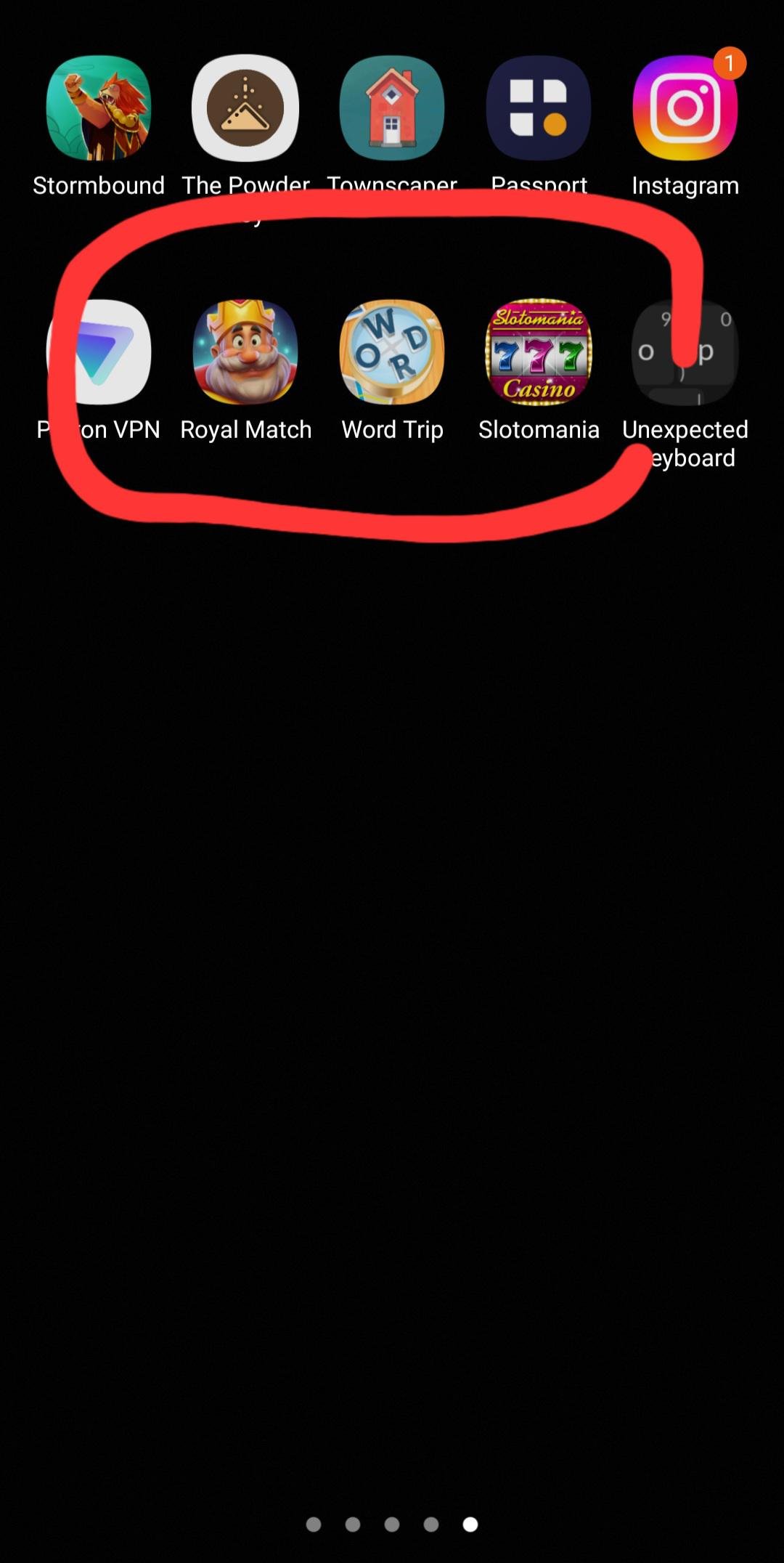
Your phone likely keeps installing games because you have either granted permission to an app or service that automatically downloads them, or your device is preloaded with apps that install upon connection to the internet.
Have you ever felt like your phone has a mind of its own, suddenly filling up with games you never asked for? It can be incredibly frustrating, wondering why does my phone keep installing games when you’re not actively choosing them. This is a common issue with many smartphone users, leaving them bewildered about the source of these unsolicited additions to their device.
It’s certainly an annoyance when games pop up without your permission; we’ll delve into the reasons behind this and explore what you can do to take back control of your phone’s app installations. We’ll help you understand those hidden settings and prevent this situation from happening again.

Why Does My Phone Keep Installing Games?
It’s super annoying, right? You look at your phone and suddenly there’s a new game you never asked for! It’s like a little gremlin snuck in and decided to fill your phone with digital toys. But why does this happen? You’re not crazy, and your phone isn’t haunted. There are a few real reasons your phone might be auto-installing games. Let’s explore them together and figure out how to take back control of your phone!
Pre-installed Apps: The Sneaky Start
Sometimes, the culprit isn’t some mysterious force; it’s actually the phone maker or your phone company! When you get a new phone, it often comes with a bunch of apps already installed. This is called bloatware. Some of these pre-installed apps might be games. Companies do this because they might get paid to include them or they want you to try out their games. The thing is, sometimes these games might update themselves, making it seem like they just appeared out of nowhere. These updates can sometimes add more game-related content, leading to the feeling that your phone is spontaneously installing games. These pre-loaded games could also be part of a game center app that constantly pushes new game suggestions. These are essentially ads disguised as notifications. The companies hope you will see it and install their suggested games.
How to Spot and Stop Pre-installed Games
You might not be able to completely remove these pre-installed games if they are part of the core operating system. However, you usually can disable them. Here’s how to check:
- Go to Settings: Find the settings app on your phone (usually a gear icon).
- Find Apps or Application Manager: Look for the section that lists all your apps. It might be called “Apps,” “Applications,” or “Application Manager.”
- Look for Game Apps: Scroll through the list and find any game you didn’t download yourself. Pay attention to names you don’t recognize.
- Disable or Uninstall: Tap on the game app. You might see options to “Disable,” “Uninstall,” or “Force Stop.” If you can’t uninstall, try disabling the app. Disabling stops the app from running in the background or updating.
Some phones also allow you to hide pre-installed apps, which keeps them out of sight and out of mind.
“Free” Apps and Bundled Installs
Ever downloaded a “free” app and noticed that it came with a bunch of other apps you didn’t want? That’s because some app developers bundle other programs with their free downloads. These bundled apps might include games. It’s a way for them to get their games installed on your phone without you directly choosing them. Sometimes, they hide these extra installations during the setup process, and you might accidentally agree to download games when you click ‘next’ too quickly. It’s like buying a candy bar and finding a toy you didn’t want inside the wrapper!
Be Careful with App Permissions
When you download an app, you often have to grant it permissions. This can include permission to access your storage, contacts, and other stuff. Sometimes, these permissions can be used in unexpected ways. A permission to manage storage could potentially allow the app to add new content, or even download additional apps. This can also happen even after the app is already installed if its updates change permissions.
Always pay close attention to the permissions an app requests. If a flashlight app wants access to your contacts, that’s a red flag! Here’s how to check permissions on most smartphones:
- Go to Settings.
- Find Apps or Application Manager.
- Select the App. Choose the app you’re concerned about.
- Go to Permissions. Look for a “Permissions” section.
- Review Permissions Carefully. See what the app has permission to do. Turn off any unnecessary permissions.
The Danger of Third-Party App Stores
It’s tempting to get apps from places other than the official Google Play Store (for Android) or Apple App Store (for iPhones). These other app stores might offer apps that are not available elsewhere, but they can be risky. Apps on these unofficial app stores might not be carefully checked and might contain sneaky code. They could secretly install games, or even worse, malware. Always try to stick to the official app stores for your safety and security.
Automatic App Updates: The Silent Installers
Your phone is set up to automatically update your apps so they always have the latest features and fixes. This is usually a good thing, but sometimes these updates can bring unwanted changes. Sometimes, app developers add new game features in an update or sometimes they change the app entirely. It can feel like they are installing new games even if they are only changing the existing app. Also, some companies might push new apps along with app updates. While not exactly ‘installing new games’ per se, these updates can give the feeling of unexpected new game additions.
Controlling App Updates
You can easily change your app update settings so you decide when and how apps update. Here’s how:
- Open Google Play Store (Android) or App Store (iPhone): Find and open the official app store.
- Tap Your Profile: Tap on your profile icon, usually in the top right corner.
- Go to Settings: Find and tap the Settings option.
- Find Network Preferences or App Updates: Look for a section related to network preferences or app updates.
- Choose Your Update Settings: You’ll see options like:
- Auto-update apps over Wi-Fi only: This will update apps only when connected to Wi-Fi and avoid unnecessary data usage.
- Don’t auto-update apps: You’ll have to manually update each app yourself, giving you control over what changes.
By picking the “Don’t Auto-Update Apps” option you control when and how the apps on your phone are updated.
Notifications and Ads: The Tricky Promoters
Sometimes, those pesky notifications aren’t actually from apps already on your phone. Some apps show ads that appear like notifications. These ads might trick you into thinking that a new game has been installed, but they actually lead you to the app store. When you tap on those notifications it opens the app store page so that the user downloads the suggested game or app. Sometimes apps send you notifications even though you never opened them. That’s because they are still running in the background. These background apps can consume battery power, data and also send you unwanted ads that seem like notifications.
How to Tame Notifications
You can control what apps are allowed to send you notifications. This helps reduce annoying alerts and unwanted app suggestions. Here’s how:
- Go to Settings.
- Find Notifications: Look for the notification settings.
- View All Apps: Choose to see a list of all apps that can send notifications.
- Customize Notifications: You can turn off notifications entirely for apps you don’t want to hear from, or choose which types of notifications each app can send.
Beware of Pop-up Ads
Be extra careful of pop-up ads, especially the ones that tell you your phone is infected. These are often tricks designed to get you to download a particular app or game or to install malware. Always close these pop-ups and do not click the links. Use a reliable antivirus app to scan your phone regularly.
Manufacturer Customizations
Some phone manufacturers often add their own software to your phone. These software customizations can also lead to games being installed without your explicit consent. Often, these games are integrated with the custom user interface of the phone. Because these are built into your phone’s software, these games are harder to get rid of. Manufacturers do this to generate revenue by promoting their own game titles. These promotional activities, in the form of pre-installed software, contribute to the overall feeling that your phone keeps installing games automatically. They often push notifications to install these games.
Managing Manufacturer Add-ons
It can be tricky to get rid of manufacturer customizations, because they are often part of the core operating system of the phone. These custom add-ons have different names depending on your phone’s brand. Sometimes, you can disable these manufacturer software add-ons through the ‘apps’ section in the settings. Follow these steps:
- Go to Settings.
- Open Apps or Application Manager.
- Find Add-on Apps: Look for apps with the name of your phone’s brand. These apps are usually related to your manufacturer’s software.
- Disable or Uninstall: You might see options to “Disable,” “Uninstall,” or “Force Stop.” If you can’t uninstall, try disabling the app. Disabling stops the app from running in the background.
Hidden or Malicious Apps: The Real Dangers
In rare cases, some sneaky apps might be hiding on your phone, installing games without you knowing it. These apps might have been downloaded from third-party app stores, or they might have sneaked into your phone bundled with other apps. They work secretly in the background and install more apps and games. Such malicious activities can also reduce the performance of your phone. These sneaky apps can be very hard to find because they often hide their app icons and names.
Scanning for Hidden Apps and Malware
The best defense against these types of malicious apps is to regularly scan your phone with a trusted antivirus or anti-malware app. These apps are designed to identify hidden apps and other types of suspicious programs.
- Download a Reputable Anti-Malware App: Get an anti-malware app from the official app store. Make sure that the app has good reviews.
- Run a Full Scan: Once you’ve downloaded the app, run a full scan of your phone’s storage to find any hidden apps or malware.
- Remove Suspicious Apps: The anti-malware app will identify any suspicious apps and give you options to remove them.
- Keep Anti-Malware App Updated: Make sure you keep your anti-malware app up to date to get the latest protection.
Other Factors
There are a couple more reasons why you might feel your phone is downloading games on its own. Sometimes, certain websites might prompt you to download an app. If you accidentally tap on a link, a download could start without you realizing it. Be careful of what links you click while browsing the internet.
Additionally, some games or apps might require additional downloads to enhance their functions. These add-ons might seem like new games, but they are mostly related to the apps that you already have installed. For instance, if you have a gaming app it may request to download additional gaming levels.
So, it’s not that your phone is a magnet for unwanted games. There are usually logical explanations, from sneaky pre-installed apps to bundled downloads, and sometimes even hidden malware. By carefully reviewing your app settings, permissions, update settings, and using anti-malware apps, you can keep your phone clean and free of unexpected games. This way, you take back control of your phone.
How to stop apps from downloading by themselves on your Android device Samsung Motorola Kyocera
Final Thoughts
In summary, the main reason why does my phone keep installing games relates to pre-installed apps or agreements you made during setup. Some manufacturers bundle games, and they may install automatically. Review your app permissions, uninstall unwanted games, and adjust your phone’s settings to stop future automatic installations.
You should also be aware of bundle deals you might have agreed to. Check for such situations. This will help stop this annoying problem.

