
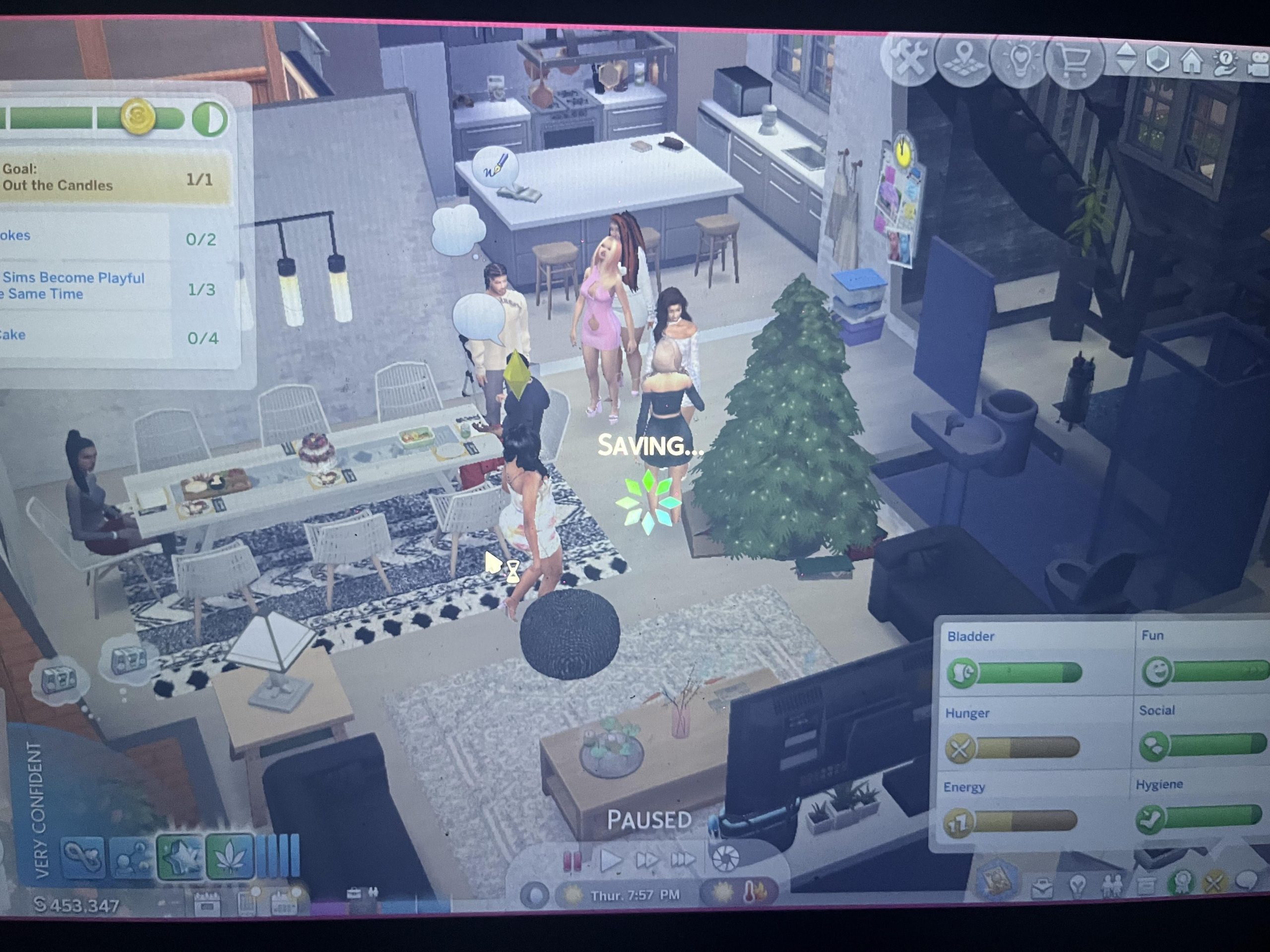
Your Sims game likely keeps freezing due to a combination of factors, such as outdated drivers, insufficient system resources, or corrupted game files.
Is your Sims world turning into a slideshow, with your Sims stuck in time like mannequins? It’s incredibly frustrating when your game repeatedly freezes, disrupting your meticulously planned virtual lives. Let’s get to the bottom of why does my sims game keep freezing, so you can finally get back to the fun.
Various culprits could be causing these interruptions. Issues could include your computer struggling with the game’s demands or even a problem directly with the game itself. We’ll explore these reasons and how to potentially resolve them.

Why Does My Sims Game Keep Freezing?
It’s super frustrating, right? You’re building the perfect house, your Sim is finally getting that promotion, and then BAM! The game freezes. You’re left staring at a frozen screen, wondering what went wrong. If your Sims game keeps freezing, you’re not alone. This happens to many players, and there are a bunch of different reasons why it might be happening. Let’s dive into some of the most common culprits and see how you can get your game running smoothly again.
Is Your Computer Up to the Task?
One of the first things to check is whether your computer can actually handle the game. The Sims, especially with all its expansions and stuff packs, can be quite demanding. It needs a good processor, enough RAM, and a decent graphics card to run smoothly. Think of it like this: if you try to carry too many books at once, you might drop some. Your computer is the same way; if it’s trying to do too much at once, it might freeze.
Minimum and Recommended Specs
Every Sims game has its own set of minimum and recommended system requirements. These specs tell you what your computer needs to have to run the game properly. Let’s take a look at what these usually mean:
- Minimum Specs: This is the bare minimum your computer needs to even start the game. If your computer barely meets these, you’re likely to experience freezing, lagging, and other problems.
- Recommended Specs: These are the specs that your computer should have to run the game smoothly, with good graphics and fewer issues.
Here’s a quick guide of what to check:
| Component | What to Look For | How to Check |
|---|---|---|
| Processor (CPU) | Check the model number and speed (e.g., Intel i5 or AMD Ryzen 5) | On Windows: Press Windows Key + Pause/Break or search “System Information”. On Mac: Click the Apple menu > About This Mac. |
| Memory (RAM) | Check the amount (e.g., 8GB, 16GB). The more, the better! | Same as above. |
| Graphics Card (GPU) | Check the model number (e.g., Nvidia GeForce GTX or AMD Radeon RX) | On Windows: Search “Device Manager” > Display Adapters. On Mac: Same as checking system information. |
| Operating System | Make sure you have the correct windows or Mac version. | Same as above. |
If your computer doesn’t meet the recommended specs, or even barely meets the minimum, that could be a big reason why your game keeps freezing. Upgrading your computer hardware can definitely help if your budget allows.
Game Settings: Finding the Right Balance
Even if your computer meets the requirements, your game settings can make a big difference. The highest settings are awesome, but they can put a strain on your system. If your game is freezing, it’s a great idea to try adjusting your graphics settings.
Graphics Options
Here are some settings you can try changing:
- Graphics Quality: Lowering this setting from “High” or “Ultra” to “Medium” or even “Low” can dramatically reduce the load on your computer’s graphics card.
- Resolution: A lower resolution means your computer has to render fewer pixels, which can help prevent freezing. Try changing this to a lower option available in settings.
- Edge Smoothing (Anti-Aliasing): Turn this off or reduce it to low settings. Anti-aliasing makes the edges of objects appear smoother but can be demanding.
- Visual Effects: These can look cool but also require a lot of processing power. Lowering these can help reduce the freezing.
Experiment with these settings one at a time and see what works best for your game. Try changing one setting at a time and test for some time to make sure the changes are beneficial.
Too Many Mods or Custom Content (CC)?
Mods and custom content can add so much fun to your Sims game. They can bring in new clothes, furniture, hairstyles, and even whole new game mechanics. But they can also cause big problems if they aren’t working right or if there are too many. Think of it as putting too many decorations on a Christmas tree – eventually, it might tip over!
Identifying Problematic CC and Mods
Here’s how to figure out if your mods and CC are causing the freezes:
- Start Without Mods: The simplest way to test is to remove all your mods and CC from your game’s mods folder. Then, start a new game and play for a while. If the game runs smoothly, you know the problem is likely related to your mods or custom content.
- Divide and Conquer: If your game is stable without mods, it’s time to add them back in small groups. Add a few, play for a while, and if no issues, add a few more. Repeat this process until the freezing starts happening again. You’ll be able to isolate which mod or CC files are causing the issues.
- Look for Updates: Check the creators’ pages for your mods and CC to see if there are new updates. Often, modders update their creations to work with the latest game patches. Running out-of-date mods will always cause issues.
- Check for Conflicts: Some mods just don’t play well together. Read the descriptions of your mods to see if they are known to cause conflicts. Sometimes, the mod authors mention common conflicts in their mod descriptions.
- Use a Mod Manager: Consider using a mod manager to help organize and manage your mods and CC. It makes things easier, and some mod managers can help you detect conflicts.
Is Your Game Updated?
Keeping your game updated is very important. The Sims developers often release updates that fix bugs, improve performance, and add new features. These updates are designed to make your game experience better, and outdated game files can lead to problems such as freezing. So make sure to update your game on a regular basis.
How to Check for Updates
- Origin/EA App: If you use Origin or the EA App, it will usually tell you if there are updates available for your game. You can usually find an update button within the app, near your game’s cover art in your game library.
- Steam: If you use Steam, the updates are usually automatic. Check the download section in the Steam app and you will see the updates.
Sometimes, game updates are not directly related to a fix. But, they may improve the performance of the game, indirectly helping you to fix freezing issue and other game related issues.
Overheating Computer?
Just like people, computers can get too hot when they’re working hard. When your computer overheats, it can cause the game, or the entire computer, to freeze, to keep itself from getting damaged. Make sure to check for overheating.
How to Prevent Overheating
- Ventilation: Make sure your computer is in a well-ventilated place. Don’t block the vents. Make sure that the vents are not blocked with any clothes or anything, even if its kept on a table.
- Dust Removal: Clean out the dust from your computer regularly. Dust can clog the vents and make it hard for heat to escape. Use a can of compressed air to do this.
- Laptop Cooling Pad: If you use a laptop, you might want to invest in a cooling pad. These pads have built-in fans that help keep your laptop cool.
If you have any suspicion of your computer overheating, try to stop playing and give your computer time to cool down. Overheating can not only cause the freezing issue, but it can also lead to long-term hardware damage.
Background Programs and Conflicts
Sometimes other programs running in the background can interfere with your game. These programs use up your computer’s resources, making it harder for your Sims game to run smoothly. This can result in freezes and crashes, because your system is lacking resources to execute multiple tasks smoothly.
Closing Unnecessary Programs
Before starting your Sims game, close any programs that you aren’t using. Here are some common culprits:
- Web Browsers: Even if you have a lot of tabs open, it will use up resources, so close it, if not necessary.
- Chat Apps: Apps like Discord and Skype can use system resources. Close them when playing Sims.
- Music or Video Players: Streaming music or video can use up a lot of processing power.
- Other Games: Close any other games that are running in the background, as they use up resources.
To check what programs are running, use the task manager (Ctrl+Shift+Esc on Windows) or Activity Monitor (found in Utilities on Mac). Close down any programs you aren’t using.
Driver Issues
Graphics card drivers are like translators for your computer and graphics card. They allow your computer and graphics card to communicate effectively. Outdated or corrupted drivers can cause all sorts of problems, including game freezes.
Keeping Your Drivers Up to Date
- Check for Updates: Go to the website of your graphics card manufacturer (Nvidia, AMD, Intel) to check for the latest drivers. Install any updates available.
- Use Device Manager: You can also check for driver updates through the Device Manager on Windows (search “Device Manager” in the start menu). Go to display adapter section to find your graphics card, and you can find a option to check updates of the drivers.
- Reinstall Drivers: If you’re still having problems, try uninstalling and then reinstalling your graphics card drivers. This can fix corrupt drivers.
Keeping your drivers updated can make a big difference in how smoothly your game runs.
It might take some time to figure out exactly why your Sims game is freezing. But, don’t worry, you can definitely fix the issue if you troubleshoot the issue using these guidelines. By checking your computer specs, adjusting your game settings, managing mods and CC, keeping your game updated, preventing overheating, closing unnecessary programs, and ensuring your drivers are up-to-date, you’ll be well on your way to a smoother, freeze-free gaming experience. Now, go get those Sims living their best lives!
How To Fix Sims 4 Keeps Crashing / Freezing
Final Thoughts
So, to address why does my sims game keep freezing, several issues could be at play. Outdated drivers or insufficient system resources often cause this.
Corrupted game files are also a common culprit, and a full reinstall might fix that. Check your mods too; they can sometimes conflict and cause freezing issues.
Therefore, meticulously investigate these potential problems to resolve the annoying freezes and resume smooth gameplay.

