
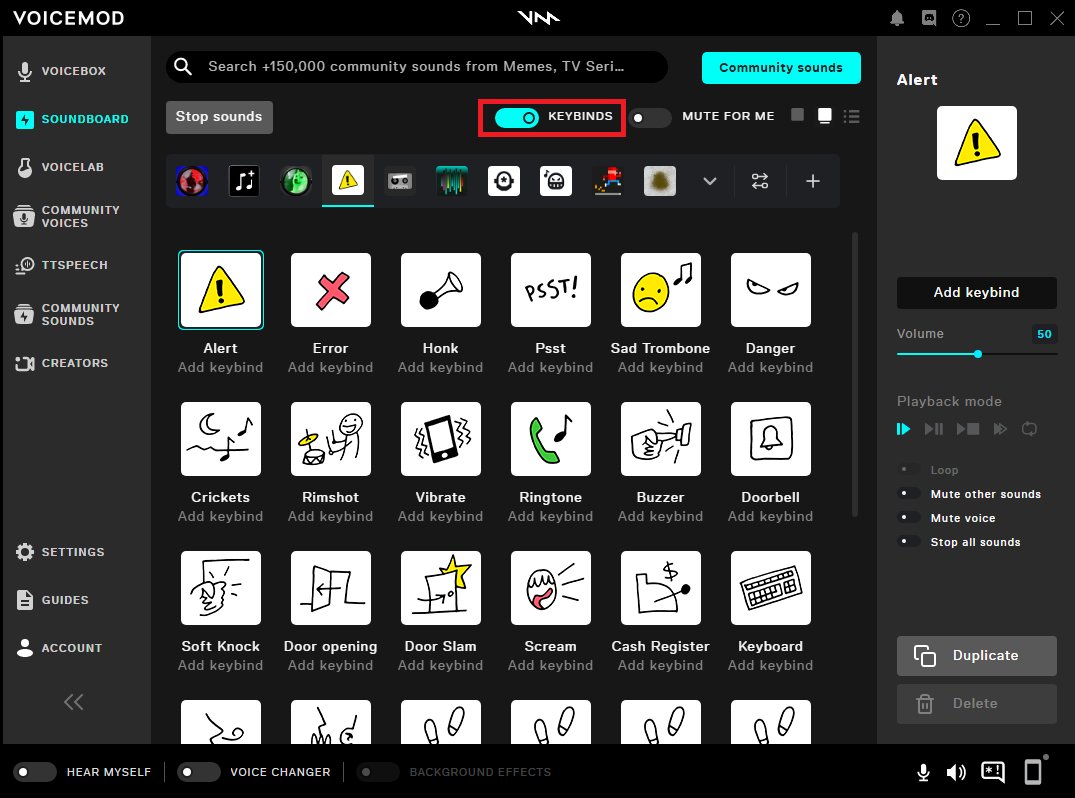
Voicemod might not be working in game because the wrong input/output device is selected, or the game’s audio settings aren’t configured properly, or the Voicemod virtual microphone isn’t the default communication device.
Frustrations bubble when your carefully chosen voice effects fail to work. You expect funny or intimidating voices but only get your normal tone, it begs the question, “why isnt voicemod working in game?”. This issue often comes down to a few common setup errors that are easy to fix.
Let’s address these potential roadblocks so you can get back to enjoying your gaming experience with a funny voice. Checking those basic settings will often solve the frustrating problem. We will dive into solutions next.

Why Isn’t VoiceMod Working in Game?
Okay, so you’ve got VoiceMod all set up, ready to sound like a robot, a chipmunk, or maybe even a scary monster. But then, you jump into your favorite game, and… silence. Or worse, your regular voice is still coming through. Frustrating, right? You’re not alone! Many gamers face this exact problem. Let’s break down the common reasons why VoiceMod might be ghosting you in-game and what you can do about it.
Basic Checks First: The “Did You Try Turning It Off and On Again?” Section
Before we dive into the technical stuff, let’s make sure we’ve covered the basics. Sometimes, the simplest things are the culprits. It’s like forgetting to plug in your phone – it happens!
Is VoiceMod Actually Running?
This sounds obvious, but it’s a great starting point. Is the VoiceMod application open and active? Look for its icon in your system tray (usually in the bottom right corner of your screen). If it’s not running, start it up. Sometimes, the program needs a fresh launch to connect properly.
Is the Correct Input Device Selected in VoiceMod?
VoiceMod needs to know which microphone to listen to. Double check that your actual microphone is selected as the input device in the VoiceMod settings. If you have multiple mics plugged in, or use a headset, make sure the right one is chosen. It’s easy to accidentally select the wrong one and wonder why your voice isn’t changing.
- Open the VoiceMod application.
- Look for settings or preferences related to input devices.
- Make sure your microphone is selected as the primary input.
Is the Microphone Working in Other Applications?
Let’s confirm your microphone is working outside of games. Try using it in a different program, such as Discord or even the Windows sound recorder. If your mic isn’t working anywhere, then the issue likely isn’t with VoiceMod itself. It may be a driver problem, loose connection, or a problem with the microphone itself.
Also, check your microphone cable. Make sure it is properly plugged in and not damaged.
Restart VoiceMod
A quick restart of the program can often solve temporary glitches. Close VoiceMod completely, and then open it again. This is a simple step, but surprisingly effective.
The Dreaded Audio Device Settings: The Deep Dive
Now, let’s get into the audio settings. This is where things can get a little confusing, but don’t worry, we’ll go through it step-by-step.
Default Device Settings in Windows
Your computer has its own ideas about which audio devices it should use. Make sure that VoiceMod is set as the default input device in your Windows settings. Here’s how to do it:
- Right-click on the speaker icon in your system tray.
- Select “Open Sound settings.”
- On the “Sound” settings page, locate “Input”.
- Under the “Input” section, make sure that “VoiceMod Virtual Microphone” is selected as your input device.
- If you have multiple microphone devices, you should set your physical microphone as the input device inside voicemod and the voicemod virtual mic as the input device in the game.
Sometimes, there is also a “Recording” settings area in Windows, you can go to it from the “Sound” settings page by clicking “More sound settings”. Then, you can select the tab “Recording”, and make sure that the “VoiceMod Virtual Microphone” is enabled and set as the default device.
In-Game Audio Settings
The game itself needs to know where to get its audio input. Inside your game, find the audio or voice chat settings. Make sure that the input device here matches the device which is set up in VoiceMod. In most cases, you should set the VoiceMod Virtual Microphone as the primary input in the game you want to use it in. For games with an option to choose your input device you should use “VoiceMod Virtual Microphone” as your microphone input, and your actual microphone in the VoiceMod Application
If you are not sure, you can try to toggle your game microphone input settings from default to specific device. If there are still issues, you can try the reverse of this.
Exclusive Mode
Some audio devices and applications can operate in “exclusive mode,” meaning they take over full control and stop other applications from accessing the device. This can interfere with VoiceMod. Make sure exclusive mode is disabled for both your physical microphone and the VoiceMod virtual microphone. To disable exclusive mode:
- Go to sound settings in Windows like in the step above.
- Click “More Sound Settings.”
- Go to the “Recording” tab, and find your microphone.
- Double-click your microphone device.
- Go to the “Advanced” tab, and uncheck “Allow applications to take exclusive control of this device.”
- Repeat the process for the VoiceMod Virtual Microphone.
Common Conflicts: When Other Programs Interfere
Sometimes, other programs running on your computer can conflict with VoiceMod. These conflicts can cause your voice to be unaffected, or worse, prevent your mic from working at all.
Overlays from Other Applications
Overlays are those extra menus and interfaces that appear on top of your game, things like Discord’s overlay or the in-game overlays from graphics cards. These overlays can sometimes interfere with VoiceMod. Try disabling them temporarily to see if it resolves the issue. This could also help with game crashes or performance issues in general.
Conflicting Audio Drivers
Audio drivers are the software that lets your computer talk to your sound devices. Outdated or conflicting drivers can cause chaos. Make sure your audio drivers for your microphone and sound card are up-to-date. You can typically update your audio drivers from the manufacturer’s website. You can also search your device manager in Windows to update, or uninstall and reinstall them.
Other Voice Modification Software
If you’ve ever used other voice modification software in the past, it’s possible that some old settings or leftover files are interfering with VoiceMod. Uninstall any other voice changer applications to make sure they aren’t causing a conflict. Try reinstalling them after VoiceMod works.
Specific Game Issues: Why Some Games Are More Difficult
Not all games are made equal. Some games use more complicated audio systems that can be tricky for VoiceMod to work with. Here are some common situations:
Games with Strict Voice Chat Systems
Some games have very specific ways they handle voice chat, making it hard for third-party applications like VoiceMod to hook into them. Games which have their own proprietary voice system could cause conflict with VoiceMod. In those cases, you may have to try the above solutions and see if they fix your problem. This is especially true for older games, or those which don’t allow a lot of customization for audio devices.
Anti-Cheat Software
Anti-cheat software is used by games to prevent people from cheating, but it can sometimes mistakenly detect VoiceMod as a malicious program. This is less likely, but could be a reason if your game crashes right after you start voice modification. If you believe this is the case, you can look for workarounds on forums. However, remember to not use any software to cheat, as this could cause your game account to be banned.
Administrator Permissions
Make sure that both VoiceMod and your game are running with administrator privileges. This allows them to access necessary resources without being blocked by your computer’s security settings. To run programs with administrator privileges you should right-click their shortcut and select run as administrator.
Troubleshooting Techniques: When the Problem Persists
If none of the above solutions have worked, it’s time to bring out the heavy guns. Here are some additional troubleshooting techniques that might help:
Reinstall VoiceMod
Sometimes, the program itself can get corrupted. Try uninstalling VoiceMod, downloading the latest version from the official website, and reinstalling it. This is similar to giving the software a fresh start.
Check for VoiceMod Updates
The developers of VoiceMod may release updates that fix compatibility issues or bugs that might be preventing it from working in your game. Always make sure you have the newest version of the application. This can sometimes solve issues if the old versions were not compatible with your system.
Test Different Voices and Effects
Sometimes, a specific voice or effect within VoiceMod may be causing a conflict. Try testing other voices or effects to see if the problem is isolated to a single one.
Contact VoiceMod Support
If all else fails, reach out to VoiceMod’s official support team. They may have specific solutions or troubleshooting steps for your particular situation.
It can be a pain when VoiceMod doesn’t work the way it should, but with a bit of patience and troubleshooting, you’ll be back to changing your voice and enjoying your games in no time. Remember to check the easy things first, and then dig deeper into the settings if you need to. Keep experimenting, and don’t get frustrated. VoiceMod can be finicky, but getting it working correctly is always worth the effort.
How To Fix Voicemod Not Working [Easy Guide] | Fix Voicemod Mic
Final Thoughts
In summary, several factors cause voicemod to fail in games. Incorrect audio input/output settings in both Voicemod and the game often cause issues. Check that you have selected the correct microphone in the Voicemod app.
Conflicting applications or outdated drivers can prevent the software from working. This might explain why isn’t voicemod working in game, ensure to update everything.
Furthermore, some games may not support voice modification tools properly.

