
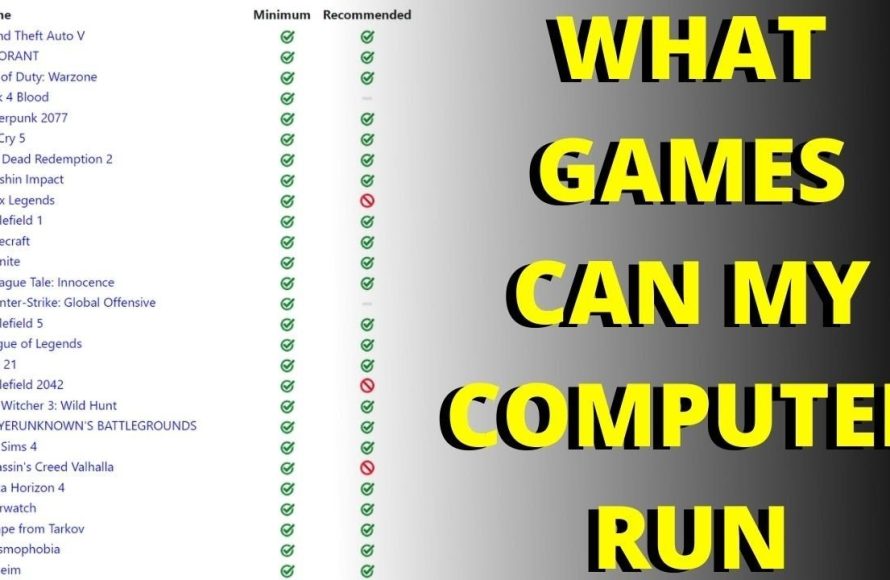
To determine if your game will run on your PC, you need to compare your system’s specifications with the game’s minimum and recommended requirements.
Ever bought a game and felt that pit in your stomach wondering, “will my game run on my pc?”. It’s a common concern for PC gamers. We know how frustrating it is to wait for a game to download, then experience lag or outright crashes because your system isn’t up to par.
Checking those hardware requirements beforehand can save a ton of time and potential disappointment. Matching your CPU, RAM, and graphics card against the game’s listed specs is key.

Will My Game Run on My PC? A Deep Dive
So, you’ve got your eye on that shiny new game, the one with all the amazing graphics and exciting gameplay. But before you hit that buy button, a big question pops up: “Will my game actually run on my computer?” It’s a very common concern, and it’s totally understandable! Nobody wants to spend money on a game that just sits there, not working or running poorly. Let’s break down what goes into making sure a game and your PC are a good match.
Understanding Game Requirements
Every game, when it’s being made, needs certain things from the computer it’s going to be played on. These “things” are called system requirements. Think of it like a recipe for a cake. If you don’t have all the right ingredients, it won’t turn out right! Game system requirements are usually split into two sets: Minimum and Recommended.
Minimum System Requirements: Just Barely
These requirements are what your PC needs at the very least to even start playing the game. It’s like the bare minimum amount of flour for a cake. If your PC only meets the minimum specs, the game might technically run, but it could be very slow, with choppy animations and might not be much fun. You’ll probably need to turn the game’s graphics settings way down and still not have the best experience.
Recommended System Requirements: The Sweet Spot
The recommended system requirements are the specifications that the game developers say will give you the best experience. Meeting or exceeding these means the game should run smoothly, with nice graphics and good speed. Think of it like having the right amount of flour, sugar, and eggs for a cake – all working together to make it delicious.
Where do you find these requirements? You can usually find them on the game’s store page (like Steam, Epic Games Store, or the game’s official website). They’ll usually look something like this:
| Requirement | Minimum | Recommended |
|---|---|---|
| Operating System | Windows 10 64-bit | Windows 11 64-bit |
| Processor | Intel Core i5-4460 or AMD FX-6300 | Intel Core i7-8700 or AMD Ryzen 5 3600 |
| Memory (RAM) | 8 GB | 16 GB |
| Graphics Card | NVIDIA GeForce GTX 960 or AMD Radeon R7 370 | NVIDIA GeForce RTX 2060 or AMD Radeon RX 5700 |
| Storage | 50 GB available space | 50 GB available space (SSD recommended) |
Checking Your PC’s Specs
Okay, you’ve seen the game’s requirements. Now, it’s time to see what’s inside your computer! Here’s how to find the important information:
Your Operating System
This is the main software that runs your computer. Most modern PCs will be running some version of Windows. Here’s how you check:
- Windows: Click the Start button (the Windows logo in the corner). Then, type “About your PC” and click on it. You’ll see the version of Windows and if it’s 32-bit or 64-bit (almost all PCs today are 64-bit).
Your Processor (CPU)
This is like the brain of your computer. It does all the calculations. Here’s how to find out about it on Windows:
- Go to “About your PC” like before. Look for “Processor”. It’ll show you the brand (like Intel or AMD) and the specific model.
Your Memory (RAM)
RAM is where the computer keeps information it’s using right now. The more RAM, the better your computer can handle running multiple things at once. You’ll also find this in “About your PC,” where it’s listed as “Installed RAM.”
Your Graphics Card (GPU)
This is what makes the pretty pictures you see on the screen. For gaming, a good graphics card is very important. Here’s how to find out what you have on Windows:
- Right-click on your desktop and choose “Display Settings.”
- Scroll down and click on “Advanced Display Settings.”
- Click on “Display adapter properties for Display [Number]” (there may be more than one if you have multiple monitors)
- You will find the name of your GPU at the top.
Storage Space
This is how much space you have on your hard drive to store things like games. To check:
- Open File Explorer (the folder icon on your taskbar).
- Click on “This PC” on the left.
- You’ll see your hard drives (usually labeled C:) and how much space is free.
Comparing Your PC to Game Requirements
Now that you know your PC’s specs and the game’s requirements, it’s time for a comparison. It’s like matching up the pieces of a puzzle.
Checking Your Operating System
Make sure the game’s requirements matches or exceeds your operating system version. If your PC is running Windows 10, and the game is asking for Windows 10 or higher, you are good to go, and if game requires Windows 11 then it is good to try it, and if it’s a lower version than Windows 10 that the game needs, you may need to upgrade your system before even thinking of playing the game.
Comparing Processor (CPU)
This one can be a little trickier, but it is possible to do. The main point is to check if the game’s listed minimum or recommended processor is similar or less powerful than yours. A way to compare the processor performance is to look at benchmark websites. These sites compare all types of processors and give you an idea of how powerful they are in real-world performance.
For example, if the game suggests an Intel i5-4460 and you have an Intel i7-8700, you are in luck. Your CPU is much more powerful, as the i7 is newer generation and has better performance.
Checking Your Memory (RAM)
This one is straightforward. The game’s RAM requirement should be equal to or less than the RAM you have. If a game says you need 8GB of RAM, and you have 16GB, you are good. If you only have 4GB of RAM when the game needs 8GB, your game will probably not run, or run terribly slow.
Graphics Card (GPU)
The graphics card is usually the most important part for good gaming, comparing GPUs is just like comparing CPUs. Benchmark websites again are your best friends for this. You need to compare your GPU with the game’s listed minimum and recommended GPU to see if your GPU performs similar or better than the mentioned requirements. A good gaming GPU will give a much better experience.
Storage Space
If your computer does not have enough free space, the game will not be able to install, which would make it impossible to play. You should have more than the mentioned size of the game on your hard drive. For example, if the game is 50GB then you need to have 60 GB or even more to be safe.
What if Your PC Doesn’t Meet Requirements?
So, what happens if your computer doesn’t quite match up with the game’s requirements? It’s not the end of the world. Here are some possibilities:
Lowering Graphics Settings
If your PC barely meets the minimum requirements, the first thing to try is to lower the in-game graphics settings. Games usually have options to adjust things like resolution, texture quality, shadow quality, and more. Turning these settings down can make the game run much smoother, even if it doesn’t look as pretty.
Upgrading Your PC
Sometimes, if your PC is just too old, the best thing to do is to upgrade. A graphics card and RAM are the most common parts to upgrade for gaming.
- Graphics Card: A new graphics card can greatly improve gaming performance if yours is too old.
- RAM: Adding more RAM can help, especially if you are low on it.
Research and Community Feedback
Before making a buying decision, look around at forums and communities. There might be many players who are having similar experience with similar setups. Search for posts that talk about the performance of the game on similar hardware, this can give you a clearer idea of what to expect.
Refund Policies
Many stores such as Steam and Epic games offer refund options for the games that you buy, If a game doesn’t run well on your system, you may be able to get your money back, it all depends on the store’s terms and conditions, it’s always good to check that before buying a game.
Checking system requirements seems a bit tricky at first, but once you get familiar with the steps, it will become a lot easier. By checking your system specifications and comparing them to the game’s needs, you can ensure that you’ll have fun gaming experience. Always try to compare it properly before buying the games.
And remember if you have any concerns always feel free to look up online for more information. Game on!
How to Make Your PC Faster
Final Thoughts
Checking your game’s minimum and recommended specs against your PC’s hardware is must. A comparison is crucial. Make sure you meet, or even exceed, those stated requirements.
Matching specs to your setup directly answers your question. This is the method to confirm compatibility. Therefore, it gives you assurance.
Ultimately, careful checking ensures smooth gameplay. Therefore, to answer ‘will my game run on my pc’, compare those technical details.

