
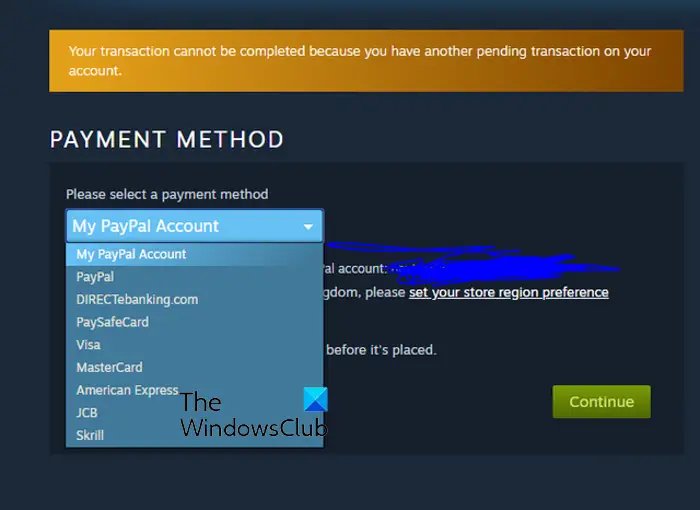
It might be because of payment method issues, insufficient funds, or Steam server problems if you can’t buy a game on Steam. Check those potential reasons first.
Frustration bubbles when you can’t buy a game on Steam, right? It’s a common issue that many gamers face. You are all geared up, ready to jump into a new virtual world, but then you hit a wall.
Several reasons could prevent you from completing your purchase. Perhaps your payment method isn’t working, or maybe Steam is experiencing some technical difficulties. We will explore the common issues and how to troubleshoot them.

Can’t Buy Game on Steam? Let’s Figure it Out!
Okay, so you’re super excited to play a new game, you’ve got your money ready, and then… BAM! Steam just won’t let you buy it. It’s like trying to get a cookie from a jar that’s glued shut. Frustrating, right? Don’t worry, you’re not alone. Lots of people have trouble buying games on Steam sometimes, and there are usually easy fixes. Let’s take a closer look at why this happens and how to get back to gaming!
Common Reasons Why Steam Might Say “No” to Your Purchase
Before we get into the nitty-gritty, let’s talk about some of the most common reasons why you might not be able to buy a game on Steam. Understanding these can be half the battle. It’s like knowing the rules before you play a game.
Problems with Your Payment Method
This is often the biggest culprit. Just like a broken vending machine won’t take your money, Steam won’t accept your purchase if something is wrong with how you are trying to pay.
- Expired Credit or Debit Card: Like milk in the fridge, cards expire. Make sure the date on your card is still valid. If not, you need a new card before making purchases.
- Incorrect Card Details: Did you mistype a number or a security code? Double-check every detail of your card number, expiry date, and CVV/CVC code. Even one wrong number can stop the purchase.
- Insufficient Funds: This one’s pretty straightforward. Make sure you have enough money in your account to cover the cost of the game, including any taxes.
- Payment Method Isn’t Supported: Steam accepts many payment types like credit cards, debit cards, PayPal, and Steam Wallet funds. Make sure your chosen payment method is on Steam’s approved list. Sometimes, a specific method might be unavailable temporarily.
- Bank is Blocking the Transaction: Sometimes, your bank might think the purchase is fishy. They might put a temporary block on your card to prevent fraud. Try contacting your bank and tell them you are trying to make a purchase on Steam, so they can lift the block.
Steam Server Issues
Sometimes the problem isn’t you, it’s Steam! Just like a school computer lab might have network problems sometimes, Steam’s servers can have issues too. These problems could be due to:
- Maintenance: Steam sometimes does maintenance, like giving their servers a good cleaning. During these times, things might not work perfectly.
- Heavy Traffic: When a new game comes out or when there are big sales, lots of people try to buy at the same time. This can slow down the servers, and cause errors.
- General Glitches: Just like a toy can malfunction, servers can too. These small computer errors can prevent transactions from going through.
Account Restrictions or Problems
There might be something with your Steam account itself that’s causing the problem. It’s like having the wrong key for the door.
- Region Restrictions: Some games are only available in certain parts of the world. If your Steam account region is different from where you’re trying to buy the game, it could stop you.
- Account Bans or Suspensions: If your account broke Steam’s rules, they might have blocked it from purchasing anything.
- New Account Limitations: New accounts sometimes have limits on what they can buy. This is a security measure. Steam might ask you to verify your account before you can make a purchase.
Technical Problems on Your End
Sometimes the issue lies on your computer or device. Just like a dusty old game console might not work, outdated software or faulty connections can cause issues.
- Outdated Steam Client: Is your Steam program up-to-date? Old versions can sometimes cause problems with purchases. Check for updates.
- Network Issues: A poor internet connection can prevent Steam from connecting properly to complete your transaction. Make sure you are connected to the internet. If you have WiFi, it can sometimes be less stable than an Ethernet connection that uses a wire.
- Firewall or Antivirus Blocking: Sometimes, your firewall or antivirus program can mistakenly think that Steam is bad. This prevents Steam from connecting and completing transactions.
Steps to Try When You Can’t Buy a Game on Steam
Now that you have a good idea about why things might not work, here’s what you can do to fix the problem. It’s time to be like a detective and solve this mystery!
Double-Check Your Payment Details
This is your first stop. Be sure that everything is correct, just like checking your homework to make sure everything is right!
- Review Card Details: Type your card number, expiration date, and security code again very carefully. Make sure each character is correct.
- Try a Different Card: If you have another card, see if that works. This will tell you if the issue is your card or something else.
- Use PayPal (if available): If you have a PayPal account, you can try using this instead of a card.
Restart Everything
Sometimes, a simple restart fixes a lot of computer problems. Think of it as giving your computer a quick nap.
- Restart Steam: Close the Steam program completely and then open it again.
- Restart Your Computer: Shut down your computer and then turn it back on.
- Restart Your Modem and Router: These are the devices that bring internet to your home. Unplug them, wait a minute, then plug them back in.
Clear Steam Cache
Think of the cache as a place where Steam stores temporary files. Sometimes, old files can cause issues.
Here’s how to clear your Steam cache:
- Open the Steam application on your computer.
- Click on ‘Steam’ in the top left corner of the window, next to the ‘File’ option
- Select ‘Settings’ from the menu.
- In the ‘Settings’ window, find and click on ‘Downloads’.
- Click on ‘Clear Download Cache’.
- Confirm you want to clear the cache. Steam will close automatically.
- Restart Steam and try again.
Check Steam Server Status
Before doing more complicated things, see if Steam’s servers are having problems. This can save you a lot of time.
- Use Steam Status Websites: There are websites that show if Steam is working normally. A good one is Steamstat.us.
- Check Social Media: Look on Twitter or the Steam community forums. People often report server issues there.
Temporarily Disable Security Software
Sometimes, programs that are supposed to protect you, like firewalls and antivirus software, can cause problems. Try turning them off just for a little while and then try the purchase again.
Important! Remember to turn your firewall and antivirus software back on when you are finished testing and you have finished your purchase.
Change Download Region
If the server near you is busy, try changing to another one. This can sometimes make things faster and more stable.
Here’s how to change your download region:
- Open the Steam application on your computer.
- Click on ‘Steam’ in the top left corner of the window, next to the ‘File’ option.
- Select ‘Settings’ from the menu.
- In the ‘Settings’ window, find and click on ‘Downloads’.
- Look for the ‘Download Region’ and click the dropdown menu to the right of it.
- Choose a different region. Try one that is relatively close to where you are.
- Restart Steam and try again.
Verify Your Account
Sometimes, Steam asks you to confirm it’s really you. This step helps make sure that your account stays safe.
- Follow Steam Instructions: Steam might send you an email or a text message with instructions to verify your account. Follow these instructions carefully.
- Check Your Email: Look in your email for messages from Steam about account verification. Sometimes, the email might go into your spam folder by accident.
Contact Steam Support
If you’ve tried everything and still can’t buy your game, don’t give up! Steam’s support team can help you figure out what’s wrong.
- Visit the Steam Support Website: Go to help.steampowered.com. This is Steam’s official help website.
- Explain the Problem: Tell Steam Support what’s happening with as much detail as possible. Include any error messages you see.
- Be Patient: It might take a little while to get a response, but Steam support will get back to you.
Other Things to Consider
Sometimes, even if all the steps above look fine, there can be some unusual cases that cause problems. Here are a few other things to think about.
Game Release Dates and Pre-Orders
Sometimes, there’s no problem at all; it’s just that the game isn’t actually available yet.
- Check Release Date: Make sure that the game is out and available to buy. Sometimes you can pre-order a game, but you can’t play it yet.
- Check Regional Release: Games don’t always come out in all countries at the same time. If the game hasn’t been released in your area, it may be available for purchase soon.
Gift Cards and Steam Wallet
If you’re trying to use a gift card or money in your Steam Wallet, make sure everything is correct.
- Redeem Gift Card Correctly: Make sure the gift card code was entered correctly and redeemed without problems.
- Check Wallet Balance: See if you have enough money in your Steam Wallet to cover the whole purchase.
Using a VPN
A VPN is a program that can change where it looks like you are connecting from. If you are using a VPN, this can sometimes interfere with Steam. Try turning off your VPN and trying the purchase again.
Game Bundles and Special Offers
Sometimes there are deals where you can buy multiple games together. If these deals are not loading correctly, you may have problems. Try buying a single game first to make sure everything else is working.
Keep Your Computer Clean
Make sure that your computer does not have any viruses or malware. These bad programs can interfere with your purchases. Run a virus scan regularly, to make sure everything is safe.
Sometimes, the issue can be as simple as needing to update your graphics card drivers. Make sure you have the latest drivers, so your computer works great. Outdated drivers sometimes can cause issues, especially with new games.
By checking all these possible problems, you’ll be one step closer to getting your game working. Don’t get discouraged; lots of other gamers have been in the same situation. Just follow the steps, and get ready to have fun!
Figuring out why you can’t buy a game on Steam can sometimes feel like a puzzle, but by taking a step-by-step approach, you can usually find the problem. Don’t worry if it takes a few tries. The important thing is to keep trying, and soon you’ll be ready to enjoy your game. If you find these tips helpful, please share this article with your friends who might have similar issues. Happy gaming!
How To Fix Steam Not Buying Games [Very EASY!]
Final Thoughts
Troubleshooting steps like verifying internet, checking payment info, and trying a different device are key if you can’t buy a game. Sometimes, server issues on Steam’s end are the culprit; patience is crucial. Remember to confirm regional restrictions because they could prevent a purchase.
If you still find you ‘cant buy game on steam’, consider contacting Steam Support for specific guidance. It could be a temporary problem or an issue with your account that requires their assistance. You must investigate thoroughly before giving up.

