
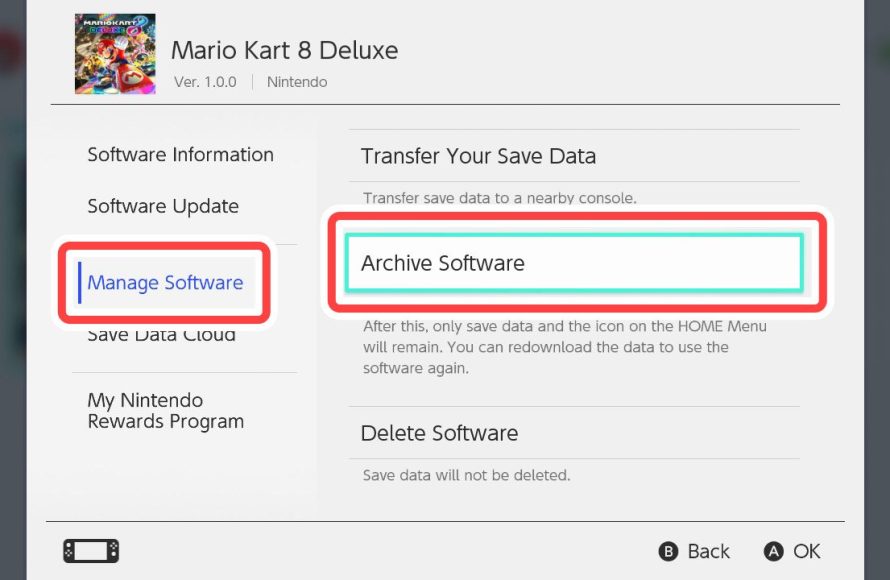
No, archiving a game on Switch does not delete save data. Your save files remain safe on your system.
Ever felt the urge to free up space on your Nintendo Switch without losing game progress? It’s a common concern and a valid one that sparks a question: does archiving a game on Switch delete save data? Many players worry about losing precious hours of gameplay, carefully crafted characters, and hard-earned achievements.
This fear is quite understandable, but rest assured, Nintendo designed the system to keep your save data separate. Archiving a game simply removes the game data from the console, not the save files.

Does Archiving a Game on Switch Delete Save Data?
Okay, so you’re thinking about archiving a game on your Nintendo Switch, but you’re also super worried about losing all your hard-earned progress, right? It’s a totally normal feeling! We’ve all spent hours building amazing worlds, catching rare Pokémon, or finally beating that one really tough boss, and the thought of losing it all is scary. Let’s break down exactly what happens to your save data when you archive a game on the Nintendo Switch.
Understanding Archiving on Nintendo Switch
First, let’s make sure we all know what archiving actually means on the Switch. When you archive a game, you’re essentially removing the game’s software from your console’s storage. Think of it like taking a game cartridge out of your old console, but in a digital form. The game’s icon will still be visible on your home screen, but it’ll have a little cloud symbol on it. This means the game itself isn’t taking up any space on your console anymore.
Archiving is different from deleting a game entirely. When you delete a game, you remove everything about it from your system, including the game software, and the icon also disappears from the home menu. But archiving is more like putting the game on hold.
The Important Part: Save Data
Here’s the good news: archiving a game on your Nintendo Switch does NOT delete your save data. Yes, you read that right! Your game saves are stored in a different place than the actual game software. The Nintendo Switch keeps your save files separate, so you don’t have to worry about losing your progress. This means you can archive games to free up space without worrying about your precious save data vanishing.
Where is Save Data Stored?
On your Nintendo Switch, save data is kept on the system’s internal storage, which is separate from where games are installed, whether they are downloaded or from cartridges. This separation is a smart way for Nintendo to protect user progress. Imagine if your save data was tied directly to the game files! Then, whenever you had to re-download a game, you’d have to start again from the beginning. Luckily, the Switch is smarter than that.
How to Check Save Data Status
Want to be extra sure that your save data is safe and sound? It’s very easy to check!
- Go to the Nintendo Switch HOME Menu.
- Select “System Settings.”
- Scroll down and choose “Data Management.”
- Select “Save Data Cloud.” (If you are using the Cloud Save Backup function)
or select “Delete Save Data” to check save data.
Here you’ll be able to check which games have save data, along with the size of that data. This area also lets you manage cloud saves if you subscribe to Nintendo Switch Online, more about that later. It’s a good habit to check this area occasionally.
Archiving vs. Deleting: Key Differences
It’s important to know the difference between archiving and deleting. Archiving is like putting a book back on the shelf; it’s still there, just not taking up space on your desk. Deleting, on the other hand, is like throwing the book in the bin; it’s gone. Here’s a little table to help you understand it better:
| Action | What Happens to Game Software | What Happens to Save Data |
|---|---|---|
| Archiving | Removes the software from system storage | Save data is kept and protected |
| Deleting | Removes software from system storage and game’s icon from the home screen | Save data is also removed unless cloud saves are enabled |
As you can see, archiving is the safer option when you want to clear up some room but you’re not quite ready to say goodbye to the game.
Re-downloading Archived Games
Another great thing about archiving is that it is very simple to download your game again. Since the icon is still on the home screen, you can easily select it, and your Switch will start downloading it from the eShop. You will be asked to choose the storage destination, such as your internal storage or an external SD card if you have one. Once the download is finished, you can continue playing right where you left off! Your save data will automatically be there waiting for you.
The Download Process
When you go to re-download an archived game, follow these steps:
- Locate the game icon on your home screen, it will have the cloud symbol.
- Select the game icon.
- A message will appear, giving you a choice to download the game.
- Select the ‘Download’ option.
- Wait for the download to finish, and that’s it.
The download process may vary a little based on your internet connection speed, but generally it is easy and quick.
Using a MicroSD Card
Lots of Nintendo Switch users, especially those who have many games, use a microSD card to increase their storage space. It’s a handy way to keep more games on hand. When you download a new game, your Switch usually lets you choose if you want to save it to your system memory or to the microSD card. If you choose the microSD card and you decide to archive a game saved on the microSD card, the same rules apply, the save data stays safe on the system’s internal storage.
Moving Games Between Storage Locations
Nintendo also gives you the option to move game data between the system storage and the microSD card if you ever need to. If you want to do that, follow these steps:
- Go to System Settings from the HOME Menu.
- Choose “Data Management.”
- Select “Move Data Between System / microSD Card”.
- Select the game you want to move.
- Follow the on-screen instructions.
Even if you move game data to a microSD card, remember that the save data always stays on the console’s internal memory.
Nintendo Switch Online and Cloud Saves
If you subscribe to Nintendo Switch Online, you get an extra layer of protection with “Cloud Saves.” This feature lets you automatically back up your save data to Nintendo’s servers. Think of it as having a copy of your saves stored online. If something goes wrong with your console, or if you accidentally delete your save data (which can happen if you’re not careful), you can easily restore it from the cloud.
How Cloud Saves Work
When you play a game, your Switch automatically uploads a copy of your save data to the cloud. This happens in the background while your Switch is connected to the internet. You can also manually force the save data to sync with the cloud in the Data Management option in the System Settings. If you ever need to restore your saves, you can do that from the same menu.
Keep in mind that not all games support cloud saving. Some games have their own internal save systems, so these do not support automatic cloud saves. Also, some games do not support cloud saves at all. For these games, you must take extra care to keep your data safe by not deleting the game, only archiving it if you need to.
Potential Issues and How to Avoid Them
While archiving itself doesn’t cause data loss, there are some things that can cause problems. Let’s talk about what to avoid and how to keep your data safe.
Data Corruption
Although rare, save data can sometimes become corrupted. This could happen if you turn off your Switch while a game is saving, or if there’s a problem with your system or storage device. It’s important to let your game completely finish saving before you turn off your Switch.
Accidental Deletion
Another potential issue is deleting your save data by mistake. If you choose “Delete” rather than “Archive” you will lose your data, unless you have it backed up on the cloud. Always double-check what you are clicking on, especially in the Data Management area.
System Problems
Rarely, system problems can occur that might cause problems with your save data. Keep your console up to date with system updates, and only use Nintendo recommended ways to save or remove game data.
Tips for Keeping Your Saves Safe
- Use Cloud Saves: If you have Nintendo Switch Online, make sure you use the Cloud Saves.
- Double-Check Before Deleting: Always pay attention and double-check that you’re archiving not deleting.
- Fully Save Game: Don’t turn off your Switch while your game is saving. Let it finish completely.
- Keep Updated: Make sure you always keep your system updated to prevent problems.
- Care for your System: Take care of your Nintendo Switch. Keep it in a safe place and avoid extreme heat or cold conditions.
Why Archive Games?
Now that you know your saves are safe, you might be wondering, “Why would I even archive a game?” There are a few good reasons! Most people archive because:
- Running out of Space: Games can be large, especially when downloaded, and the Switch storage can fill up fast. Archiving gives you some room.
- Trying New Games: Sometimes you want to try something new but don’t want to delete old games that you are not quite done with. Archiving helps you switch between games as needed.
- Managing Your Library: It helps you keep a clean menu on the home screen, with only the games you play currently on your console.
Specific Game Considerations
While the general rules apply to most games, a few may have specific ways they handle save data. Some games might save their settings or your player’s character data separately from the main save data. In cases like these, always check the game’s manual or official website to see how the saves are managed. For almost every game on the Nintendo Switch platform, archiving is still perfectly safe.
In summary:
Archiving a game on your Nintendo Switch is a safe way to create space without deleting your save data. Your hard-earned progress is kept separate from the game files, so you can freely archive and re-download games as you need to. Remember the key difference between archiving and deleting and keep those saves safe.
How to Delete a Game on Nintendo Switch (Archive or Delete Game?)
Final Thoughts
Archiving a game on your Nintendo Switch does not delete your save data. The system removes the game software from your console but keeps the associated saves. This means you can download it again later without losing progress.
Save files remain safely stored on your console even when a game is archived. You can redownload the game from the eShop at any time and continue where you left off. Therefore, does archiving a game on switch delete save data? No, it does not; your saves remain.

