
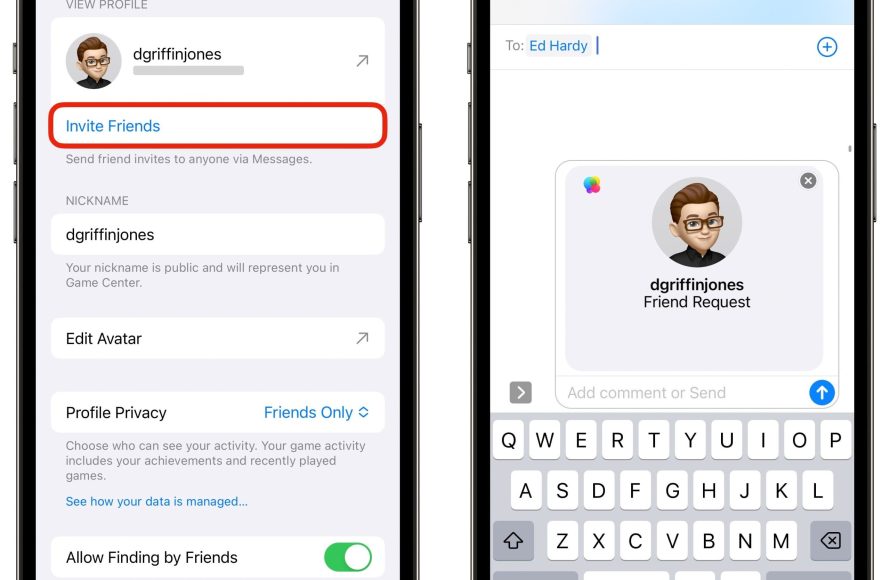
To add friends on Game Center, you’ll need their Apple ID email address or phone number. Go to the Game Center app, tap “Friends,” then tap the plus (+) icon and enter their contact information.
Want to connect with fellow gamers? It’s easy to share your favorite gaming moments and compete with friends. Many ask, “how do you add friends on Game Center?” It is simpler than you may think.
This short guide will show you the steps to grow your Game Center network. With just a few taps, you can find your friends and start playing together.

How Do You Add Friends on Game Center?
Getting to play games with your friends is one of the coolest things about having an iPhone or iPad. Game Center makes it easy to connect and compete, but how exactly do you add friends? It’s simpler than you might think, and we’re here to walk you through all the different ways. Let’s get started and fill up your Game Center friends list!
Understanding Game Center and Its Importance
Before diving into the how-to, let’s talk a little about what Game Center actually is and why it’s so helpful. Think of Game Center as a social network, but just for games. It’s like a clubhouse where you can find friends who love games as much as you do. With Game Center, you can:
- See what games your friends are playing.
- Challenge your friends to high score battles.
- Play multiplayer games together.
- Track your gaming achievements and leaderboards.
- Share your scores and game progress.
Game Center is built right into your Apple devices, so it’s already there waiting for you. It’s a fantastic way to make gaming even more fun, allowing you to share your love of video games with your buddies.
Method 1: Adding Friends Through Their Apple ID
One of the most common ways to add friends on Game Center is by using their Apple ID. This is the same email address they use for everything Apple, like their iCloud account. Here’s how you do it:
Step-by-Step Guide
- First, open the Settings app on your iPhone or iPad. It’s the grey gear icon.
- Scroll down until you find “Game Center” and tap on it. If you haven’t signed into Game Center yet, you may have to sign in first using your Apple ID.
- Look for the “Friends” option. It might say “Invite Friends.” Tap on it.
- You’ll see a plus (+) sign or a button that says “Add Friends”. Tap that.
- Now, enter your friend’s Apple ID (their email address). Be sure you type it correctly.
- Tap the “Send” button. An invitation will be sent to your friend.
Once your friend accepts the invitation, they’ll be added to your Game Center friends list. It’s that easy! You can now see what games they are playing and challenge them.
What Happens After Sending an Invitation?
After you send an invitation using your friend’s Apple ID, they will get a notification on their device. This notification will appear in Game Center and may also show up as a regular notification, depending on their settings. Once they accept your request, both of you will be added to each other’s friend lists. You can then view each other’s profiles, achievements, and game activity.
Method 2: Adding Friends Who Are Nearby
Another really neat way to add friends is when you’re physically near them. Game Center can use Bluetooth and Wi-Fi to find other players who are nearby and have Game Center enabled. This is super handy if you’re hanging out with friends and want to play a game together.
Steps to Add Nearby Friends
- Go back to Settings, then tap on Game Center.
- Again, choose the “Friends” option or “Invite Friends.”
- Look for the option that says something like “Add Nearby.” It may have a little icon of people next to it. Tap on it.
- Make sure that your friend does the same on their device.
- Your device will start looking for nearby Game Center users. When you see your friend’s name, tap on it to send a friend request.
Your friend will receive the invitation, and once accepted, boom! You’re now Game Center friends. This method is quick and easy when you’re together with friends in the same room.
Method 3: Adding Friends Through Existing Contacts
If your friends are already in your Contacts app, there’s an easy way to add them to Game Center too. This method is quite handy and quick, especially if you have many of your friends’ contact details saved already. Here is how you do it:
Steps to Add Friends From Contacts
- Navigate to Settings, then go to Game Center.
- Choose the “Friends” or “Invite Friends” option again.
- Look for an option like “Contacts” or “Add from Contacts”. Tap on it.
- Game Center will scan your contacts for people who also have Game Center accounts.
- You will see a list of names. Tap the “Add” button next to the name of each friend you want to add.
This sends an invitation, just like with the other methods, and once your friends accept, you’re connected! This is a very convenient method because it doesn’t require you to remember your friends’ Apple IDs or look around for nearby devices.
Method 4: Adding Friends Through Games
Some games also have a built-in way for you to add friends directly through the game. If the game you are playing supports Game Center, it will usually show you who else is playing, and you can add them as a friend directly from there.
How to Use the In-Game Method
- Start the game you want to play.
- Look for options related to friends, social, or leaderboards within the game. These can be in different places depending on the game.
- When you find an area to add friends, there may be a list of other players or a search bar where you can search for other Game Center users.
- Tap the “Add” or “Invite” button for the friend that you want to connect with.
If successful, the game will send the friend request on your behalf and you’ll be connected after the friend accepts. In-game friend additions are very useful, especially for games where it is helpful to have a group of people to play with.
Managing Your Game Center Friends
Once you’ve added some friends, you might want to manage your friends list. Sometimes you might need to remove a friend or block someone. It’s good to know how to do this:
Viewing Your Friends List
- Open the Settings app.
- Go to Game Center.
- Tap on “Friends.”
Here, you’ll see a list of all your current friends. You can tap on a friend’s name to see their profile, which includes the games they are playing and their achievements. You can also send a direct message using iMessage if you want to chat.
Removing a Friend
If you want to remove a friend, it’s just as simple:
- Follow the same steps as viewing your friend list.
- Once you see the list, find the friend you want to remove.
- Swipe left on their name.
- A “Remove” button should appear. Tap it.
The friend will be removed from your Game Center list. You will still have the option to re-add this person.
Blocking Someone
If you no longer want to interact with someone, you can block them. This will prevent them from sending you friend requests or seeing your Game Center activity.
- Follow the same steps as viewing your friend list.
- When you find the friend you want to block, tap on their profile.
- Look for an option that says “Block User” and select it.
After blocking a user, they will not be able to interact with you on Game Center. If you need to, you can unblock users by going back to the same settings area.
Troubleshooting Common Issues
Sometimes, adding friends on Game Center might not go as smoothly as you’d like. Here are some common issues and how to fix them:
Problem: Invitation Not Sent
If you’re having trouble sending an invitation, here are a few things to check:
- Make sure that your Apple ID is signed into Game Center correctly. You can verify this in your Game Center settings.
- Ensure you have a stable internet connection, either through Wi-Fi or Cellular.
- Double-check that you are typing the Apple ID correctly. Even one small mistake can prevent the invitation from going through.
- Sometimes, a simple restart of your device can resolve this problem. Turn off your device and then turn it back on.
- Make sure that Game Center is enabled in your settings.
Problem: Friend Request Not Received
If you send an invite but your friend doesn’t see it, here are a couple of things to check:
- Tell your friend to make sure that they have Game Center turned on in their settings.
- Ask your friend to double-check their notifications for Game Center specifically, as it might be turned off for them.
- Have your friend restart their device.
Problem: Can’t Find Nearby Friends
If you are having issues using the “Nearby Friends” method, consider these tips:
- Make sure that both of your devices have Bluetooth and Wi-Fi turned on.
- Ensure that both devices are within close proximity of each other.
- Make sure that your friend’s device has ‘allow Nearby’ option enabled in their Game Center settings.
- Try turning your Bluetooth and Wi-Fi off and on again.
Tips for a Better Game Center Experience
Here are some useful tips to make the most out of Game Center:
- Choose a fun and recognizable nickname that your friends will easily recognize.
- Regularly check your Game Center notifications for new invitations and game challenges.
- Use the “Message” option to chat with your friends about your favorite games.
- Participate in challenges and try to beat your friends’ scores.
- Explore different multiplayer games and invite friends to play along.
- Share your gaming achievements and accomplishments on social media.
By using these tips, you can turn Game Center into a social hub for all your gaming needs.
Adding friends on Game Center is all about fun and connection. By using these different methods, you’ll be well on your way to gaming with all your friends in no time. So grab your phone or tablet, invite your friends, and have some fun playing games together!
iPhone 13/13 Pro: How to Add Friends to Game Center
Final Thoughts
To add friends on Game Center, you need their Apple ID or phone number. Go to the Game Center app, find the “Friends” section, and tap the “+” icon. You can then enter the contact info to send a request.
Confirm your friend’s request, and you are now connected within Game Center. Playing games together and viewing each other’s profiles is now available. So that is how do you add friends on game center.

