
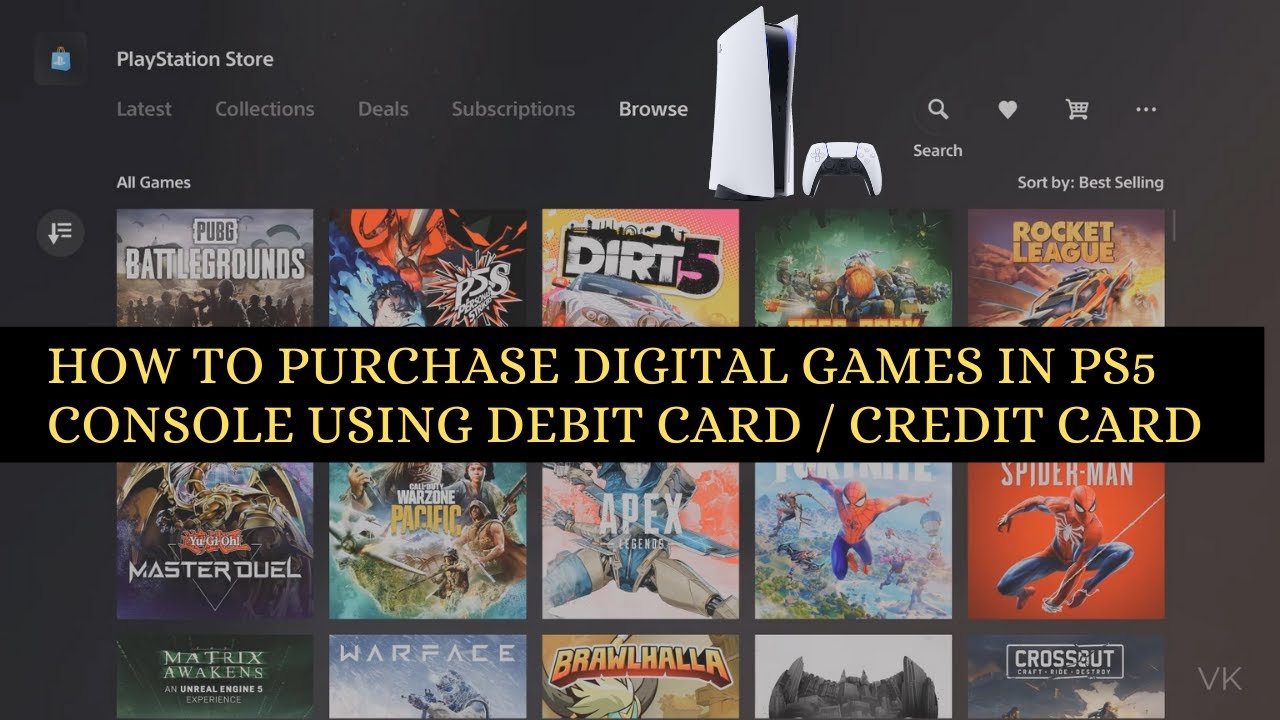
To buy digital PS5 games, you can navigate to the PlayStation Store on your console or through the PlayStation app, browse for your desired games, and purchase them using your linked payment method.
Ready to dive into the world of digital gaming on your PlayStation 5? Many gamers wonder how to buy digital PS5 games, since the process isn’t always obvious.
We will walk you through the straightforward steps to download and enjoy your favorite titles directly on your console. It’s much simpler than you might think.
Let’s quickly get you set up, so you can begin playing the newest releases and expanding your digital collection.

How to Buy Digital PS5 Games
Getting your hands on the latest PlayStation 5 games is easier than ever thanks to digital downloads. Forget about going to the store and dealing with physical discs. Now, you can purchase games from the comfort of your couch, ready to play in just minutes. This guide will show you everything you need to know about buying digital PS5 games, from where to get them to how to make the purchase and download them successfully. Let’s jump right in!
Where to Buy Digital PS5 Games
The primary place to buy digital games for your PS5 is the PlayStation Store. It’s like the official app store for your console. Think of it as a massive library packed with all sorts of amazing games. But it’s not the only place. Let’s take a look at the options:
The PlayStation Store on Your PS5
The most direct way to buy digital PS5 games is right on your console. Here’s how you find it:
- Turn on your PS5 and make sure you are signed into your PlayStation Network (PSN) account.
- Use the controller to navigate to the “PlayStation Store” icon on the main menu. It looks like a shopping bag with the PlayStation logo.
- Press “X” to enter the store.
Once inside, you can use the menus to browse for new games, search for titles you have in mind, and view special offers.
PlayStation Store on a Web Browser
You can also access the PlayStation Store through your computer or phone’s web browser. This is a great way to browse and buy games if your console isn’t nearby. It is also useful for adding games to your download queue without turning on the PS5. Here’s how:
- Open your favorite web browser (like Chrome, Firefox, or Safari).
- Go to the official PlayStation website for your region (e.g., www.playstation.com).
- Find the “PlayStation Store” link, often in the menu or footer of the page.
- Sign in to your PSN account. You’ll see the same store interface that appears on the console.
Retailers Selling Digital Codes
Sometimes, you can find digital PS5 game codes at other online retailers, or physical stores. These stores will often offer games on sale, or provide alternative options for payment. These codes can be redeemed on your PS5 through the PlayStation Store.
- Online Retailers: Websites like Amazon, Best Buy, and Gamestop sometimes sell digital codes for PS5 games. These codes will be delivered to you by email.
- Physical Retailers: Stores like Walmart, Target, and GameStop often sell physical cards with codes on them. You can purchase the card like a gift card and redeem the code on the PlayStation Store.
Navigating the PlayStation Store
Once you’re in the PlayStation Store, either on your PS5 or a web browser, it is time to find the games you want. The store is very simple to use. Here’s a quick overview to help you get around:
Using the Search Function
If you already know the name of the game, use the search function. It looks like a magnifying glass and it is usually at the top of the page. Simply type in the name of the game you want and hit enter. The store will then display all the matching results.
Browsing Through Categories
You can also browse games by category. The store usually sorts games into categories like “New Games,” “Top Sellers,” “Coming Soon,” “Action,” “Adventure,” “Sports,” and many more. This is useful to explore new games you might not know about.
Checking Special Offers
Always look for the “Deals” section. This area highlights games on sale or with special discounts. If you are not in a hurry, this can help you save a good amount of money. It changes regularly, so be sure to check it often.
Reading Game Details
Before you buy a game, take time to check its information. On each game’s page, you’ll usually see the following:
- Game Description: Read what the game is about and what it offers.
- Screenshots and Trailers: Look at pictures and watch gameplay videos.
- Reviews and Ratings: See what other players think of the game.
- Price: Make sure you know how much the game costs.
- Storage space: The required hard disk space is provided.
- Age Ratings: Check that the game is appropriate for your age.
Adding Games to Your Wishlist
Sometimes you find a game you want, but you are not ready to buy it yet. You can use the “Wishlist” feature. This allows you to save games you want to buy later. When a wish-listed game goes on sale you will be notified.
How to Purchase a Digital Game
So you have found the game, and you are ready to buy it. Here’s what you have to do:
Adding a Game to Your Cart
On the game’s page, you will see a button that says “Add to Cart” or something similar. Click this to put the game in your shopping cart. You can add more games and check out when you are ready.
Reviewing Your Cart
Before you buy, always review the contents of your cart. Make sure you have all the right games and that the prices are correct. The cart usually gives you an overview of all your purchases.
Selecting a Payment Method
To pay for games, you have several options. You can use:
- Credit or Debit Cards: Most major credit and debit cards are accepted. You’ll need to enter the card details, like card number, expiry date, and security code.
- PayPal: This is a popular online payment system. If you have a PayPal account, you can use it to pay.
- PlayStation Store Gift Cards: These cards are available at many retailers. You can use their code to add credit to your PlayStation wallet.
- PlayStation Wallet Funds: You can add funds to your wallet and then use that to make purchases.
Always make sure that your payment method is valid and has enough funds to cover your purchase.
Confirming Your Purchase
Once you select a payment method, you’ll need to confirm your purchase. Usually a button saying “Confirm Purchase” or “Buy Now” will complete your purchase.
A confirmation message will appear, and you will usually receive an email confirming the transaction.
Downloading Your Purchased Games
Now that you have bought your digital PS5 game, you will want to download it on to your console. Here is how:
Starting the Download
Right after you buy the game, usually, the download starts automatically. If it does not, you can start the download manually. Here’s how:
- Navigate to your game library on your PS5 home screen.
- Find the game you have just bought.
- Select it and the option to download should be available.
Managing Downloads
You can keep track of your downloads in the “Downloads/Uploads” section of the PS5 menus. This will show you how much has been downloaded and how long it will take to finish.
Tips for Faster Downloads
If your downloads are slow, here are a few ways to speed things up:
- Use a Wired Connection: Connecting your PS5 directly to your internet router with an Ethernet cable can provide faster and more stable downloads than Wi-Fi.
- Pause Other Downloads: If you have other downloads happening in your home, pausing them can help focus your internet speed on your PS5 download.
- Close Unused Applications: Close any games or apps that are open on your PS5, as they can sometimes use up bandwidth.
- Use a Strong Wi-Fi Signal: If using Wi-Fi, make sure that you are close to your router and that you have a strong signal.
- Consider Off-Peak Hours: Downloading when fewer people are using the internet can result in faster download speeds.
Installing and Playing
Once your game is completely downloaded, it will automatically install. After that, you can begin to play your new PS5 game.
Managing Your Digital Game Library
Digital purchases give you a vast library of games right on your console. Here is how to manage it:
Accessing Your Game Library
From the main PS5 menu, you can see all your games. This library includes all the digital games you have purchased. They are ready to play from your home screen.
Organizing Your Library
As your library grows, use folders or categories to organize your games. You can group together similar game types or create other custom collections. This way, you can easily find the games you are looking for.
Redownloading Games
If you have deleted a game for extra storage space, you can re-download it whenever you want to. All of your purchased games are tied to your PSN account. You can always re-download them. Just go to your game library.
Sharing Games With Friends and Family
PlayStation allows you to share your digital games with friends and family. If you have more than one PS5, you can set one to be the primary console for your account. This way, others using the console can access your digital games. Keep in mind that this feature has limitations, so read the details from PlayStation before sharing.
Understanding Game Editions and DLC
When buying digital games, you may see different editions available. Here’s what they mean:
Standard Edition
The Standard Edition of a game only includes the base game. It does not come with any extra add-ons.
Deluxe or Special Editions
These editions often include extras like downloadable content (DLC), in-game items, art books, or soundtracks. These editions will come at a higher price than the standard edition. But, they offer more content for fans who really want everything.
Downloadable Content (DLC)
DLC are game expansions or extra content that you can buy after you own the base game. They can add new levels, characters, or items. DLC can be purchased separately through the PlayStation Store. Look for add-ons in the same way you look for base games.
Troubleshooting Common Issues
Sometimes things do not go as planned. Here are a few common problems you may experience when buying digital PS5 games and their fixes:
Payment Issues
- Declined Card: Check that your card details are correct, and that you have enough funds. Contact your bank if your card is still not working.
- Payment Error: If the payment does not go through, try again later or use a different payment method. Sometimes there are issues on the PlayStation side.
- Expired Card: Ensure your card is not expired, and update your payment details.
Download Issues
- Slow Download: Use the methods listed above to improve your download speed, like using a wired connection.
- Download Stalls: Pause and restart the download, or check your internet connection.
Game Installation Issues
- Insufficient Storage Space: Make sure your PS5 has enough space to install the game. If necessary, you can delete some old games or saved data to free up space.
- Installation Errors: Restart your console and try the installation again. If the problem remains, contact PlayStation support for help.
Account Issues
- Password Problems: If you have forgotten your password, use the “Forgot Password” option on the login screen.
- Sign-In Errors: Verify you are using the correct PSN email address. Check your internet connection, and that PSN is online.
If you face other problems that you can’t solve on your own, PlayStation Support is there to help. They can provide personalized solutions to your issues.
Staying Safe When Buying Digital Games
Buying digital games is safe and convenient. However, here are a few ways to make sure your purchase is secure:
Buying from Official Sources
Always get your games from the official PlayStation Store or from reputable retailers. Avoid websites that offer suspiciously low prices or unofficial games. These can be scams or contain viruses.
Protecting Your Account Information
Never share your PSN password or account details with anyone. Use a strong, unique password, and consider using two-factor authentication. This means you get an extra verification code when you login with a new device.
Staying Aware of Phishing Scams
Be careful of emails that ask for your personal information. Phishing emails can pretend to be from PlayStation. Only follow links from official PlayStation pages.
Buying digital PS5 games is really simple once you know the steps. With the PlayStation Store at your fingertips, you have instant access to a huge library of games to play. You can buy new and exciting games right from your couch. Remember to browse smartly, check the details before buying, and keep your PSN account secure. Happy gaming!
How to buy Digital Games in PS5 for Beginners
Final Thoughts
To buy digital PS5 games, you can use the PlayStation Store directly on your console. You’ll need a PSN account and a valid payment method linked to it.
Alternatively, you can make purchases through the PlayStation website on your PC or mobile. The games will be added to your library for download on your console. These methods present reliable avenues for how to buy digital PS5 games.

