
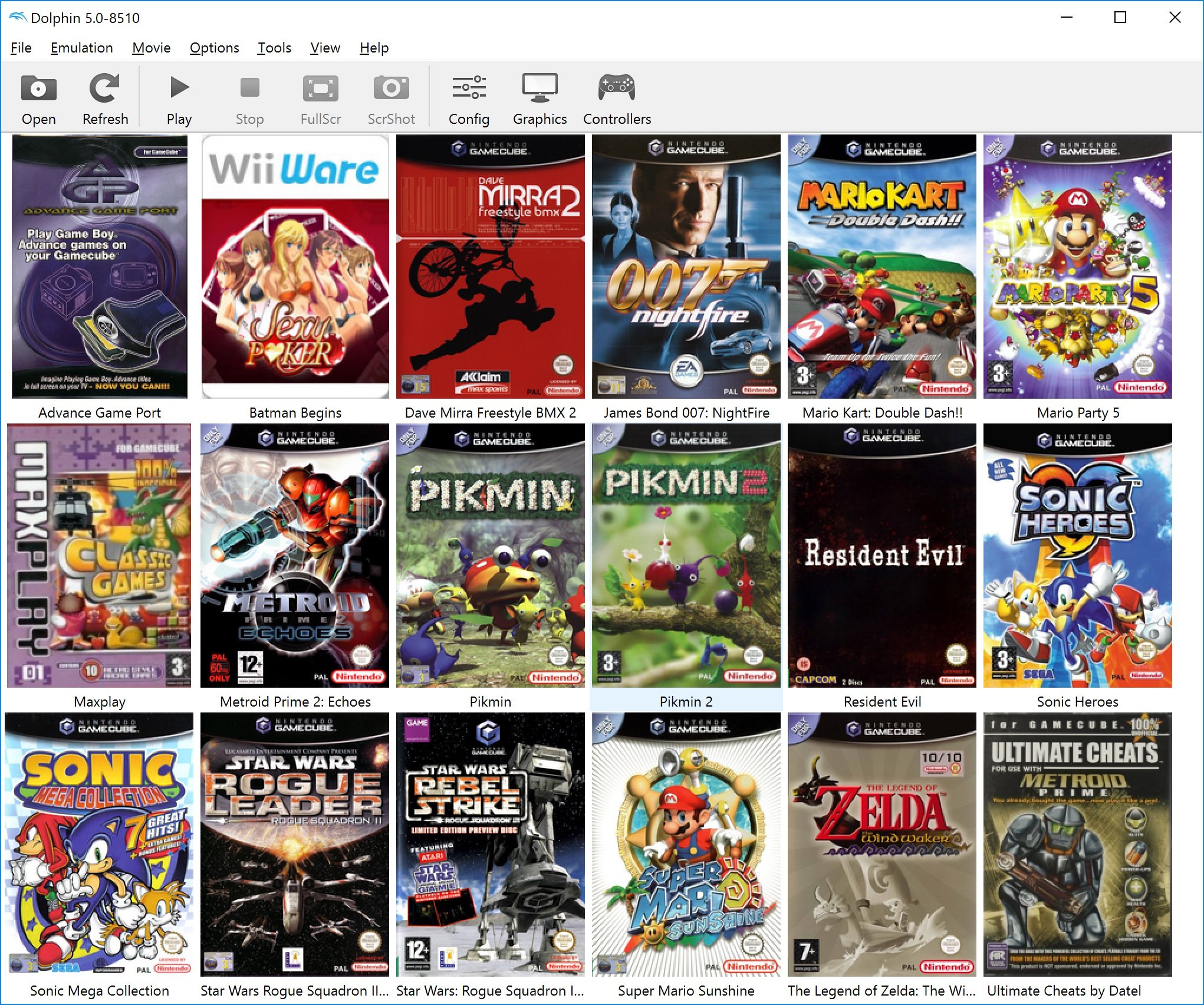
You acquire Dolphin emulator games by obtaining game ISO files from sources like your own legally owned game discs, or through legal means where they are made available.
Want to revisit classic GameCube or Wii titles? Many gamers explore the world of emulation for this reason. People often ask about how to get dolphin emulator games, so let’s discuss it.
The process involves finding the actual game files which are in ISO format. These files aren’t provided with the Dolphin emulator itself. You must obtain them separately.
Remember to only use legally obtained game files. This helps keep things ethical and also supports the original game creators.

How to Get Dolphin Emulator Games
So, you’re excited to play your favorite GameCube and Wii games on your computer using the Dolphin emulator? That’s awesome! It’s like having a time machine that lets you revisit those fun adventures. But getting those games to work with the emulator might seem a little tricky at first. Don’t worry, we’re here to guide you through the process step-by-step, making it easy and understandable. We’ll cover everything you need to know about obtaining the games you want to play, safely and legally, and then show you how to load them up into Dolphin.
Understanding Game Formats for Dolphin
Before we jump into getting games, let’s talk a bit about the different types of game files you’ll encounter. GameCube and Wii games don’t come as simple computer files you can just click and play. They exist in specific formats that the Dolphin emulator understands. Here are the most common ones:
- ISO (.iso): This is like a digital copy of the entire game disc. Think of it like taking a picture of the disc. It includes all the data, making it a big file.
- GCM (.gcm): This is another format for GameCube games. It’s similar to ISO but sometimes slightly smaller.
- WBFS (.wbfs): This is a special format often used for Wii games. It’s usually smaller than ISO, saving space on your computer.
- RVZ (.rvz): This is a compressed version of an ISO or WBFS file. It makes the file much smaller and helps save storage space.
Dolphin can read all these formats, so you don’t need to worry too much about converting them, just make sure you know the file type you have. Knowing these formats will be super helpful when searching for games.
The Importance of Legally Obtaining Games
This is super important: you need to own the physical game you want to play with Dolphin. Downloading games you don’t own is like borrowing a book from the library and never returning it, it’s not right. It’s also illegal and could get you into trouble. We’re all about having fun, but we want to do it the right way! So, remember, always own a physical copy of the game if you are going to be playing it on Dolphin.
Think about it this way: When you buy a game, you’re supporting the people who worked hard to make it. Playing a game you haven’t bought might mean that developers may not be able to make new games in the future. It’s best to stick to the rules, so we can all continue enjoying awesome games.
Ways to Get Game Files (Legally)
So, you have your physical game, now how do you get it in the digital formats that Dolphin understands? Here are some common ways:
Using a Disc Drive on Your Computer
If your computer has a disc drive (some laptops don’t have them anymore), you can use special software to copy the game from your original GameCube or Wii disc into an ISO, GCM, or WBFS file. It is a process sometimes called “dumping” a disc. Here is what you will need to do this:
- A Computer with a Disc Drive: Check your computer to make sure it can read regular CDs/DVDs.
- The Original Game Disc: Ensure your physical copy is in good condition.
- Dumping Software: There are several programs you can use. Popular options include:
- CleanRip (for Wii): This is a great tool for copying Wii games to your computer.
- ImgBurn (for GameCube and Wii): A widely used program that can handle disc copying. It’s good for creating ISO files.
- Rawdump (for GameCube): Another useful tool to “dump” Gamecube discs
How to Dump a Disc: The process will vary slightly depending on the program you choose, but generally, here’s what you do:
- Place your game disc into your computer’s disc drive.
- Open the disc dumping program you have downloaded.
- Choose the correct disc drive from the list within the program.
- Select the output file type (ISO, WBFS, etc.) and choose a folder on your computer to save it.
- Start the process of copying.
- Wait for it to finish. This can take a while, so be patient.
Once the process is complete, you will have a digital copy of the game ready for Dolphin. Remember that the file size is usually quite large so ensure that you have enough space on your computer.
Using a Wii Console with Homebrew
If you have a Wii, you can “dump” games directly from the console itself. This process involves installing a special software called “Homebrew” on your Wii. Please note that installing Homebrew requires some technical know-how and can have potential risks to your console, so proceed with caution. Here’s a simplified look at what’s involved:
- Homebrew Channel: You will need to install the Homebrew Channel on your Wii. This lets you install other apps.
- A USB Drive or SD Card: You will need one of these formatted as FAT32 to store the game files. Make sure it has enough space for the games you want to “dump.”
- CleanRip or other dumping app: There are several homebrew apps that you can install on your Wii that will allow you to copy your games to your USB drive or SD card.
How to Dump with Homebrew:
- Install the Homebrew Channel on your Wii.
- Copy the required files for the CleanRip (or other dumping app) on to a USB or SD Card.
- Place the USB drive or SD card into your Wii.
- Insert the game you want to copy into your Wii.
- Launch CleanRip (or other dumping app) on the Homebrew Channel.
- Follow the onscreen prompts to begin the “dumping” process.
- Wait for the process to finish and your files will be copied to your USB drive or SD Card.
Once completed you can copy the files to your computer.
Using a Special Disc Ripper
There are special devices called disc rippers that are made specifically for creating game files from discs. These devices are often used by people who have a large collection of games. They work faster than computers and can copy many discs easily. This option, while effective, can be more expensive and may be more than what you need for just a few games. They function similarly to disc drives on a computer, but their hardware is optimized for copying discs quickly.
Online Stores (For Wiiware and Virtual Console Games)
If you’re looking for games that were only available online for the Wii or GameCube, like Wiiware games or Virtual Console titles, you might be able to find these on some online stores that focus on older games. You will still need to follow the principle that you should always own a legal license to play these games. These services can be a convenient way to enjoy games that do not exist as physical copies.
Organizing Your Games
Once you have your game files, it’s a good idea to organize them. Create a folder on your computer specifically for your Dolphin games. Inside this main folder, you can create subfolders for each system, like “GameCube Games” and “Wii Games.” This helps you keep everything tidy and makes it easier to find games when you open Dolphin.
How to Load Games in Dolphin
Now for the fun part: playing your games! Here’s how to load your games into Dolphin:
- Open the Dolphin Emulator on your computer.
- If you have not used Dolphin before you may need to set the “Paths” for Dolphin to know where your games are located, so navigate to Config -> Paths and then add the folders where you store your games. This can be one folder containing all games, or separate folders for GameCube and Wii games.
- Click on “Open” within the main Dolphin Emulator window.
- Navigate to the folder where you saved your game files.
- Select the game file you want to play and click “Open”.
- The game should then appear in the main Dolphin game list, just double click on the game to start it.
Dolphin should start the game! Depending on the game, you may need to do a little configuration of the controls to make sure that your keyboard or gamepad is set up correctly, however Dolphin will often detect your input devices automatically.
Tips for Better Gameplay with Dolphin
Here are a few tips to help you get the best experience when playing your games:
Graphics Settings
Dolphin has many graphics settings you can adjust to make the games look better or run smoother. If your computer is powerful, try increasing the resolution or adding anti-aliasing. Experiment and find what works best for your computer.
Controller Configuration
You can use a real GameCube or Wii controller by using a special adapter, or you can use a regular game controller or keyboard. Dolphin lets you configure these to match the controls of the original games.
Save States
Dolphin also lets you save your game at any point, which is super handy if you want to replay parts of a game or need to stop playing unexpectedly. It can be great if you’re finding a particular game difficult and want to keep a save point close by.
Using Cheat Codes
Some websites may offer cheat codes that you can apply through Dolphin. These codes can make games easier or add extra fun.
Keeping Dolphin Updated
Always make sure you’re using the latest version of Dolphin, the newer versions contain bug fixes and improvements that will improve the playability of your games and the stability of the emulator. Regularly check the Dolphin Emulator website for updates.
Troubleshooting Common Issues
Sometimes games might not run perfectly, such as having graphical glitches or audio issues. Look for solutions to specific games on online forums. You can find out how other people have fixed their problems with specific games. In addition, you can always review the Dolphin Wiki for specific recommendations of any game you are trying to play.
Staying Safe and Responsible
Remember, always get your games legally and be careful when downloading any software. Only get software from official sites and always check that it is a safe download before installing anything. Avoid sites that offer free downloads of games that you do not own. Stay safe while exploring the awesome world of video game emulation.
Getting your favorite GameCube and Wii games working on the Dolphin emulator might seem tricky at first, but by following these steps, you’ll soon be enjoying those classics on your computer. By understanding game formats, obtaining games legally, and organizing your files, you’ll have a fantastic experience. Remember, it’s all about having fun and doing things the right way. So get those games loaded up and start playing! Happy gaming!
How to Add Games to Dolphin (Updated)
Final Thoughts
To get Dolphin emulator games, you first need to obtain game ISO files. These files are dumps of physical game discs. Secure them legally through purchase and ripping, avoiding copyright infringement.
You can find ROM sites online, but exercise extreme caution. Many harbor malware or distribute illegal copies. Always prioritize legal and ethical means of acquisition.
Therefore, the key takeaway is that how to get Dolphin emulator games ethically involves acquiring physical copies and ripping them yourself. This way you respect copyright.

