
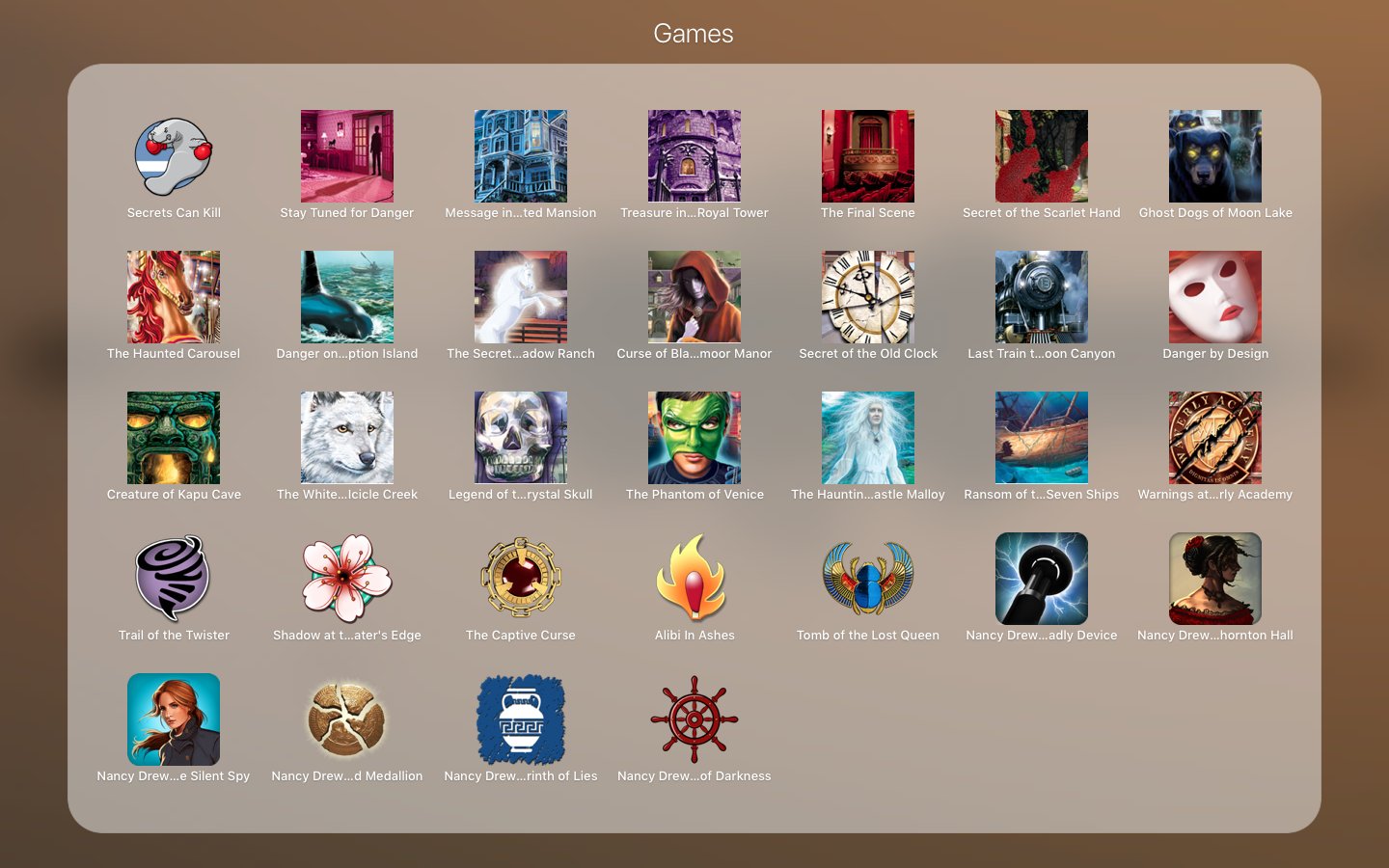
Playing Nancy Drew games on Mac typically requires using a virtual machine, like Parallels, or compatibility software, such as Wine, to run Windows-based game files.
Are you craving a bit of mystery solving? Maybe you’re eager to dive into a classic Nancy Drew adventure? Many fans wonder how to play Nancy Drew games on mac, since these titles mostly release for Windows. This can seem tricky, but don’t worry, there are accessible options to get your detective on.
These solutions include running Windows via a virtual machine or using compatibility layers. They both allow your Mac to run those crucial Windows game files. This opens the door to countless hours of puzzle-solving fun.

How to Play Nancy Drew Games on Mac
Nancy Drew games are super fun mysteries, and lots of people love solving them! But, sometimes it can be tricky to play them on a Mac computer. Don’t worry, though! This guide will show you all the ways you can play your favorite Nancy Drew adventures on your Mac, even if they’re older games. We’ll cover different methods, from using special programs to finding new places to buy them. Let’s get started on your detective journey!
Understanding Compatibility: Why Some Games Don’t Work Directly
First, it’s important to know why some Nancy Drew games don’t work automatically on Macs. Many of the older games were made for Windows computers. That means they use a different kind of code that Macs don’t understand right away. Think of it like this: Windows speaks one language, and Macs speak another! The good news is there are ways to translate that language so you can still play. New Nancy Drew games are often designed to work on Macs but older games require a bit more effort.
Option 1: Using a Virtual Machine
One popular way to play older Windows games on your Mac is by using a virtual machine. A virtual machine lets you run Windows inside your Mac. It’s like having a tiny Windows computer living in your Mac! You’ll need a program like Parallels Desktop or VMware Fusion to do this. Here’s how it works:
Setting up a Virtual Machine
- Choose a Virtual Machine Program: Parallels Desktop and VMware Fusion are both good options, but they cost money. There are also free choices, like VirtualBox, but they can be a bit more tricky to set up.
- Install Windows: Once you have the program, you’ll need to install Windows inside it. You will need a Windows product key for this. You can purchase a Windows product key separately.
- Install the Nancy Drew Game: After Windows is set up inside your virtual machine, you can install your Nancy Drew game like you would on a regular Windows computer.
- Playing your game Now that everything has been installed and set up, you will be able to play your Nancy Drew games on your Mac using the virtual machine program.
Things to keep in mind:
- Virtual machines use your computer’s resources like memory and storage. So, if your Mac is older, the game might run a little slower.
- You’ll need a Windows license to install Windows on the virtual machine, which costs extra.
- Setting up a virtual machine can take a little bit of time, but it’s worth it for games that you love!
Pros and Cons of Using a Virtual Machine
| Pros | Cons |
|---|---|
| Runs older Windows games almost like a real PC. | Can be a little pricey because of the software purchase. |
| Good for games that don’t work any other way on Mac. | Can slow down your Mac, especially older models. |
| Allows you to use other Windows only applications | Requires extra storage space for Windows and game files. |
Option 2: Using Boot Camp Assistant
Boot Camp Assistant is a tool that comes with your Mac. It lets you install Windows directly onto a separate part of your Mac’s hard drive. This means when you restart your computer, you can choose whether to start up in Mac mode or Windows mode.
Steps for using Boot Camp
- Open Boot Camp Assistant: You can find it by searching in Spotlight (the little magnifying glass icon at the top right of your screen).
- Create a Windows Partition: Boot Camp will guide you to make space on your hard drive for Windows. This is like creating a separate room in your house.
- Install Windows: Just like with a virtual machine, you’ll need a Windows installation disc or a USB drive with Windows, and a product key.
- Switch between operating systems when you are starting up your mac, you can choose between the operating systems that you want to use.
- Install your Game: After you’ve installed windows, you can simply install your Nancy Drew game.
Things to keep in mind:
- Boot Camp is free, as it’s already on your Mac. But remember, you still need a Windows license.
- You have to restart your computer to switch between Mac and Windows.
- Your game will run a bit faster because Windows is running directly on your computer, not inside a program.
Pros and Cons of Using Boot Camp
| Pros | Cons |
|---|---|
| Games usually run faster than with a virtual machine. | You have to restart your Mac to switch between operating systems. |
| The program is free as it is already on your Mac. | Requires a Windows license, which costs money. |
| Makes use of full computer power for game. | Dividing a hard drive may seem complicated for some. |
Option 3: Using Crossover
Crossover is another program that allows you to play Windows games on your Mac, but it works a bit differently from virtual machines and Boot Camp. It’s like a translator that helps Windows games understand your Mac without actually installing Windows. It might be a good choice if you find virtual machines or Boot Camp a bit complicated.
How to Use Crossover
- Purchase or Download Trial: Crossover is a paid software, but you can often find a trial version to test if the game works on it first before buying.
- Install Crossover: Download and install the program on your Mac.
- Install Your Game: Instead of installing Windows, you choose to install your Nancy Drew game directly through Crossover. Crossover will then create a “bottle” which allows the game to run on the Mac.
- Play the Game: After installing, you can play your game as you normally would.
Things to keep in mind:
- Crossover is easier to set up than a virtual machine and you don’t have to deal with partitioning your hard drive like Boot Camp.
- It’s not guaranteed that every single Windows game will work perfectly with Crossover.
- It also costs money, just like the virtual machine programs.
Pros and Cons of Using Crossover
| Pros | Cons |
|---|---|
| Easier to set up than virtual machines and Boot Camp. | Not all games will work perfectly. |
| No need to install Windows on your computer. | Also requires purchase of a program. |
| May be faster than virtual machines. | Some games may have glitches or not launch |
Option 4: Finding Mac-Compatible Versions
Some newer Nancy Drew games are made to work directly on Macs without any extra programs. Here are places to check to see if you can find Mac versions:
Where to Look for Mac-Friendly Games
- Steam: Steam is a big online store for computer games. Search for “Nancy Drew” there, and you will be able to see if any of the games are available for Mac.
- The Her Interactive Website: The company that makes Nancy Drew games, Her Interactive, might have downloadable Mac versions on their website.
- The Mac App Store: Apple has an app store for Macs. You can search there for Mac versions of Nancy Drew games.
- Other Digital Retailers: Check other online places that sell computer games, some may have Mac versions.
Things to keep in mind:
- Newer games are more likely to have Mac versions.
- Older games that were originally for Windows may not be available.
- Check to make sure the game is actually for Mac before buying! Look for the apple logo.
Troubleshooting Common Issues
Sometimes, even with these methods, you might run into problems. Here are some typical problems and tips to fix them:
Common Problems and Fixes
- Game Doesn’t Start: Make sure you’ve installed the game in the right place. Double-check the system requirements on the packaging or digital store page to make sure your computer meets the minimum specifications needed. Sometimes closing the virtual machine or Crossover, and then restarting, can fix a problem.
- Game is too Slow: If your Mac isn’t very powerful, try closing other programs while playing. Try turning the graphics quality down in the game’s settings. If using a virtual machine, allocate more memory to the virtual machine if you can.
- Graphics look weird or Glitchy: Make sure your graphics drivers are up to date. In Boot Camp, Crossover, or Virtual Machines, there should be options to update your graphics drivers.
- Game Freezes or Crashes: Try restarting your computer. Sometimes the game files may have corrupted. Consider reinstalling if other tips do not solve. Also check the forums for any tips that other users may have to solve.
Remember that you can always search online for specific help with your game, someone may have already experienced your problem and found a solution.
Playing Nancy Drew games on a Mac might seem tricky at first, but with these methods, you’ll be able to dive into all your favorite mysteries. Whether you choose to use a virtual machine, Boot Camp, Crossover, or purchase a Mac compatible version, there are now several paths you can take to get your sleuthing started.
How to play PC games on mac! (Wineskin) ( 2 disc) (Nancy Drew Games)
Final Thoughts
Playing Nancy Drew games on Mac involves using either virtualization software, like Parallels, or a compatibility layer such as Wine. These methods allow you to run Windows-based games effectively. Make sure you have purchased the game.
You must install the chosen software and configure it correctly, following instructions specific to the program. After setting up, install your Nancy Drew games as you normally would within the emulated Windows environment.
Enjoy your favorite Nancy Drew mysteries! This is how to play Nancy Drew games on Mac.

