
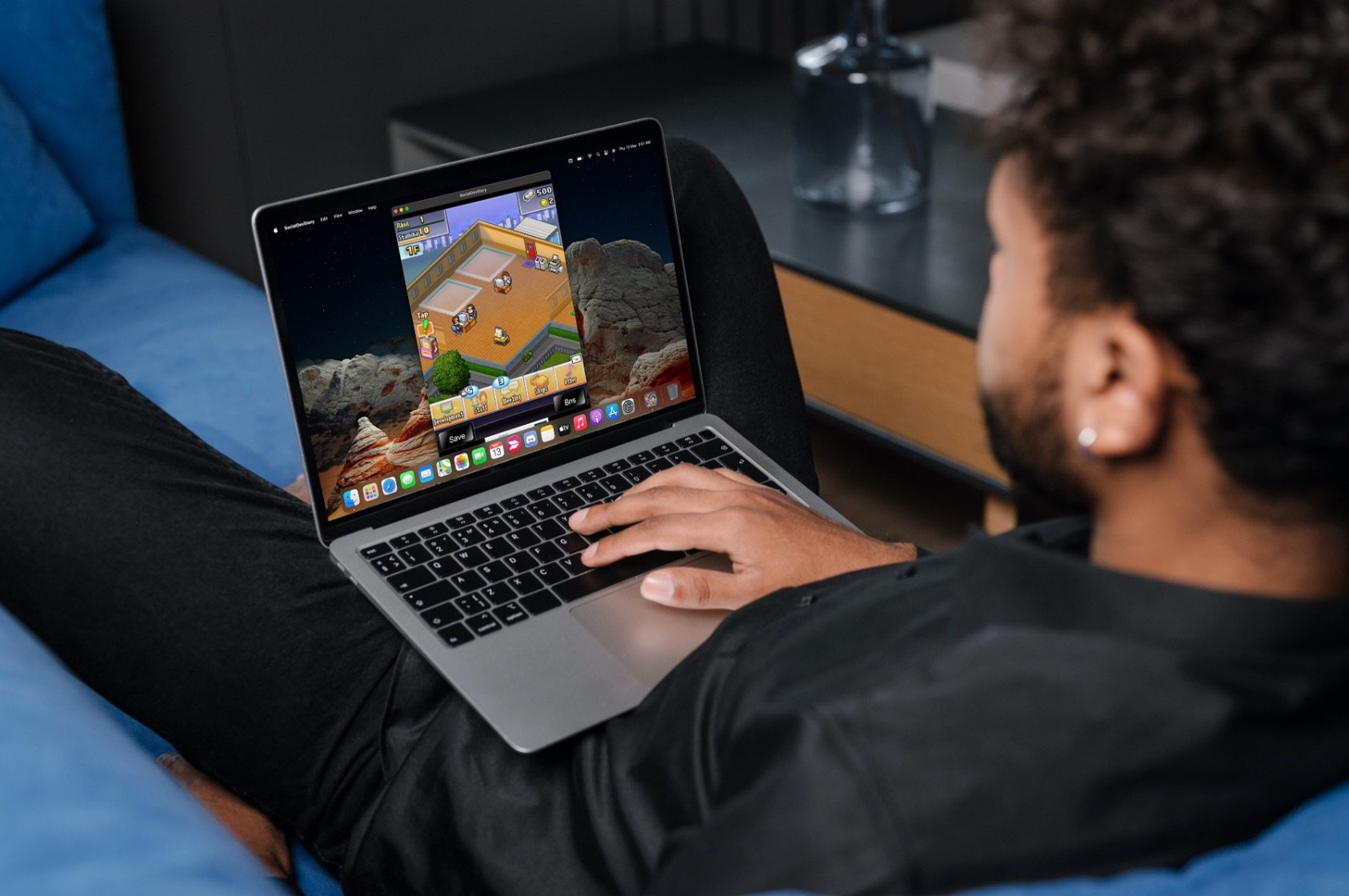
You can play phone games on Mac by using an Android emulator or screen mirroring software.
Ever wished you could enjoy your favorite mobile games on a bigger screen? It’s quite common to want to play on your Mac. The question of how to play phone games on mac has an easy answer. Several options exist that allow you to bring the phone gaming experience to your computer. You can use tools designed specifically for this.
These applications let you emulate the Android environment, so you can install and play games directly on your Mac. Screen mirroring is another option, which displays your phone’s screen on your Mac. Now you don’t have to be stuck on the small phone screen!

How to Play Phone Games on Mac
Ever wished you could play your favorite phone games on a bigger screen? Well, good news! You can actually play those fun mobile games right on your Mac computer. This article is going to show you different ways to do just that. Let’s dive in and explore how to bring your mobile gaming to your Mac.
Why Play Mobile Games on Your Mac?
Playing phone games on your Mac offers some great advantages. First, you get a much larger display. Instead of squinting at a tiny phone screen, you can enjoy the game on your big Mac monitor. This not only makes the game easier to see, but also more enjoyable. Second, you often have better control using a keyboard and mouse or even a game controller. This can be really helpful for games that need quick reactions or precise movements. Third, you can keep your phone free for other tasks while you are gaming. You don’t need to worry about the phone’s battery draining while you are playing the games on your mac. Plus, it’s just a cool way to change how you play your favorite games.
Method 1: Using Emulators
One of the most popular ways to play phone games on your Mac is by using an emulator. An emulator is like a special program that makes your Mac act like a phone. It creates a virtual Android or iOS environment, allowing you to download and play games as if you were on a mobile device. Let’s take a deeper look.
What are Emulators?
Imagine having a little phone inside your Mac. That’s basically what an emulator does. It’s software that simulates the hardware and software of a mobile device. Emulators allow your Mac to run mobile apps and games that were designed for a different platform. This is how we are able to play phone games on Mac. You can see the screen of a virtual phone and interact with the games using your mouse, keyboard, or even a gaming controller.
Popular Android Emulators for Mac
When it comes to Android, you have several solid options. Let’s look at some of the top emulators:
- BlueStacks: This is a very popular emulator known for its ease of use and performance. It offers a clean and simple interface and supports a wide range of Android games. BlueStacks is designed for gamers and has specific tools that help enhance your gaming experience. It’s frequently updated, ensuring it runs smoothly with new apps and games.
- NoxPlayer: NoxPlayer is another great choice if you want to play Android games on your Mac. It is known for its stability and customizable controls. It’s good for users who want to have more control over their gaming experience. It lets you customize keyboard mapping for games and even helps with multitasking with multiple instances.
- LDPlayer: This emulator is built specifically for gaming. LDPlayer runs very smoothly and provides great graphics, so your games look good and run smoothly. It also has its own app store which is really convenient, and it is also free to use.
How to Use an Android Emulator
Using these emulators is fairly similar across the different options. Here is a basic guide:
- Download and Install: Go to the emulator’s website (for example, BlueStacks.com) and download the Mac version. Then follow the installation prompts to set up the software on your computer.
- Set Up Your Account: Once the installation is finished, start the emulator. You’ll likely have to log into your Google account just like you would on a regular Android phone. This will allow you to access the Google Play Store.
- Download Games: Now, just use the Google Play Store inside the emulator to search for and download your favorite mobile games.
- Play: Once you have downloaded your desired games, open and play them. You’ll typically use your mouse or keyboard as touch screen controls. Some emulators also let you map game controls to physical buttons on a controller.
iOS Emulators
Unfortunately, iOS emulators for Mac are not as common or reliable as Android emulators. Apple keeps a very tight control over its software, making it hard to create full-fledged iOS emulators. However, there are some options if you really want to explore iOS games on your Mac.
Options for iOS Games
Some websites and companies offer test environments where you might be able to try out certain iOS games, but they are not true emulators. These options often require subscription or are more for app developers. You will likely not be able to run all the game you desire. These tend to also be more complex and not as user friendly as the common Android emulators. For now, if you are really focused on having full iOS gaming on your Mac, the best bet is likely an alternative method.
Method 2: Screen Mirroring
Another way to play your phone games on a Mac is through screen mirroring. This method duplicates your phone’s screen onto your computer display, and while it does not run the game directly on your Mac, it allows you to play using your phone while seeing it on a bigger screen. Screen mirroring can be a useful option, especially if you have an iOS device. Let’s explore this technique further.
How Screen Mirroring Works
Screen mirroring is like having a live feed of your phone screen on your Mac. Whatever you are doing on your phone is shown on your Mac in real time. To do this, you need to connect your devices, either through a wired or wireless connection. Your Mac essentially becomes a large monitor for your phone and you are still directly controlling the game from your phone, you are just seeing the image on a larger screen.
Mirroring from an iPhone to a Mac Using AirPlay
For iPhone users, AirPlay is one of the simplest ways to mirror their screen. This is a feature built right into Apple devices. Here is a breakdown on how to do it:
- Make Sure Devices are Connected to the Same Wi-Fi: Your iPhone and Mac need to be on the same wireless network. This is how your Mac is able to find the iPhone.
- Open Control Center on iPhone: Swipe down from the top-right corner of your screen (or up from the bottom on older iPhones) to open the Control Center.
- Tap Screen Mirroring: In the Control Center, look for the Screen Mirroring icon. It looks like two overlapping rectangles.
- Select Your Mac: A list of devices should appear. Select your Mac from the options. If prompted, enter the passcode that shows up on your Mac.
- Play Your Game: Your iPhone screen should now be showing on your Mac. Start playing your game on your phone. Your Mac is now like a large monitor for your iPhone game.
Mirroring from an Android Phone to a Mac
Mirroring from an Android phone to a Mac is very similar, but usually requires a third-party app or a built-in option from your phone maker. Here are a couple ways to do that:
- Using Third-Party Apps: You can find applications in the Play Store like ApowerMirror or Vysor that allow screen mirroring between Android devices and computers. Download an app on both your Android and Mac, and follow their connection instructions. The steps will be fairly similar to the Airplay options.
- Built-in Options: Some phone manufacturers, like Samsung, have built in options for screen mirroring. Check in your phone’s quick settings or in the settings under the connections or display. If there is something like “Smart View” this is what you are looking for, and your phone likely has an app that you can download to your mac.
Method 3: Using Cloud Gaming Services
A third option to enjoy phone games on your Mac, though not specifically playing the mobile version, is through cloud gaming. Cloud gaming services let you stream games directly from the internet to your Mac, and while these are usually not the mobile versions of the games, they are often similar enough for those that would like to play the games from larger platforms on their mac. The game runs on a remote server, and you stream the video to your device, making it possible to play high end games on a less powerful computer.
How Cloud Gaming Works
Think of cloud gaming as renting a powerful gaming computer somewhere else and streaming the image to your Mac. You don’t need to download the game because it is played on a server. This means you can play a game on your Mac that usually would not run there, because your Mac is only receiving video from the server and sending your button pushes back to that server.
Popular Cloud Gaming Services
There are a number of great cloud gaming services out there, lets see a few of them:
- Xbox Cloud Gaming (xCloud): If you have an Xbox Game Pass Ultimate subscription, you have access to a wide library of games through your browser on your Mac.
- NVIDIA GeForce Now: GeForce Now allows you to play a number of games you already own on Steam and other digital stores through its streaming service. This means you don’t even need to pay for a copy of a specific game to play it.
- PlayStation Plus Premium: Similar to Xbox, you can access many PlayStation titles through the cloud with a PlayStation Plus Premium membership. This can be a good way to explore PlayStation titles on your Mac.
Playing Mobile-like games through cloud streaming
While these services don’t allow you to play exact versions of your favorite phone games, you might find some of those games or similar ones on those platforms. These platforms often have games that are similar to or were at one point on mobile devices, so while it is not the most direct way to get your mobile games running on your mac, it is a good alternative option.
Tips for a Smooth Gaming Experience
No matter which method you choose, here are some useful tips to make your gaming experience smoother:
- Stable Internet Connection: A good internet connection is vital, especially for cloud gaming and screen mirroring. Make sure your Wi-Fi is strong or that you have a fast wired connection.
- Update Your Software: Keep your Mac’s operating system and any emulator software updated. This helps with speed and is important for security.
- Close Unnecessary Programs: Programs running in the background can slow down your gaming experience. Close applications you are not using.
- Customize Controls: Take some time to adjust your keyboard or game controller mapping in emulators for comfortable gaming.
- Check Compatibility: Some apps or games may not work well with certain emulators, so it’s a good idea to do some checking beforehand.
Playing phone games on your Mac is certainly possible, with options from emulators that act like a phone, to screen mirroring your actual phone, and even using cloud services. Each method has its pros and cons, but with a little effort you can find a way to enjoy your favorite mobile games on a larger screen. So, pick your approach, gather your gear, and get ready to game!
Play iPhone Games on Mac!!! Working [2020]
Final Thoughts
Playing phone games on Mac is possible using emulators like BlueStacks or the built-in screen mirroring feature. These methods allow you to enjoy your favorite mobile titles on a bigger display. You can also use mirroring apps for some gaming experiences.
Emulators provide a virtual Android environment, enabling direct game installation. Screen mirroring simply displays your phone’s screen on your Mac. The best option depends on individual preferences. Now you know how to play phone games on mac effectively.

