
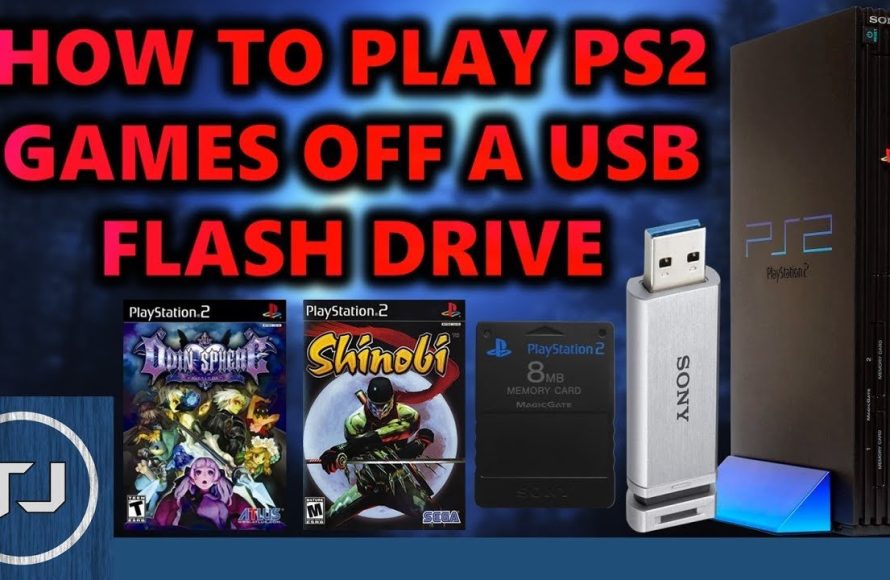
To play PS2 games, you’ll need a functional PlayStation 2 console, compatible PS2 game discs, a controller, and a television with appropriate connections.
Dust off that old console! Many people still wonder how to play PS2 games, and it’s easier than you might think. The process is fairly straightforward and a great way to relive those classic gaming moments.
You just need to gather the correct hardware and have everything connected properly. With the right setup, you’ll be back in your favorite virtual worlds in no time, remembering the joy of that era. So let’s get started on how to play PS2 games.

How to Play PS2 Games: A Comprehensive Guide
So, you’re itching to dive back into the world of classic PlayStation 2 games, huh? That’s fantastic! The PS2 holds a special place in many gamers’ hearts, and for good reason. From epic adventures to unforgettable characters, the console boasts a library that’s truly impressive. But, how exactly do you get those old games up and running again? Don’t worry; we’re here to guide you through everything you need to know. Whether you have an original console or are exploring other options, we’ve got you covered.
Playing on an Original PlayStation 2 Console
The most authentic way to experience PS2 games is, of course, on the actual console. This might seem straightforward, but there are a few things to keep in mind.
Setting Up Your PS2
First things first, you need a working PS2. Here’s a quick rundown of what you’ll need:
- The PlayStation 2 console: Make sure it’s in good working order. Check the power light, the disc drive, and all the ports.
- Power cord: To plug the console into the wall.
- AV cables: These connect the console to your TV. PS2s typically use composite (the red, white, and yellow cables) or component (red, green, and blue for video, plus red and white for audio) cables.
- A controller: You need a PS2 controller, either wired or wireless, to play the games.
- PS2 game discs: The actual games you want to play. Make sure they are clean and in good condition to avoid reading errors.
Once you have these, here’s how to set it up:
- Plug the power cord into the back of the PS2 and then into a wall outlet.
- Connect the AV cables to the AV OUT port on the back of the PS2 and then to the appropriate input on your TV (usually labeled as “AV,” “Video,” or “Component”).
- Plug your controller into one of the controller ports on the front of the console.
- Turn on your TV and select the correct input.
- Press the power button on the PS2 to turn it on.
Troubleshooting Common PS2 Issues
Sometimes things don’t go as planned. Here are a few common problems and some solutions:
- No power: Make sure the power cord is securely connected and that the wall outlet is working. Try a different power cord if you have one available.
- No video signal: Double-check the AV cables are connected correctly to both the PS2 and the TV. Try a different set of AV cables or a different input on your TV.
- Disc read error: Clean the game disc with a soft cloth. If that doesn’t work, the laser might be faulty and require repair.
- Controller issues: Check the controller cable for any damage. Try a different controller to see if the problem is with the controller itself. Also make sure the ports are working fine by checking another controller.
Playing PS2 Games on a Computer: Emulation
If you don’t have an original PS2 or just prefer playing on your computer, emulation is a fantastic option. Emulators are programs that allow your computer to act like a PS2, letting you play the games on a different device. The process can be a bit more technical, but it’s very rewarding. For this, we recommend pcsx2.
Understanding PS2 Emulation
Emulation involves using software that mimics the hardware of a PS2. This software makes the games believe they are running on an actual console, allowing you to play them on your computer. The experience can be nearly identical to playing on a real PS2, often with improved graphics and performance.
Finding the Right Emulator
There are many emulators out there, but one of the most popular and reliable for PS2 games is PCSX2. It’s free, open-source, and constantly being updated, providing great compatibility. You can search “PCSX2” on the internet to go to their official download page to get it.
Downloading and Installing PCSX2
Here’s a simple guide on how to get PCSX2 up and running:
- Download: Visit the official PCSX2 website and download the latest version for your operating system (Windows, macOS, or Linux).
- Installation: Run the installer and follow the instructions. It’s generally straightforward, but be sure to read each step carefully.
- BIOS files: You need PS2 BIOS files to run the emulator. These files are the PS2’s system software, and you’ll need to source these yourself. (Note: Sharing or downloading copyrighted BIOS files is illegal. You must legally acquire these.) Usually, these are zip files. Just extract them into the bios folder inside of the PCSX2 installed directory.
Configuring PCSX2
After installation, you need to configure PCSX2 for optimal performance:
- Graphics settings: Go into “Settings” and then “Graphics”. Here, choose the renderer that works best for your computer (usually “Direct3D 11 (Hardware)” or “OpenGL (Hardware)” for Windows). Adjust the resolution and other settings to match your monitor and computer’s power. Start with the default settings first to check that the emulation is running smoothly. If it does, then you can experiment with resolution and rendering to make the game look even better.
- Controller settings: Go into “Settings” and then “Controllers” (or “PAD”). Here, you can map your keyboard or a gamepad to the PS2 controls. Using a gamepad will be the most comfortable, and it is mostly plug-and-play if you have a standard gamepad or controller.
- Path settings: Go to “Settings” and then “BIOS”. Here, select the directory where you kept your extracted bios files, and it should find it automatically. And then go to settings again and select “CDVD (Iso)”, and then select the path to your game files as well.
Playing Games with PCSX2
Once everything is set up, playing games is easy:
- Insert or mount your PS2 game: If you have the original PS2 game disc, you can insert it into your computer’s disc drive (if your computer has one). Alternatively, you can use a “ISO” file that contains the data of the game from the PS2 disc, which should be in “.iso” or “.bin” file extensions.
- Load the game: In PCSX2, go to “CDVD” and select “ISO Selector,” then choose the game file you wish to play or select “Plugin” to load from your disc drive. Alternatively, you can select “Boot ISO” and select the file directly in the file browser that will pop up.
- Enjoy your game! The game should start just like it would on a real PS2.
Improving Performance and Graphics
If your game is running poorly or not looking its best, try these steps:
- Adjust graphics settings: Experiment with different graphics plugins and settings. Lowering the resolution or certain graphics effects can help improve performance on less powerful computers.
- Upgrade hardware: If possible, consider upgrading your computer’s graphics card, processor, or RAM. A more powerful computer will generally give better performance.
- Check settings: Make sure the emulator settings are optimized, for example you might want to play around with the skip rendering to optimize the graphics for your machine.
Obtaining PS2 Games
Getting your hands on PS2 games is a key part of the experience, and there are several ways to do so. Make sure to respect intellectual property laws and purchase games legally.
Buying Physical Copies
The most traditional approach is to buy physical copies of PS2 games. Here’s where you can look:
- Used game stores: Local game stores often carry used PS2 games at reasonable prices.
- Online marketplaces: Websites like eBay, Amazon, and Facebook Marketplace can be great places to find used PS2 games.
- Pawn shops: Pawn shops can sometimes have hidden gems at lower prices.
Purchasing Digital Games (Where Available)
While the PS2 itself doesn’t support digital downloads, some PS2 games have been re-released on other platforms like the PlayStation Network, PlayStation Store or other stores. Check online stores for your consoles to see if some of your favorite games are available on current gen consoles. These often come with improved graphics and features, but they might not be the exact same as the original PS2 experience.
Using ISOs
An ISO is a digital file that is an exact copy of a disc. You may be able to purchase a game online that comes in this format, which you can then play on an emulator. Remember, you should only use ISO files if you have legally purchased the game. Downloading ISOs of games you haven’t bought is piracy, and it’s illegal.
Tips and Tricks for a Better Gaming Experience
Here are some extra tips to make your PS2 gaming experience even better, whether on the original console or through emulation:
Organizing Your Games
Keep your game collection organized, whether it’s physical copies or digital files. This makes it much easier to find what you want to play:
- Use storage: Store physical game discs in cases, and group them by genre or title.
- Organize folders: Organize your computer folders for ISO files by titles, genres, or developers for easy access.
Using Cheat Codes
Many PS2 games have cheat codes that can change the gameplay or add extra content. You can find these codes online through websites. Please make sure you are getting the right cheat codes for the right game, so you won’t make your game unplayable. Also, make sure that the cheat codes you are using are not malicious ones, to protect your console.
Finding Game Guides and Walkthroughs
If you ever get stuck in a game or want to explore all of its secrets, you can always check online guides and walkthroughs on websites like IGN, GameFAQs, or YouTube. These resources can greatly improve your gameplay experience and help you conquer those challenging levels.
Exploring Hidden Gems
Don’t just stick to the well-known PS2 hits. Some truly amazing games have flown under the radar. Venture out of your comfort zone to explore a wide range of titles. These obscure games often provide unique and memorable gaming experiences that are very rewarding.
Taking Care of Your Console and Games
If you’re using an original PS2, it’s important to maintain it to ensure it lasts. Always handle discs with care, store your console in a cool and dry place, and clean it when needed. For emulators, regular updates and proper system maintenance will help keep everything running well. Always treat your games and consoles with care, so that it doesn’t break easily, and so that you can continue to play them in the future.
Playing PS2 games is a wonderful way to revisit the past or enjoy these games for the first time. Whether you use the original console or an emulator, the fun and adventure these games provide are always rewarding. By following the steps outlined above and by continuing your own journey of exploration of the PS2 gaming world, you will enjoy countless hours of fun and excitement!
How to Play PlayStation 2 Games on PC | PCSX2 | Ultimate PS2 Emulator for PC | PCSX2 Setup (2024)
Final Thoughts
To play PS2 games, you need either the original console or an emulator on a computer. Obtaining game discs or ISO files is also necessary. Ensure your system meets emulator requirements for smooth gameplay.
You can then use controllers, either the original PlayStation ones or compatible alternatives. Setting up the emulator requires some initial configuration. Following online guides helps with this.
So these are basic steps for how to play PS2 games. Remember to obtain games legally. Enjoy your retro gaming journey!

