
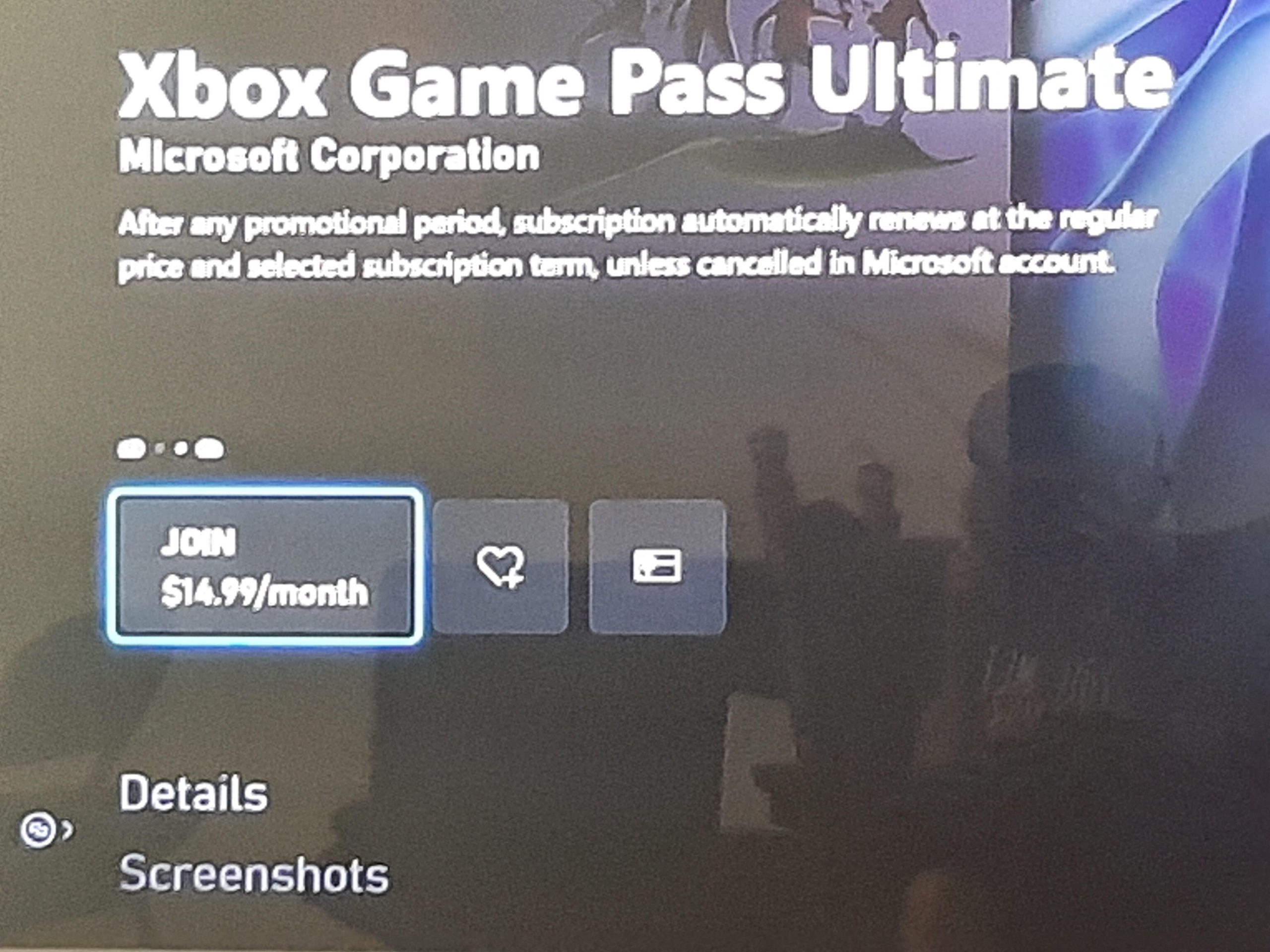
To redeem a 3-month Xbox Game Pass, you typically enter the provided code on your Xbox console, the Xbox app, or through the Microsoft website.
Want to jump into a world of gaming without a hefty price tag? Many gamers often ask how to redeem 3 month xbox game pass and it is a common question. Securing your free trial or purchased subscription doesn’t need to be difficult. This guide will provide you a quick way to start your gaming adventure.

How to Redeem 3 Month Xbox Game Pass
Getting your hands on a 3-month Xbox Game Pass is like opening a treasure chest full of fun games! But, sometimes, figuring out how to actually redeem it can feel a little tricky. Don’t worry, it’s not as complicated as it seems. We’re going to walk through the whole process step-by-step, making it super easy for you to start playing your favorite games. Whether you received a digital code or bought a physical card, we’ve got you covered. Let’s dive in and get that Game Pass activated!
Understanding Your Xbox Game Pass Code
Before we jump into redeeming, let’s talk about what your code might look like. You’ll usually get it in one of two ways:
- Digital Code: If you bought the Game Pass online, or won it in a contest, you’ll likely receive a digital code. This code is often sent to your email address or appears on the purchase confirmation page. It usually contains 25 characters, mixing letters and numbers. Think of it as a special key that opens the door to your Game Pass.
- Physical Card: Sometimes you get a physical card with the code printed on the back. You might find these in stores or as part of a bundle deal. You’ll need to carefully scratch off the silver covering to reveal your 25-character code.
The code is precious; don’t share it with anyone you don’t want to have access to your Game Pass. Once someone uses it, it won’t work for anyone else.
Where Did You Get Your Code?
Knowing where you got your code is important. Some codes are specific to certain regions. For example, a code bought in the United States might not work in the United Kingdom. Always check the fine print to make sure it matches your location.
Also, be sure that you’re using a code that’s specifically for a “3 Month Xbox Game Pass” and not some other kind of subscription or a trial code. The instructions below are geared toward redeeming the 3-month version of the pass.
Redeeming Your Code on an Xbox Console
If you have an Xbox One or Xbox Series X|S, redeeming your code is simple. Here’s how:
Step-by-Step Guide
- Turn on your Xbox: First things first, power up your console and sign in to your Xbox account. This is the account you want to add the Game Pass to.
- Press the Xbox Button: On your controller, press the big Xbox button in the center. This will bring up the guide menu.
- Navigate to the Store: Using the directional pad or the left stick, move over to the “Store” tab. It usually looks like a shopping bag.
- Select “Redeem”: In the Store menu, look for “Redeem a code.” It’s often on the bottom of the list or under a “More” option. Choose it.
- Enter the Code: Now, type in your 25-character code carefully. Use the on-screen keyboard. Double-check to make sure you’ve entered everything correctly. Typos are easy to make and can cause an error!
- Confirm: After entering the code, your Xbox will ask you to confirm that you want to redeem it. Read the details carefully (especially if it’s not a 3-month code, for any reason) and then choose “Confirm.”
- Enjoy your Game Pass: That’s it! Your 3-month Game Pass is now activated. You can now go to the Game Pass library and start downloading games. You’ll find hundreds of titles to play!
Troubleshooting Common Xbox Redemption Problems
Sometimes, things don’t go perfectly. Here are some common issues and how to fix them:
- Invalid Code: If you get an “invalid code” error, double-check that you entered it correctly, ensuring there are no mistakes in typing the characters. If it still doesn’t work, the code might already have been used, it might be the wrong region, or it might have expired. Contact the seller or Microsoft support if you’re sure you’ve done everything right.
- Already Redeemed: This means the code has been used on another account. If you haven’t used it before, check with anyone who might have access to your account to see if they redeemed it for you. If you still can’t figure it out, you may need to contact Microsoft support.
- Account Region Mismatch: As noted before, sometimes codes are region-locked. If the region of your code doesn’t match the region of your account, the code might not be able to redeem and it may give you an error message, saying the same. Check the region of your account through your account settings. You may need to purchase a code in your specific region.
- Network Issues: A bad internet connection can sometimes cause problems. Make sure your Xbox is connected to the internet and working. If not, reboot your router or try connecting via an Ethernet cable.
If you’re still facing problems after checking all of these, Microsoft Support has helpful resources and people who can assist you. You can visit the Xbox support website for any further information.
Redeeming Your Code on a PC Through the Xbox App
You can also redeem your 3-month Xbox Game Pass code using the Xbox app on your PC. This is handy if you prefer using your computer to manage your account, or if you play most games on PC.
Step-by-Step Guide
- Install the Xbox App: If you don’t already have it, download and install the Xbox app from the Microsoft Store.
- Sign in: Open the Xbox app and sign in with your Microsoft account. Make sure it’s the same account you use for Xbox.
- Click on Profile: Look for your profile icon in the top left corner and click on it.
- Select “Redeem Code”: In the dropdown menu, you should see an option to “Redeem Code”. Click on that.
- Enter Your Code: A new window will appear where you can enter your 25-character code. Type it in very carefully.
- Confirm: After entering the code, click “Next” and follow the instructions to confirm the redemption.
- Start Playing: Once activated, your 3-month Game Pass is ready. You can now access the Game Pass library and start downloading games to your PC.
Troubleshooting PC Redemption Issues
Redeeming on PC is usually straightforward, but here are some issues you might run into and how to resolve them:
- App Not Working: Make sure your Xbox app is up to date. Outdated apps can have problems and may not work correctly. Check for updates in the Microsoft Store. Restarting your PC might help to fix minor glitches.
- Code Errors: The same errors that can happen on the Xbox console might appear on PC. Ensure that you have entered the code properly, and if the code is not correct, check with the seller or Microsoft Support. Always check if you are having network issues.
- PC Doesn’t Meet System Requirements: For some Game Pass games, your PC may need to meet specific system requirements. If you are facing issues, make sure your PC meets the minimum requirements to run a game.
Redeeming Your Code Online Through a Web Browser
You can also redeem your code through your web browser. This is helpful when you want to activate your Game Pass quickly on another device when you don’t have your PC or Xbox available, and you want to redeem your code right away.
Step-by-Step Guide
- Go to the Microsoft Redeem Website: Open your web browser and go to the official Microsoft redeem page. You can search for “Microsoft redeem” on your preferred search engine. The page looks like redeem.microsoft.com.
- Sign In to Your Microsoft Account: Sign in to the Microsoft account you want to use your Game Pass with. If you’re already logged in, you can skip this step.
- Enter the Code: You’ll see a box to enter your 25-character code. Type it in with care.
- Confirm Redemption: Confirm that you want to redeem your 3-month Game Pass and that you have entered the code correctly.
- Start Playing: After redeeming, your Xbox account will now have the Game Pass. You can start to use the service, whether it’s on your console, PC, or mobile devices.
Potential Web Browser Redemption Issues
Just like on other devices, sometimes you might have issues when you try to redeem your Game Pass through a web browser. Here are a few common ones and their fixes:
- Website Problems: If the website won’t load, make sure you have a stable internet connection. Check that the website is not down or under maintenance. You can try again after a couple of minutes, if it was having technical difficulties.
- Login Issues: Ensure you are using the correct Microsoft Account. You may need to reset your password if you have forgotten your password. If that doesn’t work, try logging out and then back in again.
- Code Errors: If there are errors in your code, always verify that you have entered the code correctly. If the code is correct and still not working, the code may be invalid, have already been used, or from the wrong region. Contact the seller or Microsoft Support.
Important Things to Keep in Mind
Before you jump into your new games, there are some key points you should be aware of.
Auto-Renewal
By default, most Game Pass subscriptions are set to automatically renew. If you do not want to be charged automatically after your 3-month period, turn off auto-renewal. You can do this in your Microsoft account settings, through the Xbox app, or from your console. Be sure to do this before the end of your subscription, so you are not unexpectedly charged. You can find the option in the “Subscriptions” part of your account settings. Remember, if you have recurring billing off, you may not be able to redeem another subscription on your account for a short while.
Game Availability
The games on Game Pass change over time. Some games may be added, while others might leave the service. If a game you are playing leaves the service, you might need to buy the game separately if you want to continue playing it. Always check the list to see if any games are getting removed in the near future.
Account Region
Always make sure that the region of your Xbox account matches the region of your code. If you live in Canada, make sure that you are purchasing the code that is meant for Canada, not from another region. If your account’s region doesn’t match your code’s region, you may experience errors during redemption, or the code might not be able to redeem.
Family Sharing
You can share your Game Pass with other members of your family, but this is limited by the console and account you use. Check the Family Sharing settings on your account to manage who has access to your Game Pass. Game sharing depends on the console or account settings you use.
Multiple Redemptions
It’s important to note that sometimes, there are limits to how often you can redeem Game Pass codes on the same account, although it isn’t common, you might experience issues redeeming a code, if you already had an active Game Pass before. If you have issues redeeming multiple codes, wait for your subscription to expire, or try to redeem the code on a different account.
Now you are fully prepared to redeem your 3-month Xbox Game Pass and start playing all of the different games on the Game Pass library. Enjoy the adventure!
How to Redeem Xbox Game Pass Codes on Xbox Series X|S
Final Thoughts
Redeeming your 3 month Xbox Game Pass is straightforward. You usually receive a code via email or on a physical card.
Navigate to the Xbox website or your console’s store. Enter the provided code in the designated redemption area. This activates your subscription.
Now, with your subscription active, how to redeem 3 month xbox game pass is complete and ready. Start enjoying numerous games today!

