
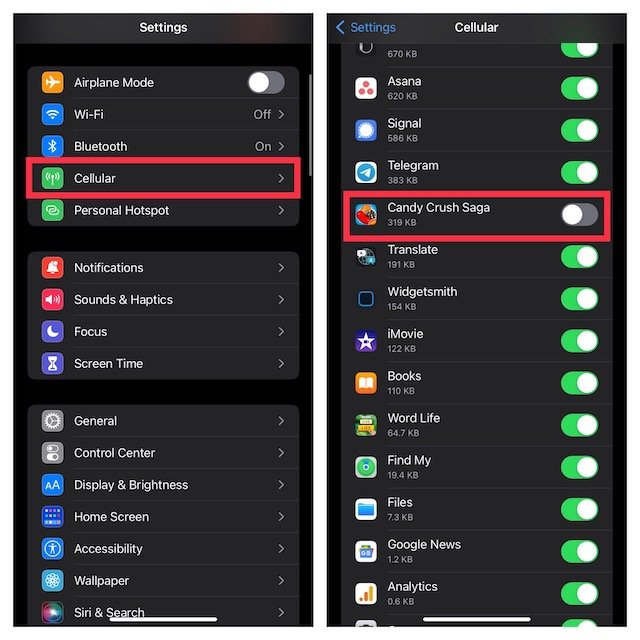
Turning off personalized ads in your iPhone settings or using a paid version of the game can help you stop ads in games on iPhone.
Annoying ads popping up during your favorite iPhone game can ruin the fun. We’ve all been there, right? Interruptions during intense gameplay are definitely frustrating. Thankfully, there are ways to fix this issue. Let’s explore how to stop ads in games on iPhone and reclaim your gaming experience.
We will guide you through simple steps to minimize these interruptions. You can get back to enjoying your games without constant ad breaks. It is a quick process, and we will show you how.

How to Stop Ads in Games on iPhone
Okay, let’s face it. Those pesky ads popping up in your favorite iPhone games can be super annoying. You’re about to beat that high score, and bam! An ad for another game crashes your fun. Nobody likes that! Luckily, there are ways to reduce or even completely get rid of those interruptions. This guide will walk you through several methods you can use to enjoy your games without the constant ad breaks.
Understanding Why Ads Appear
Before we jump into how to stop ads, let’s briefly understand why they are there in the first place. Many games are free to download and play. The developers need to make money somehow, and ads are a common way they do this. They show us ads, and when we click on them (or sometimes even just see them), the developers get a little money. Think of it like a trade-off: you get a free game, and in return, you see some ads. However, this doesn’t mean we have to accept them without trying to do something about it.
Turning Off Personalized Ads
One of the first things you can do is limit how much Apple tracks what you do. This won’t stop all ads, but it can reduce the number of personalized ones. Personalized ads are those that are specifically chosen for you based on what you’ve looked at on your phone. By turning this off, you might see more generic ads, but some say they see fewer overall.
How to Disable Personalized Ads
Here’s how you do it:
- Open the Settings app on your iPhone.
- Scroll down and tap on Privacy & Security.
- Tap on Apple Advertising.
- Turn off the switch next to Personalized Ads. It’ll go from green to gray.
This change might not make ads disappear completely in games, but it’s a good first step, especially if you’re not comfortable with companies using your activity to target you.
Using Airplane Mode
This is one of the easiest and quickest solutions for many offline games. Airplane mode cuts off your iPhone’s access to the internet, which prevents ads from being downloaded and shown. Now, this method only works for games that don’t need an internet connection to play. If a game needs Wi-Fi to load, or it has online multiplayer, airplane mode won’t work so well for you.
How to Enable Airplane Mode
It’s super easy to turn on airplane mode:
- Open the Control Center by swiping down from the top-right corner of your screen (or up from the bottom on older iPhones).
- Tap the airplane icon. When it turns orange, airplane mode is turned on.
Now your Wi-Fi and cellular data are turned off. This may not help for every game, but try it and see if it reduces ads. Don’t forget to turn Airplane Mode off when you want to use the internet again!
Paying to Remove Ads
Many game developers offer a way to permanently get rid of ads by making a one-time purchase. This is often called “ad-free” mode or something similar. Look for a button or option in the game’s menu (often in settings) that offers this option. It could be labelled as ‘Remove Ads’ or ‘Upgrade to Premium’. This is usually the most sure-fire way to remove ads. It might cost a few dollars, but it’s a one-time payment and can make playing the game a much better experience.
Finding the Remove Ads Option
- Open the game where you want to get rid of ads.
- Look around the main menu, settings, or options screen.
- Search for things like ‘Remove Ads,’ ‘Ad-Free Version,’ ‘Premium Upgrade’ or similar text.
- Follow the prompts to make the purchase.
Always make sure the purchase is offered directly from the game itself, and that the purchase is from an official source. Don’t purchase anything from third party website. If you are unsure, ask an adult for help.
Using a VPN with Ad-Blocking Features
A VPN, or Virtual Private Network, can do much more than just keep your internet activity private. Some VPN apps come with built-in ad blockers. This means that when you turn on the VPN, the app attempts to filter out ads before they get to your device. There are a number of VPN services available, and they sometimes have ad blocking, so try searching for one that suits you.
How to Use a VPN with Ad Blocking
Here are some tips to help you:
- Find a VPN app that specifically mentions ad blocking.
- Install the app from the App Store and set it up by following the app’s prompts.
- Turn on the VPN connection before you start playing your games.
Keep in mind that free VPNs might have limitations or may not be as effective at blocking ads. It’s better to choose a reliable VPN with solid user reviews.
Using Content Blockers
Content blockers are apps you can install on your iPhone that are specifically designed to block things like ads, trackers, and pop-ups. They work in Safari, and some may also work within apps, but they vary in their capabilities. These apps can be downloaded from the App Store and have an effect on the ads you see. Many are available and come with different features, with some specializing in specific things like blocking advertising.
How to Set Up a Content Blocker
- Go to the App Store and search for a content blocker app. Look for one with good reviews.
- Download and install the app.
- Go to Settings, then select Safari.
- Tap on Extensions.
- Switch on your newly installed content blocker app.
Once activated, these apps work quietly in the background, doing their best to keep intrusive ads away from you. It is recommended that you look into the details of the app to check whether it works in-app, and not just for web pages on Safari.
Adjusting Game Settings (Where Available)
Some games actually include options to change the way ads appear, or let you earn rewards through watching ads instead of always having them interrupt your game. While these options don’t always remove ads completely, they can help reduce the annoyance or give you some control over them.
Look for Ad Settings In the Game
- Open the game you want to adjust.
- Navigate through the menu system and look for a settings or options button.
- Look for an option to change ad settings. Sometimes this might be called ‘rewards’ or similar.
- If available, try turning ads off or changing how they appear (sometimes you can choose to only watch them for rewards).
Unfortunately, not all games offer ad options in this way, but it’s always worth checking to see if they’re available.
Contacting the Game Developer
If ads are a big problem, and you’ve exhausted all other options, it might be helpful to contact the game developer directly. You can usually do this from within the game settings, or by going to the App Store and finding the game’s information and developer details. Explain your issue politely, and they might have a solution. They may not always be able to help directly, but by giving them feedback it helps the developer improve their game and listen to players’ needs.
How to Contact the Developer
- Open the game where you are having problems with ads.
- Look for the in-app support or ‘contact us’ option.
- If no option is available, go to the App Store, find the game, and look for the developer’s contact details.
- Prepare your message politely explaining your situation, and ask for a solution.
Remember, game developers are usually keen to keep their users happy, so they will want to help if they can.
Using a Private DNS server for Ad-Blocking
This method is a bit more technical, but it can be very effective at blocking ads across your entire device, not just in games. A DNS server is like a phonebook for the internet. When you enter a website, your computer consults a DNS server to find the website’s address. Some specialized DNS servers are designed to filter out ads.
How to Setup Private DNS
Here are the steps involved:
- Find a reputable DNS server that offers ad-blocking. There are many of these available online.
- Go to Settings on your iPhone.
- Tap on Wi-Fi.
- Tap on the information icon (i) next to the Wi-Fi network you are currently using.
- Scroll down to Configure DNS and tap it.
- Change from Automatic to Manual.
- Tap on the Add Server button and enter the DNS server address.
- When you have entered the address, tap Save at the top right of the screen.
Now your device will try to use the chosen DNS server to filter ad content. It may take some time to notice any changes and this method may not work for all devices or internet connections.
Remember that you can always switch back to using your standard DNS server by simply setting the Configure DNS setting back to Automatic.
These are some of the primary methods that can be used to reduce or eliminate ads on iPhone games. Some will work better than others, depending on the type of game, and how it is designed. Try these methods to find what works for you, and you’ll be enjoying your favorite games without annoying interruptions in no time. Remember, the aim is to keep gaming fun!
How to block ads on any game!
Final Thoughts
You can stop ads in games on iPhone using a few methods. Airplane mode blocks all internet connections and therefore ads. Another approach is to pay for an ad-free version of the game.
Furthermore, you can utilize content blockers from the App Store which filter out ads. These methods provide a simple guide on how to stop ads in games on iphone. Select the best option for your needs.

