
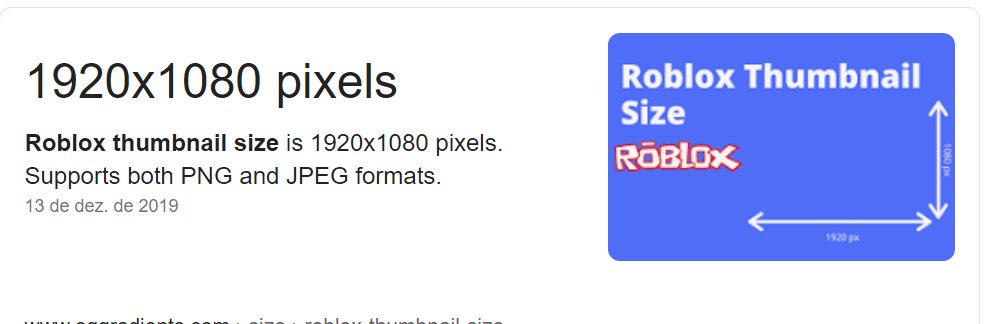
The recommended Roblox game thumbnail size is 1920×1080 pixels.
Creating a captivating Roblox game starts with a great first impression, and that’s your thumbnail. Ever wondered what is the roblox game thumbnail size? It’s a crucial factor for attracting players.
Getting the dimensions right ensures your game looks professional and appealing in the crowded Roblox marketplace. Using the proper size prevents stretching or distortion.
A well-sized thumbnail instantly communicates what your game offers. It significantly impacts click-through rates. Remember the proper dimensions when designing your next Roblox hit.

What is the Roblox Game Thumbnail Size?
Let’s dive deep into the world of Roblox game thumbnails! You know, those cool pictures you see when you’re browsing for a new game to play? They’re super important because they’re the first thing players notice. Just like the cover of your favorite book, a good thumbnail makes people want to check out your game. But what’s the perfect size for these eye-catching images? That’s what we’re going to explore today!
Why is the Right Thumbnail Size Important?
Think about it – when you’re looking at a bunch of games on Roblox, what catches your eye? Most of the time, it’s the thumbnail! A blurry or stretched-out thumbnail looks unprofessional and might make people think your game isn’t that great either. On the other hand, a crisp, clear, and well-designed thumbnail screams “quality” and can attract loads of players. The correct size makes sure your thumbnail looks awesome on all devices, from big computer screens to small phone screens. We wouldn’t want our amazing game to be overlooked just because of a poorly sized image!
Here are some key reasons why using the correct Roblox game thumbnail size matters:
- First Impressions: Thumbnails give players their first look at your game. A great thumbnail can make a player want to click!
- Professional Look: A correctly sized thumbnail shows you care about your game’s presentation, which can make it stand out.
- Readability: Correct sizing ensures all elements of your thumbnail, like text and characters, are easy to see.
- Optimized Display: Proper dimensions help the thumbnail look good on all devices, without stretching or blurriness.
- Increased Clicks: A compelling thumbnail can lead to more clicks and, therefore, more players for your game!
The Official Roblox Game Thumbnail Size
Roblox has a specific size they recommend for game thumbnails, and it’s super important to follow it! The official recommended size is:
1920 pixels wide by 1080 pixels tall.
This size is also known as a 16:9 aspect ratio, which is a common standard for screens. This ensures that the picture will fill the whole rectangle shape of the thumbnail display on most screens. It’s like making sure a puzzle piece fits perfectly in its spot.
So, when you’re creating your game’s thumbnail, make sure your image is exactly this size. If it’s smaller, Roblox will stretch it, which can make it blurry. If it’s bigger, Roblox will cut it off or zoom in and you might not see everything you want to show.
Why 1920×1080 is the Magic Number
The 1920×1080 pixel size is the gold standard for a lot of digital images because:
- It’s a widely used high-definition (HD) resolution.
- It’s optimized for most computer screens and televisions.
- It provides a good balance between image quality and file size, making it easy for people to load when browsing.
- It looks good on both desktop and mobile devices (although there may be some slight cropping on very narrow mobile displays), which ensures consistent quality for all players.
What Happens if My Thumbnail is the Wrong Size?
Using the wrong thumbnail size can cause a lot of problems that will take away the good look of your game page. Here’s a look at some common issues:
Stretching
If your image is smaller than 1920×1080, Roblox will stretch it to fit the thumbnail area. This can make your image look pixelated, blurry, and generally not very appealing. Imagine trying to stretch a small balloon over a bigger ball – it would look distorted, right?
Cropping
If your image is bigger than 1920×1080, Roblox might crop parts of it to fit the thumbnail area. This means you might lose important parts of your image, such as text, characters, or background details. It’s like trying to squeeze a big picture into a small frame – you wouldn’t see the whole thing.
Poor Image Quality
Whether it’s stretching or cropping, using the wrong size can lead to a drop in overall image quality. This can make your game look less professional and less appealing to potential players. Nobody likes a grainy, messy-looking picture.
How to Make Sure Your Thumbnail is the Right Size
Okay, so now we know that 1920×1080 is the magic size. But how do you actually make sure your thumbnail is this size? Let’s go through some steps:
Using Image Editing Software
The best way to create and size your thumbnail is by using image editing software. Some popular options are:
- Photoshop: This is a very powerful and widely used option (but can cost money).
- GIMP: A free and open-source alternative to Photoshop that has many powerful tools.
- Paint.NET: A free and easy-to-use program, great for beginners.
- Canva: A popular online tool that has free and paid options, great for making thumbnails even if you are not very experienced.
Most of these applications let you set the size of the image when you make a new document, or you can resize your image if you created it already. When you create a new image or resize one, remember to set it to 1920 pixels wide and 1080 pixels tall.
Tips for Sizing Your Thumbnail
- Start with the correct canvas size: When creating a new image, immediately set the canvas size to 1920×1080. This prevents sizing issues later.
- Resize without losing quality: When resizing, make sure to use proper resizing options. Some programs use complex algorithms that keep the quality of an image good even if you resize it. Don’t stretch it manually!
- Use guides: Most image editors have guides or rulers to help you size your image. Use them to make sure your image is sized correctly.
What to Include in Your Roblox Game Thumbnail
The size of your thumbnail is important, but what you put in your thumbnail is even more important! Here are some ideas to make your thumbnails pop:
Key Elements for an Engaging Thumbnail
- Clear Game Title: Make your game title visible. If the title is too long, consider shortening it or using a key phrase. Use a big, clear font that is easy to read at all sizes.
- Main Characters/Objects: Show off the best or most important characters or objects in your game. This gives players an idea of what to expect. Make them stand out!
- Action and Excitement: If your game has action, show it! Create a dynamic image with movement to make people click.
- Bright and Contrasting Colors: Use colors that go well together. Colors that stand out will grab people’s attention.
- Avoid Too Much Text: Don’t put too much text on the thumbnail. Keep it brief and to the point. A long text can be hard to read and takes the focus from the image.
- Branding Consistency: Use the same style and colors as your game and other images to create consistent branding.
Examples of Good Thumbnails
Look at some of the popular games on Roblox. What makes their thumbnails great? They often:
- Feature clear and engaging visuals.
- Use bright colors to draw attention.
- Use recognizable characters and objects from their game.
- Have text that is easy to read.
- Don’t look too busy.
File Format Matters Too
Besides the size, the file format of your thumbnail is important. Roblox prefers:
- JPG/JPEG: This is a common file type and good for most pictures.
- PNG: This is also great, especially if you want to have transparency in the image, but these might be bigger files.
Make sure that your images are saved in a high-quality setting. That way they will look great after you have uploaded them to Roblox. If you save the file with a lower quality setting, the image will be more pixelated.
Uploading Your Thumbnail to Roblox
Once your thumbnail is perfectly sized and looks amazing, it’s time to upload it to Roblox. Here’s how you do it:
- Go to the Roblox website and log in to your account.
- Go to the “Create” section and click “Experiences”.
- Find the game you want to change the thumbnail for.
- Click the gear icon next to the game name and select “Configure Experience”.
- Go to the “Basic Settings” tab.
- Under “Image,” click “Change” to upload your new thumbnail.
- Select your 1920×1080 sized thumbnail and click “Save”.
Roblox will then upload your new thumbnail and within a short time, everyone will be able to see your thumbnail on their screens. Make sure that when uploading you use the correct sized file format as explained above!
Testing Your Thumbnail
It’s important to make sure your thumbnail looks great before publishing it. Here are some tips:
- Preview on Different Devices: See how it looks on both a computer screen and a mobile device.
- Check on Roblox Directly: After uploading, go to your game’s page and see how your thumbnail looks there.
- Get Feedback: Ask friends or other Roblox creators for their opinion.
Testing helps you make sure that your thumbnail looks great and does what you want it to do: attract players!
Troubleshooting Thumbnail Issues
Sometimes, things can go wrong with your thumbnail. Here are some common issues and how to fix them:
My Thumbnail Looks Blurry
If your thumbnail is blurry, it’s usually because:
- The image is not 1920×1080 pixels.
- The image quality is too low.
- The image has been stretched.
Make sure you create or resize your image to the exact 1920×1080 pixel dimensions and save it in the correct format. Make sure you don’t stretch it manually! If you are still seeing blury issues try to improve the image quality by using higher resolution or creating the image in larger size.
My Thumbnail is Cropped
If parts of your thumbnail are cut off, it’s because:
- The image is larger than 1920×1080 pixels.
- Important parts of your image are too close to the edges.
Make sure your image dimensions are set to exactly 1920×1080 and keep any important text or graphics away from the edges to prevent them from being cut off.
My Thumbnail Won’t Upload
If Roblox won’t accept your thumbnail, make sure the:
- File format is JPG/JPEG or PNG.
- The image file size isn’t too big.
Try saving the image in another file format or trying a different software, or reducing its file size. If you’re using a PNG, it might be better to use JPG/JPEG to lower the file size, especially if it is a very detailed image.
Creating awesome thumbnails is an art, and it takes time and practice to make them look perfect. Don’t be afraid to try new designs, take inspiration from other creators, and keep improving your game’s first impression.
Having the correct Roblox game thumbnail size is like having the right ingredients for a great recipe. It’s essential for a great-looking game page that attracts more players. By making sure that your image is 1920×1080 pixels, you’re setting your game up for success. Remember, the thumbnail is often the first impression, so make it count! Now that you know how important the right size is, it’s time to start designing some amazing thumbnails and get more players to try your Roblox game!
WHAT IS THE ROBLOX THUMBNAIL SIZE IN PIXELS 2018 – Roblox Game Thumbnail Size
Final Thoughts
The ideal Roblox game thumbnail size is 1920×1080 pixels. This ensures your image appears sharp and clear across various devices. Using the correct dimensions helps attract players to your game.
A thumbnail with the right size prevents distortion. It also displays well on the game page and in search results. Therefore, the dimensions matter for visual appeal.
Therefore, what is the roblox game thumbnail size? It’s 1920×1080 pixels. Utilizing this ensures your game has the best possible visual presentation for players.

