
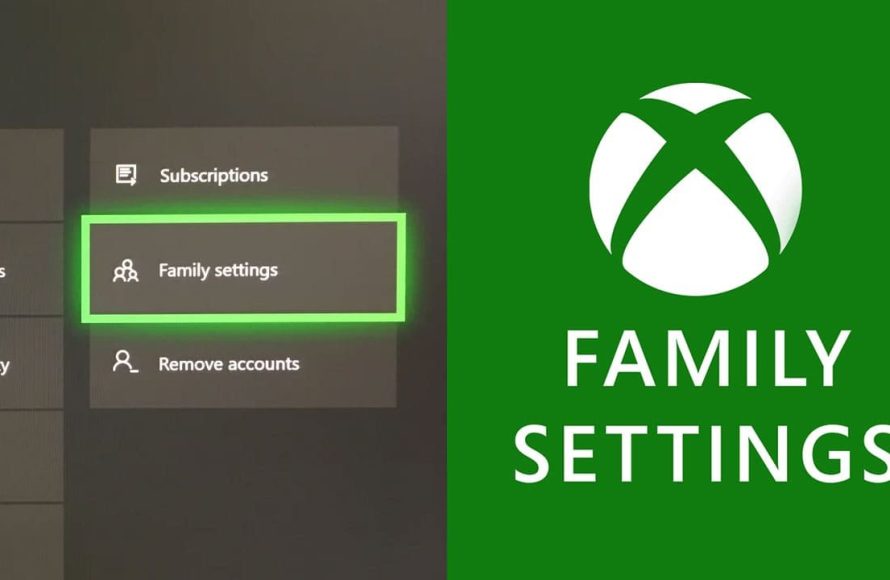
Xbox parental controls allow you to manage screen time, filter content, and control spending for your children on their Xbox consoles and associated devices.
Worried about what your kids are doing on their Xbox? It’s a common concern for many parents. The good news is you can easily set up and manage Xbox parental controls to create a safer gaming experience for your children. This ensures they engage with age-appropriate content.
You can limit how long they play each day and even monitor who they interact with online. Furthermore, you’ll be able to oversee their spending and prevent unwanted purchases. This helps you create a balanced and responsible approach to gaming.

Xbox Parental Controls: Keeping Gaming Fun and Safe
Having an Xbox in the house can bring lots of fun for everyone. But it’s also important to make sure that kids are playing games that are right for them and that they are staying safe online. That’s where Xbox parental controls come in. They give parents and guardians the power to manage what their kids can do on the console and online. Let’s dive into how these controls work and what you can do to make sure your family has a positive gaming experience.
Setting Up Family Groups
Before you can start using parental controls, you need to set up a family group. Think of it like creating a special team for your household. Each person in your family who uses the Xbox should have their own account. You, as the parent or guardian, will be the organizer of the group. This allows you to manage the settings for the child accounts. Here’s how it works:
- Creating Accounts: Each child needs a Microsoft account. You can do this during the setup process on the Xbox or through the Microsoft website.
- Adding Members: Once everyone has an account, you can add them to your family group through the Xbox settings or online.
- Parent/Guardian Role: You will have the role of the organizer. This allows you to control the different privacy and safety settings.
Why Family Groups Are Important
Family groups make it easier to manage multiple accounts. If you have more than one child using the Xbox, it’s easier to apply similar rules to everyone without having to individually adjust settings for each child.
Content Restrictions: Choosing What Kids Can Play
One of the most important parts of parental controls is choosing which games and apps your kids can access. You can filter content based on age ratings. This ensures that the games they are playing are appropriate.
Understanding Age Ratings
Game ratings are like movie ratings. They tell you what kind of content to expect in a game. Ratings systems are developed by different organizations in different regions and will indicate the age appropriateness of the content. For example, games may be rated E (Everyone) for very young children, T (Teen) for teenage audiences, or M (Mature) for mature audiences.
How to Set Content Restrictions
You can set content restrictions in the following ways:
- Rating Levels: You can set the highest rating level that a child can play. If you select “E” (Everyone), your child will only be able to play games rated “E”.
- Specific Game Exceptions: Sometimes you might want to allow a child to play a game that is rated slightly higher than your default setting. You can make exceptions for specific games, allowing more flexibility to your approach.
- App Restrictions: You can restrict which apps your kids can download and use. This can be useful to make sure that kids are only using apps that are appropriate for them.
Managing Game Purchases
You can also manage whether or not a child can buy games directly on the Xbox. If you disable buying ability, kids will need your permission to make a purchase. This can help prevent surprise purchases and unwanted spending. Here’s how you can manage purchases:
- Require Approval: You can require that you approve all purchases. This will send you an alert whenever they try to buy something.
- Disable Purchases: You can block all purchases. That way, kids can only get games they own already or games that you approve and buy for them.
This way you can keep track of your spending and ensure your kids are not running up an unwanted bill.
Online Safety: Controlling Communication
Keeping kids safe online is super important. The Xbox parental controls allow you to manage how your kids interact with others online. You can control who they can communicate with, what they can share, and more.
Communication Permissions
Here’s a look at the options you have to control who kids can interact with:
- Friends Only: Your kids can only chat and play with people on their friends list.
- Everyone: Your kids can communicate with anyone online. This option carries risk and is not recommended for very young children.
- Block All Communication: You can choose to completely block all voice and text chat. If you are worried about your child contacting strangers, this is a safe option.
Content Filters for Communication
Xbox parental controls also allow you to filter what kind of messages your kids can see. You can filter out things like inappropriate language or images. This will give your child a safer online experience. Here are some filters that you can use:
- Text Filters: Prevent kids from seeing or sending certain inappropriate words.
- Image Filters: Prevent kids from seeing inappropriate images shared by others.
Monitoring Activity
You can monitor your child’s online activities. This allows you to see who they’re playing with and what they’re doing. This gives you the information you need to make changes if you feel they are needed.
Screen Time Management: Setting Limits
It’s easy for kids to get lost in their games, but spending too much time playing can be bad for their health. That’s why Xbox parental controls include screen time limits. You can set daily or weekly limits to make sure that kids are getting enough time for other activities.
Daily Time Limits
With daily limits, you can decide how long a child can play each day. For example, you might give your child two hours of playtime per day. You can set a schedule so that the time is distributed evenly each day.
Steps to Set Daily Limits
- Choose Playtime Hours: You can set how many hours the child can play.
- Set Specific Times: You can specify when they are allowed to play.
Weekly Time Limits
You can also use weekly limits to manage how much time kids can play each week. This is useful if you want to allow more time on the weekend, for example. Here’s how it works:
- Set Total Weekly Hours: You can decide on the total number of hours they can play each week.
- Distribute as You Like: You can schedule the time for specific days of the week.
Time-Outs
If a child is nearing their time limit, you can set it so they get a warning. They’ll get a message that lets them know they’re about to reach their limit. Then when they do reach the end of their play time, they are signed out and cannot keep playing until the next play time allowance begins.
Privacy Settings: Controlling What Others Can See
Privacy is also important. The Xbox parental controls allow you to manage what other players can see about your child. This means controlling what others can see about the child’s profile, activity, and friends list.
Profile Visibility
You can choose who can see your child’s profile information, such as their real name, their profile picture, and their online status. Here are your options:
- Only Friends: Only people on their friends list can view their profile.
- Friends of Friends: People on your child’s friends list and the friends of those friends can view their profile.
- Everyone: Anyone on Xbox Live can view their profile.
Activity Visibility
You can also control who can see your child’s activity feed. This feed shows the games that your child has been playing, the achievements they have earned, and other activities. Here are your options:
- Only Friends: Only your child’s friends can view their activity feed.
- Everyone: Anyone can view their activity feed.
Friends List Visibility
You can decide if your child’s friends list is visible to others. Here are some options you have:
- Only Friends: Only people on their friends list can see their friend list.
- No one: No one can see your child’s friend list, even their own friends.
Managing Multiple Devices
If your kids play on more than one Xbox or a PC, the parental controls will work across all of their devices, meaning you don’t have to set up everything over and over again for each device. This makes managing the kids’ gaming life much easier.
Cloud Syncing
All of the settings you set are saved in the cloud. This means that the settings will apply to whatever device your child logs into. If you set a screen time limit on the Xbox, the same limit will apply to their PC. This makes parenting easier.
Accessing Settings
You can access parental control settings through the console, using the Xbox app, or the Microsoft Family website. This gives you multiple ways to manage and update your settings.
Dealing with Common Challenges
Sometimes, kids might try to get around the rules. This is normal, and here are some tips for dealing with these issues:
Kids Requesting Changes
It’s okay for your kids to ask for more time or to play a game they want to play. Discuss with them why you’ve set the rules you have. If they can make a good argument, you may decide to make a change. Just make sure you’re setting the boundaries. If you do make a change, be sure to explain why.
Understanding the Child’s Perspective
Try to understand your child’s perspective. Talk to them about the importance of safe gaming. Explain why you are setting the rules that you are. When kids understand why they might be more likely to respect the rules.
Stay Engaged
Stay involved with your child’s gaming. Play with them from time to time. You can use this to teach them about safety and internet etiquette. This is a great way to bond and keep them safe. It also shows you care about their interests.
Using Xbox parental controls can help make gaming a fun and safe experience for the whole family. It is important to take the time to set the controls up and make adjustments as needed. By doing this, you can ensure your kids have a positive and safe experience while enjoying their video games.
Xbox Series X/S How to Turn OFF Parental Controls
Final Thoughts
Xbox parental controls offer tools to manage your child’s gaming. You can set screen time limits and restrict content. These controls help create a safer environment for younger players.
Parents can easily manage spending and communication features. These settings give guardians more control over the Xbox experience. Setting up these features ensures age-appropriate fun for all.

