
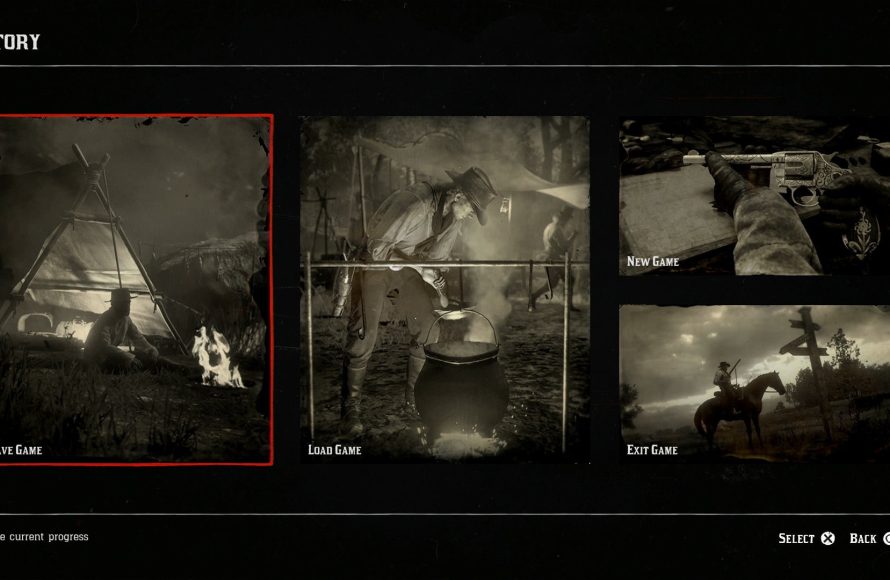
To save game in Red Dead Redemption 2, access the pause menu and select ‘Story’. From there, you’ll find the ‘Save Game’ option which will allow you to create a new save file or overwrite an existing one.
Exploring the vast and detailed world of Red Dead Redemption 2 is an amazing experience, but it also raises a crucial question: how to save game in Red Dead Redemption 2? You wouldn’t want to lose hours of progress, would you?
The game does have an autosave feature, but sometimes manual saving is necessary for security, especially before a significant mission or after making progress. Thankfully, it’s a straightforward process.

How to Save Game in Red Dead Redemption 2
Okay, cowpokes! So you’re out there in the wild west, living your best life as Arthur Morgan (or John Marston in the epilogue), but you’re probably wondering: “How do I save my awesome progress?” Don’t worry, it’s not as tricky as lassoing a wild mustang! Red Dead Redemption 2 has a couple of ways to keep your game safe, so you can pick right back up where you left off. Let’s get into the nitty-gritty of saving your game, so you don’t have to redo hours of hard work!
Understanding the Saving System
Red Dead Redemption 2 uses a mix of autosaves and manual saves. Think of autosaves like a helpful friend who’s always looking out for you. The game automatically saves your progress at certain points, like when you finish a mission or travel to a new area. Manual saves, on the other hand, are when you decide to save your progress, and they give you more control over when and where to return to the game. These manual saves also allow you to keep different points in the story or specific playthroughs separated, so you can enjoy multiple experiences at a time. You have 15 slots where you can save your game manually.
Auto Saves: Your Ever-Present Backup
The auto-save function in Red Dead Redemption 2 is a real lifesaver. Here are the scenarios when the game takes the initiative to preserve your progress.
- After Completing Missions: Every time you finish a main story mission or a side mission, the game will automatically save your progress. This makes sure you don’t lose that hard-earned progress.
- Reaching Important Locations: The game autosaves when you arrive at places like towns, camp, or other significant map locations. This makes sure that if something goes wrong, you don’t lose all of your hard travel time.
- During Story Events: Important story events frequently trigger auto-saves. This is another way the game makes sure that important plot moments are preserved.
- After Significant Actions: Sometimes, making a very big change, like buying an expensive item or winning a big fight, may also trigger an auto-save.
While auto-saves are very helpful, you shouldn’t rely on them completely. They overwrite each other over time, so if you want to return to a specific point in the game, manual saving is the way to go.
Manual Saving: Taking Control of Your Progress
Manual saving lets you pick exactly when and where to save the game. This can be very helpful if you want to make sure you can try different things or go back to a certain point. You have more control this way and it is simple to do.
How to Manually Save Your Game: A Step-by-Step Guide
Here’s exactly how to manually save your game in Red Dead Redemption 2:
- Open the Pause Menu: While playing the game, hit the pause button (usually the Options button on PlayStation or the Menu button on Xbox). This opens the main game menu.
- Navigate to “Story”: Within the pause menu, find and choose the “Story” option. You can navigate through the menu using your directional pad or analog stick.
- Select “Save Game”: In the “Story” menu, you’ll see a “Save Game” option. Select this to open the save game menu.
- Choose a Save Slot: You’ll see a list of empty save slots and save files if you’ve manually saved before. Choose an empty slot or overwrite an existing save. A save slot provides a secure place for your game’s progress.
- Confirm Your Save: After choosing a slot, you’ll likely be asked to confirm if you really want to save your game. Click yes to start the saving.
- Saving Complete: Once you see a confirmation message, you’ve successfully saved your game!
Remember to save often, especially before any difficult missions or choices that you may want to replay!
Tips for Effective Manual Saving
Manual saving can give you the most benefit from the saving system. Here are some tips to make sure you have your game secured the way you want it:
- Save Before Big Decisions: When you face a choice that could affect the story, create a manual save. This lets you try each path without losing progress, and then you can pick the one you prefer.
- Create Separate Save Files for Different Playthroughs: You can have multiple manual saves going at once, in each slot. You can pick the spot that you want to continue playing from.
- Save Before Risky Activities: Before you try something risky, like a big gunfight or a challenging robbery, save the game. If things go wrong, you can load your previous game.
- Use the Overwrite Feature Carefully: If you want to save in a slot that already has a save, the game will ask you if you want to write over that save. Make sure you’re okay with that before you continue.
- Label Your Save Files: Red Dead Redemption 2 gives you a thumbnail of where you are in the game, but it doesn’t let you rename saves. Make mental notes about where you’ve saved in the slots to be sure you load the correct one!
Save Game Location
You do not get to pick where your save files are stored in Red Dead Redemption 2 on consoles. These save files are stored on your consoles internal drive or cloud space. On PC, it is also automatic and the save files are stored on your computers system drive. You should not have to ever worry about manually storing or moving the save files. The saving system will handle that all for you.
Red Dead Redemption 2 Save File Locations for PC
Although it is not necessary for you to find the physical location of the save files, some players prefer to do this to back up their saves. The Red Dead Redemption 2 game save files are located at:
- For Rockstar Launcher Version: Documents\Rockstar Games\Red Dead Redemption 2\Profiles\[your profile id]\
- For Steam Version: Documents\Rockstar Games\Red Dead Redemption 2\Profiles\[your profile id]\
The “your profile id” portion is a randomized number and will be different for every player. Inside that folder will be the save files. These save files will be named “SRDR…”, followed by a number which will coincide with the save slot they are in.
Loading a Saved Game
Now that you know how to save, let’s talk about loading your saved game. You can pick up where you left off in no time with these steps.
How to Load Your Saved Game
Here is how to load a manual save file that you have saved earlier:
- Open the Pause Menu: Hit the pause button again to open the main menu.
- Navigate to “Story”: Select the “Story” tab like you did when saving.
- Select “Load Game”: Instead of “Save Game,” select “Load Game.”
- Pick Your Save File: You’ll see the list of your manual saves. Choose the save you want to load.
- Confirm the Load: The game might ask if you’re sure you want to load, as it will remove current progress. Confirm, and the game will load your save.
- Resume Play: Once loading is complete, you’ll be back in the game at the point where you had saved!
Saving During Missions
Sometimes you might wonder: “Can I save during a mission?” The answer isn’t a simple yes or no. Red Dead Redemption 2 typically does not allow you to manually save during an active mission. The developers did this to make sure you can’t pick and choose certain points to replay within the missions. However, there are auto-saves that occur at different points during a mission. When you fail a mission or restart after the current checkpoint, that is the point the game will reload to.
What Happens When You Die During a Mission
If you die during a mission, the game will put you back at the last checkpoint. That does not mean that you will lose progress, instead it lets you quickly get back into the action of the mission.
Can You Quit During a Mission?
Yes, you can quit during a mission. If you quit before the mission autosaves, you will have to replay the entire mission again. That is why it’s important to understand how the mission saves work. Once the mission has finished, or a checkpoint within the mission has been reached, you are free to quit. The next time you load up the game, you will pick right back up at the last story save that has occurred.
Potential Saving Issues and Troubleshooting
Sometimes, things might not go as smoothly as planned. Here are some common issues you might run into with saving and how to solve them.
Common Saving Problems and How to Fix Them
- Game Crashes During Save: If the game crashes while saving, it might mean there is an issue with the software, or your console or computer may not have the space to create a save. Make sure that your device is up to date, and that you have enough space on your drive to properly save your game.
- Save Files Are Corrupted: If you get an error message saying that your save file is corrupted, you may need to delete that save and load a different one. If a save gets corrupted, it’s usually because of a problem in the game.
- Can’t Save Manually: If you can’t save manually, there may be a glitch or error. You should exit out of the game and try restarting. Make sure that your hardware is in good working condition.
Cloud Saves
Most platforms offer cloud saving. This can make sure you do not lose your data, even if there’s an issue with your console or PC. Always make sure that your game is connected to the online service so that it saves your data safely.
Best Practices for Saving
To make sure that your save game experience goes smoothly, you can use these tips for the best practices on saving your game in Red Dead Redemption 2.
- Save Frequently: Don’t rely just on autosaves. Get into the habit of manual saving regularly, especially before trying anything new.
- Use Multiple Save Slots: Make the most of those 15 save slots by creating multiple manual saves. This gives you more options if something goes wrong.
- Pay Attention to Autosaves: Be aware of when the game autosaves. This will give you the knowledge of when your game has last been saved, in case you need to reload it.
- Don’t Save During Risky Situations: While you can’t manually save during a mission, it is usually not advisable to save when in the middle of a fight or similar situation. Wait for a calmer moment.
By following these tips, you can avoid any unexpected setbacks and keep your game on track!
And there you have it, partners! Everything you need to know about saving your game in Red Dead Redemption 2. Saving is very important, so make sure that you remember to save often. Whether you are using autosaves or saving manually, always make sure your progress is secure! Happy gaming!
Red Dead Redemption 2: How to Save Your Game
Final Thoughts
To save progress in Red Dead Redemption 2, utilize the game’s automatic save system frequently. The game saves often after missions and key events. However, manual saving provides crucial backup.
To manually save, access the pause menu. Choose “Story” then “Save Game.” You can then pick a save slot. This method is vital for ensuring you don’t lose progress. This way, you learn how to save game in red dead redemption 2 effectively.

